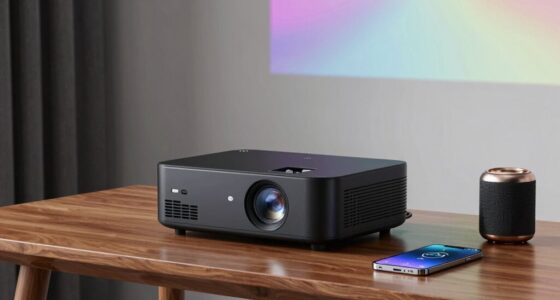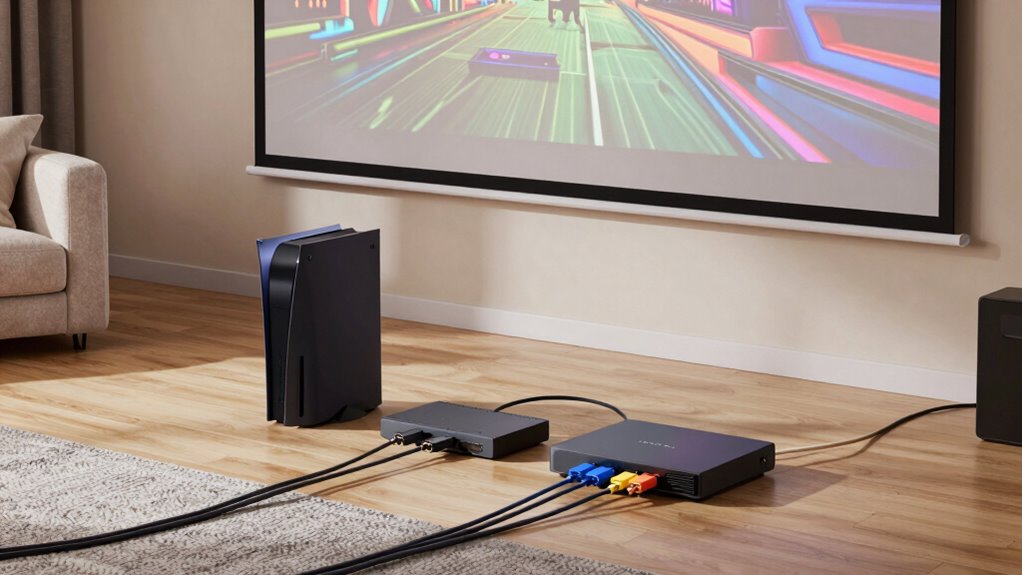
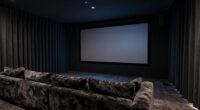
To connect multiple gaming consoles, streamers, and disc players to one projector, start by checking if your projector supports wireless or HDMI connections. Use an HDMI switch or wireless HDMI hub to easily switch between devices without unplugging cables. For a tidy setup, consider wireless adapters for streaming content and guarantee your Wi-Fi network handles multiple streams smoothly. If you keep exploring, you’ll discover how to optimize your setup for seamless entertainment.
Key Takeaways
- Use HDMI switches or wireless HDMI hubs to connect multiple devices to a single projector effortlessly.
- Enable wireless streaming via Wi-Fi, Miracast, Chromecast, or AirPlay for a cable-free setup.
- Ensure your projector supports wireless connectivity or add wireless adapters for seamless streaming.
- Integrate external audio systems and adjust audio delay to synchronize sound with video.
- Optimize your network with a strong, dual-band router to handle multiple devices and prevent lag.
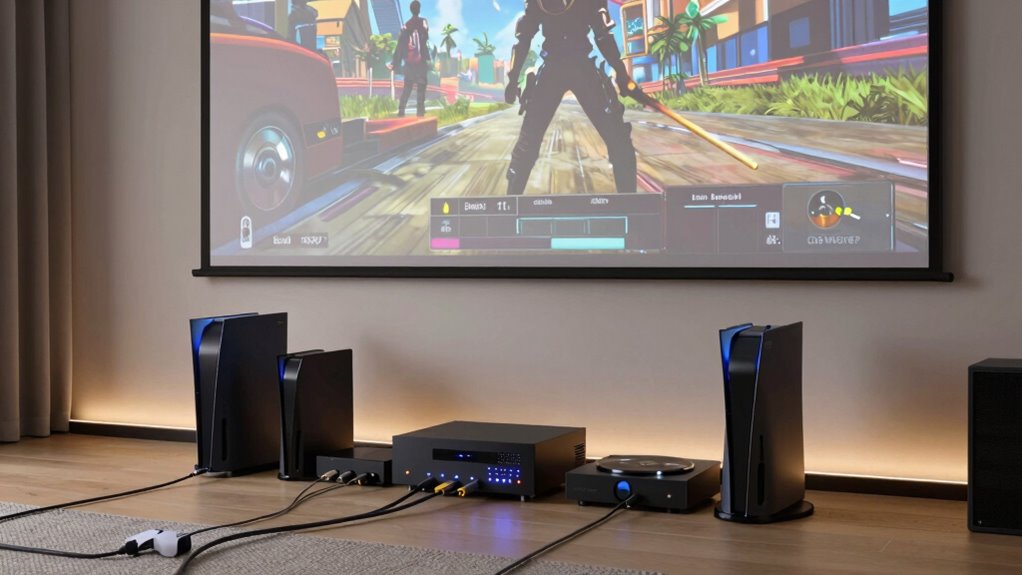
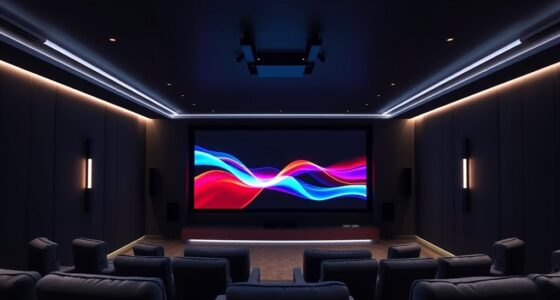
Connecting your gaming consoles, streamers, and disc players to a projector can substantially enhance your entertainment experience, transforming your space into a home theater. The key to a smooth setup lies in understanding your projector’s connectivity options and how to utilize wireless technology effectively. Modern projectors often support wireless connectivity, allowing you to eliminate messy cables and create a cleaner, more flexible setup. With wireless connections, you can stream content directly from your devices or mirror your screens without the hassle of running long HDMI cables across the room. This is especially handy if your devices are far from the projector or if you want to keep your setup uncluttered.
To start, check if your projector supports Wi-Fi or has built-in wireless streaming features. Many projectors now come with Miracast, Chromecast, or AirPlay compatibility, enabling you to connect your gaming consoles, streamers, or disc players wirelessly. For devices without native wireless support, you can add a wireless HDMI transmitter. These small adapters connect to your device’s HDMI port and send the signal wirelessly to the projector’s receiver, offering high-definition streaming with minimal delay.
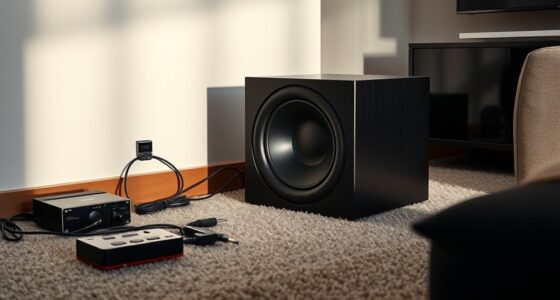
Audio synchronization is another critical element to guarantee your entertainment remains immersive. When streaming wirelessly, audio can sometimes lag behind the video, disrupting your gaming or viewing experience. To prevent this, choose projectors with support for audio return channels or integrate external audio systems that sync with your video source. Many projectors and wireless transmitters now include adjustable audio delay settings, allowing you to fine-tune synchronization so that sound matches the visual perfectly. Alternatively, using a Bluetooth or wireless speaker system with low latency helps maintain tight audio-video sync, especially during fast-paced gaming sessions.
Connecting multiple devices to a single projector requires a bit of planning. Use an HDMI switch or a wireless HDMI hub to switch seamlessly between your gaming console, streamer, and disc player. These devices let you toggle inputs easily, ensuring you can switch from gaming to streaming or watching discs without unplugging cables. When setting up, ensure your Wi-Fi network is robust enough to handle multiple streams simultaneously. A dual-band router with a strong signal will prevent lag or buffering issues that could ruin your experience. Additionally, investing in wireless display technology can provide a more reliable and flexible connection, especially in larger spaces.

UGREEN HDMI Switch 5 in 1 Out 4K@60Hz, HDMI Splitter with Remote 5 Port Switcher Selector Box Support 3D CEC HDR HDCP2.2 Compatible with PS5/4/3 Xbox Nintendo Switch Roku TV Fire Stick Black
- Multi-Device Connectivity: Connect 5 gaming devices to one TV
- 4K@60Hz Resolution: Supports high-definition 4K at 60Hz
- Backward Compatible: Supports lower resolutions and HDR formats
As an affiliate, we earn on qualifying purchases.
As an affiliate, we earn on qualifying purchases.
Frequently Asked Questions
Can I Connect Multiple Devices Simultaneously to the Projector?
Yes, you can connect multiple devices simultaneously to your projector. Use device synchronization features, like HDMI switchers or multi-input ports, to manage several sources easily. Keep in mind power management, ensuring your projector supports multiple connections without overheating or lagging. This setup allows you to switch between gaming consoles, streamers, and disc players smoothly, providing a seamless entertainment experience without constantly unplugging and reconnecting devices.
What Is the Best Type of Cable for High-Definition Audio and Video?
For high-definition audio and video, HDMI cables are your best bet because they support 4K, HDR, and surround sound. However, if you want a wireless transmission option, consider wireless HDMI transmitters or alternatives like Miracast or Chromecast. These let you connect your devices without cables, maintaining high quality. Choose based on your setup’s distance and compatibility, ensuring seamless streaming and gaming experiences.
How Do I Switch Between Different Connected Devices Easily?
Did you know that most projectors support multiple device inputs, making switching easier? To switch between devices, use the projector’s remote or onboard menu, selecting the appropriate input source. Make certain device compatibility and keep connection troubleshooting in mind if you face issues. Label each device’s cable or port, so you can quickly identify and switch sources without hassle, saving you time during gameplay or streaming sessions.
Are There Any Compatibility Issues With Specific Gaming Consoles or Players?
Compatibility concerns can arise with certain gaming consoles or players, especially if their device firmware isn’t up-to-date. Before connecting, check your projector’s specifications and confirm your devices are compatible. Firmware updates often resolve compatibility issues, so keep your consoles and players current. If you encounter problems, consult the manufacturer’s support resources to confirm compatibility and get troubleshooting tips, guaranteeing seamless connection and peak performance.
What Should I Do if the Projector Doesn’T Recognize a Connected Device?
If your projector doesn’t recognize a connected device, start troubleshooting the connection by checking all cables and ensuring they’re securely plugged in. Restart both the device and the projector to refresh device recognition. Verify the input source on your projector matches the connected device’s port. If issues persist, try connecting the device to another port or testing with a different cable. This process helps resolve common troubleshooting connection issues effectively.

Wireless HDMI Transmitter and Receiver 328ft/100m Extender 1080P Output 4K Decode Input Plug&Play Portable 2.4G/5.8G for Video and Audio to Monitor from PC/Projector/TV Box
- Easy Plug-and-Play Setup: No cables, WiFi, or Bluetooth needed
- Low Latency Transmission: Less than 0.01 seconds delay
- Supports 4K and 1080P: Clear, stable HD video output
As an affiliate, we earn on qualifying purchases.
As an affiliate, we earn on qualifying purchases.
Conclusion
Now that you’ve mastered the art of connecting all your devices to a single projector, you’re basically a tech wizard. Ironically, after all that fuss, you might just end up binge-watching your favorite shows in bed instead of the epic gaming sessions you envisioned. But hey, at least your setup’s ready for anything—whether it’s a movie marathon or a console showdown. Who knew connecting gadgets could turn you into the ultimate entertainment guru?

2027 Upgraded Wireless HDMI Display Dongle Adapter, Receiver Streaming Media Video/Audio/File HDMI Wireless Extender from Smartphone,Laptop to HDTV/Projector/Monitor, Support Airplay DLNA (Grey)
- High-Definition Wireless Streaming: Supports 4K and 1080P/60Hz output
- Easy Plug & Play Setup: No apps, Bluetooth, or WiFi needed
- One-Click Screen Mirroring: Switch between landscape and portrait modes
As an affiliate, we earn on qualifying purchases.
As an affiliate, we earn on qualifying purchases.

Audio Express AXHDCAP 4K HDMI Video Capture Card, Cam Link Card Game Audio Adapter HDMI to USB 2.0 Record Capture Device for Streaming, Live Broadcasting, Video Conference, Teaching, Gaming
- 4K HDMI Input, 1080P USB Output: Supports 4K 60FPS HDMI input and 1080P output
- Crystal Clear Video and Sound: Provides high-quality video with stereo sound
- Low Latency Real-Time Preview: Ensures lag-free, instant video transmission
As an affiliate, we earn on qualifying purchases.
As an affiliate, we earn on qualifying purchases.