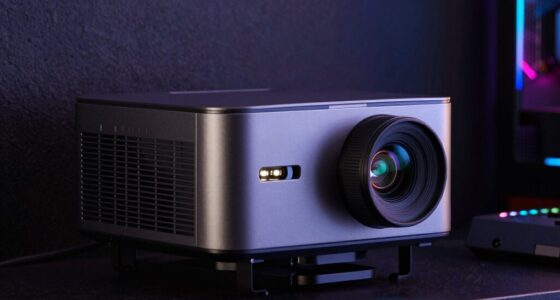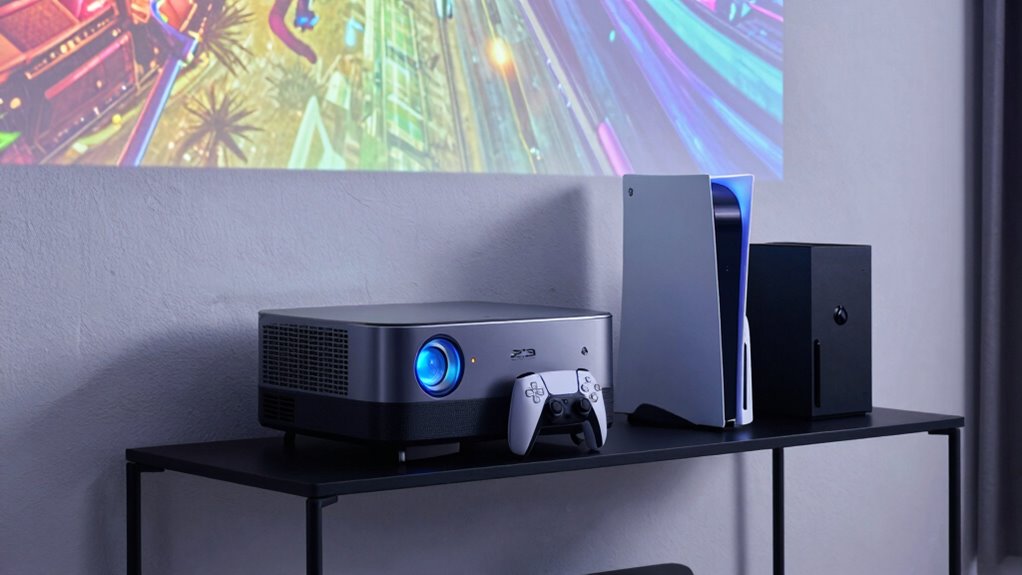
To get the best projector gaming experience, you should optimize your PS5 and Xbox settings carefully. Make sure your resolution matches your projector’s native capability, and enable HDR for richer visuals. Adjust contrast, brightness, and sharpness to prevent blurriness or distortion. Don’t forget to calibrate audio sync for seamless sound. Updating firmware regularly and fine-tuning aspect ratios can also improve clarity. Keep going to discover more tips that will elevate your gaming setup even further.
Key Takeaways
- Ensure resolution matches the projector’s native resolution to prevent lag and improve clarity.
- Enable HDR for richer colors and better contrast in supported scenes.
- Calibrate contrast, brightness, and sharpness for optimal image quality and immersion.
- Adjust aspect ratio settings to avoid image distortion or black bars.
- Regular firmware updates and audio sync adjustments maintain seamless visual and audio performance.
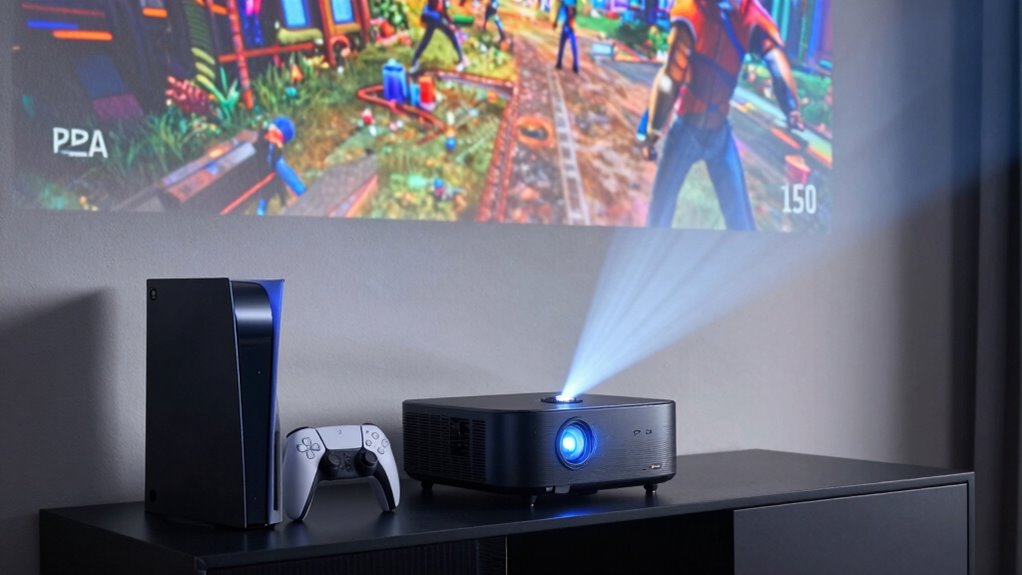
When it comes to gaming on a projector, the right settings on your PS5 or Xbox can profoundly enhance or ruin your experience. One of the first things to focus on is display calibration. If your projector’s image isn’t properly calibrated, you might notice blurry visuals, incorrect color balance, or stretched images that distract from gameplay. To avoid this, take the time to fine-tune your display settings. Adjust the contrast, brightness, and sharpness to match your environment, making sure that the picture is clear and vibrant without being overly harsh or washed out. Many projectors also offer aspect ratio settings—set these correctly to prevent black bars or distorted images. Proper display calibration ensures you see the game as intended, providing sharper visuals and better immersion. Additionally, understanding the importance of display calibration can help you achieve the best possible picture quality tailored to your projector’s capabilities.
Calibrate your projector’s display for sharper visuals, accurate colors, and immersive gameplay.
Another crucial aspect is audio synchronization. No matter how stunning your visuals are, poor audio sync can ruin the experience, making sounds feel disconnected from the action. On your PS5 or Xbox, check the audio output settings and ensure they match the capabilities of your projector and sound system. Some projectors or connected soundbars introduce delays, so you might need to enable specific audio delay or lip-sync options. The goal is to align game sounds precisely with on-screen actions, so gunfire, footsteps, and dialogues feel natural and immersive. Testing and adjusting these settings can be tedious, but it’s worth it for seamless audio-visual harmony.
In addition, pay attention to your console’s video output options. Set the resolution to match your projector’s native resolution for the best clarity—most modern projectors support 1080p or 4K, but selecting a resolution higher than what your projector can handle can lead to scaling issues or lag. Also, enable any game-specific HDR settings if your projector supports HDR; this will give you richer colors and deeper contrast, especially during scenes with bright highlights or dark shadows. Keep in mind that some projectors may not handle certain settings well, so testing different configurations helps you find the optimal balance.
Finally, don’t forget to routinely update your firmware and optimize your setup. Firmware updates often fix bugs related to display and audio performance, ensuring you get the most out of your gaming experience. Regularly revisit your display calibration and audio sync settings, especially if you notice any lag or visual anomalies. With the right combination of these settings, your projector gaming sessions will become more immersive, sharp, and enjoyable—turning casual play into a cinematic experience.
ADAS Calibration Dynamic ACC Positioning Tool for Eyeball Unit, Angso-auto Angle Leveling Tool Accessory for Auto
The ANGSO-AUTO leveling tool is designed to be powered by 2* AAA 1.5 V batteries (Please note that…
As an affiliate, we earn on qualifying purchases.
As an affiliate, we earn on qualifying purchases.
Frequently Asked Questions
Can I Adjust Color Settings Specifically for Projectors on PS5 and Xbox?
Yes, you can adjust color settings specifically for projectors on your PS5 and Xbox. You should focus on color calibration to guarantee accurate colors and use brightness control to optimize image visibility without washing out details. Both consoles offer display options, allowing you to tweak these settings for the best visual experience on your projector. Customizing these settings helps you enjoy vibrant, clear gameplay tailored to your projector’s specifications.
Do Different Projector Models Require Unique Console Settings Adjustments?
Yes, different projector models often need unique console settings adjustments. You should focus on screen calibration to guarantee colors and resolution match your projector’s capabilities, and optimize latency settings for smoother gameplay. Adjusting these settings based on your projector’s specifications helps reduce input lag and improves image quality. Experiment with calibration and latency options on your console to find the perfect setup, ensuring an immersive and responsive gaming experience.
How Does Ambient Light Affect Game Performance With Console Projector Setups?
Ambient light can considerably affect your game performance when using a console projector setup. Too much ambient light causes screen glare, making it harder to see details and enjoy vivid visuals. To improve your experience, play in a darker room or use blackout curtains. Reducing ambient light minimizes glare, enhances contrast, and guarantees you get the most immersive gaming experience without straining your eyes.
Are There Recommended Audio Settings for Optimal Gaming With Projectors?
Coincidentally, perfect audio enhances your gaming experience, so prioritize sound calibration and speaker placement. You want clear, immersive sound, so adjust settings for balanced volume and bass. Position speakers at ear level, equidistant from you, to create a surround effect. Fine-tune audio outputs in your console’s settings, ensuring dialogue, effects, and music blend seamlessly. This setup guarantees you catch every detail, making your projector gaming sessions truly immersive.
Can I Customize Aspect Ratio Settings for Different Projector Resolutions?
Yes, you can customize aspect ratio settings for different projector resolutions. This allows you to optimize your display and guarantee resolution compatibility, especially when switching between various projectors. By adjusting aspect ratio customization options, you prevent image distortion or black bars, giving you a seamless gaming experience. Always verify your projector’s native resolution and tweak the settings accordingly to get the best visual quality for each gaming session.
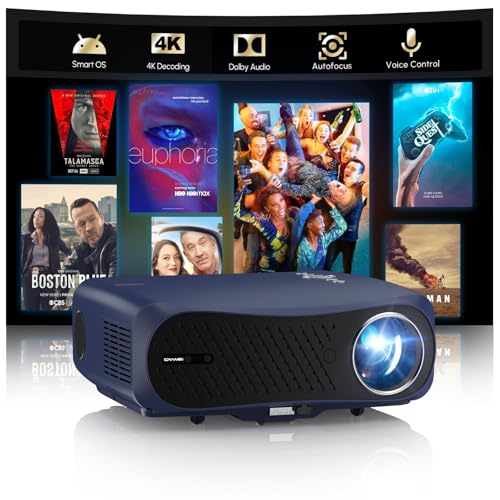
4K HDR Gaming Projector with Google TV, 2200 ANSI LED Proyector Daylight, 60Hz Low Latency Console Ready, HDMI ARC & DB Audio, WiFi6 Bluetooth, Auto Focus/Keystone, Ceiling Mount for Esports Streaming
【2200 ANSI Lumens – Daylight Gaming Without Compromise】Designed for competitive gaming in real-world lighting, not just dark rooms….
As an affiliate, we earn on qualifying purchases.
As an affiliate, we earn on qualifying purchases.
Conclusion
By fine-tuning your PS5 or Xbox settings for projector gaming, you can unleash a truly immersive experience. Imagine a gamer who struggled with lag and poor visuals until they adjusted their display and audio settings—suddenly, games became vibrant and fluid. Don’t overlook these tweaks; they can turn your setup from average to extraordinary. Remember, small adjustments can make a big difference in how you enjoy your favorite titles on a big screen.

UGREEN USB-C Bluetooth Adapter for PS5, Bluetooth 5.3 Audio Adapter with APTX Low Latency & aptX-Adaptive, Wireless Audio Transmitter to Connect Wireless Headphones & Earbuds
User-Friendly: Connect your wireless headphones to your PS5 or other gaming consoles with the UGREEN adapter and enjoy…
As an affiliate, we earn on qualifying purchases.
As an affiliate, we earn on qualifying purchases.

Calibrite Display 123 Monitor Calibration Colorimeter for Photo Editing and Color Accurate Viewing, Easy 1 2 3 Software Workflow, USB C Connection, and Before and After Check, Supports 2 Displays
SPECIFICATIONS: Monitor calibration colorimeter with Easy 1 2 3 software workflow, USB C connection, compact body approx. 34mm…
As an affiliate, we earn on qualifying purchases.
As an affiliate, we earn on qualifying purchases.