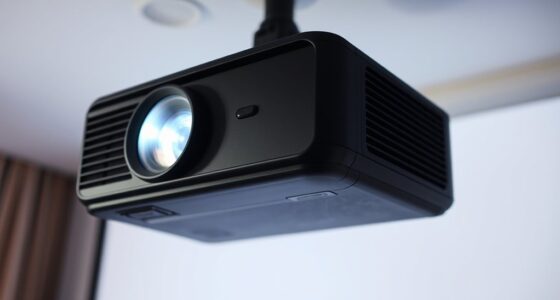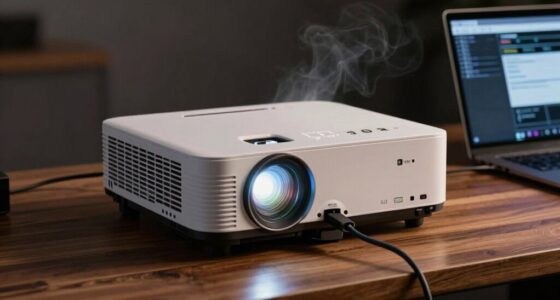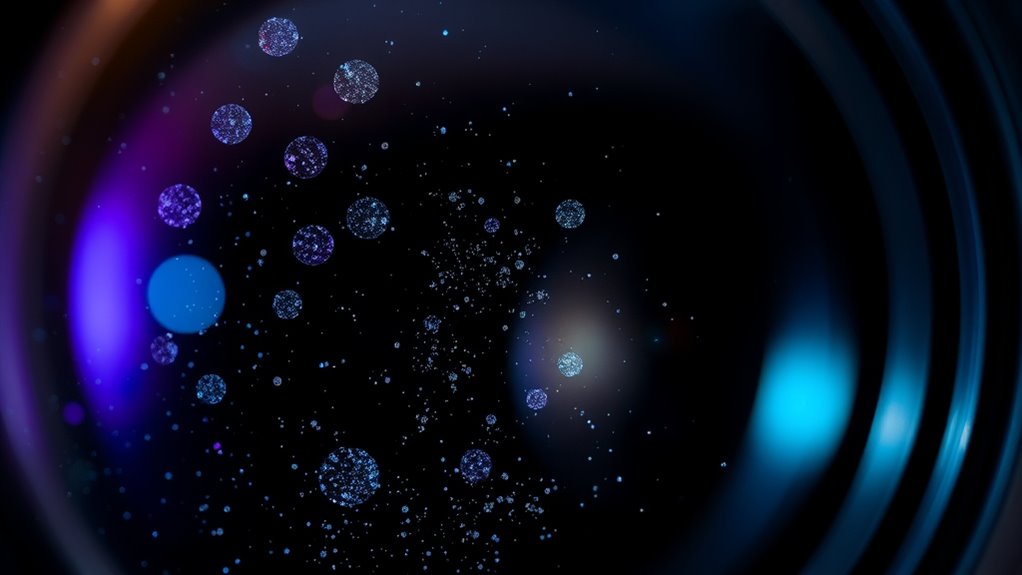

To clean the optics safely and remove irregular color blobs caused by dust, start by turning off and unplugging your projector. Allow it to cool before cleaning. Use a soft, lint-free microfiber cloth lightly dampened with a gentle lens cleaning solution. Gently wipe the lens in a circular motion without applying too much pressure. Avoid harsh chemicals or touching the lens with fingers. Follow these steps carefully, and you’ll discover more tips to keep your projector in top condition.

Get business pricing on your home office setup
- Business-only prices and quantity discounts
- Tax-exempt purchasing
- Multiple users, one account, clear invoices
Key Takeaways
- Turn off, unplug, and allow the projector to cool before cleaning to prevent damage.
- Use a soft, lint-free microfiber cloth and lightly dampen it with a lens cleaning solution.
- Gently wipe the lens in a circular motion, avoiding harsh chemicals or abrasive materials.
- Check and clean air filters regularly to prevent dust from settling on internal components.
- Keep the projector in a dust-free environment and use covers when not in use to minimize dust accumulation.
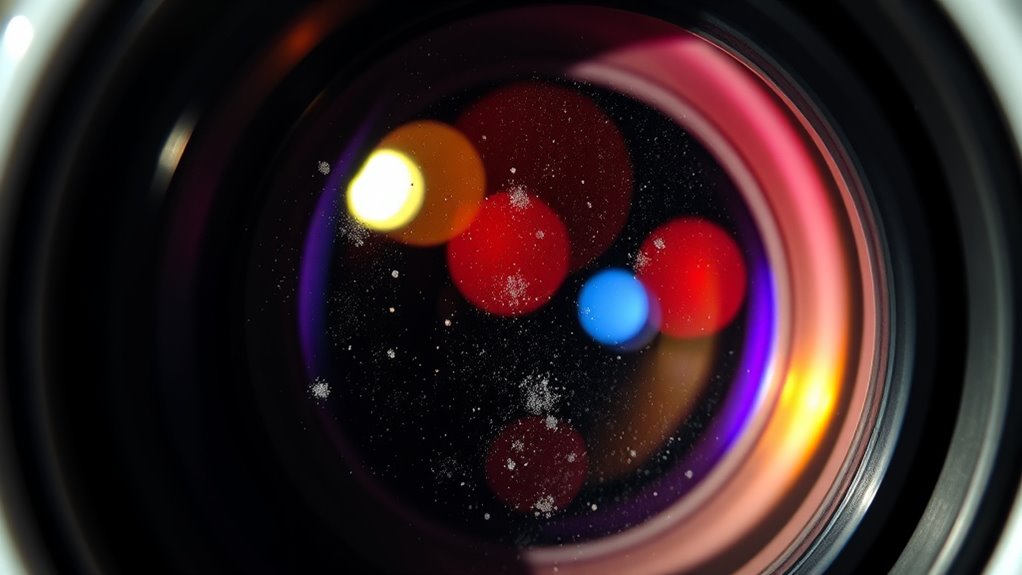
If you’ve noticed irregular color blobs appearing on your LCD projector’s screen, dust inside the device is likely the culprit. These blobs can distort your image, making it difficult to enjoy clear visuals. The first step to resolving this issue is to understand the importance of lens cleaning and dust prevention. Dust accumulates inside the projector over time, settling on the lens and other internal components. When dust particles settle on the lens, they interfere with the light path, creating those unwanted color blobs and reducing image quality. Regularly cleaning the lens and maintaining a dust-free environment can prevent this problem from recurring. Additionally, using high-quality cleaning tools and techniques can further protect your device’s delicate components.
Dust inside your LCD projector causes color blobs and image distortion. Regular lens cleaning prevents this issue.
To clean the lens safely, turn off your projector and unplug it from the power source. Allow it to cool if it has been in use recently, as internal components can be hot and delicate. Use a soft, lint-free microfiber cloth to gently wipe the lens surface. For stubborn spots, lightly dampen the cloth with a lens cleaning solution specifically designed for optical devices. Avoid using harsh chemicals or abrasive materials, as they can scratch or damage the lens coating. When cleaning, make sure to apply gentle pressure and avoid touching the lens with your fingers, since oils and dirt from your skin can cause smudges.
Dust prevention is equally important to keep your projector functioning at its best. Keep your device in a clean, dust-free environment whenever possible. Use a cover or dust cover when the projector isn’t in use to minimize dirt accumulation. Regularly check and clean the air filters, since clogged filters can cause dust to circulate inside the device. Proper ventilation also helps prevent internal dust buildup, so avoid placing your projector in confined or overly dusty spaces. If you notice dust collecting around the vents, gently vacuum or blow it away with compressed air, being careful not to disturb internal components. Maintaining a dust-free environment and understanding the importance of dust prevention strategies can significantly extend the lifespan of your projector and improve image clarity.
Implementing these dust prevention strategies and performing routine lens cleaning can greatly extend the lifespan of your projector and maintain its image quality. Remember, the key is to be gentle and cautious during cleaning to avoid damaging sensitive parts. Consistent maintenance not only keeps your projector free of dust but also ensures you get the best possible image clarity without those distracting color blobs. By staying vigilant about dust prevention and regularly cleaning the lens with proper techniques, you can enjoy sharp, vibrant images every time you use your LCD projector.
As an affiliate, we earn on qualifying purchases.
Frequently Asked Questions
Can LCD Dust Damage My Projector Permanently?
Dust buildup on your projector’s optics can cause optical damage over time, but it typically won’t lead to permanent damage if addressed promptly. Regularly cleaning the dust from the lens and internal components prevents issues like image distortion or color blobs. If you ignore dust, it may cause long-term damage, so it’s best to clean your projector carefully and routinely to keep it functioning efficiently and avoid costly repairs.
How Often Should I Clean My Projector’s Optics?
You should clean your projector’s optics every 3 to 6 months, depending on usage and environment. Regular cleaning with a microfiber cloth helps prevent dust buildup that causes irregular color blobs. Keep an eye out for dust or smudges, and increase cleaning frequency if your projector operates in a dusty area or shows signs of reduced image quality. This routine keeps your projector performing at its best and extends its lifespan.
Are There Specific Cleaning Solutions Recommended?
You shouldn’t just grab any cleaning solutions for optical cleaning—use gentle, manufacturer-recommended solutions designed specifically for lens and projector optics. These are usually alcohol-based or specialized optical cleaners that won’t damage delicate surfaces. Avoid harsh chemicals, as they can cause scratches or clouding. Carefully apply the solution with a soft, lint-free cloth, and never spray directly onto the lens. Proper optical cleaning preserves clarity and prolongs your projector’s lifespan.
What Tools Are Safest for Cleaning Delicate Optics?
You should use gentle brushes and microfiber cloths to clean delicate optics safely. The gentle brush helps remove dust particles without scratching, while the microfiber cloth wipes away smudges and residue without damaging the surface. Avoid harsh chemicals or abrasive tools, as they can harm the lens. Always handle the optics carefully, and work in a dust-free environment to prevent further contamination during cleaning.
Should I Hire a Professional for Cleaning?
Sure, go ahead and plunge into DIY approaches, but if you’re aiming for crystal-clear images and avoiding accidental scratches, hiring professional services is your best bet. Think of it like trying to fix your own heart surgery—possible, but not recommended. Professionals have the proper tools and experience to clean your LCD projector optics safely, ensuring you avoid costly damage and keep your display pristine.
microfiber lens cleaning cloth for projectors
As an affiliate, we earn on qualifying purchases.
As an affiliate, we earn on qualifying purchases.
Conclusion
So, next time those pesky color blobs appear, remember it’s just dust throwing a quirky tantrum on your projector’s lens. Instead of panicking or risking damage, take a deep breath and clean it gently. Ironically, something as simple as dust can turn your perfect picture into a colorful mess. But with a little patience, you’ll have it looking sharp again—proof that sometimes, the simplest fix really is the best one.
projector dust filter replacement
As an affiliate, we earn on qualifying purchases.
As an affiliate, we earn on qualifying purchases.
As an affiliate, we earn on qualifying purchases.
Fall Picks
fall essentials
As an affiliate, we earn on qualifying purchases.