
To fix a slow-feeling game on your projector, start by calibrating your controller to guarantee accurate input. Check that your projector’s refresh rate matches your game’s needs—higher rates mean smoother response. Use high-quality HDMI or DisplayPort cables and enable any gaming modes on your projector to reduce internal processing delays. Adjust display settings to disable image enhancements that can add lag. For more tips to improve responsiveness, uncover key setup tricks that make a real difference.
Key Takeaways
- Calibrate your controller regularly to ensure accurate and responsive input signals.
- Enable gaming or low-latency modes on your projector to reduce internal processing delays.
- Use high-quality, high-speed HDMI or DisplayPort cables for faster signal transmission.
- Disable image enhancement and motion smoothing features to minimize added display delay.
- Keep your gaming device’s firmware and graphics drivers up to date for optimal performance.

If you notice a delay between your controller input and on-screen action, it’s likely due to input lag. This lag can be frustrating, especially when you’re trying to react quickly or enjoy a smooth gaming experience. One of the first things to check is your controller calibration. Over time, controllers can drift or become misaligned, which causes inconsistent input signals. Many controllers have calibration settings or tools that help you guarantee your inputs are registered accurately. Proper calibration means your commands translate precisely to your on-screen actions, reducing the perceived lag.
Controller calibration ensures accurate inputs, reducing lag and improving your gaming responsiveness.
Another key factor is display refresh rates, especially when using a projector. Projectors often run at lower refresh rates than gaming monitors, making the image update less frequently. This results in a less responsive feel because the image on screen isn’t changing as quickly as your inputs are sent. To improve this, you want to confirm that your projector’s refresh rate matches the game’s requirements or is set to the highest supported rate. Higher refresh rates can provide smoother visuals and lessen the delay between your controller input and what you see on the screen.
Additionally, it’s essential to consider the connection and cable quality. Using outdated or low-quality HDMI or DisplayPort cables can introduce latency. Upgrading to high-speed, certified cables can help guarantee your signal is transmitted efficiently, minimizing any additional delay. Check your projector’s input settings too, because some projectors have modes optimized for gaming, which reduce processing time and display latency.
Furthermore, the display’s internal processing can contribute to input lag. Many projectors perform image enhancement or motion smoothing, which, while improving picture quality, can add noticeable delay. Look into your projector’s settings and disable any post-processing features when gaming. This simple adjustment often results in a more responsive experience. To further minimize input lag, consider using a dedicated gaming mode if your projector offers one, as these modes are designed to optimize responsiveness by reducing internal processing.
Finally, it’s worth considering the overall system setup. Keep your gaming console or PC close to your projector to reduce signal interference and latency. If possible, connect your device directly to the projector instead of through a receiver or switch, which can introduce additional lag. Regularly updating your device firmware and graphics drivers can also optimize performance, as manufacturers often release patches to improve input responsiveness. Performance tuning software can also be utilized to optimize your system’s overall responsiveness and reduce lag.
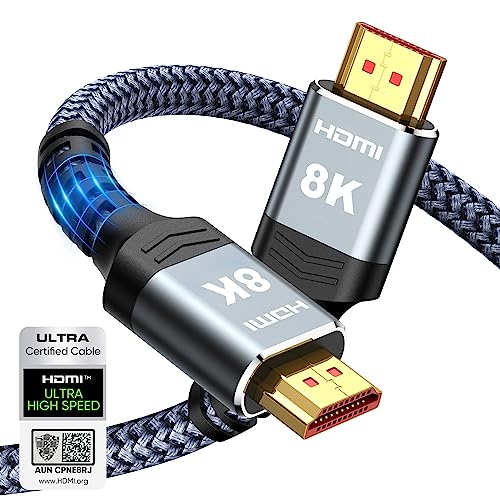
Highwings 8K 10K 4K HDMI Cable 48Gbps 6.6FT/2M, Certified Ultra High Speed 2.1 HDMI Cable Braided Cord-4K@120Hz 8K@60Hz, DTS:X, HDCP 2.2 & 2.3, HDR 10 Compatible with DVD Player/PS5/HDTV/Blu-ray
Top Technology–8K@60HZ: This 8K Ultra-High Speed 2.1 HDMI Cable uses the most cutting-edge technology, which is compatible with…
As an affiliate, we earn on qualifying purchases.
As an affiliate, we earn on qualifying purchases.
Frequently Asked Questions
Can I Fix Input Lag Without Replacing My Projector?
Yes, you can reduce gaming latency without replacing your projector. Start by enabling game mode or picture presets designed to minimize projector delays. Use a high-quality HDMI cable to guarantee quick signal transfer, and connect your console directly to the projector to avoid unnecessary delays. Also, reduce input lag by lowering the projector’s resolution or turning off any processing features that add to projector delays, improving your gaming experience.
Does Screen Size Affect Perceived Input Lag?
Yes, screen size can affect your perceived delay. When you play on a larger screen, your eyes take longer to process the image, making input lag seem more noticeable. Conversely, smaller screens help you perceive less delay since visuals update more quickly in your peripheral vision. Keep in mind, though, actual input lag remains constant regardless of screen size, but your perception of it can change based on how large your display is.
Are Certain Game Genres More Affected by Input Lag?
Certain game genres, like fast-paced shooters or fighting games, are more affected by input lag because they require quick reactions and precise input sensitivity. You’ll notice even a slight delay impacts your performance. For genres like strategy or puzzle games, input lag isn’t as noticeable. If you’re playing genres demanding rapid response, prioritize reducing input lag to improve your gameplay experience, especially on a projector with inherent display delays.
How Do Ambient Lighting Conditions Impact Input Lag?
Ambient lighting can substantially impact your gaming experience by affecting visibility and glare. Bright rooms or direct sunlight increase ambient lighting, which can cause glare on your projector screen, making it harder to see and possibly increasing perceived input lag. To minimize this, reduce ambient lighting and use curtains or blinds. Proper glare reduction improves contrast and clarity, helping you respond faster and enjoy smoother gameplay.
Is It Possible to Calibrate My Projector for Lower Input Lag?
Like tuning a musical instrument, you can calibrate your projector to reduce input delay. By adjusting settings such as response time, refresh rate, and input lag reduction features, you perform a form of projector calibration. This process helps optimize input delay adjustment, making gameplay feel more responsive. While not all projectors offer extensive calibration options, exploring your device’s settings can markedly improve your gaming experience.

BenQ TH671ST | 1080p Short Throw Gaming Projector |Mode for Intense Low Input Lag Action | 3000 Lumens | Auto Vertical Keystone | Universal Connectivity | Built in Speaker
UNPARALLELED PICTURE QUALITY: TV Projector, comes with Native Full HD 1080p Resolution, 92% Rec. 709 Color Accuracy, 3000…
As an affiliate, we earn on qualifying purchases.
As an affiliate, we earn on qualifying purchases.
Conclusion
Now that you understand the causes of input lag, you can take control. Fixing your projector’s settings might seem simple, but it can dramatically improve your gaming experience. Don’t let delays ruin your fun; instead, optimize your setup and enjoy smooth, responsive gameplay. Remember, quick adjustments can turn frustration into victory. With a little effort, the sluggish feeling fades away, replaced by seamless action. Your game feels faster — because it is.

JOREST Repair Kit for Xbox One/360/X PS4 PS3 PS5, PH0 T6 T8 T10 Torx Security Screwdriver, Crowbars,Tweezers, Cleaning Tool for Controller and Console
【Differences from other products】- Compared with other products, we have added a high-grade metal double-headed crowbar, which can…
As an affiliate, we earn on qualifying purchases.
As an affiliate, we earn on qualifying purchases.

【Officially-Licensed APP & 3000 ANSI】4K Mini Outdoor Projector with WiFi and Bluetooth, VOPLLS Portable Smart Movie Wireless TV Projector for Bedroom/Home/Gaming
【Mini Smart Projector Compatible with Netflix — Stream More, Carry Less】Skip the TV stick and start streaming instantly….
As an affiliate, we earn on qualifying purchases.
As an affiliate, we earn on qualifying purchases.