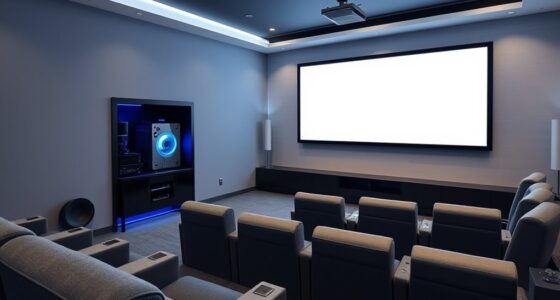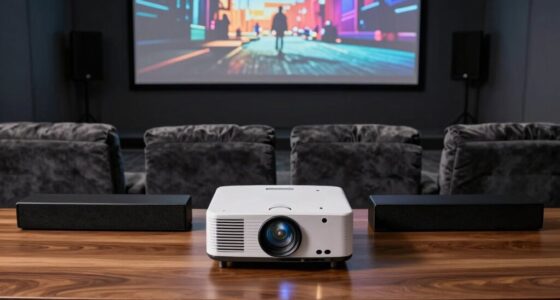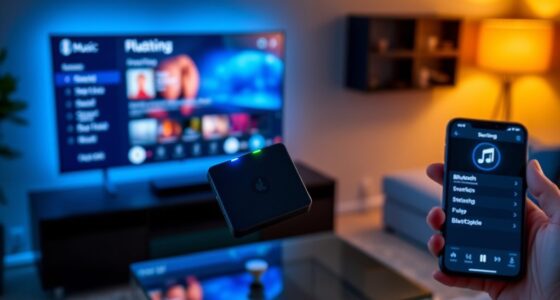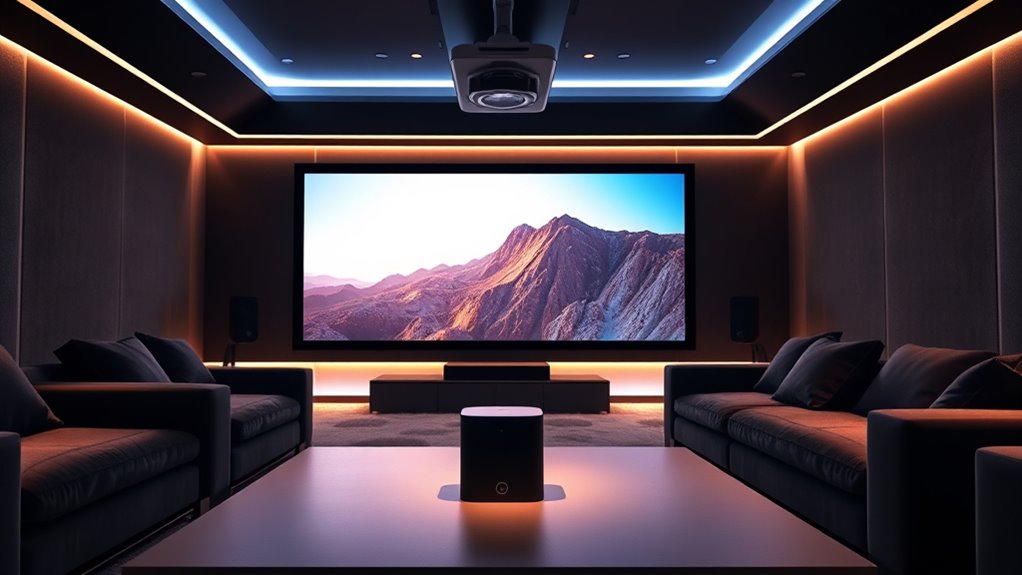

Connecting your projector with Alexa or Google Assistant makes controlling your home theater easy and hands-free. You can turn the projector on or off, adjust the volume, and switch inputs using simple voice commands like “Alexa, turn on the projector” or “Hey Google, switch to HDMI.” Most projectors work with smart hubs or support built-in voice features. Setting this up enhances your entertainment experience, and if you keep going, you’ll discover how to customize your voice commands for even greater convenience.

Get business pricing on your home office setup
- Business-only prices and quantity discounts
- Tax-exempt purchasing
- Multiple users, one account, clear invoices
Key Takeaways
- Ensure your projector supports voice control or connects to a compatible smart hub for Alexa or Google Assistant.
- Link the projector to Alexa or Google Home via their respective apps and assign a recognizable device name.
- Use voice commands like “Alexa, turn on the projector” or “Hey Google, switch to HDMI” for hands-free operation.
- Create routines that automate projector control with other smart devices, such as dimming lights or closing curtains.
- Customize voice commands and routines to tailor your home theater experience and improve convenience.
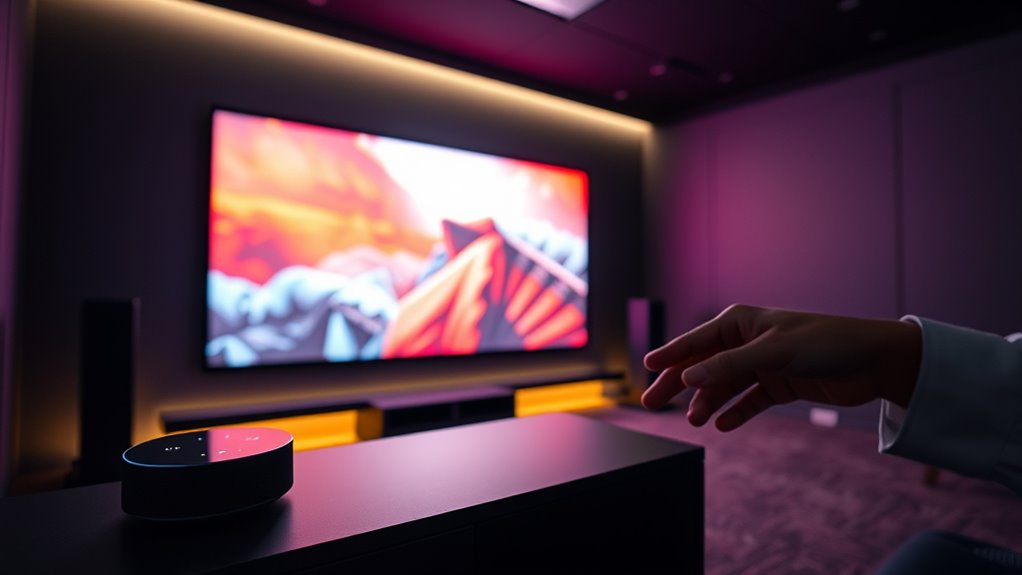
Voice control has transformed how we interact with projectors, making it easier to operate them without manual adjustments. With smart home integration becoming more common, you can now seamlessly incorporate your projector into your existing voice assistant ecosystem. Whether you use Alexa or Google Assistant, setting up voice commands for your projector simplifies your entertainment experience, allowing you to control everything with just your voice.
Getting started with voice command setup is straightforward. First, guarantee your projector supports voice control or can be connected to a compatible smart home hub. Many modern projectors come with built-in voice assistant compatibility or can be paired with smart home devices that do. Once connected, you’ll need to link your projector to your voice assistant app—either Alexa or Google Home. This process involves adding the device through the respective app, often by selecting your projector from a list of compatible devices and following the prompts. After linking, you can assign a name to your projector, making it easier to issue commands like “Alexa, turn on the projector” or “Hey Google, switch to HDMI.”
Setting up voice commands is simple—connect your projector to a smart hub and link it to Alexa or Google Assistant.
Once your setup is complete, voice commands become your primary method for controlling your projector. You can turn it on or off, adjust the volume, change inputs, or even start a presentation without leaving your seat. The convenience extends further when you integrate your projector with other smart home devices. For example, you can create routines that dim the lights, close the curtains, and turn on your projector all with a single voice command. This level of smart home integration makes your home theater feel more like a professional setup, all controlled effortlessly through your voice.
Moreover, customizing voice commands enhances your control. You might set specific phrases or routines for different viewing experiences—like “Movie night,” which dims the lights, lowers the blinds, and powers on your projector. These personalized commands can be easily programmed via your voice assistant’s app, giving you quick access to your preferred settings. Additionally, voice command customization can improve your overall user experience by tailoring the system to your specific needs.
Amazon Alexa compatible projector
As an affiliate, we earn on qualifying purchases.
As an affiliate, we earn on qualifying purchases.
Frequently Asked Questions
Can I Control Multiple Projectors With a Single Voice Command?
Yes, you can control a multi projector setup with a single voice command, but it depends on your system’s capabilities. Most voice assistants have limitations with simultaneous device control, so you might need to set up routines or scenes that trigger multiple projectors at once. Be aware of voice command limitations, as complex commands may not work seamlessly. Proper integration and smart home hubs can help improve control over multiple projectors.
What Voice Commands Are Most Effective for Adjusting Projector Settings?
You can effectively use voice commands like “Adjust projector settings,” “Change picture mode,” or “Set brightness to 50%” to control your projector. Customize commands for specific functions like “Switch to movie mode” or “Enable ambient sound settings” to streamline your experience. Clear, concise commands work best, so focus on customizing your voice control setup to effortlessly tweak settings, enhance picture quality, and create the perfect viewing atmosphere with simple, effective voice commands.
Are There Compatibility Issues Between Specific Projectors and Voice Assistants?
Yes, compatibility issues can arise between certain projectors and voice assistants. You might experience delays due to device firmware or voice latency, which can affect command responsiveness. To minimize problems, verify your projector’s firmware is up-to-date and check for compatibility with your chosen voice assistant. Sometimes, older projectors or those with limited smart features may not fully support voice commands, leading to delays or unresponsive controls.
How Secure Is Voice Control for Sensitive or Private Viewing Sessions?
You might find it surprising, but voice control can be quite secure if you take proper precautions. Privacy concerns and hacking risks exist, yet many systems offer encryption and user controls to protect sensitive sessions. Using strong, unique voice commands and enabling two-factor authentication minimizes these risks. Regularly updating your device software and reviewing privacy settings helps guarantee your private viewing stays protected, giving you peace of mind during your most personal moments.
Can Voice Control Be Integrated With Existing Home Automation Systems?
Yes, you can easily integrate voice control with your existing home automation systems. Many smart home devices support voice assistant compatibility, allowing you to control lighting, thermostats, and projectors seamlessly. Using popular voice assistants like Alexa or Google Assistant, you can create a unified smart home experience. This integration simplifies managing your theater environment and enhances convenience by enabling voice commands for various functions.
Google Assistant smart home projector
As an affiliate, we earn on qualifying purchases.
As an affiliate, we earn on qualifying purchases.
Conclusion
Imagine telling your projector, “Play my favorite movie,” and it obeys instantly—like magic. With voice control using Alexa or Google Assistant, your home theater becomes a seamless extension of your voice. Just last weekend, I watched a film without lifting a finger—trust me, it’s a game-changer. As technology advances, controlling your projector with voice isn’t just convenience; it’s stepping into a future where your words bring your entertainment to life effortlessly.
voice control projector for home theater
As an affiliate, we earn on qualifying purchases.
As an affiliate, we earn on qualifying purchases.
smart home projector with Alexa or Google Assistant
As an affiliate, we earn on qualifying purchases.
As an affiliate, we earn on qualifying purchases.
Fall Picks
fall essentials
As an affiliate, we earn on qualifying purchases.