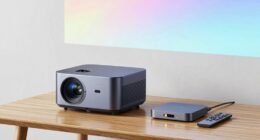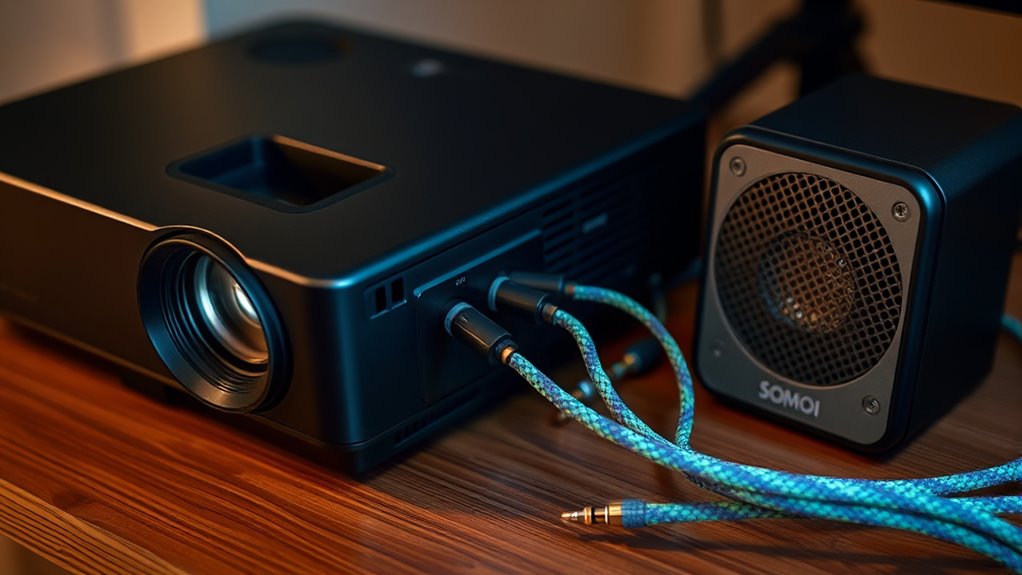

To connect external speakers or a sound system to your projector, you can use either wireless or wired options. For wireless, enable Bluetooth on your projector, then pair it with compatible speakers or soundbars. For wired connections, use the projectors’ audio output ports like 3.5mm or RCA to connect external speakers with the appropriate cables. Proper setup and testing guarantee better sound quality. If you keep exploring, you’ll find more tips to optimize your audio experience.
Key Takeaways
- Enable Bluetooth on your projector and pair compatible wireless speakers or soundbars for a cable-free setup.
- Use the projector’s audio output ports (3.5mm or RCA) to connect wired external speakers with suitable cables.
- Ensure compatibility between your sound system and projector’s audio outputs; use adapters if needed.
- Position wired speakers behind or beside the viewing area for immersive sound; manage cables to prevent hazards.
- Test the connection, adjust volume and audio settings, and select the correct audio source for optimal sound quality.

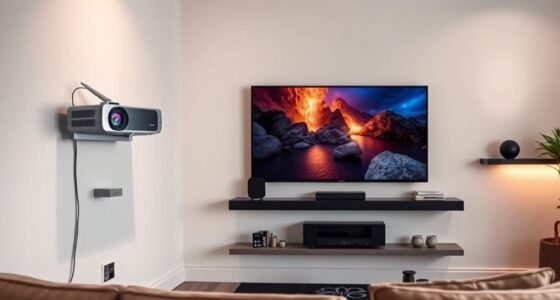
Connecting external speakers or a sound system to your projector can substantially enhance your audio experience, especially during movies, presentations, or gaming sessions. Whether you prefer wireless audio or using traditional audio cables, there are straightforward ways to get richer, clearer sound. The choice depends on your setup, budget, and convenience. Wireless audio options are increasingly popular because they eliminate clutter and allow for more flexible placement of speakers. Many modern projectors support Bluetooth or Wi-Fi connections, making it easy to pair your projector directly with compatible speakers or soundbars. To do this, you typically enable Bluetooth on your projector, then select the speaker from the available devices. This method offers a clean setup without extra cables, and you can move your speakers around to find the perfect audio placement. Wireless connectivity technology is continuously improving, providing more reliable and higher-quality audio transmission.
Wireless audio options simplify setup and offer flexible placement for enhanced sound quality.
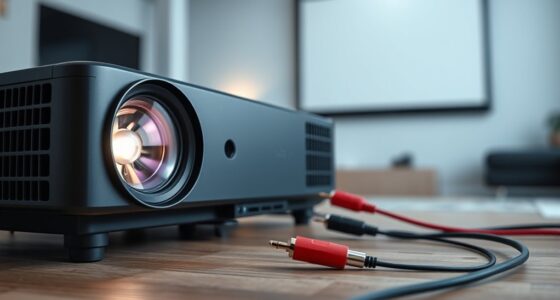
If your projector doesn’t support wireless audio, or you prefer a more reliable connection, using audio cables is a simple alternative. Most projectors come equipped with audio output ports, such as 3.5mm headphone jacks or RCA outputs. You’ll need the appropriate audio cables—either a 3.5mm stereo cable or RCA cables—to connect your projector to external speakers or a sound system. Once plugged in, you might need to adjust your projector’s audio settings to ensure the sound outputs through the correct port. Keep in mind that audio cables provide a stable connection and generally deliver better sound quality than wireless options, especially if you’re using high-quality speakers.
When connecting via audio cables, consider the placement of your speakers. For immersive sound, position your speakers behind or beside your viewing area, ensuring they are within reach of your audio source. If you’re using a soundbar or a home theater system, check for compatibility with your projector’s output ports. Some setups might require adapters or converters, especially if your projector and sound system use different connectors. Additionally, cable management is essential to prevent tripping hazards or tangling, so use cable clips or conduits to keep things tidy.
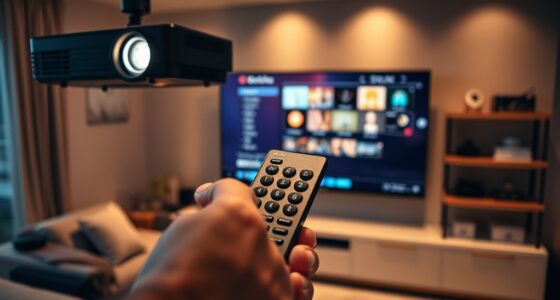
Regardless of whether you opt for wireless audio or audio cables, test the sound after connecting to ensure everything’s working correctly. Adjust the volume and audio settings on both your projector and speakers to balance the sound quality. In most cases, connecting external speakers or a sound system will considerably improve your audio experience, making your movies, games, and presentations much more engaging and immersive.

Computer Speakers for Desktop,PC Speakers Gaming Sound bar with Colorful Light,USB Speaker With Bluetooth for PCs Desktop Laptop Tablets,Wired Bluetooth Speaker for Phones(Type-C Adapter Included)
【Hi-Fi Sound for Gaming & Entertainment】The computer speaker system features premium dual drivers with dual diaphragms for crystal-clear…
As an affiliate, we earn on qualifying purchases.
As an affiliate, we earn on qualifying purchases.
Frequently Asked Questions
Can I Connect Multiple Speakers to My Projector Simultaneously?
Yes, you can connect multiple speakers to your projector simultaneously. To do this effectively, use an audio splitter to distribute the sound evenly. Make sure to place the speakers in ideal locations for balanced audio, considering speaker placement. Using an audio splitter prevents overloading the projector’s audio output, ensuring clear sound. Just double-check your projector’s audio output options and the power capacity of your speakers before connecting multiple devices.
What Cable Types Are Compatible With My Projector’s Audio Output?
Connecting external speakers to your projector is like choosing the right key for a lock—you need the correct fit. Most projectors support audio output via 3.5mm audio jacks, RCA cables, or optical (TOSLINK) connections. Check your projector’s audio output compatibility first, then select the appropriate cable connection options. Using the right cable guarantees clear sound, so match your device’s ports with the compatible cables for seamless audio.
How Do I Adjust Audio Settings for External Speakers on My Projector?
To adjust audio settings for external speakers on your projector, start by accessing the menu and moving through to the audio or sound settings. Perform an audio calibration to guarantee balanced sound quality. Use the volume adjustment controls to set the desired loudness. If your projector supports it, enable external speaker output or audio passthrough to optimize sound performance. This guarantees your external speakers deliver clear, well-balanced audio during your presentation or viewing.
Is It Possible to Connect Bluetooth Speakers to My Projector?
Yes, you can connect Bluetooth speakers to your projector, but don’t expect a perfect symphony—Bluetooth connectivity often comes with audio latency that can spoil the experience. You’ll need your projector to support Bluetooth pairing, and keep in mind, some delay might occur between video and sound. For the best experience, use Bluetooth speakers with low latency or connect wired for seamless audio synchronization.
Does Connecting External Audio Affect My Projector’s Video Performance?
Connecting external audio generally doesn’t affect your projector’s video performance, but it can introduce some audio latency, causing slight delays between the sound and picture. If your external speakers have good sound quality, you’ll enjoy clearer audio, but lower-quality sound systems might diminish your overall experience. To minimize latency, opt for wired connections or high-quality Bluetooth devices, ensuring your video and audio stay synchronized.
![VIOY Aux Cable (20 ft), [Copper Shell, Hi-Fi Sound] 3.5 mm Male to Male Braided Auxiliary Cord Compatible with Headphone, Smartphone, Home/Car Stereo, Speaker, Echo & More](https://m.media-amazon.com/images/I/61G+GbAhRYL._SL500_.jpg)
VIOY Aux Cable (20 ft), [Copper Shell, Hi-Fi Sound] 3.5 mm Male to Male Braided Auxiliary Cord Compatible with Headphone, Smartphone, Home/Car Stereo, Speaker, Echo & More
Universal Compatibility: VIOY 3.5 mm male to male long aux cable transmits Hi-Fi stereo from aux output (line-out)…
As an affiliate, we earn on qualifying purchases.
As an affiliate, we earn on qualifying purchases.
Conclusion
Now that you know how to connect external speakers or a sound system to your projector, you’re all set to turn your setup into a concert hall. Think of your projector as the conductor, now able to orchestrate rich, immersive sound that fills the room. With just a few simple steps, you’ll transform your viewing experience from a whisper to a roar. So go ahead—bring your movies and presentations to life with crystal-clear sound that hits all the right notes.

Amazon Basics 3.5mm Stereo Aux to 2 RCA Audio Cable Adapter for Sound, Connecting Amplifiers, Speakers, Smartphone, Tablet with Gold-Plated Plugs, 4 Feet/1.2 m, Black
IN THE BOX: 4-foot audio adapter cable with (1) 3.5mm Male connector on one end and (2) Male…
As an affiliate, we earn on qualifying purchases.
As an affiliate, we earn on qualifying purchases.
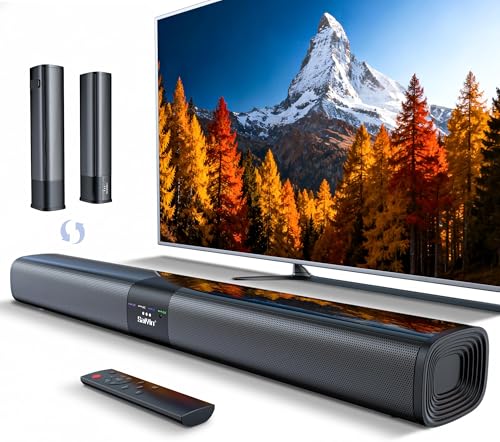
Saiyin Sound Bar for Smart TV, Detachable Soundbar TV Speaker with Bluetooth/ARC/Optical/AUX Input, Super Diaphragm Driver and 3 Preset Sound Effects for TV/PC/Projector.
𝐂𝐨𝐦𝐩𝐚𝐜𝐭 𝐘𝐞𝐭 𝐏𝐨𝐰𝐞𝐫𝐟𝐮𝐥 – Two 3.9" x 2.1" oval full-range drivers provide a larger diaphragm surface than traditional…
As an affiliate, we earn on qualifying purchases.
As an affiliate, we earn on qualifying purchases.