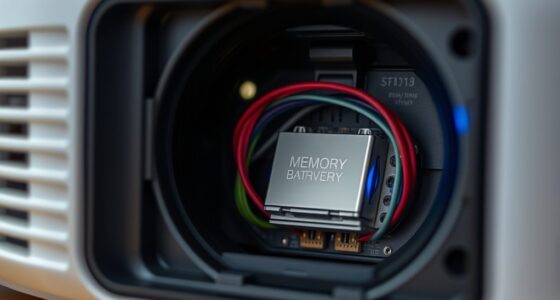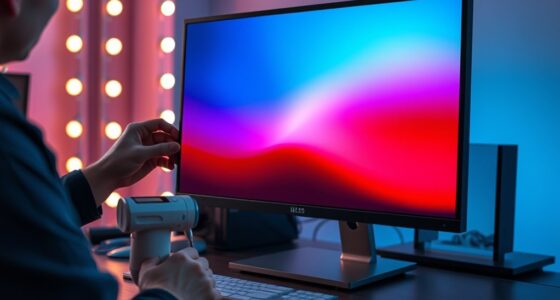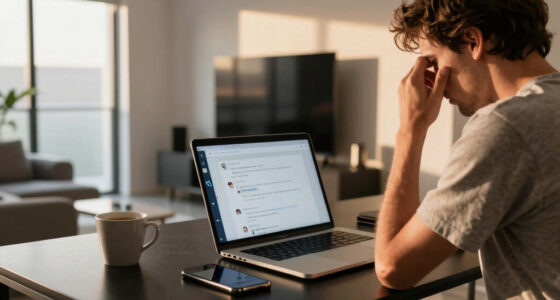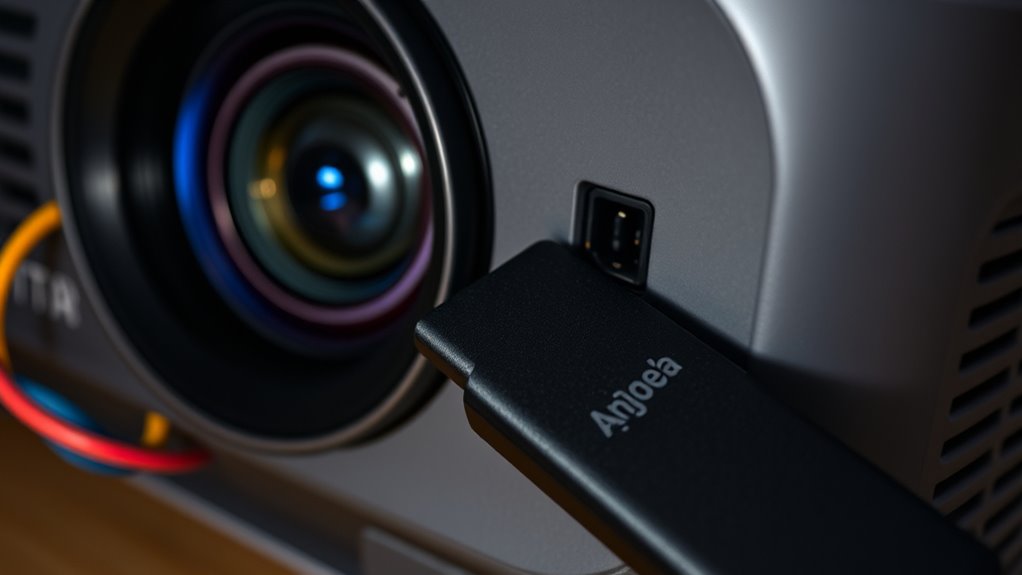
To resolve compatibility issues between your Blu-ray or streaming stick and your projector, first check that your devices support the same resolution and refresh rate settings. Make sure all cables are high-quality and securely connected. Try switching HDMI ports to rule out port-specific issues. Update the firmware on your streaming device or Blu-ray player to fix bugs and improve compatibility. For more solutions, you’ll find helpful tips as you continue exploring options.

Get business pricing on your home office setup
- Business-only prices and quantity discounts
- Tax-exempt purchasing
- Multiple users, one account, clear invoices
Key Takeaways
- Ensure the projector input source matches the device’s output, such as HDMI, and manually select the correct input.
- Use high-speed HDMI cables and verify secure, undamaged connections between the device and projector.
- Update firmware on your streaming stick or Blu-ray player to fix compatibility issues and improve device recognition.
- Check that the device is powered on and correctly configured for the current output resolution and format.
- Reset or re-sync the device with the projector, following specific pairing or setup instructions.
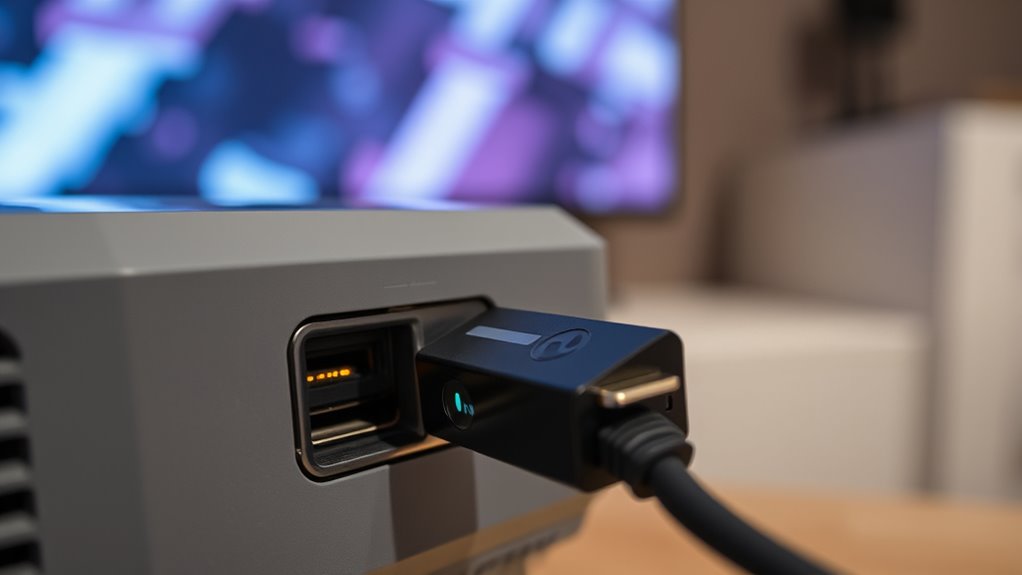
If your Blu-ray player or streaming stick isn’t working properly with your projector, it can be frustrating. You might experience issues like your remote control not responding consistently or audio falling out of sync with the video. These problems often stem from compatibility or connection hiccups that are fixable with some troubleshooting.
Remote control issues are common when using projectors with streaming devices or Blu-ray players. Sometimes, the remote may not seem to work at all, or it responds intermittently. This often happens because the remote relies on infrared signals, which can be obstructed or misaligned. To fix this, verify there’s a clear line of sight between the remote and the device’s IR sensor. If you’re using a universal remote, double-check that it’s programmed correctly for your device. Also, consider replacing the batteries—weak batteries can diminish signal strength. If your remote still isn’t working reliably, try resetting the remote or re-syncing it with the device. Many streaming sticks and Blu-ray players have a pairing process that can be repeated to restore proper communication.
Remote control issues with projectors and streaming devices can often be fixed by checking the line of sight, replacing batteries, or re-syncing the remote.
Audio synchronization issues are another common frustration. When your projector’s picture is out of sync with the sound, it’s usually due to processing delays or incompatible audio formats. First, check your audio settings. Many devices offer options to adjust audio delay or sync—experiment with these settings to see if they improve the timing. If your setup includes external speakers or an AV receiver, ensure they’re correctly connected and configured. Sometimes, the problem lies in the HDMI connection itself; using a high-speed HDMI cable can reduce lag and ensure smoother audio-video sync. Additionally, update the firmware of your streaming device or Blu-ray player to the latest version. Manufacturers often release updates that fix bugs and improve compatibility, including audio issues.
In some cases, compatibility problems are caused by the projector’s input settings. Make sure your projector is set to the correct input source and that it supports the resolution and refresh rate of your device. Adjusting these settings can often resolve communication hiccups. Also, verify that your projector’s contrast ratio is appropriate for your setup, as this can influence image quality and clarity. If issues persist, try connecting the device directly to the projector with a different HDMI port or cable, ruling out hardware faults. To conclude, consult your device’s manual or support site for specific troubleshooting steps tailored to your equipment. By systematically addressing remote control and audio sync issues, you can vastly improve your viewing experience and enjoy seamless playback with your projector.
high-speed HDMI cables for projector
As an affiliate, we earn on qualifying purchases.
As an affiliate, we earn on qualifying purchases.
Frequently Asked Questions
Can Firmware Updates Resolve Connectivity Issues Between Devices?
Yes, firmware updates can resolve connectivity issues by improving device compatibility. When you update your device’s firmware, you often fix bugs, enhance performance, and add support for new standards. This can help your Blu-Ray player or streaming stick connect smoothly with your projector. Regularly checking for and installing firmware updates guarantees your devices work together seamlessly, reducing the chances of compatibility problems and improving your overall viewing experience.
Are There Specific Projector Brands More Compatible With Streaming Sticks?
Think of choosing a projector brand like selecting a reliable ship for your journey; some brands, like Epson and BenQ, are known for smoother sailing with streaming device compatibility. These brands often prioritize better connectivity features, reducing hiccups with streaming sticks. When shopping, prioritize models with strong projector brand preferences that support your streaming devices, ensuring your entertainment voyage stays steady and enjoyable without constant troubleshooting.
How Do I Identify if My HDMI Port Supports HDCP?
You can identify if your HDMI port supports HDCP by checking its HDMI certification label or specifications. Look for labels like “HDCP compliant” or review your device’s manual. During setup, an HDCP handshake occurs automatically; if there’s a failure, you’ll see error messages or blank screens. Ensuring your HDMI cable and port support HDCP helps prevent playback issues with Blu-Rays and streaming sticks, providing smooth, compatible connections.
What Are the Signs of a Faulty HDMI Cable?
You might notice a faulty HDMI cable when your picture flickers, cuts out unexpectedly, or shows no signal at all. Poor cable quality or signal interference can cause these issues, making your connection unreliable. Sometimes, the screen displays a black or distorted image, or audio drops out. If these signs appear, it’s a good idea to test with a different cable to rule out damage or interference affecting your setup.
Is It Necessary to Adjust Projector Settings for Device Compatibility?
Yes, you should adjust your projector settings for device compatibility. Start by selecting the correct input source to guarantee it recognizes your device. You might need to make calibration adjustments like resolution or aspect ratio settings to optimize display quality. These tweaks help your projector communicate effectively with your Blu-ray or streaming stick, preventing issues like flickering or no signal, and ensuring smooth playback.
universal remote control for Blu-ray and streaming devices
As an affiliate, we earn on qualifying purchases.
As an affiliate, we earn on qualifying purchases.
Conclusion
Don’t let compatibility issues dim your viewing experience. With a few simple fixes, you can turn your projector into the ultimate entertainment hub. Think of your setup as a puzzle—each piece fitting perfectly when you find the right solution. So, next time your Blu-ray or streaming stick acts up, remember: patience and the right tweaks are your keys to seamless viewing. After all, isn’t the best picture worth a little troubleshooting?
As an affiliate, we earn on qualifying purchases.
As an affiliate, we earn on qualifying purchases.
Fall Picks
fall essentials
As an affiliate, we earn on qualifying purchases.