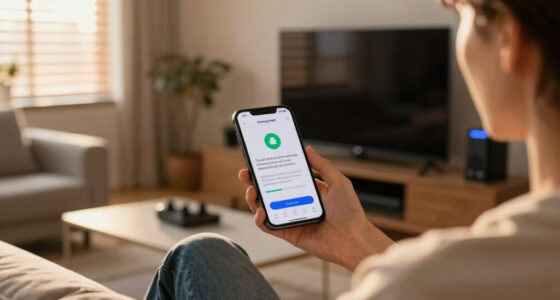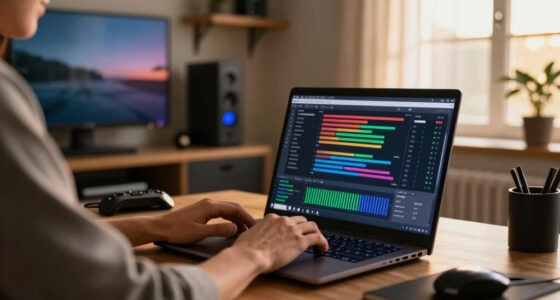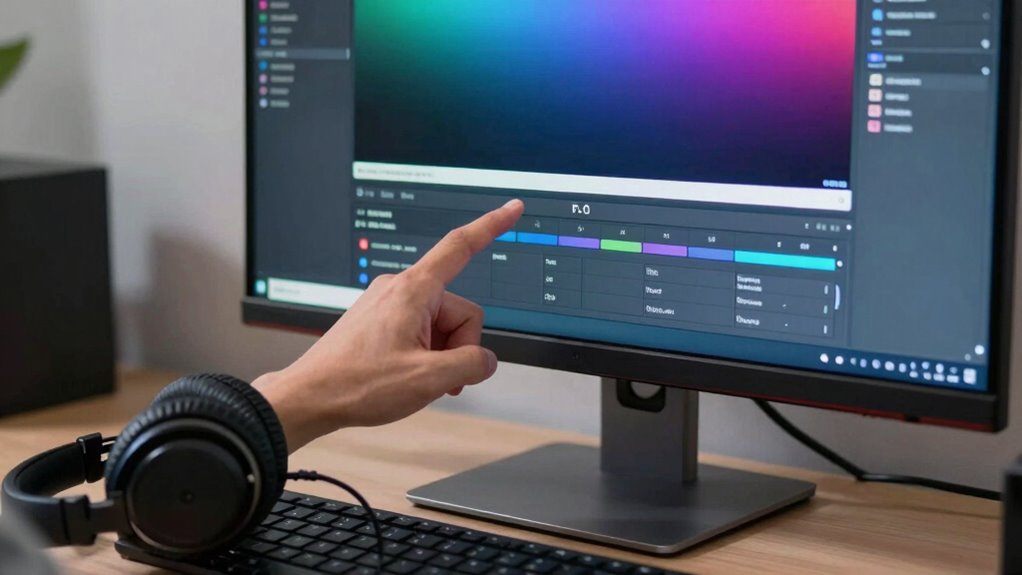

To troubleshoot no sound with picture, first check your volume and mute settings, ensuring they’re turned up and not muted. Confirm your audio output is set correctly, whether using internal speakers, HDMI, or external sound systems. Inspect all cables and connections for damage or looseness. Test external speakers or devices on another source to rule out hardware faults. Restart your TV or device and update its software. For more detailed steps, you can explore additional solutions to get your sound working again.

Get business pricing on your home office setup
- Business-only prices and quantity discounts
- Tax-exempt purchasing
- Multiple users, one account, clear invoices
Key Takeaways
- Verify that volume is up and audio is not muted on your device.
- Check and secure all external speaker and connection cables.
- Ensure external speakers or soundbars are powered on and paired or connected correctly.
- Test the audio with a different source device to identify hardware issues.
- Restart your device and update firmware or software to resolve potential glitches.
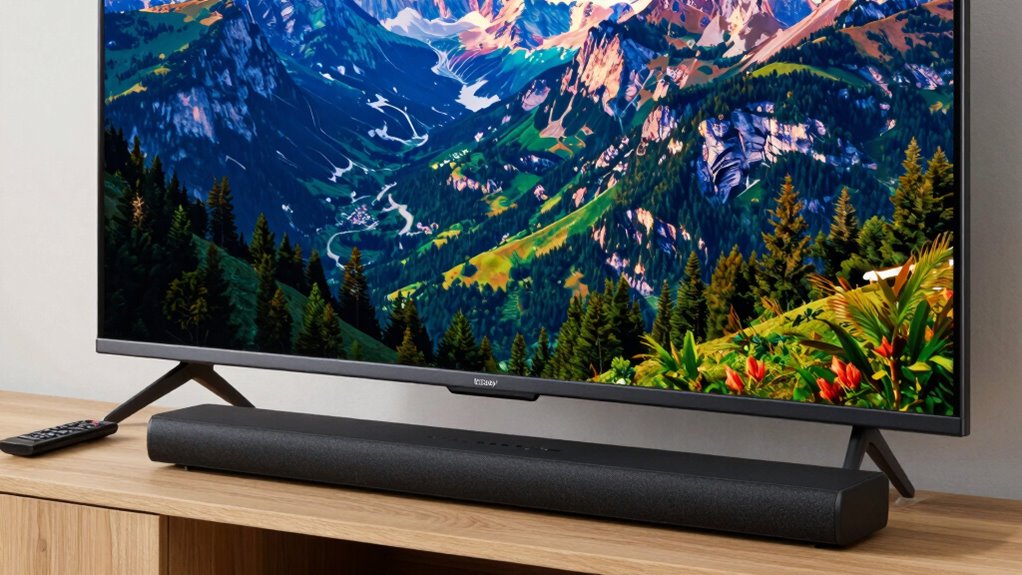
If your TV or monitor displays a picture but still has no sound, it can be frustrating. The first thing you want to do is check your audio settings. Sometimes, the issue is as simple as the volume being muted or set too low. Navigate through your TV’s or monitor’s menu and look for audio options. Confirm that the volume is turned up and not muted. Many devices also have a separate sound setting that might be turned off or set to an external speaker or audio output that isn’t connected. Adjust these settings to see if that restores sound. Also, verify if your device has a sound output selector, like HDMI ARC, optical, or speakers, and confirm it’s set appropriately for your setup. If these settings are correct, but you’re still not getting sound, it’s time to investigate potential speaker issues.
Speaker problems are common culprits behind the absence of sound. If your TV or monitor has built-in speakers, make sure nothing is blocking or damaging them. Check for any visible damage or dirt that might be muffling sound. If you’re using external speakers or soundbars, ensure they’re powered on and properly connected. Sometimes, the cables can become loose or disconnected, so give them a firm but gentle tug to confirm they’re secure. If you’re using wireless speakers, verify that they’re connected via Bluetooth or Wi-Fi and that they’re paired correctly. Also, check the volume on the external speakers or soundbar itself, as it might be muted or turned down. Additionally, understanding the audio output options available on your device can help troubleshoot why your sound isn’t coming through correctly. Being familiar with audio signals and how they are transmitted can further aid troubleshooting efforts. It’s also helpful to understand how sound settings influence overall audio performance to optimize your setup. When troubleshooting, keep in mind that audio technology varies between devices, which can affect compatibility and performance.
It’s a good idea to test your speakers or audio output device with another source, like a different TV, device, or even a smartphone, to rule out hardware failure. If the sound works elsewhere, then the problem likely lies within your TV or monitor. If not, you might need to replace or repair your speakers or audio device. Sometimes, a simple restart of your TV or monitor can reset internal settings and resolve temporary glitches affecting audio. If these steps don’t work, updating your device’s firmware or software can fix bugs related to audio output. To conclude, consult your device’s manual for specific troubleshooting steps or contact customer support if the issue persists. By systematically checking your audio settings and speaker connections, you can often identify and fix the cause of no sound, restoring the full viewing experience.
Products Worth Considering

Bose Lifestyle Ultra Wireless Home Speaker, White Smoke

Arlo Pro Wireless Security Camera, 2K HDR, 6th Gen, 4-Camera Kit

Bose SoundLink Plus Portable Bluetooth Speaker, Black
As an affiliate, we earn on qualifying purchases.
Frequently Asked Questions
Can Outdated Drivers Cause No Sound Issues?
Yes, outdated drivers can cause no sound issues. When your drivers aren’t up-to-date, they might not support your sound hardware properly, leading to audio problems. To fix this, you should perform driver updates through your device manager or manufacturer’s website. Also, check your sound configuration settings to verify the correct output device is selected. Keeping your drivers current often resolves sound issues and improves overall audio performance.
How Do I Reset My Audio Settings?
To reset your audio settings, start by accessing your device’s sound or audio control panel. You can then revert any customizations by restoring default settings, which helps refresh your audio calibration. Don’t forget to disable sound enhancements, as they might interfere with sound output. After resetting, test your audio and adjust sound enhancement features as needed. This process often resolves issues and guarantees the best sound performance.
Could Hardware Damage Be the Reason for No Sound?
Hardware damage could definitely be the culprit, like a broken link in a chain. You should perform a thorough hardware inspection and damage assessment to determine if components like speakers, cables, or audio ports are compromised. If you notice visible damage or inconsistent performance, it’s likely hardware issues are causing the no sound problem. Replacing damaged parts or seeking professional repair can restore your audio and get things working smoothly again.
Is There a Way to Test Speakers Individually?
Yes, you can test speakers individually by using speaker isolation techniques. First, disconnect all speakers except one and play a sound to check if it produces audio. Repeat for each speaker. This process helps with sound calibration, ensuring each speaker works properly. If a speaker doesn’t produce sound, it may indicate a wiring issue or hardware problem. Regular testing like this can identify faulty speakers early.
Why Does Sound Work on Some Apps but Not Others?
Ever wonder why sound works on some apps but not others? It’s often due to app-specific settings or permissions, not your hardware. Check your audio visualization settings within each app, and verify your sound card drivers are up to date. Some apps may have muted sound or disabled audio output, so confirming app volume controls and permissions can resolve the issue. Don’t forget to restart your device after making changes for best results.
Conclusion
In conclusion, troubleshooting your audio issues can often be straightforward if you methodically check connections, settings, and device functions. For example, imagine you’re watching a movie and hear no sound, but the picture is fine. By verifying your volume levels, inspecting the audio output device, and ensuring cables are secure, you might quickly identify the problem. Remember, patience and systematic steps lead to a quick fix, helping you enjoy your content without frustration.