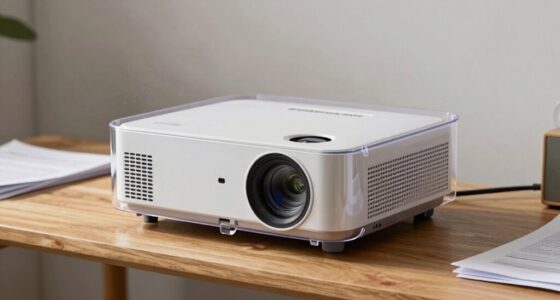

If your projector shows an overheating warning, it’s likely caused by poor ventilation, dust buildup, or placing it on soft surfaces blocking vents. To cool it down, guarantee it’s in a well-ventilated area with proper clearance, clean dust filters regularly, and avoid enclosed spaces. Also, check that internal fans work properly and replace the lamp when necessary. Continuing this guide will help you understand more about preventing future overheating issues effectively.

Get business pricing on your home office setup
- Business-only prices and quantity discounts
- Tax-exempt purchasing
- Multiple users, one account, clear invoices
Key Takeaways
- Ensure proper ventilation by placing the projector in a well-ventilated area with adequate clearance around vents.
- Regularly clean dust from vents and filters to prevent heat buildup and improve airflow.
- Avoid using the projector on soft surfaces that block vents or insulate heat, and keep it on a hard, flat surface.
- Monitor and replace aging lamps and check internal fans to maintain optimal cooling performance.
- Reduce room temperature and avoid enclosed spaces to help the projector dissipate heat effectively.
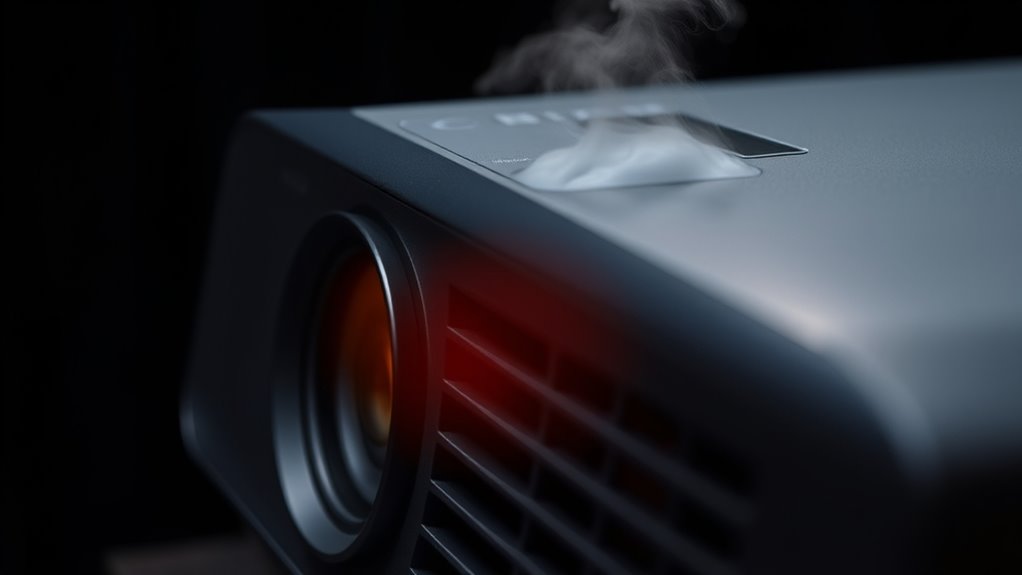
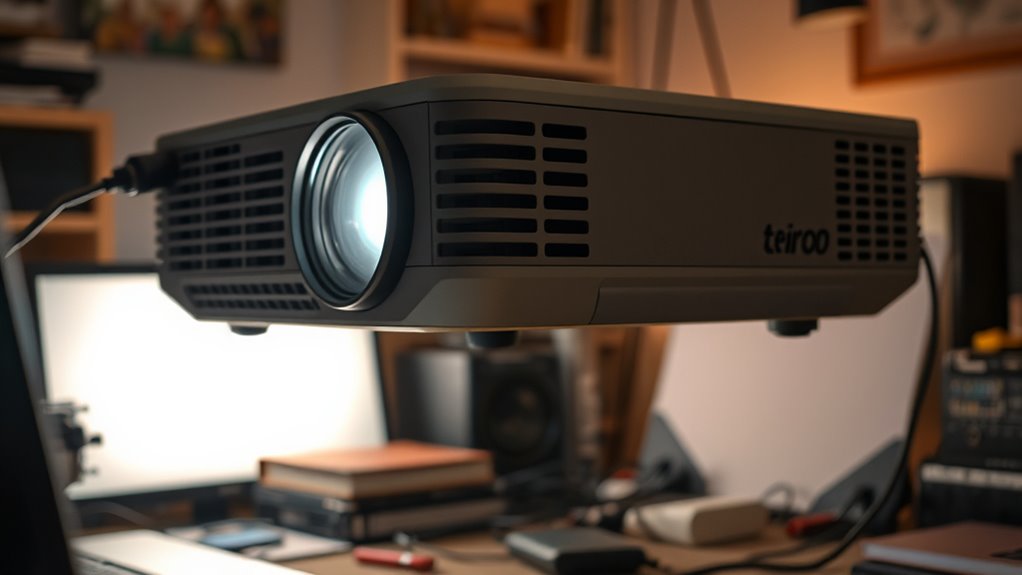
If your projector displays an overheating warning, it’s a clear sign that something needs your attention. Overheating can damage internal components, reduce the lamp lifespan, and interrupt your viewing experience. To prevent this, you need to understand what causes overheating and how to keep your projector cool. One of the most common reasons for overheating is poor ventilation. When airflow is blocked or restricted, heat builds up inside the device, causing it to overheat quickly. Ensuring proper ventilation tips can make all the difference. First, always place your projector in a well-ventilated area, away from walls or objects that could block air intake and exhaust vents. Keep at least a few inches of space around the device to promote airflow. Regularly cleaning dust from vents and filters is essential because dust accumulation impairs heat dissipation, leading to higher internal temperatures. Use a soft brush or compressed air to clear out dust, especially if your projector is in a dusty environment. Another key aspect is to avoid running the projector in enclosed spaces like cabinets or small rooms without proper airflow, as these settings trap heat and accelerate overheating. If your projector has adjustable cooling settings or fan speeds, make sure they’re set to ideal levels, especially during extended use. This helps maintain a steady airflow, reducing the risk of overheating. Additionally, be mindful of your projector’s lamp lifespan. As the lamp ages, it produces more heat and becomes less efficient at dissipating that heat. If you notice the warning popping up more frequently, consider replacing the lamp sooner to prevent further issues. Over time, a worn-out lamp can contribute to overheating, so keeping track of its age and performance is essential. Another ventilation tip is to avoid placing your projector on soft surfaces like beds or couches, which can block vents or insulate heat. Use a hard, flat surface to help heat escape freely. Proper ventilation and airflow management is crucial for preventing overheating and maintaining optimal performance. If overheating persists despite these measures, it might be worth checking the internal fans for proper operation or seeking professional maintenance. Keeping your projector cool not only prevents overheating warnings but also prolongs its lifespan and ensures consistent performance. Remember, taking simple steps like maintaining good ventilation, cleaning vents regularly, and monitoring the lamp’s condition can save you from costly repairs and replacements down the line. Proper care and attention will help you enjoy your projector’s sharp images and reliable operation for many more viewing sessions.
Products Worth Considering

LEVOIT Vital Pet Smart Air Purifier

Levoit Core 600S-P Smart Air Purifier for Large Rooms

Blueair Blue Pure 211i Max Air Purifier for Large Rooms
As an affiliate, we earn on qualifying purchases.
Frequently Asked Questions
Can Using a Projector in a Humid Environment Cause Overheating?
Yes, using a projector in a humid environment can cause overheating. Humidity effects, like moisture buildup, can interfere with the projector’s cooling system and lead to excess heat. Environmental factors such as high temperatures and poor ventilation also contribute to overheating risks. To prevent this, guarantee proper ventilation, keep the room dry, and avoid placing the projector in humid or enclosed spaces. This helps maintain ideal operation and prolongs your projector’s lifespan.
How Often Should I Clean the Projector’s Air Filters?
Think of your projector as a breathless runner needing fresh air. You should clean the air filters every 100 to 200 hours of use or once a month, whichever comes first. Regular air filter maintenance prevents dust and debris from clogging the airflow, preventing overheating. By maintaining a consistent cleaning schedule, you ensure your projector runs smoothly, like a runner with steady, unblocked breaths, ready for every performance.
Is It Safe to Open the Projector to Clean Internal Parts?
It’s generally safe to open the projector to clean internal components if you have experience with electronics and follow proper precautions. Carefully disassemble the projector by referring to the user manual and avoiding damage to internal parts. Make sure to disconnect power first, and work in a static-free environment. If you’re unsure about projector disassembly, consider consulting a professional to prevent voiding the warranty or causing damage.
What Are the Signs of a Failing Cooling Fan?
Imagine hearing a faint, inconsistent fan noise, like a whisper struggling to breathe. You notice uneven cooling, with some areas warmer than others. These signs point to a failing cooling fan. The fan may become louder, wobble, or stop altogether. If you ignore these hints, overheating risks rise. Promptly check your fan’s operation, listen for unusual sounds, and replace it if you notice persistent noise or uneven airflow.
Does Prolonged Use Increase the Risk of Overheating?
Yes, prolonged use increases the overheating risk of your projector. Extended usage causes the internal components and cooling system to work harder, generating more heat. If the ventilation isn’t sufficient or the cooling fan isn’t functioning properly, this heat can build up quickly. To prevent overheating, avoid continuous operation without breaks, ensure vents are clear, and regularly check that your cooling fan is working effectively.
Conclusion
To prevent projector overheating problems, prioritize proper placement, regular cleaning, and prompt maintenance. Staying vigilant about ventilation and cooling guarantees your projector stays cool and performs perfectly. Remember, preventing problems is always preferable to patching problems. By practicing proactive preservation, you’ll avoid overheating hiccups and keep your projector shining brightly, long-lasting, and trouble-free. So, stay sensible, stay proactive, and safeguard your setup—because a cool projector is a confident projector!