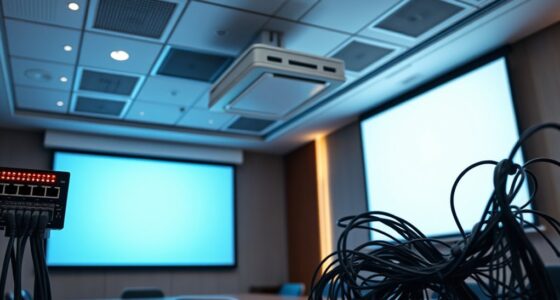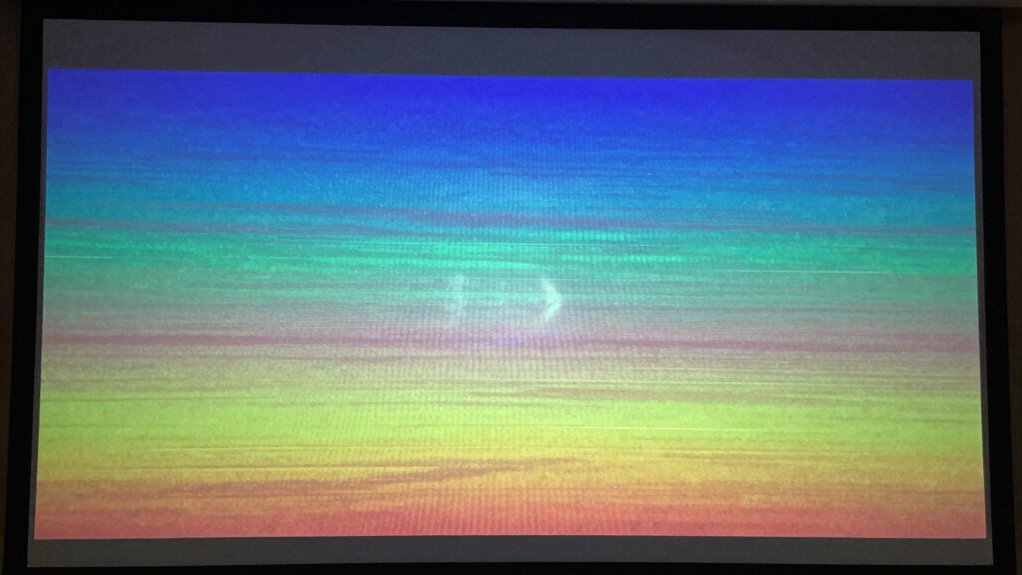

Flickering on your projector image is often caused by aging lamps that lose efficiency or need replacement, internal electrical issues like unstable power supply, or loose connections. Excessive ambient lighting or sudden light changes can make flicker more noticeable. Poor maintenance, dust inside the projector, or overheating also contribute to instability. By addressing these factors, you can improve performance, but there’s more to uncover that can help keep your projector running smoothly.

Get business pricing on your home office setup
- Business-only prices and quantity discounts
- Tax-exempt purchasing
- Multiple users, one account, clear invoices
Key Takeaways
- Aging projector lamps produce inconsistent light output, leading to flickering images.
- Fluctuating ambient lighting or sudden light changes increase flicker visibility.
- Power supply fluctuations or unstable electrical connections cause intermittent flickering.
- Dust buildup or overheating inside the projector affects internal components, causing flickering.
- Incorrect projector settings, such as refresh rate or contrast, can result in unstable image display.
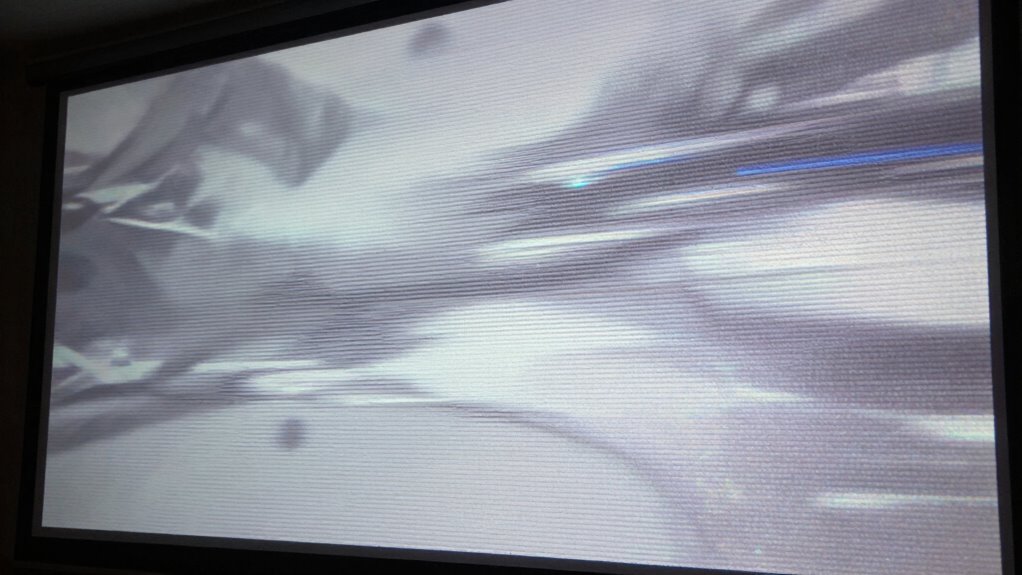
Flickering on a projector image can be distracting and undermine your viewing experience, but understanding what causes it is the first step to fixing the problem. One common cause relates to the projector’s lamp lifespan. Over time, the bulb’s efficiency declines, which can lead to inconsistent light output and flickering. If your projector’s lamp is nearing the end of its life, you might notice the flickering becoming more frequent or severe. Replacing the lamp often restores a stable image, but it’s also essential to ensure the replacement bulb is compatible and properly installed.
Flickering may indicate the projector’s lamp is aging; replacing it can restore a steady image.
Ambient lighting plays a significant role in how steady your projector image appears. Excessive or fluctuating ambient light can make flickering more noticeable, especially if your projector isn’t designed to handle a bright environment. When ambient lighting is too high, the projector’s image may seem to flicker as it struggles to compete with the surrounding brightness. Dimming or eliminating unnecessary lights around your viewing area can improve image stability and reduce flickering. Additionally, sudden changes in ambient lighting—like opening a curtain or turning on a lamp—can cause temporary flickering as the projector adjusts to the new lighting conditions.
Another reason for flickering involves the projector’s internal components, particularly the power supply. Fluctuations in power delivery can cause the lamp to flicker, especially if the power source isn’t stable. Using a surge protector or an uninterruptible power supply (UPS) can help maintain a consistent power flow, reducing flickering caused by electrical issues. Similarly, loose or faulty connections inside the projector can lead to intermittent signals, resulting in flickering. Checking and securing all cables and connectors ensures a more reliable connection, minimizing the chances of flickering due to poor contact. Sometimes, electrical stability issues can be subtle but significantly impact the projector’s performance. Regular maintenance and inspection of the internal components can help prevent these issues from escalating and ensure projector reliability.
Furthermore, the projector’s settings might contribute to the problem. If the refresh rate or contrast is improperly configured, you could see flickering or flickering-like effects. Adjusting these settings to match your environment and the projector’s specifications can help stabilize the image. Dust accumulation inside the projector can also cause overheating or irregular operation, which might lead to flickering. Regular cleaning and maintenance keep the internal components functioning correctly and prevent issues related to dust or debris. Maintaining proper projector calibration and ensuring all components are clean and secure can significantly reduce flickering issues. Proper ventilation around your projector also helps prevent overheating, which can sometimes cause flickering or other image problems. Ensuring that the projector’s power supply is stable and free of fluctuations is crucial for consistent operation.
Products Worth Considering

Philips Hue Bridge Pro Starter Kit with 4 A19 E26 Color Smart Bulbs

Philips Hue Play Floor Lamp, RGBWWIC LED, 53 Inch, Black

Bose Home Speaker 500 Smart Bluetooth Speaker, Black
As an affiliate, we earn on qualifying purchases.
Frequently Asked Questions
Can Projector Flicker Be Completely Eliminated?
Flicker on a projector can be minimized but might not be completely eliminated. You can reduce flicker by ensuring proper color calibration and precise lens alignment, which help stabilize the image. Regularly updating your projector’s firmware and using a stable power source also help. While complete elimination is difficult, these steps considerably improve image stability, providing a smoother viewing experience.
Does Ambient Lighting Affect Flicker Visibility?
Yes, ambient light affects flicker visibility. When there’s bright ambient light, your eyes struggle to perceive flicker, making it less noticeable. Conversely, in a darker environment, flicker becomes more apparent because your eyes are more sensitive to rapid changes in brightness. To minimize flicker perception, control ambient lighting around your projector. Using dim or indirect light, or adjusting your projector’s settings, can improve image stability and reduce flicker visibility.
How Does Projector Age Influence Flicker?
As your projector ages, flickering becomes more noticeable, like a heartbeat growing irregular. Over time, the projector’s lifespan shortens, and bulb deterioration worsens, causing unstable light output. This weakens the connection inside, making the image flicker or shimmer unpredictably. You’ll notice the flicker intensify as the projector nears the end of its life, signaling it’s time for a replacement or maintenance to restore stability and clarity.
Are Certain Projector Brands Less Prone to Flicker?
Some projector brands are less prone to flicker because of better brand reliability and advanced technology. Brands like Epson, Sony, and BenQ invest heavily in newer technology, ensuring stable images and reduced flickering. You’ll notice fewer issues with their projectors, especially those featuring improved lamp stability and signal processing. Choosing a reputable brand that prioritizes innovation can considerably lessen flicker, providing you with a clearer, more reliable viewing experience.
Can Specific Screen Types Reduce Flicker Issues?
Yes, choosing the right screen material and surface texture can reduce flicker issues. You should opt for high-quality, matte screens made from materials like fiberglass or specialized projector fabrics, which diffuse light evenly. A textured surface helps minimize glare and reflections, creating a stable image. By selecting a screen with the appropriate surface texture and material, you’ll experience fewer flicker problems and enjoy clearer, more consistent visuals during your presentations.
Conclusion
In the end, it’s fascinating how flicker often appears when you least expect it, almost like a coincidence. Sometimes it’s a simple connection issue, or perhaps the bulb’s nearing the end of its life, just like how the projector itself seems to “flicker” between clarity and blur. Paying attention to these small details can save you time and frustration, turning what feels like a coincidence into a quick fix. After all, your perfect image is just a few adjustments away.