To fix projector flicker or strobe effects, first check all cables to make sure they’re firmly connected and try different input sources. Adjust your projector’s refresh rate in the menu to optimize stability, and update your video card drivers to the latest version. Confirm your power source is stable or use a surge protector, and reduce brightness and contrast settings. Proper ventilation and testing with various devices can also help, so explore these options for a clearer picture.
Key Takeaways
- Check and tighten all video cables; replace damaged or incompatible cables to ensure stable signal transmission.
- Adjust projector display settings and refresh rate for optimal synchronization and reduced flicker.
- Update graphics drivers and device firmware to improve compatibility and fix flickering issues.
- Use a dedicated power outlet and surge protector to prevent electrical fluctuations causing flicker.
- Regularly clean vents, filters, and dust from the projector to prevent overheating and image instability.

WALI Projector Mount Ceiling/Wall - Universal 3-in-1 Bracket with Extension Pole, Height Adjustable Holder for LCD/DLP Projectors, Supports up to 44lbs, White (PM-003-W)
Compatibility: Universal Projector Mount Bracket for Both Ceiling and Wall Installation. Applicable to mounting holes distance between 8.9’’to...
As an affiliate, we earn on qualifying purchases.
Check and Secure All Cable Connections
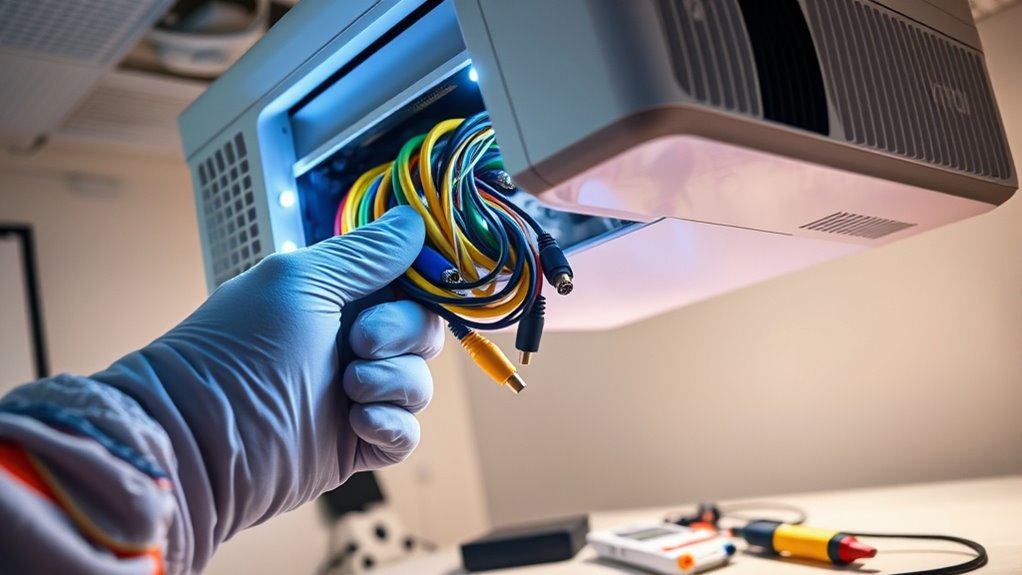
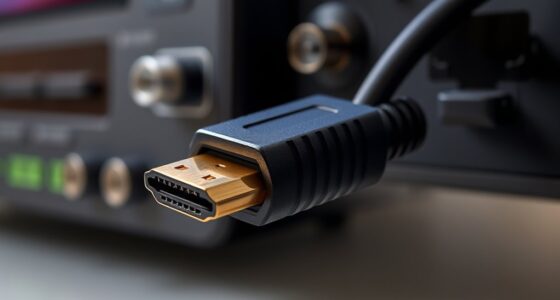
Before troubleshooting projector flicker, you should check and secure all cable connections. Poor connection security can cause flickering issues, so proper cable management is essential. Start by inspecting each cable linking your projector to the video source, ensuring they are firmly plugged in. Loose or damaged cables can disrupt signal transmission, leading to flickering or strobe effects. Avoid tangled or strained cables, which can degrade connection quality over time. Use cable clips or ties to organize and prevent accidental disconnections. Make sure the connectors are clean and free of dust or corrosion. Secure all connections tightly without over-tightening, as this can damage ports. Proper connection security and good cable management are vital steps toward eliminating flicker caused by signal interruptions. Additionally, verifying the cable quality can prevent signal degradation that contributes to flickering.

WALI Projector Ceiling or Wall Mount, Universal Height Adjustable Mount Holder with Extension Pole for LCD/DLP Projectors, Hold up to 44lbs (PM-003-B), Black
Compatibility: Universal Projector Mount Bracket for Both Ceiling and Wall Installation. Applicable to mounting holes distance between 8.9’’to...
As an affiliate, we earn on qualifying purchases.
Adjust the Projector’s Refresh Rate Settings

Adjusting the projector’s refresh rate settings can effectively reduce flickering by ensuring the device displays images at an ideal frequency. A proper refresh rate adjustment helps achieve better display synchronization between your projector and source device, minimizing strobing effects. To do this, access your projector’s menu and locate the display or image settings. Look for options related to refresh rate or scan rate, and select the highest stable setting supported by your projector. Keep in mind that an incompatible refresh rate can worsen flicker, so test different settings carefully. Adjusting these settings correctly ensures smoother image delivery and reduces eye strain. Remember, achieving superior display synchronization through refresh rate adjustment is key to fixing projector flicker and enhancing your viewing experience.

PUTORSEN Adjustable Projector Ceiling Mount,Universal Projector Shelf for Ceiling and Wall, Holds up to 22lbs,No Hole Installation, Hidden Cable Routing, Black
Versatile Application: PUTORSEN projector ceiling mount is compatible with most manual or spectrum projector screens, Also can be...
As an affiliate, we earn on qualifying purchases.
Update Your Video Card Drivers
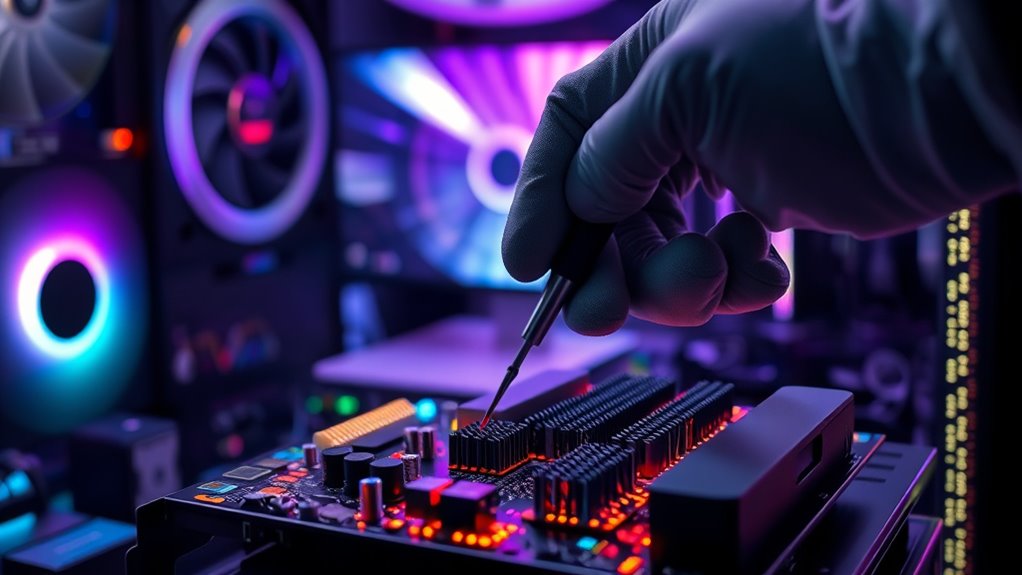
Have you checked if your video card drivers are up to date? Outdated drivers can cause flicker or strobe effects during projector use. Keeping your drivers current is a key step in graphics troubleshooting. To update your drivers, visit your GPU manufacturer’s website or use device management tools. Here are some tips:
Ensure your video card drivers are up to date to prevent flicker and optimize projector performance.
- Download the latest driver version compatible with your system
- Use automatic driver update utilities for ease
- Restart your computer after installing updates
- Check for driver updates regularly
- Confirm the drivers are properly installed
- Staying informed about industry transformations can help you understand how updates improve hardware performance
Updating your drivers ensures your graphics hardware functions smoothly, reducing flicker issues. Driver updates fix bugs, improve compatibility, and enhance performance. Staying current is essential for a clearer, flicker-free projection experience.
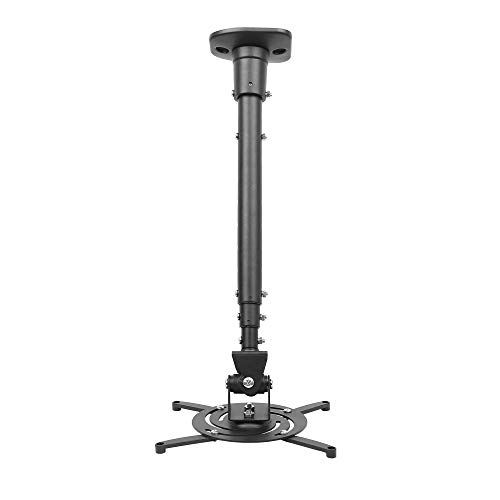
DYNAVISTA Full Motion Universal Ceiling Projector Mount Bracket with Adjustable Height and Extendable Arms Rotating Swivel Mount for Home and Office Projector (Black)
Universally Compatible: This projector ceiling mount supports most projector brands with distance between the mounting holes on back...
As an affiliate, we earn on qualifying purchases.
Change the Power Source or Use a Surge Protector

Using a stable power source helps prevent flickering caused by voltage fluctuations. A surge protector can shield your projector from power surges and spikes that might disrupt its operation. Ensuring consistent power flow can make a noticeable difference in reducing flicker issues. Additionally, using quality vegetable juices can ensure your energy levels stay steady during long viewing sessions.
Power Source Stability
Unstable power sources can cause your projector to flicker unexpectedly. Power fluctuations and electrical interference are common culprits behind this issue. To improve stability, consider changing your power source or investing in a reliable surge protector. This helps minimize sudden voltage drops or surges that disrupt your projector’s performance. You might also check if other devices are causing interference or overloads on the same circuit. Here are some tips to ensure better power stability:
- Plug your projector into a dedicated outlet
- Avoid using multiple high-power devices simultaneously
- Use a high-quality surge protector
- Keep cables organized to reduce interference
- Consider installing a voltage stabilizer if fluctuations persist
- Regularly monitor your electrical system to detect potential issues early
Taking these steps helps guarantee a steady power supply, reducing flicker and enhancing your viewing experience.
Surge Protector Benefits
A reliable surge protector can make a significant difference in preventing projector flicker caused by power fluctuations. It safeguards your equipment from damaging power surges, which can lead to inconsistent voltage and flickering issues. Using a surge protector enhances electrical safety by reducing the risk of electrical fires or damage to your projector’s internal components. When a power surge occurs, the surge protector diverts excess voltage away from your device, maintaining stable power flow. This stability helps prevent flickering or strobe effects during presentations or viewing. Investing in a quality surge protector is a simple yet effective way to protect your equipment, ensure consistent performance, and extend the lifespan of your projector. Always choose a surge protector with appropriate joule ratings for best electrical safety. Additionally, selecting a surge protector with energy absorption capabilities can provide added protection against unexpected power spikes.
Reduce Projector Brightness and Contrast Levels

Have you considered that lowering your projector’s brightness and contrast levels can considerably reduce flickering? Proper projector calibration involves fine-tuning brightness adjustment to minimize strain on the device and improve image stability. Reducing these settings can help eliminate strobe effects caused by overexertion, especially in less-lit environments. Here are some tips to help:
- Start with a lower brightness setting and increase gradually
- Adjust contrast to prevent over-saturation
- Use test patterns to monitor flicker reduction
- Keep ambient lighting conditions in mind
- Save your calibration for quick adjustments later
- Understanding contrast ratio can assist in optimizing image quality and reducing flickering.
Ensure Proper Ventilation and Overheat Prevention
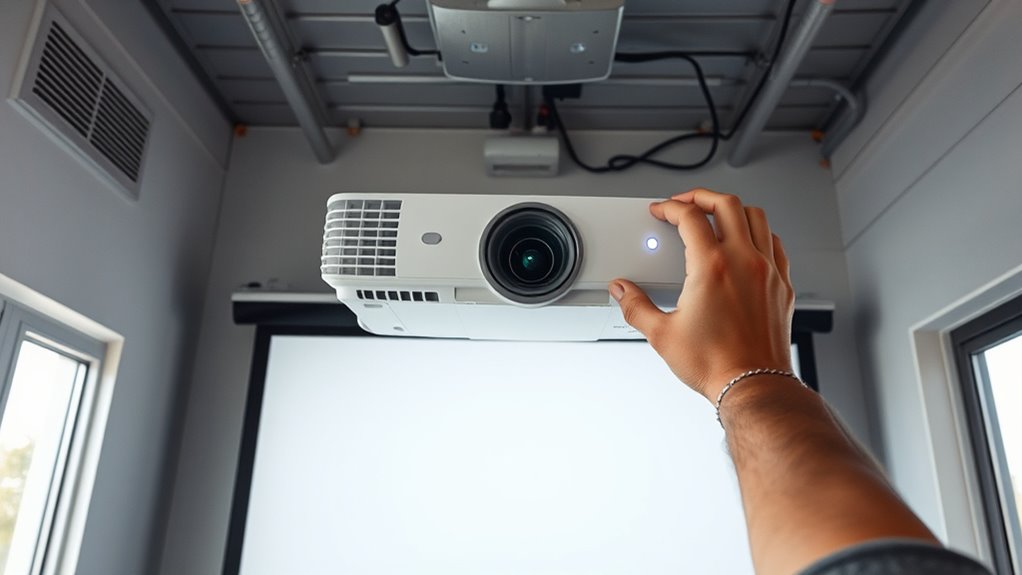
Make sure your projector has good airflow by keeping ventilation openings clear and unobstructed. Regularly remove dust from vents and filters to prevent overheating. Proper ventilation helps keep your projector running smoothly and reduces flicker issues.
Adequate Airflow Circulation
Ensuring proper ventilation is essential to prevent your projector from overheating and flickering. Good airflow management keeps components cool, reducing the risk of thermal issues that cause flickering or strobing. To optimize ventilation, consider these tips:
- Keep vents clear of dust and debris
- Position the projector in a well-ventilated area
- Use external fans if necessary to boost airflow
- Avoid placing the projector near heat sources
- Regularly check and clean internal filters
- Implementing proper airflow circulation can further minimize overheating risks and maintain optimal projector performance.
Maintain Ventilation Openings
Are your projector’s ventilation openings clear and unobstructed? Proper ventilation maintenance prevents overheating, which can cause flicker or strobe effects. Check that vents aren’t blocked by dust, debris, or placement near walls. Optimizing airflow is key to maintaining consistent performance. Use this table to guide your ventilation checks:
| Ventilation Check | Action | Result |
|---|---|---|
| Inspect vents | Clear obstructions | Improved airflow |
| Ensure open space | Keep vents unobstructed | Prevent overheating |
| Monitor temperature | Use cooling aids if needed | Stable operation |
Regularly cleaning and maintaining your filtration systems can also help prevent dust buildup that might block airflow and impact device performance.
Regular Dust Removal
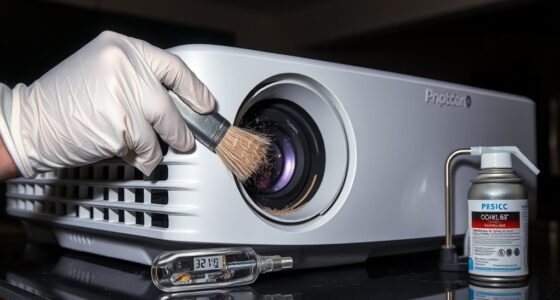
Regularly removing dust from your projector’s vents and filters is essential for maintaining proper airflow and preventing overheating. Dust buildup can block airflow, causing the device to overheat and flicker. To keep your projector running smoothly, perform regular filter maintenance and clean dust from vents. Using compressed air to blow out dust from vents and filters is effective, but also ensure you check for signs of dust accumulation during routine maintenance. Turn off and unplug the projector before cleaning, and gently remove filters for thorough cleaning. Replace filters as recommended by the manufacturer. Additionally, understanding ventilation systems helps ensure proper airflow and prevent issues related to overheating.
Test the Projector With Different Input Devices
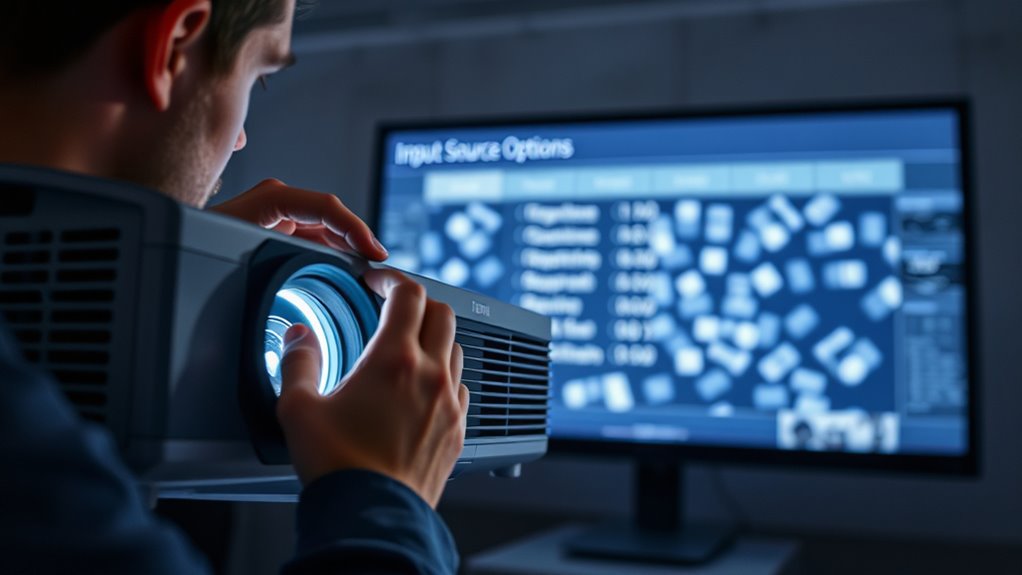
To identify whether the flicker issue stems from the input source, you should test the projector with different input devices. This helps determine if the problem relates to input device compatibility or input source switching. Connect various devices such as laptops, media players, or tablets, and observe the projector’s performance. If flickering occurs with one device but not others, the issue likely lies with that specific input device or its connection. Use the following table to compare results:
| Input Device | Flicker Present | Notes |
|---|---|---|
| Laptop HDMI | Yes | Try different HDMI cables |
| Media Player | No | Check settings on device |
| Tablet VGA | Yes | Update device drivers |
Testing different input sources clarifies the root cause of flickering. Additionally, consider the compatibility of your input devices with the projector, as mismatched specifications can sometimes cause visual issues.
Reset the Projector to Factory Settings
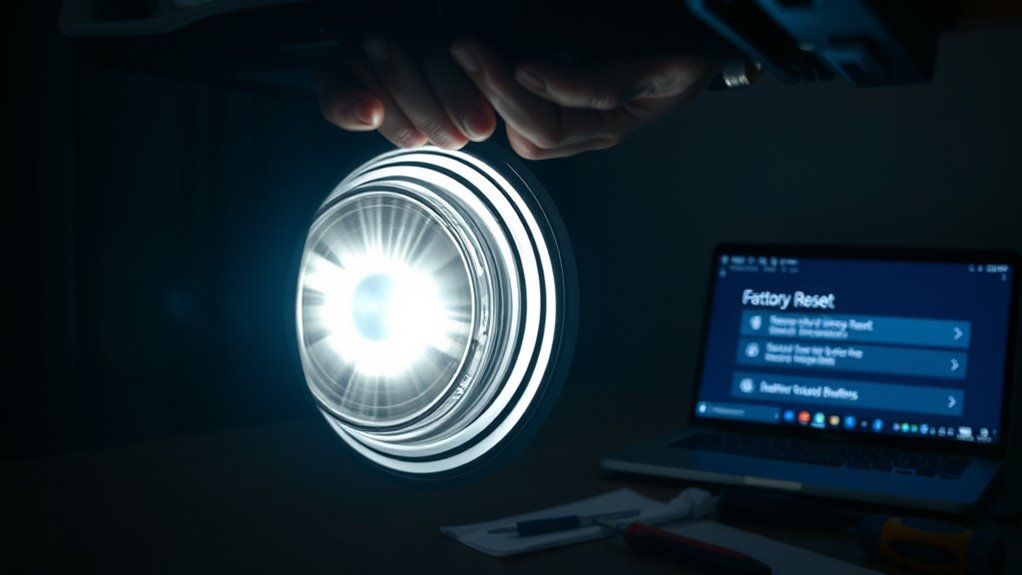
If testing different input devices didn’t resolve the flickering issue, resetting the projector to its factory settings can help eliminate software or configuration problems that might be causing the problem. Performing a factory reset restores default settings, which can fix any misconfigurations behind the flicker. To do this, access your projector’s menu, find the reset or restore option, and select it. Be aware that this will erase custom settings, so you may need to reconfigure certain preferences afterward.
- Save any custom settings before resetting
- Look for “Reset to Factory Defaults” in the menu
- Confirm the reset and wait for it to complete
- Recalibrate your projector after reset
- Check if flicker persists after this step
Frequently Asked Questions
Can Projector Flicker Be Caused by Incompatible Display Resolutions?
Yes, projector flicker can be caused by incompatible display resolutions. When there’s a resolution mismatch, the projector struggles to process the signal properly, leading to flickering or strobe effects. Signal incompatibility issues arise if your device’s resolution isn’t supported by the projector. To fix this, make sure your display resolution matches the projector’s native resolution or select a compatible setting, which helps stabilize the image and eliminate flickering.
How Does Ambient Lighting Affect Projector Flickering Issues?
Ambient lighting can greatly impact your projector’s flickering issues. Light pollution effects from excessive or uneven ambient light interfere with the projected image, making flicker more noticeable. To minimize this, reduce ambient light interference by dimming or turning off nearby lights and controlling light sources around your setup. Properly managing ambient lighting ensures a clearer image and less flickering, improving your viewing experience overall.
Are There Specific Brands More Prone to Flicker Problems?
You might worry about flicker issues with certain brands, but it’s often linked to model specifications rather than brand reliability. Some cheaper or lower-end models are more prone to flicker, while reputable brands like Epson or BenQ usually design for stability. Always check the model’s features and reviews before purchasing, and avoid models with less robust power supplies or inadequate cooling systems, which can cause flickering regardless of brand reputation.
Can Environmental Factors Like Humidity Influence Flickering?
Yes, environmental factors like humidity effects can influence flickering in your projector. High humidity levels cause condensation and moisture buildup inside the device, leading to electrical issues that result in flickering or strobe effects. You should monitor the environment where you operate your projector, keep it in a dry, well-ventilated space, and consider using dehumidifiers if needed. Controlling environmental influence helps make certain of steady projector performance and reduces flickering.
Is There a Way to Test if Flicker Is Due to Internal Projector Components?
You can test if flicker is due to internal components by performing internal component diagnostics, which help identify faulty parts like the lamp or color wheel. Calibration testing ensures the projector’s settings are accurate, reducing flicker caused by misalignment. To proceed, consult your projector’s service manual for diagnostic procedures or consider professional help for detailed internal assessments, guaranteeing the device operates smoothly and flicker is minimized.
Conclusion
Think of your projector as a delicate dance partner; when all connections are secure and settings are tuned, it moves smoothly without strobe or flicker. By addressing each step, you’re guiding it back to harmony, restoring clarity and brightness. Remember, a well-maintained projector is like a steady heartbeat—keeping your visuals alive and vibrant. With patience and care, you’ll keep the flicker at bay, ensuring your viewing experience remains bright and steady, just like a steady rhythm.