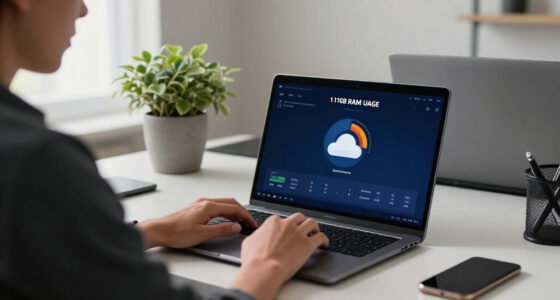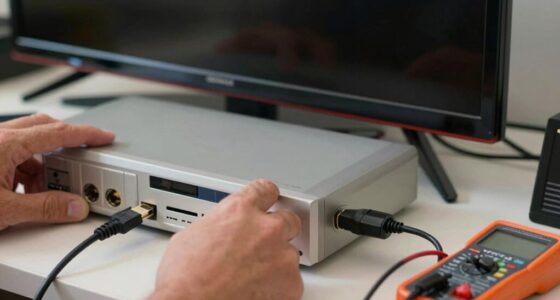

To stop guessing, start by checking and tightening your HDMI cables, making sure they’re high-quality and free of damage. Next, update your display’s firmware and adjust the settings for compatibility. Test your hardware by swapping cables and trying different ports or devices to identify faulty parts. If you follow these steps, you’ll be more confident in resolving handshake issues effectively and guarantee a stable connection every time. Keep exploring to uncover even more solutions.

Get business pricing on your home office setup
- Business-only prices and quantity discounts
- Tax-exempt purchasing
- Multiple users, one account, clear invoices
Key Takeaways
- Check and secure all HDMI cable connections, ensuring they are firmly plugged in and undamaged.
- Inspect and replace damaged or low-quality HDMI cables to maintain signal integrity.
- Update device firmware regularly to fix bugs and improve compatibility.
- Adjust display settings and calibrate resolution to prevent handshake issues.
- Test hardware components and ports, replacing faulty parts to restore stable communication.
As an affiliate, we earn on qualifying purchases.
Checking and Securing Cable Connections
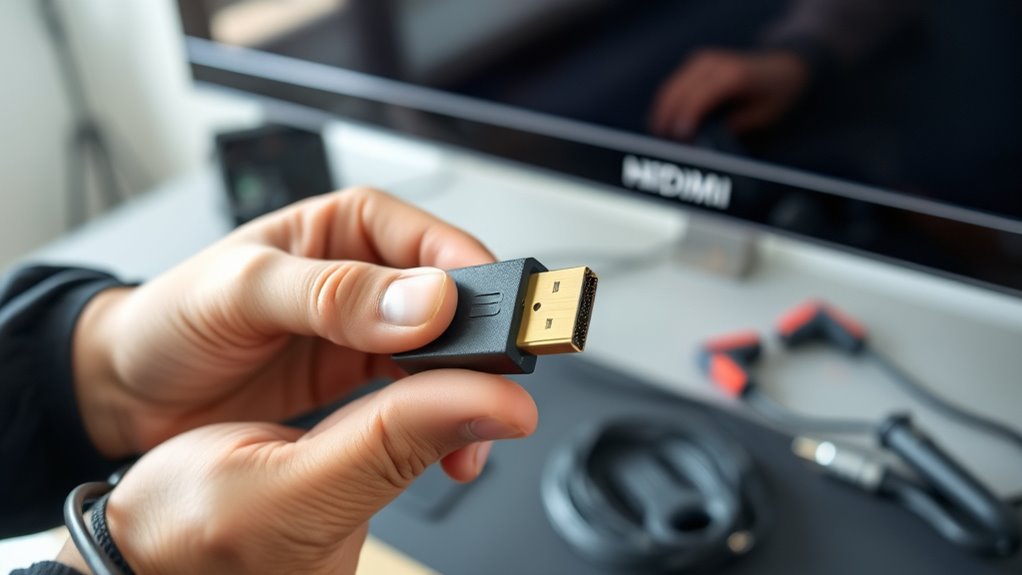
To guarantee your HDMI handshake functions smoothly, start by checking and securing all cable connections. Ensure that the HDMI cable is firmly plugged into both your device and display. Loose or partially connected cables can disrupt communication, causing handshake issues. Pay attention to cable quality—using high-quality cables reduces the risk of signal degradation. Poorly manufactured or damaged cables may have compromised connector integrity, leading to intermittent connections or no signal at all. Inspect each connector for visible damage, bent pins, or dirt that could interfere with proper contact. If you notice any issues, replace the cable with a reputable, high-quality option. Properly secured, intact cables are fundamental for establishing a stable connection and avoiding handshake problems. Additionally, cable maintenance by periodically cleaning and inspecting your cables can prevent connection issues over time.
As an affiliate, we earn on qualifying purchases.
Adjusting Display Settings and Firmware Updates
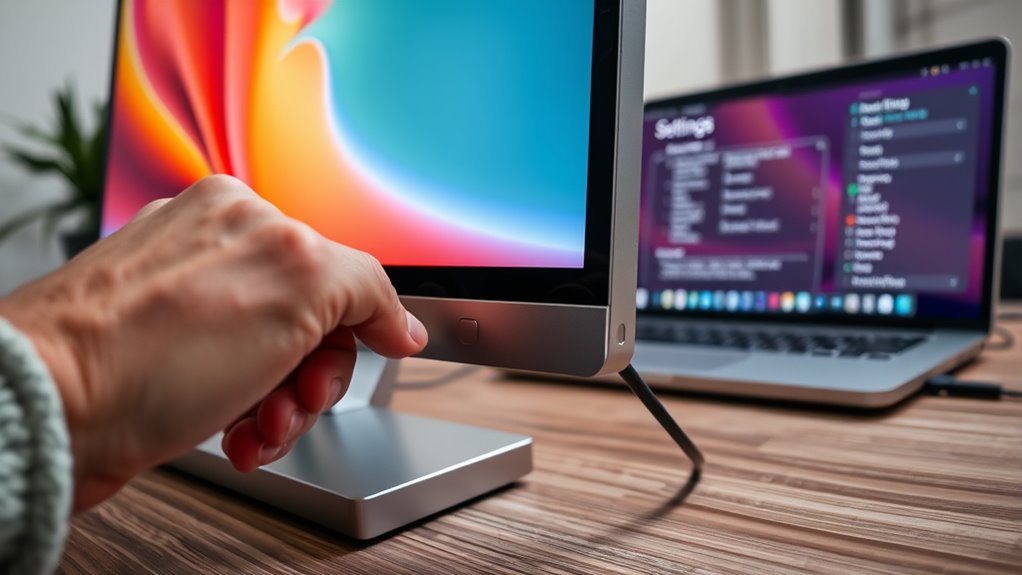
Once you’ve secured and checked your cable connections, the next step is to enhance your display settings and verify your firmware is up to date. Start by adjusting your display calibration to ensure color accuracy and maximum resolution, which can reduce handshake issues caused by incompatible settings. Then, check your device manufacturer’s website for a firmware upgrade, as outdated firmware can hinder proper communication between devices. Updating firmware can resolve bugs, improve compatibility, and enhance overall stability. Additionally, ensuring your device supports Self Watering Plant Pots can prevent operational issues. After completing these updates, restart your devices to apply the changes. Keep in mind that sometimes, a simple calibration or firmware upgrade can make a significant difference in resolving HDMI handshake problems, leading to a more reliable connection and better picture quality.
As an affiliate, we earn on qualifying purchases.
Testing and Replacing Hardware Components

If you’ve tried adjusting your display settings and updating firmware without success, testing your hardware components is the next essential step. Start with hardware diagnostics to identify faulty parts like HDMI cables, ports, or devices. Signal interference from nearby electronics can disrupt the handshake, so eliminate potential sources or try moving devices away from each other. Swap out the HDMI cable with a known working one to rule out cable issues. Test your device on different displays or with different HDMI ports to pinpoint faulty hardware. Additionally, ensuring your environment minimizes Signal interference can improve connection stability. If problems persist, consider replacing suspect components. Proper diagnostics help you avoid unnecessary replacements and ensure your setup is solid. This focused approach cuts through guesswork and gets your HDMI connection back to reliable operation.
As an affiliate, we earn on qualifying purchases.
Frequently Asked Questions
Can HDMI Handshake Issues Occur With Wireless Connections?
Yes, HDMI handshake issues can happen with wireless connections. Wireless interference and poor signal stability can disrupt communication between your devices, causing handshake problems. When your wireless signals are weak or crowded, they may interfere with HDMI signals, especially if you’re using wireless HDMI transmitters. To fix this, verify your wireless network is stable, minimize interference, and keep your devices within a good range to maintain proper handshake and signal quality.
How Do Environmental Factors Affect HDMI Handshake Stability?
Think of your HDMI connection like a delicate dance—any interference sources or poor cable quality can trip you up. Environmental factors like Wi-Fi signals, fluorescent lights, or thick walls can cause signal disruptions, making the handshake unstable. Using high-quality cables and minimizing interference sources helps maintain a smooth connection, ensuring your devices communicate reliably. Pay attention to your surroundings, and you’ll keep that handshake strong and steady.
Are There Compatibility Issues Between Different HDMI Versions?
Yes, compatibility issues can arise between different HDMI versions, especially if your HDMI adapters or cables aren’t up to date. Using high-quality cables and confirming your adapters support the same HDMI version helps prevent handshake problems. Mismatched versions may lead to signal loss or degraded quality. Always check the specifications and compatibility of your HDMI devices to guarantee smooth connection and peak performance.
What Role Does EDID Play in Handshake Problems?
Think of EDID as your device’s secret language, ensuring smooth communication during handshake timing. When EDID calibration falters, it can cause handshake problems, making devices struggle to recognize each other’s capabilities. Properly managing EDID helps your devices exchange information seamlessly, preventing issues like no signal or poor image quality. Paying attention to EDID details is like fine-tuning a musical instrument, keeping your HDMI connection in perfect harmony.
How Long Should I Wait After Firmware Updates to Test?
You should delay testing your HDMI connection for at least 24 hours after firmware updates to guarantee stability. During this period, avoid making any changes or updates. If problems persist, consider performing a firmware rollback to the previous version. This delay allows the device to fully process the update, reducing the chances of handshake issues. Patience here helps you identify if the update caused the problem or if other fixes are needed.
Conclusion
By methodically checking your cables, updating firmware, and testing hardware, you can clear the tangled web of HDMI handshake issues. Imagine your devices finally syncing seamlessly, like a well-rehearsed orchestra, with signals flowing smoothly through each connection. When you take control and follow this checklist, you turn chaos into harmony, ensuring your screens stay vibrant and stable. With patience and precision, those frustrating glitches become nothing more than distant memories, replaced by crystal-clear images and effortless connection.
Fall Picks
fall essentials
As an affiliate, we earn on qualifying purchases.