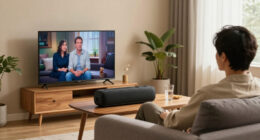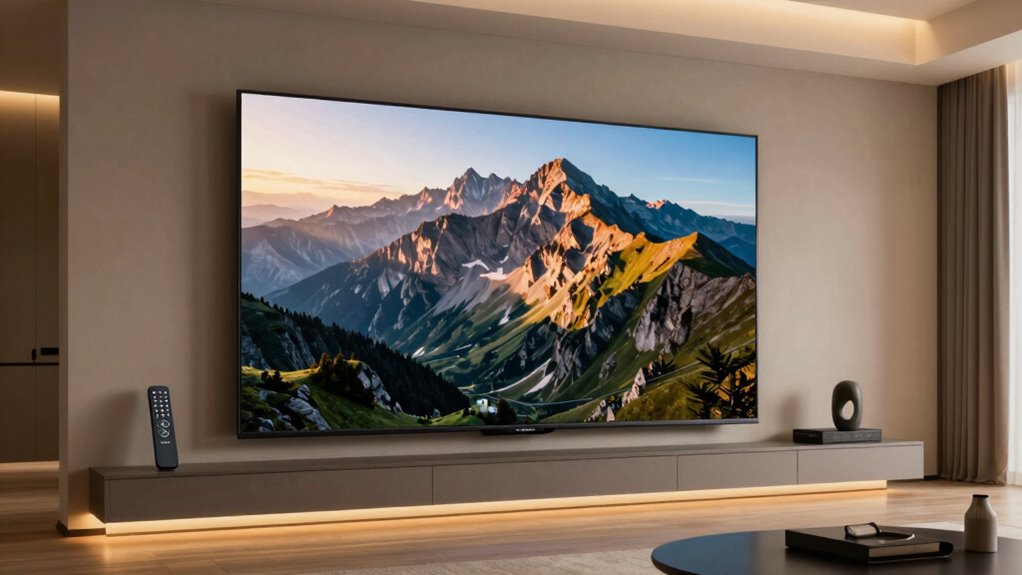
To match your screen’s aspect ratio to the content you watch most, start by identifying the typical format of your favorite videos or shows, such as 16:9 or 2.39:1. Use your display’s manual settings or auto modes to adjust the aspect ratio accordingly, avoiding stretching or cropping. Regular calibration and experimentation help you find the best setting for each type of content. Keep exploring to discover more ways to optimize your viewing experience.

Get business pricing on your home office setup
- Business-only prices and quantity discounts
- Tax-exempt purchasing
- Multiple users, one account, clear invoices
Key Takeaways
- Identify the aspect ratio of your preferred content (e.g., 16:9, 2.39:1) before adjusting your display settings.
- Use your device’s auto aspect ratio mode or select manual settings that match the content’s ratio.
- Access your display’s menu to choose or customize aspect ratio options like 16:9, 21:9, or zoom modes.
- Perform screen calibration to ensure content appears proportioned without distortion or cropping.
- Regularly update calibration and display settings based on the type of content you watch most for optimal viewing.
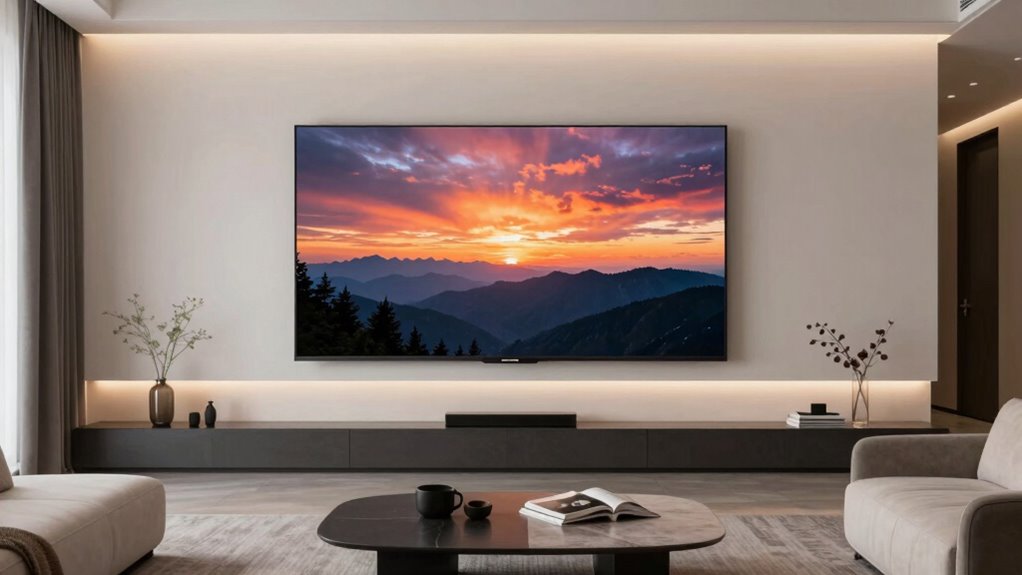
Choosing the right screen aspect ratio is essential to ensuring your content looks its best. When your display’s aspect ratio matches the type of content you watch most, everything appears clear, correctly proportioned, and immersive. To achieve that, you need to understand how to adjust your screen’s aspect ratio settings and perform proper screen calibration. These steps help eliminate distortion and ensure your viewing experience is optimized. Understanding content formats and their typical aspect ratios can also guide your choices and improve overall viewing quality.
Start by identifying the common aspect ratios used by your favorite content. For movies, especially Hollywood blockbusters, the standard is usually 2.39:1 or 2.35:1, which are wider formats designed for cinematic presentations. TV shows often use the traditional 16:9 aspect ratio, which is also the default for most modern monitors and TVs. For gaming, the aspect ratio can vary, with 16:9 still being prevalent, but some gamers prefer ultrawide ratios like 21:9 for a broader field of view. Knowing these preferences helps you choose the right aspect ratio settings on your device.
Identify your favorite content’s aspect ratios—cinema, TV, or gaming—to optimize your display settings for the best viewing experience.
Once you know what ratio best suits your viewing habits, it’s time to perform screen calibration. Proper calibration ensures your display isn’t stretched or compressed, which can distort images and reduce clarity. Use built-in calibration tools or specialized software to adjust brightness, contrast, and color accuracy. Accurate screen calibration allows your content to be displayed as intended, making the most of your aspect ratio choices.
Adjusting aspect ratio settings on your device is usually straightforward. Many modern screens have an auto mode that detects the content type and adjusts accordingly, but for precise control, you should manually set the aspect ratio. Dive into your display’s menu options and look for settings like “Aspect Ratio” or “Screen Mode.” Here, you can select options like 16:9, 4:3, 21:9, or even zoom modes that crop or stretch images. Experiment with these settings to see which provides the most natural and undistorted display for your content.
As an affiliate, we earn on qualifying purchases.
Frequently Asked Questions
Can I Change Aspect Ratio on All TV Models?
You can change aspect ratios on many TV models, but not all. It depends on your TV’s features, like screen calibration options and content scaling settings. Some models let you manually adjust the aspect ratio or choose from preset modes, while others automatically optimize the display. Check your TV’s settings menu for aspect ratio adjustments, and be aware that older models may have limited options for customizing the display to match your preferred content.
Will Adjusting Aspect Ratio Affect Picture Quality?
Adjusting the aspect ratio can sometimes cause picture distortion, but it usually won’t ruin your viewing experience. When you do aspect ratio calibration properly, it helps optimize your screen for the content, preventing images from looking stretched or squished. However, if you tweak it excessively, it might slightly affect picture quality. Overall, a careful adjustment enhances your viewing without sacrificing clarity, making your shows look even better.
How Do I Know My Preferred Content’s Aspect Ratio?
You can find your preferred content’s aspect ratio by noticing the common aspect ratios used in your favorite shows, movies, or games. Most content follows a history of aspect ratios like 16:9 for HDTVs or 2.35:1 for cinematic films. Pay attention to the black bars or cropping, which indicate the aspect ratio. Over time, you’ll recognize patterns in the common aspect ratios, helping you choose a display setting that matches your viewing habits.
Is There a Universal Aspect Ratio for All Movies?
Did you know that most movies are shot in different aspect ratios? There isn’t a universal aspect ratio for all movies, as filmmakers choose ratios based on content and artistic intent. For content compatibility, common ratios like 16:9 and 2.39:1 work well across many films, but some classics or blockbusters might use wider or narrower ratios. Always check your device settings to match your favorite content’s aspect ratio for the best viewing experience.
Can Aspect Ratio Settings Be Customized for Different Content?
Yes, aspect ratio customization is possible for different content, allowing you to optimize your viewing experience. Many TVs and media players let you adjust aspect ratio settings on a per-application or per-video basis. This flexibility guarantees you can match the content’s original aspect ratio or choose a preferred display mode, enhancing your viewing experience by reducing black bars or distortions. Customizing aspect ratios helps you enjoy movies, shows, and games in the best way possible.
As an affiliate, we earn on qualifying purchases.
Conclusion
Now that you know how to match your screen aspect ratio to your favorite content, you’re all set to enjoy a seamless viewing experience. Remember, it’s worth taking the time to get it just right—after all, a well-matched screen makes all the difference. Don’t let your setup be a square peg in a round hole; instead, tailor it to fit your viewing habits and reveal the full potential of your entertainment. Happy watching!
As an affiliate, we earn on qualifying purchases.
As an affiliate, we earn on qualifying purchases.
Fall Picks
fall essentials
As an affiliate, we earn on qualifying purchases.


![Bukit Bintang Hicks Flat: DBKL Orders Cleanup After Viral Video Exposes Dirty Conditions [WATCH] - NST Online](https://4kprojectorguide.com/wp-content/uploads/2026/09/bukit-bintang-hicks-flat-dbkl-orders-cleanup-after-viral-video-exposes-dirty-con-featured-260x140.jpg)