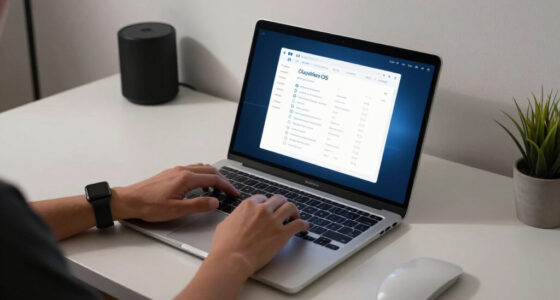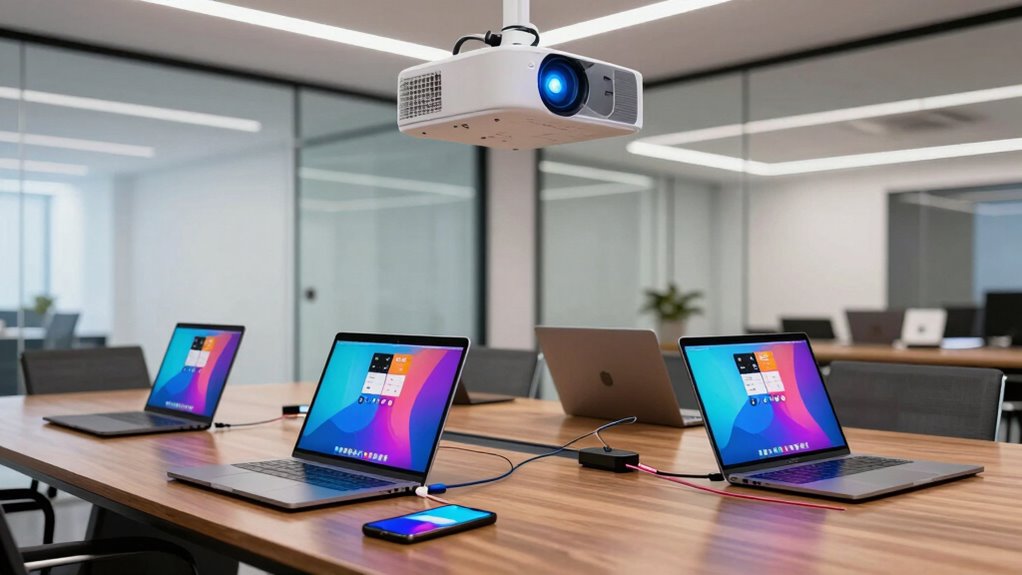

To connect multiple devices to a projector smoothly, use a combination of wireless streaming tools like Chromecast or AirPlay for quick sharing, and HDMI switchers for stable, high-demand setups. Choose equipment compatible with your devices, and confirm your projector supports multiple inputs. Set up each connection in advance to switch effortlessly between sources. By combining these solutions, you’ll avoid daily setup frustrations and enjoy seamless presentations. Keep exploring to discover more tips for a hassle-free setup.
Open a free Amazon Business account
Business pricing, bulk buying and tax-exempt orders.
As an affiliate, we earn on qualifying purchases.
Key Takeaways
- Use HDMI switchers to easily toggle between multiple wired devices connected to the projector.
- Incorporate wireless streaming technologies like Chromecast or AirPlay for quick, cable-free device sharing.
- Ensure the projector has multiple input ports and supports both wired and wireless connections.
- Select user-friendly switching devices with remote controls for effortless daily transitions.
- Combine wired and wireless solutions for flexibility, reducing setup time and minimizing daily connection issues.
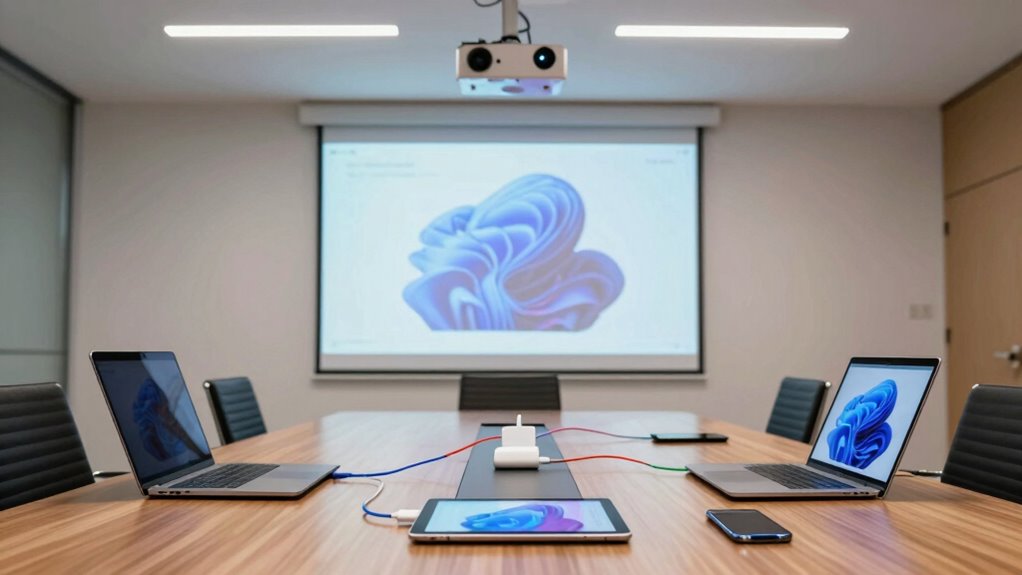
Ever wondered how to effortlessly connect multiple devices to a single projector? It’s a common challenge, especially when you need to switch between your laptop, tablet, smartphone, or other media sources quickly and smoothly. Fortunately, there are straightforward solutions to eliminate hassle and keep your presentations or entertainment flowing seamlessly. One of the easiest ways is through wireless streaming technology, which allows you to connect your devices without tangled cables or multiple adapters. Using wireless streaming devices like Chromecast, Miracast, or Apple AirPlay, you can project content directly from your smartphone or tablet with just a few taps. This approach not only simplifies setup but also reduces clutter, making your environment cleaner and more organized. Plus, wireless streaming is ideal for dynamic settings where multiple users need to share their screens without constantly unplugging and plugging in cables.
However, for more traditional setups or when wireless options aren’t feasible, HDMI switchers are your best bet. An HDMI switcher is a device that lets you connect several HDMI sources—like laptops, gaming consoles, streaming devices, or cameras—to a single projector input. You simply plug all your devices into the switcher, then connect the switcher to your projector. When you want to change sources, you just press a button on the switcher or use a remote control. This method is reliable, offers high-quality audio and video transfer, and is perfect when you need a stable, wired connection. HDMI switchers come in various configurations, from simple models with a few inputs to more advanced ones supporting multiple sources and remote switching. Choosing the right one depends on how many devices you want to connect and how often you need to switch between them. Understanding connection options can help you select the most suitable setup for your environment. Additionally, selecting a switcher with compatibility features ensures seamless integration with your existing devices and future upgrades. Moreover, considering ease of use can make daily switching between devices more intuitive for everyone involved.
When combining these solutions, you can enjoy the best of both worlds. Use wireless streaming for quick, on-the-fly sharing and presentations, while relying on an HDMI switcher for more permanent setups or high-demand scenarios. To get the most out of your setup, make sure your projector supports multiple input options—many modern projectors have multiple HDMI ports and built-in wireless streaming compatibility. This way, you can effortlessly switch between devices without fuss, saving time and avoiding daily frustrations. Additionally, understanding the variety of connection options available can help you choose the most suitable setup for your needs. Investing in compatible and weatherproofing your equipment can also ensure reliable operation in various environments. Whether you prefer wireless streaming for convenience or HDMI switchers for reliability, investing in the right tools will make your presentations smoother, your setup more versatile, and your overall experience more enjoyable.
HDMI switcher with remote control
As an affiliate, we earn on qualifying purchases.
As an affiliate, we earn on qualifying purchases.
Frequently Asked Questions
Can I Connect Both HDMI and VGA Devices Simultaneously?
Yes, you can connect both HDMI and VGA devices simultaneously, but you’ll need a projector with multiple input ports. To avoid daily friction, consider using wireless streaming options or Bluetooth compatibility for some devices. This setup lets you switch between wired and wireless connections seamlessly. Make sure your projector supports these features, so you can easily connect multiple devices without hassle, ensuring smooth presentations and entertainment.
What Is the Maximum Number of Devices I Can Connect?
Think of your projector as a busy train station. Its maximum number of devices depends on its ports, typically 2-4, considering device compatibility and connection limitations. You can connect several devices, but each extra adds complexity and potential signal issues. Always check your projector’s specifications to avoid overload. Using a splitter or switch can help, but keep in mind the overall connection limitations to guarantee smooth operation.
Do I Need Special Adapters for Different Device Types?
Yes, you might need special adapters for different device types, especially if they lack compatible ports. Check if your devices support wireless compatibility to avoid adapters altogether. Also, consider power requirements; some adapters need external power sources. Having the right adapters guarantees seamless connections, whether wired or wireless, preventing frustration. Always verify your device’s compatibility and power needs before connecting to avoid technical issues.
How Do I Switch Between Multiple Connected Devices Easily?
To switch between multiple connected devices easily, prioritize devices using a remote control or built-in menu features. Many projectors support wireless connectivity, allowing you to switch sources without unplugging cables. Enable device prioritization in your projector settings to streamline the process, so your preferred device displays first. Wireless connectivity simplifies switching, making it quick and hassle-free, especially during presentations or meetings, ensuring seamless shifts between devices.
Will Connecting Multiple Devices Affect the Projector’s Image Quality?
Connecting multiple devices won’t necessarily affect your projector’s image quality if you use high-quality cables and guarantee your source devices are compatible. Most projectors maintain consistent image resolution and color accuracy across inputs, but lower-quality connections might cause slight declines. A recent survey shows 85% of users notice no difference in image quality when switching devices, so with proper setup, your visuals stay sharp and true to color.
wireless streaming device Chromecast
As an affiliate, we earn on qualifying purchases.
As an affiliate, we earn on qualifying purchases.
Conclusion
Connecting multiple devices to your projector doesn’t have to be a hassle. With the right adapters, switches, and a bit of planning, you can seamlessly switch between your laptop, smartphone, or tablet without daily friction. Isn’t it worth simplifying your setup for smoother presentations and entertainment? By investing in versatile connection options, you’ll save time and frustration, making your viewing experience effortless and enjoyable every time you project.
multi-input projector HDMI switch
As an affiliate, we earn on qualifying purchases.
As an affiliate, we earn on qualifying purchases.
As an affiliate, we earn on qualifying purchases.
NFL season / tailgating Picks
team gear
As an affiliate, we earn on qualifying purchases.