TL;DR
A 4K projector can show fine detail across a large home theater screen, but the “4K” label covers both native 3840 × 2160 imaging and pixel-shifting designs. Compare brightness, contrast, throw distance, HDR performance, and input lag against your actual room and viewing habits. A carefully matched pixel-shifting projector can be a better fit than a brighter or more expensive model that does not suit your space.
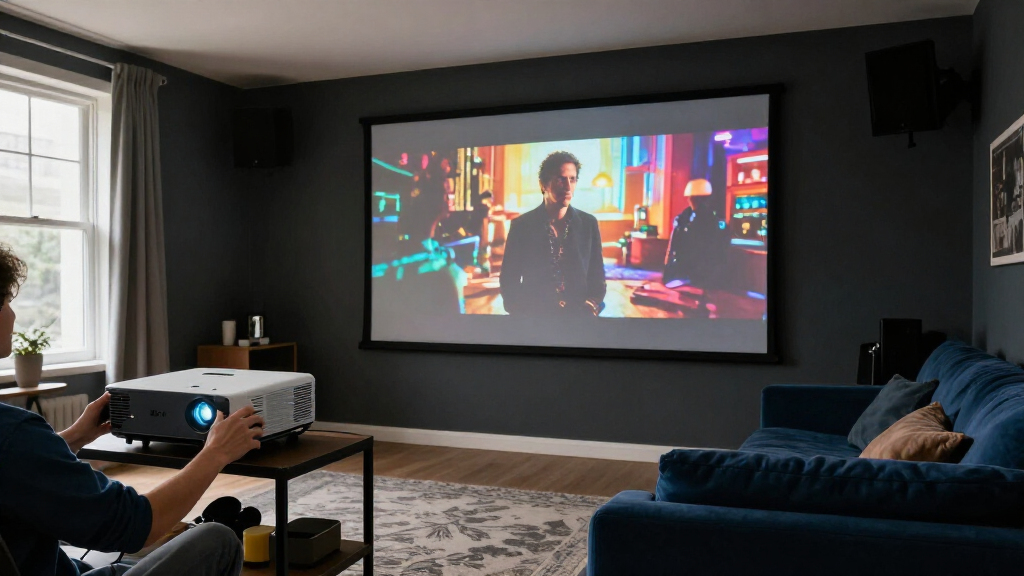
A 4K projector can turn a blank wall into a screen wider than a sofa, but the number on the box tells only part of the story. A sharp image depends on how the projector creates detail, how much light reaches the screen, and whether your room lets dark scenes stay dark.

Get business pricing on your home office setup
- Business-only prices and quantity discounts
- Tax-exempt purchasing
- Multiple users, one account, clear invoices
Here’s how to sort through the choices without getting lost in marketing labels. You’ll learn what “4K” means, how to match a projector to your room, and what to check if you want HDR movies or responsive gaming. Think of the projector as one instrument in a home theater: even a fine one sounds off if the rest of the setup is out of tune.
For example, a dark basement with a 100-inch screen asks different things of a projector than a sunny living room with a 120-inch image. Match the equipment to the room first, and your budget will go further.
A 4K image contains about 8.3 million pixels, but native 4K and pixel-shifting projectors create that detail in different ways.
Choose brightness for your screen size and room light; dark-room viewers should also compare black levels and contrast.
Measure throw distance and screen width, then check the exact model’s placement calculator before buying.
HDR format support does not promise TV-like peak brightness; dark-room conditions and tone mapping shape the result.
Gamers should check input lag and refresh-rate support for their chosen resolution across the full HDMI signal path.
Know What You’re Getting When a Projector Says 4K
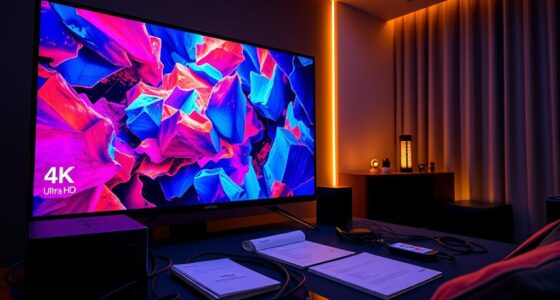
A 4K projector handles video with a resolution of 3840 × 2160, or about 8.3 million pixels. Some projectors display that full grid with a native 4K imaging chip; others shift pixels rapidly from a lower-resolution chip to create a detailed 4K-like image. Both approaches can look sharp on a big screen, but they use different imaging methods.
That distinction matters most when you’re comparing prices and fine detail. Native 4K may appeal if you sit close to a large screen and want the most direct reproduction of the pixel grid. Pixel shifting can deliver convincing detail at a lower cost. The practical difference depends on viewing distance: as you sit farther away, adjacent fine details blend together, so the extra precision of native 4K may become harder to see. A movie with crisp subtitles or a close-up of fabric is a better test than a fast action scene, where motion can distract you from tiny differences.
Labels such as “4K enhanced” vary by manufacturer, so check the actual imaging method and supported input formats. A projector accepting a 4K signal does not necessarily mean its chip displays every pixel at once; signal compatibility and displayed resolution are different parts of the picture. That distinction helps explain why two projectors with similar labels can differ in visible detail, price, and processing demands.
The imaging method is only one part of the result. Lens quality, contrast, brightness, processing, screen, and room conditions determine whether the detail survives from source to seat. A soft lens can blur the pixels a high-resolution chip produces, while weak contrast can make fine detail disappear in dark scenes. A carefully set up pixel-shifting projector can therefore look more pleasing than a native 4K model with weak contrast or a washed-out screen. Ask what you’ll watch, how large you want the image, and how close you’ll sit before paying extra for a particular imaging method.
Products Worth Considering

Dyson V8 Motorhead Origin Cordless Vacuum

eufy E25 Robot Vacuum and Mop

Philips Hue Iris Smart LED Table Lamp (White)
As an affiliate, we earn on qualifying purchases.
Match Brightness and Contrast to the Room You Actually Have
A projector needs enough light to make a clear picture on your chosen screen, but more brightness does not automatically mean a better picture. In a dark room, excessive light can make black areas look gray and make a movie uncomfortable to watch. A dark, light-controlled theater can often use a lower-brightness model effectively. A living room with daylight needs more help, and strong ambient light can still wash out dark scenes and reduce contrast.
Manufacturers commonly list brightness in ANSI lumens or another manufacturer-defined lumen measure. Treat those figures as a starting point, not a guarantee. Screen size, screen gain, image mode, and room light all affect the brightness that reaches your eyes. A 120-inch image spreads the projector’s light over more area than a 100-inch image, much as a small puddle spreads when you pour it across a wide tray. This is why a projector that looks bright on a smaller screen may seem dim when moved to a larger one.
Picture two evening setups. In a basement with blackout curtains, a projector can preserve the difference between dark coats and shadowy corners because little stray light reaches the screen. In a family room used at noon, daylight raises the apparent black level; dark parts of the image can look gray even if the projector itself has good contrast. A brighter model and an ambient-light-rejecting screen may help, though no screen can erase strong or uneven light. Controlling the light in the room can improve the image more than spending the same amount on a brighter projector.
If you care most about night-time movies, compare black levels and contrast alongside brightness. Contrast figures can be measured in different ways, so published numbers aren’t always directly comparable. Look for independent measurements where available, and consider the scenes you watch: a space drama full of stars tests whether the projector can keep the background dark while showing small bright points. A brightly lit comedy is less demanding in that respect. The best balance depends on whether your priority is a vivid daytime image or convincing dark scenes after sunset.
Check Throw Distance Before You Buy a Projector
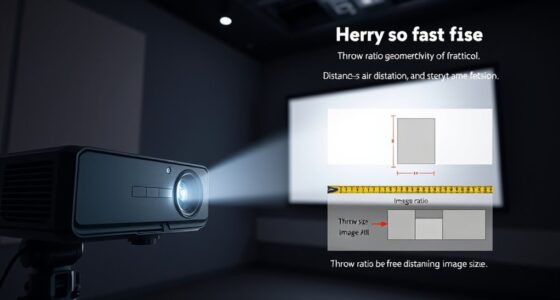
A projector fits your room only if it can sit in the right place and create the image size you want. Check the model’s throw ratio, zoom range, and lens shift against your room dimensions before choosing it. Throw ratio describes how far the projector sits from the screen in relation to the image width. It sets the range of screen sizes the projector can make from a given mounting point, so checking it early prevents a layout that cannot produce the image you planned.
Suppose your media room has a ceiling beam, a short back wall, or a sofa that crowds a shelf. The projector may need more flexibility than a model with fixed placement. Optical zoom changes image size without moving the projector, while lens shift moves the image up, down, or sideways without tilting the unit. These controls can make installation easier and preserve image quality. A ceiling mount, a rear shelf, and a table setup each affect cable routing and viewing angles.
Keystone correction can square up an image when the projector points off-axis, but heavy digital correction can reduce effective detail. The projector resizes and reshapes the picture to compensate for the angle, which means some of the imaging area is no longer used for the image. That can make the result softer, especially at the edges. If possible, position the lens square to the screen and use optical adjustments first. A crisp test pattern can reveal softness at the edges.
Before ordering, measure the planned screen width and the lens-to-screen distance. Then use the manufacturer’s placement calculator for the exact model, since throw ranges differ even among projectors with similar names. For example, if you want a wide screen at the front of a shallow room, a short-throw model may suit the layout better than a standard projector mounted behind the sofa. Ultra-short-throw projectors sit near the wall and can produce a large image, but their steep projection angle makes surface imperfections more visible. They need careful placement and a flat, suitable screen; bumps in a wall or screen can show up as ripples in the picture.
Set Realistic Expectations for HDR and Color
HDR support helps a projector accept HDR video, but it does not promise the bright, sparkling highlights you might see on a television. Projectors spread their light over a large screen and have less peak brightness than many TVs. The projector must fit the range of brightness in the source into the smaller range it can actually produce. This tone mapping affects whether highlights retain detail, shadows stay visible, or the image looks flat. The final HDR effect depends on tone mapping, contrast, screen size, and how dark you can make the room.
Most 4K projectors accept HDR10 signals, and some also support formats such as HLG or Dolby Vision. Format support is useful for compatibility, but it does not show how well a model handles the signal. The projector still has to map the signal to the light it can produce. A small, bright highlight can look restrained if the projector has to preserve detail across a wide image, while pushing highlights brighter can sacrifice detail elsewhere.
Imagine watching a night scene where a streetlamp cuts through blue-black rain. In a dark room, strong tone mapping and good contrast can preserve the glow and the wet pavement. With daylight spilling across the screen, ambient light lifts the blacks and reduces the separation between the lamp and the shadows; the same scene can turn flat. That’s why a manufacturer’s format list won’t tell you how HDR will look in your room. If possible, compare picture modes in conditions close to how you’ll actually watch.
Color claims deserve the same care. Phrases such as “wide color” don’t show how accurately a projector reproduces color. A wider range can make some colors more vivid, but accuracy also depends on calibration and whether the projector can cover the colors in the source. Look for independent measurements where available, then think about the content you watch: natural skin tones and green landscapes can reveal color problems more clearly than a saturated animated scene. Choose a screen and room setup that support the image, not just the HDR badge.
Choose Gaming Features and Connections That Work Together
A 4K projector can work well for gaming when its input lag, refresh rate, and connections match your console or PC. Checking the words “4K ready” alone won’t tell you whether the projector handles the resolution and refresh rate you want at the same time. Look up performance for the specific mode you plan to use, because a projector may offer a fast response only at a lower resolution or with image processing disabled.
For a fast-moving game, input lag is the delay between your controller and the action on screen. Lower lag makes aiming, steering, and timing feel more immediate; in slower games it may matter less. Refresh rate affects how often the projector updates the image, which can make motion look smoother when the source supplies matching frames. Some models support 4K at 60 Hz or higher; features such as HDMI 2.1 and variable refresh rate may matter for certain gaming setups. Check the number and bandwidth of HDMI inputs, too, especially if you connect a console, receiver, and streaming device.
The whole signal path needs to cooperate. A projector may accept a 4K signal but display it at a lower refresh rate. A receiver or cable with limited bandwidth can also restrict the video or audio formats that pass through. For example, if a console connects to a receiver before reaching the projector, check that the receiver supports the console’s chosen resolution and refresh rate. One link that cannot handle the mode can force the whole chain to fall back to a less capable signal.
Before you buy, write down the devices you’ll connect and the modes you care about. Check input lag at the target resolution and refresh rate, then confirm that every HDMI device in the chain can pass the same signal. This lets you decide which tradeoffs are acceptable: a lower refresh rate may be fine for a cinematic game, while a competitive game may benefit more from responsive controls than maximum resolution. A big, crisp image feels less impressive if a racing game responds a beat after you steer.
Plan for Fan Noise, Sound, and Everyday Installation
A home theater projector needs room to breathe, a place to sit, and sound you’ll want to listen to. Projector fans move heat away from the light source and imaging components, so they can become more noticeable in high-brightness modes that generate more heat. Fan noise is most apparent during quiet scenes and when the projector is close to your seat. Leave room around the vents and check where the projector will sit before you settle on a mount or shelf.
Built-in speakers are usually best treated as a convenience, not the final sound system. A soundbar or separate audio setup can make dialogue clearer and give a film soundtrack more weight. Think of a projector’s speakers as an emergency spare: they can get you through a quick show, but they rarely fill a room like audio designed for it. If you plan to use external sound, confirm how audio will reach it; the projector’s location and connections can affect whether you run cables directly or route sound through a receiver.
Installation also affects daily use. Plan for power, cable routing, ventilation, and access to filters or lamp maintenance. A ceiling-mounted projector may give you a tidy picture path, while a shelf can make it easier to reach the controls. A cramped enclosure can trap heat and make the fan work harder, while an inconvenient mount can make routine maintenance a chore. If the unit blocks airflow or hangs where you can hear every fan whirr, the movie experience suffers even when the image looks excellent.
Laser light sources have become more common in recent generations. They can offer quick startup, long operating life, and less need for lamp replacement, though manufacturers’ lifetime figures are estimates and performance varies by model. Traditional lamps eventually need replacement, so a lower purchase price may come with a recurring expense and a gradual change in brightness as the lamp ages. Check the manufacturer’s service guidance and factor light-source maintenance into the cost of ownership, especially if you watch several hours a day.
Frequently Asked Questions
Is a 4K projector worth it over 1080p?
A 4K projector can be worth it on a large screen or when you sit close enough to see the extra detail. At smaller image sizes or greater viewing distances, the difference may be less noticeable. Think about your screen size and seating distance before paying more.
Do I need a native 4K projector?
No. Pixel-shifting models can deliver detailed 4K-like images and often cost less than native 4K models. Native 4K may suit you if maximum detail is a priority and you’re willing to pay more.
How many lumens do I need?
It depends on screen size, screen gain, and the amount of light in your room. A light-controlled theater can often use a lower-brightness model than a living room used during the day. More brightness can help, but it doesn’t guarantee better contrast or color.
Can I use a 4K projector in a bright room?
Yes, though room light can wash out the image and weaken dark scenes. A brighter projector and a suitable ambient-light-rejecting screen may help in some setups. They cannot fully overcome strong or uneven light.
How do I know if a projector will fit my room?
Check the model’s throw ratio, zoom range, and lens shift against your screen size and available distance. Use the manufacturer’s placement calculator for that exact model. Measuring before you buy can prevent a projector from landing too close or far from the screen.
Can I use a 4K projector for gaming?
Yes, if the projector’s input lag, refresh-rate support, and connections suit your console or PC. Check performance at the resolution and refresh rate you plan to play, then confirm your receiver and other devices can pass that signal.
Conclusion
Choose the projector that suits your room, screen, and viewing habits, then verify its placement and connections before you buy. Brightness, contrast, throw distance, and input performance will shape your experience as much as the 4K label.
Get those details right and movie night can turn a plain wall into a window of rain-slick streets, star-filled skies, and fine detail you can see from the sofa.