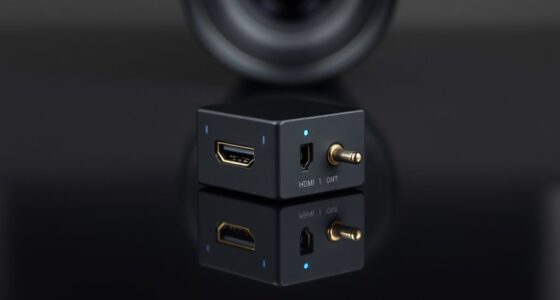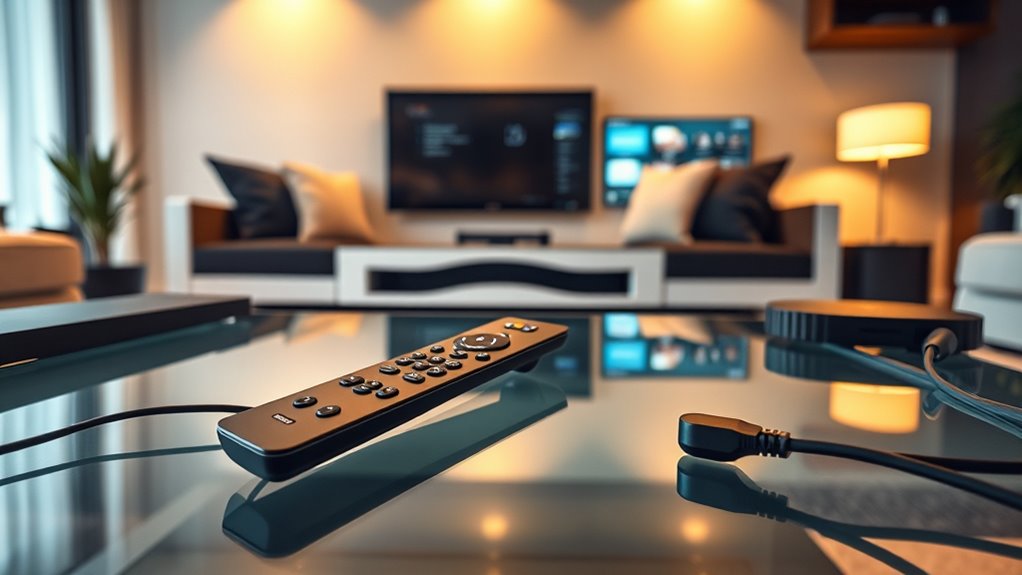

HDMI-CEC, or Consumer Electronics Control, allows you to control multiple devices with just one remote by letting them communicate over HDMI connections. When enabled, your TV and compatible devices can send commands to each other, making setup and control simpler. Not all devices support HDMI-CEC, so you’ll need to guarantee they’re compatible and activated. If you continue exploring, you’ll discover how to optimize your setup for seamless control.
Key Takeaways
- HDMI-CEC allows multiple HDMI-connected devices to communicate and be controlled via a single remote.
- Enabling HDMI-CEC in device settings simplifies control by synchronizing device operations.
- Compatibility varies; devices often have proprietary names like Anynet+ or Bravia Sync for HDMI-CEC.
- Proper setup requires enabling HDMI-CEC on all devices and using compatible HDMI cables.
- Troubleshooting includes checking settings, ensuring device support, and verifying cable quality for optimal performance.

Ever wonder how your TV and connected devices communicate seamlessly? It all comes down to HDMI-CEC, or Consumer Electronics Control, a feature that allows devices connected via HDMI to work together effortlessly. When set up correctly, HDMI-CEC lets you control multiple devices with just one remote, simplifying your entertainment experience. But understanding how this works starts with knowing about device compatibility and the setup process.
Device compatibility is essential for HDMI-CEC to function properly. Not all devices support HDMI-CEC, so before you start, you need to ensure your TV, sound system, Blu-ray player, streaming box, or game console are compatible. Typically, manufacturers label this feature as HDMI-CEC or sometimes by proprietary names like Anynet+ (Samsung), Bravia Sync (Sony), or Viera Link (Panasonic). If your devices support HDMI-CEC, they’ll be able to communicate and respond to commands across the network of connected equipment. Without compatibility, your devices won’t recognize each other, and you’ll miss out on the unified control experience.
Device compatibility is key for HDMI-CEC to work across your devices.
The setup process for HDMI-CEC is straightforward but requires some attention to detail. First, you need to enable HDMI-CEC on each device. This usually involves going into the device’s settings menu, finding the HDMI or CEC options, and turning them on. It’s a good idea to consult your device’s manual if you’re unsure about where these settings are located. Once enabled, you should do the same for your TV, ensuring that HDMI-CEC is active. Some devices might have specific settings to control how they respond to CEC commands, so reviewing these options can optimize your setup.
After enabling HDMI-CEC on all devices, connect them via HDMI cables to your TV’s HDMI ports. Once everything is plugged in and powered on, your devices should start communicating automatically. You might need to select a specific input or turn on a universal control feature on your TV. Many modern TVs will recognize connected devices and automatically adjust their settings to enable seamless control. If you experience issues, double-check that HDMI-CEC is enabled on each device and that you’re using high-quality HDMI cables capable of supporting this feature.
In the end, the key to a smooth HDMI-CEC experience lies in confirming device compatibility and following a careful setup process. When everything is configured correctly, you’ll find it incredibly convenient to control multiple devices with a single remote, making your home entertainment setup more intuitive and less cluttered. It’s a small adjustment that can notably enhance how you enjoy your favorite shows and movies.
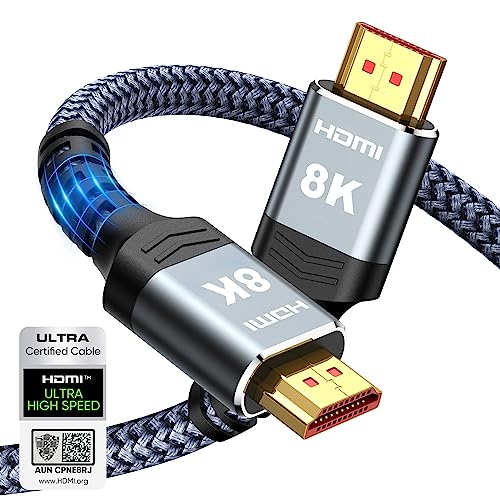
Highwings 8K 10K 4K HDMI Cable 48Gbps 6.6FT/2M, Certified Ultra High Speed 2.1 HDMI Cable Braided Cord-4K@120Hz 8K@60Hz, DTS:X, HDCP 2.2 & 2.3, HDR 10 Compatible with DVD Player/PS5/HDTV/Blu-ray
Top Technology–8K@60HZ: This 8K Ultra-High Speed 2.1 HDMI Cable uses the most cutting-edge technology, which is compatible with…
As an affiliate, we earn on qualifying purchases.
As an affiliate, we earn on qualifying purchases.
Frequently Asked Questions
Does CEC Work With All HDMI Cables?
CEC works with most HDMI cables, but your device compatibility depends on the HDMI version. To guarantee CEC functions properly, use HDMI cables that support HDMI 1.4 or higher, as earlier versions may not carry the necessary signals. Keep in mind that even with compatible cables, some devices might not fully support CEC features. Always check your device specifications and use high-quality cables for the best experience.
Can CEC Cause Compatibility Issues Between Devices?
Sure, CEC can cause compatibility issues—just like your friends arguing over the TV remote. Devices might not play nicely due to differing standards or outdated firmware. To keep things smooth, check device compatibility and keep firmware updates current. Otherwise, you risk your sleek, unified control system turning into a chaotic mess, proving that even gadgets crave harmony… or at least a firmware update to keep the peace.
How Secure Is CEC in Terms of Privacy?
CEC isn’t highly secure, so you should be aware of privacy concerns. It allows devices to communicate and share data, which could potentially expose your viewing habits or device info if intercepted or misused. While the risk is relatively low, it’s smart to keep firmware updated and disable CEC if you’re concerned about data sharing or unwanted device control. Always review your device settings to protect your privacy.
Is CEC Available on Older TVS and Devices?
Think of CEC as an ancient bridge still connecting old friends. Many older TVs and devices lack TV compatibility with HDMI-CEC, so device integration becomes a challenge. If your gear is more than a few years old, chances are it doesn’t support CEC, limiting seamless control. Check your device specs; if CEC isn’t supported, you’ll need extra remotes or adapters for full functionality.
Can I Disable CEC on Individual Devices?
Yes, you can disable CEC on individual devices. Device compatibility varies, so check your device settings or user manual to find CEC options. Disabling CEC can help with privacy concerns, as it prevents devices from sharing commands or data. Keep in mind, turning off CEC may affect device interoperability, so consider your setup and whether you prefer enhanced privacy or seamless control when making your decision.

GE Backlit Buttons Universal Remote Control, Samsung TV Remote Control Replacement, Samsung Remote Control for Smart TV, Roku Remote Replacement, Vizio, LG TV, Sony, 4-Device, Black, 40081
Multi-device control – Operate up to four audio and video devices such as your TV, Blu-ray player, DVD…
As an affiliate, we earn on qualifying purchases.
As an affiliate, we earn on qualifying purchases.
Conclusion
Now that you understand HDMI-CEC, you can think of it as your device’s silent conductor, orchestrating harmony among your gadgets. No more juggling remotes—just a simple, unified control. Imagine the ease of a maestro guiding an orchestra, where everything plays in perfect sync. Embrace HDMI-CEC, and let your entertainment setup run smoothly, turning chaos into harmony. With this knowledge, you’re ready to master your devices and enjoy a truly seamless experience.
HDMI-CEC enabled TV and device setup
As an affiliate, we earn on qualifying purchases.
As an affiliate, we earn on qualifying purchases.

Certified 10K 8K 4K HDMI 2.1 Cable 10FT, 48Gbps Ultra High Speed HDMI® Cord
Ultra High Speed HDMI Cable: Support 10K 60Hz, 8K 60Hz, 5K 165Hz 144Hz 120Hz, 4K 240Hz 200Hz 180Hz…
As an affiliate, we earn on qualifying purchases.
As an affiliate, we earn on qualifying purchases.