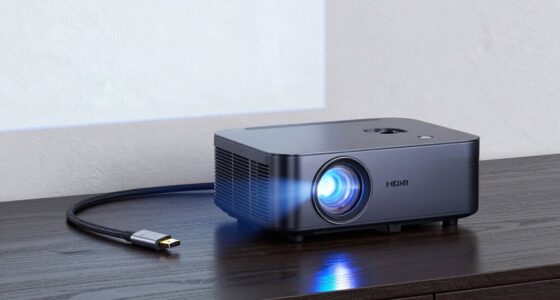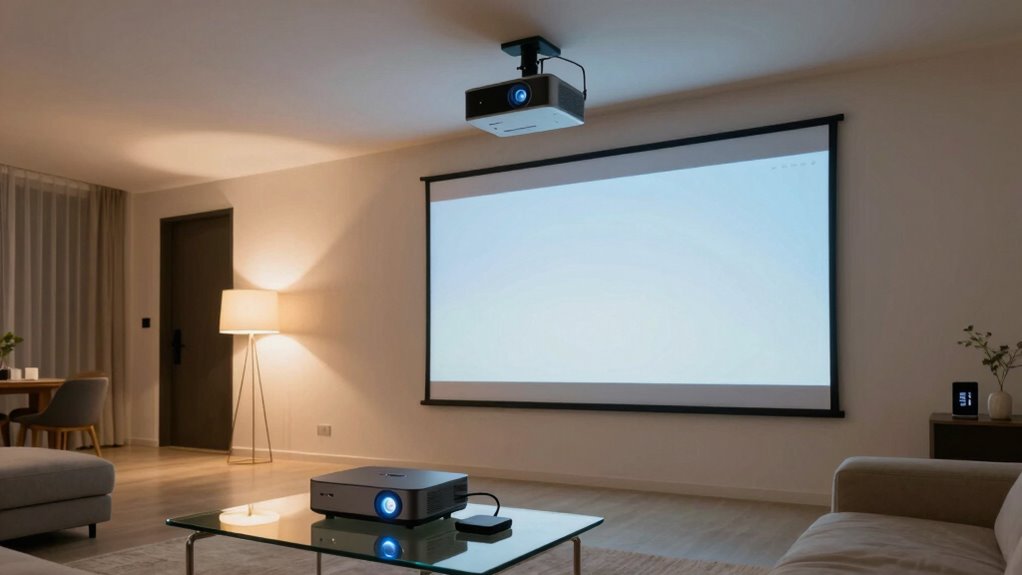
To connect your projector to smart home automation, start by choosing a model with Wi-Fi or Ethernet support for easy network integration. Connect it to your home network, then add it to your smart home system using the manufacturer’s app or compatible platforms like Alexa or Google Assistant. Use smart plugs or HDMI-CEC for extra control options, and set up routines for automatic operation. If you explore further, you’ll discover how to make your home theater fully automated and voice-controlled.

Get business pricing on your home office setup
- Business-only prices and quantity discounts
- Tax-exempt purchasing
- Multiple users, one account, clear invoices
Key Takeaways
- Choose a modern projector with Wi-Fi or Ethernet support for easy network integration.
- Connect the projector to your home network via Wi-Fi or wired Ethernet for reliable access.
- Use the manufacturer’s app or a smart home hub (Alexa, Google, HomeKit) to pair the projector.
- Implement smart plugs or HDMI-CEC for remote control and automation of power and device functions.
- Set up routines or automation in your smart system for hands-free control and seamless integration.
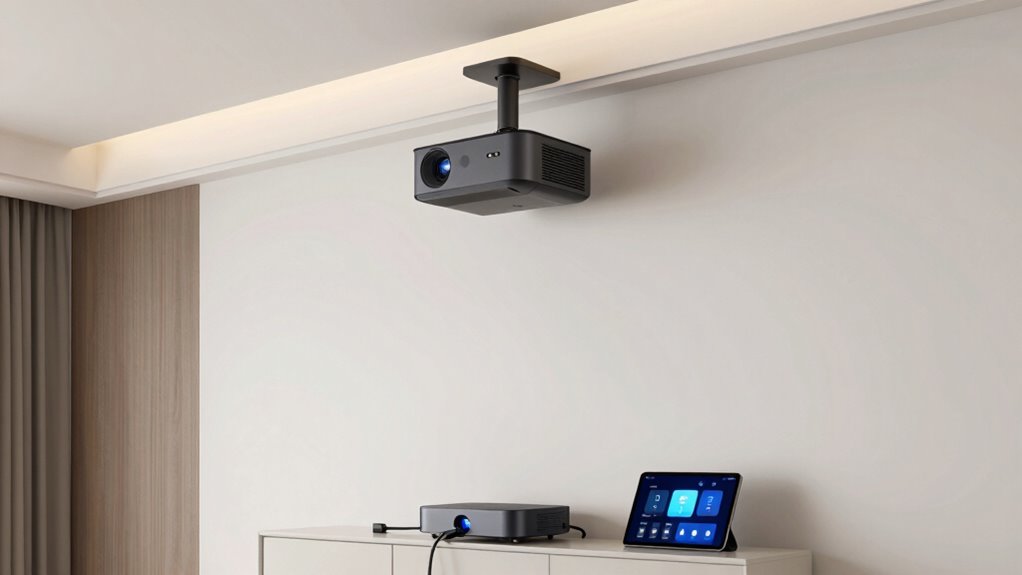
Have you ever wondered how to seamlessly integrate your projector into your smart home system? It’s easier than you might think, especially with the right setup that allows for voice control and remote integration. When you connect your projector to your smart home, you unlock a new level of convenience, making your entertainment experience smoother and more intuitive. The first step is choosing a compatible projector that supports smart home features or can be easily connected to smart devices. Many modern projectors come with Wi-Fi capabilities or Ethernet ports, which makes integration straightforward. Once you have the right device, you’ll want to ensure it’s connected to your home network, either through Wi-Fi or a wired connection. This allows your smart home hub or voice assistant to communicate directly with the projector.
Next, you’ll need to pair your projector with your smart home system. If your projector supports built-in smart home compatibility, you can usually add it directly through the manufacturer’s app or platform. For projectors without native support, you can use a smart home hub, like Amazon Alexa, Google Assistant, or Apple HomeKit, that can work with compatible smart plugs or HDMI-CEC devices. These tools act as intermediaries, enabling you to control your projector remotely or through voice commands. For example, once connected, you might say, “Alexa, turn on the projector,” and your voice assistant will send the command via Wi-Fi. Alternatively, you can set up routines or automation that turn on your projector when you start a movie or enter your home theater room, providing a hands-free experience.
Additionally, understanding how drone bees contribute to hive health can inspire the development of smarter and more resilient home automation systems, emphasizing the importance of connectivity and coordination. Incorporating smart device integration strategies can further enhance your setup by ensuring all connected devices work seamlessly together. Using smart hubs and protocols can significantly improve the reliability and responsiveness of your automation system. Establishing a robust network infrastructure ensures stable communication between devices, preventing lag or disconnection issues. Remote integration becomes even more seamless when you use smart plugs or HDMI-CEC adapters. A smart plug allows you to control the power supply to your projector remotely or through voice commands, turning it on or off with a simple voice request or app tap. HDMI-CEC, on the other hand, enables your projector and other connected devices to communicate over HDMI, allowing you to power everything on or off with a single command. This setup reduces the need for multiple remotes and makes your home theater setup cleaner and more streamlined. Additionally, selecting compatible connectivity protocols can improve the stability and responsiveness of your entire smart home entertainment system. Once everything is connected and configured, you’ll be able to control your projector effortlessly using voice commands, automation routines, or your smartphone, creating a truly integrated smart home entertainment system.
Products Worth Considering

Levoit Eleva 300X HEPA Air Purifier for Home and Bedroom

Samsung 85-Inch M70H Series Mini LED 4K Smart TV (2026)

Bose TV Speaker Compact Soundbar with Bluetooth and HDMI-ARC, Black
As an affiliate, we earn on qualifying purchases.
Frequently Asked Questions
Can I Connect Multiple Projectors to One Smart Home System?
Yes, you can connect multiple projectors to one smart home system. Use wireless streaming technology, like Wi-Fi or Bluetooth, to connect each projector individually. Make sure your system supports power management features to control energy use across all devices efficiently. With a centralized control, you can easily turn projectors on or off, adjust settings, and streamline your home entertainment setup for multiple projectors.
What Compatibility Issues Might I Encounter With Different Projector Brands?
You might face brand compatibility issues when connecting different projector brands, as they may use varying communication protocols or control systems. Always check if your projectors support common standards like HDMI-CEC or IP control. Firmware updates can help resolve compatibility problems, so keep your projectors’ firmware current. If brands don’t support the same protocols, you may need additional adapters or controllers to guarantee seamless integration.
How Secure Is the Connection Between the Projector and Smart Home Network?
The connection between your projector and smart home network is generally secure if you enable network encryption and device authentication. Network encryption protects your data from interception, while device authentication verifies the projector’s identity, preventing unauthorized access. Make certain your Wi-Fi is secured with a strong password, and keep your firmware updated. These precautions help guarantee your projector stays protected from potential security threats on your smart home network.
Do I Need a Special Hub or Controller for Integration?
Think of your smart home like a symphony, where each device needs the right conductor. You typically don’t need a special hub or controller for your projector if it supports common wireless protocols like Wi-Fi or Bluetooth. Just make certain it meets the necessary power requirements and is compatible with your network. This way, your projector seamlessly integrates and harmonizes with your smart home system, no extra fuss needed.
How Do I Troubleshoot Connectivity Problems With the Projector?
To troubleshoot connectivity problems with your projector, start by checking for wireless interference from other devices, like routers or Bluetooth gadgets, and move your projector away if needed. Make certain its firmware is up to date, as updates often fix bugs and improve connectivity. Restart your projector and network equipment, then reconnect. If issues persist, reset network settings and consider using a wired connection for more stability.
Conclusion
Connecting your projector to smart home automation makes movie nights effortless and impressive. Did you know that 72% of homeowners with smart tech report increased convenience and entertainment value? By integrating your projector, you can control everything with a tap or voice command, creating a seamless viewing experience. So, go ahead—dive into smart automation and enjoy the ultimate home theater setup that’s both simple to use and incredibly fun!