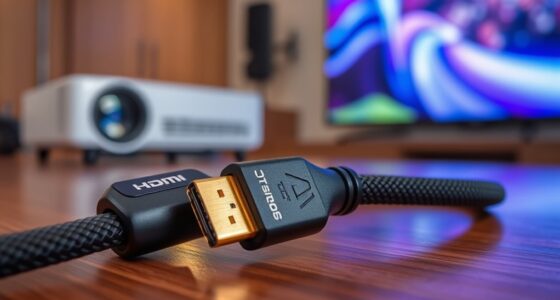

When experiencing HDMI handshake problems, you might notice audio delays, where sound lags behind the picture, or your screen flickers and switches resolution unexpectedly. Devices may disconnect briefly or require unplugging and replugging the cable. You could also face audio cutouts or intermittent sound issues. These problems often stem from compatibility or outdated firmware issues, or poor-quality cables. Keep going—there’s more to help you troubleshoot and prevent these frustrations.

Get business pricing on your home office setup
- Business-only prices and quantity discounts
- Tax-exempt purchasing
- Multiple users, one account, clear invoices
Key Takeaways
- Audio may lag behind video, causing synchronization issues during playback.
- The display flickers or temporarily goes black when switching devices or inputs.
- Resolution drops or fluctuates, with screens switching to lower settings unexpectedly.
- HDMI connections frequently disconnect, requiring unplugging and replugging cables.
- Audio cuts out intermittently, resulting in silence during media playback.

Have you ever connected your HDMI devices only to find that the picture won’t display or the sound cuts out unexpectedly? If so, you’ve likely encountered HDMI handshake problems. These issues happen when your devices struggle to communicate and establish a stable connection, often resulting in frustrating glitches that disrupt your viewing experience. One common symptom involves an audio delay, where the sound lag behinds the picture, making dialogue or music seem out of sync. This occurs because the devices aren’t aligned properly during the handshake, causing a mismatch in audio processing timing. Another typical sign is a resolution mismatch, where your display suddenly switches to a lower resolution or flickers between different settings. This happens because the devices can’t agree on the best video output, leading to inconsistent picture quality.
You might also notice that your screen goes black for a few seconds when turning on a new device or switching inputs. That’s a clear sign that the HDMI handshake is struggling to establish a stable connection. During this process, your devices negotiate supported formats, resolutions, and audio settings. If they can’t agree, the connection fails, or it defaults to a basic configuration, resulting in poor image quality or no picture at all. Sometimes, this negotiation process causes the audio to cut out entirely, leaving you with a silent screen. At other times, the picture might appear, but the audio delay becomes noticeable, making it hard to enjoy your content normally. Additionally, the compatibility of your devices plays a crucial role in preventing handshake issues, as incompatible hardware can increase the likelihood of problems.
Furthermore, understanding how firmware updates can improve device communication is key, since outdated software may lack support for the latest standards, exacerbating handshake failures. Outdated firmware can also cause security vulnerabilities that may interfere with proper device communication and stability. You may also experience frequent disconnections or the need to unplug and replug your HDMI cables repeatedly. These interruptions stem from the handshake failing to maintain a consistent communication link. Older devices are more prone because they might not support the latest HDMI standards, which increases the likelihood of compatibility issues like resolution mismatch or audio delay. Likewise, using low-quality or damaged cables can contribute to handshake problems, as they may not transmit data properly. Firmware mismatches between devices can also cause issues, especially if one device needs an update to support newer features or standards. Ensuring hardware compatibility and understanding the importance of secure data transfer can help mitigate some of these connection problems.
In essence, HDMI handshake problems manifest as a mix of picture and sound issues, from delays and mismatched resolutions to complete disconnections. Recognizing these signs helps you troubleshoot effectively—whether that means updating device firmware, replacing cables, or adjusting settings to ensure smoother, more reliable connections. Moreover, understanding the role of security measures and hardware compatibility can help prevent these issues from occurring in the first place.
Products Worth Considering

Bose TV Speaker Compact Soundbar with Bluetooth and HDMI-ARC, Black

Dyson Big Ball Multi Floor Canister Vacuum, Yellow

Shark Navigator Robot Vacuum with Self-Empty Base, Dark Grey (RV2120AE)
As an affiliate, we earn on qualifying purchases.
Frequently Asked Questions
Can HDMI Handshake Issues Damage My Devices?
HDMI handshake issues typically won’t damage your devices, but poor cable quality or signal interference can cause problems like flickering or no display. Using a high-quality HDMI cable and minimizing interference helps guarantee a stable connection. If you experience persistent issues, avoid forcing devices to connect, as repeated connection attempts could stress ports. Focus on good cables and reducing interference to keep your devices safe and functioning properly.
Do All HDMI Cables Have Handshake Problems?
Is every HDMI cable a ticking time bomb for handshake problems? Not quite. Your experience largely depends on cable quality and signal interference. Low-quality cables often struggle with stable connections, leading to handshake issues. Additionally, interference from other electronic devices can disrupt the signal. So, choosing high-quality cables and minimizing interference can substantially reduce handshake problems, ensuring a smoother, more reliable connection between your devices.
How Often Do HDMI Handshake Problems Occur?
HDMI handshake problems happen occasionally, especially when you face issues like video compression artifacts or signal interference. These disruptions can occur randomly, often triggered by environmental factors or device compatibility issues. You might notice flickering screens, no picture, or audio drops. While not frequent for most setups, they can become more common if your cables are damaged, connections are loose, or if there’s high electrical interference nearby.
Are HDMI Handshake Problems More Common With Older Devices?
Like a classic tale of mismatched puzzle pieces, HDMI handshake problems are more common with older devices. You might notice flickering screens or no signal at all. As devices age, their compatibility diminishes, making signal interference and handshake issues more frequent. Upgrading cables or devices can help, but understanding how device compatibility affects the handshake is key to smoother connections.
Can Software Updates Fix HDMI Handshake Issues?
Yes, software updates can fix HDMI handshake issues. They often improve firmware compatibility and refine signal negotiation between devices, reducing connection problems. Manufacturers release updates to address bugs, enhance compatibility, and optimize performance. By keeping your devices’ firmware current, you help guarantee smoother communication during signal negotiation, which minimizes the chances of handshake failures and improves your overall viewing experience.
Conclusion
Understanding HDMI handshake problems can save you from endless frustration and the despair of a silent, black screen. When these issues occur, they can feel like you’re battling an unstoppable force trying to deny you your favorite shows or gaming victories. But don’t worry—by troubleshooting and ensuring compatible devices, you can restore that seamless connection. With patience and a bit of know-how, you’ll conquer these hiccups faster than you can say “high-definition,” reclaiming your entertainment domain.