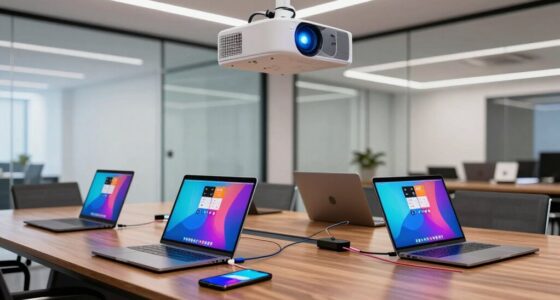
To mirror or cast your phone or tablet screen to a projector wirelessly, guarantee your device and projector support compatible protocols like Miracast, AirPlay, or Google Cast. Enable screen mirroring or casting from your device’s quick menu or settings, then select your projector or streaming device from the available options. A secure, strong Wi-Fi connection is vital for smooth, lag-free display. If you want to discover the best methods and tips, keep exploring the options available.
Key Takeaways
- Ensure device and projector support compatible wireless protocols like Miracast, AirPlay, or Google Cast.
- Enable screen mirroring or casting mode on your phone or tablet through settings or quick menu.
- Select your projector or streaming device from the list of available options to establish a connection.
- Maintain a strong Wi-Fi connection for smooth streaming and minimal lag during mirroring.
- Secure your network and consider device PINs or passwords to protect shared content.
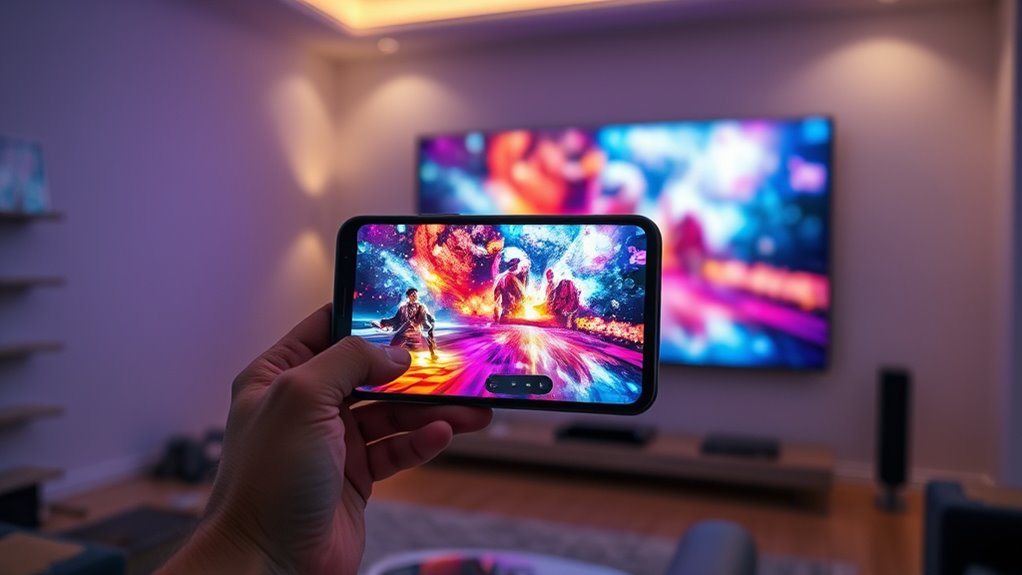
If you want to display your device’s screen on a projector, screen mirroring offers a simple and effective solution. It allows you to project content directly from your phone or tablet without the need for cables or complicated setups. To start, you’ll need to understand the importance of wireless protocols and device compatibility. Wireless protocols are the communication standards that enable your device to connect wirelessly to the projector, such as Miracast, AirPlay, Google Cast, or proprietary protocols like Samsung Smart View. Your choice of protocol influences how easily your device can connect and how smoothly the screen mirroring experience will be. Not all protocols work with every device or projector, so checking compatibility is essential. Additionally, some protocols are more secure than others, which can be important depending on your content. Device compatibility is another critical factor. Most modern smartphones and tablets support popular wireless protocols, but it’s wise to verify your device’s capabilities before attempting to mirror. For example, Apple devices typically use AirPlay, while Android gadgets often rely on Miracast or Google Cast. Some projectors come with built-in support for specific protocols, making the process straightforward; others require additional hardware, such as a Chromecast or Apple TV, to facilitate the connection. If your device and projector aren’t compatible out of the box, you might need an adapter or a streaming device to bridge the gap. Doing this upfront saves frustration and ensures seamless connectivity. Once you’ve confirmed your device’s compatibility and chosen the appropriate wireless protocol, setting up is generally straightforward. Enable screen mirroring or casting on your phone or tablet—this is often found in quick settings or display options. Then, select the projector or streaming device from the list of available devices. The connection process usually takes just a few seconds, after which your device’s screen appears on the projector. Keep in mind that the quality of your mirroring depends on your Wi-Fi network’s strength; a strong, stable connection minimizes lag and distortion. Finally, consider security. Wireless connections can sometimes be vulnerable, so ensure your network is secure, especially if you’re sharing sensitive content. Some devices allow you to set a PIN or password for your mirroring session, adding an extra layer of protection. Understanding wireless protocols and ensuring device compatibility can significantly enhance your screen mirroring experience, making your presentations, entertainment, or sharing sessions much easier and more professional.

Wireless HDMI Transmitter and Receiver 328ft/100m Extender 1080P Output 4K Decode Input Plug&Play Portable 2.4G/5.8G for Video and Audio to Monitor from PC/Projector/TV Box
- Easy Plug-and-Play Setup: No cables, WiFi, or Bluetooth needed
- Low Latency Transmission: Less than 0.01 seconds delay
- Supports 4K and 1080P: Clear, stable HD video output
As an affiliate, we earn on qualifying purchases.
As an affiliate, we earn on qualifying purchases.
Frequently Asked Questions
Can I Mirror My Iphone to a Projector Without Wi-Fi?
Yes, you can mirror your iPhone to a projector without Wi-Fi by using an HDMI adapter. Connect the adapter to your iPhone’s lightning port and then plug an HDMI cable into the adapter and the projector. This setup uses a wired connection, so wireless connectivity isn’t necessary. It’s a reliable way to display your iPhone’s screen on a projector without relying on Wi-Fi.
What Are the Best Apps for Screen Casting to Projectors?
You can use apps like Chromecast, Miracast, or AirServer to cast your screen. These apps support various wireless protocols, ensuring better compatibility with your projector. Choose one that matches your device’s capabilities; for example, Chromecast works well with Google’s ecosystem, while Miracast is built into many Android devices. Always check app compatibility with your projector model for smooth casting without interruptions.
How Do I Troubleshoot Lag or Latency Issues During Casting?
Ever feel like your cast is running on a slow train? To fix lag, start by checking for network interference—move closer to your Wi-Fi router and reduce other device usage. Confirm your device compatibility matches the casting method and projector. Updating your apps and firmware can also smooth out the connection. By optimizing these factors, you’ll enjoy a seamless display, free from frustrating lag and latency.
Is It Possible to Mirror Multiple Devices to One Projector Simultaneously?
Yes, you can achieve multi-device streaming for simultaneous projection, but it depends on your projector’s capabilities. Most standard projectors don’t support multiple mirror sources at once. However, some advanced models or using a dedicated streaming hub can enable multiple devices to connect and project simultaneously. Check your projector’s specifications and consider using a multi-input device or software designed for simultaneous projection to make this possible.
What Security Measures Should I Take When Casting to a Projector?
You must prioritize security when casting to a projector. Enable encryption protocols to safeguard your data from interception and unauthorized access. Use strong access controls—like passwords or device authentication—to limit who can connect. Always verify your network’s security settings before starting, and disconnect immediately after your session ends. These steps ensure your information stays private, even if someone tries to intercept or hijack your casting session.
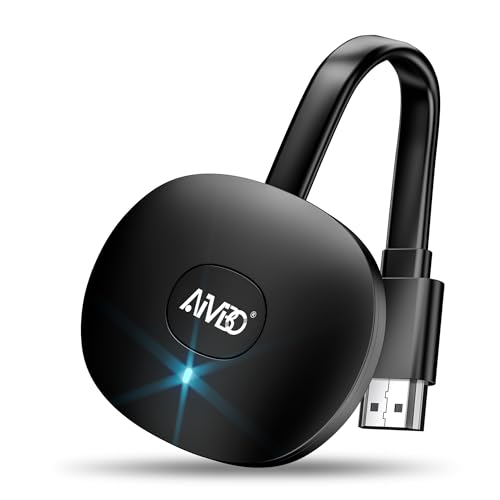
Wireless HDMI 4K Display Adapter, SOCLLLife WiFi Casting Dongle for iOS, Android, Windows, Mac Devices to TV/Monitor/Projector, Supports Miracast, Airplay, DLNA – Screen Mirror Video & Audio Easily
- Wireless 4K Video and Audio Casting: Mirror content to larger screens in 4K
- Easy Plug & Play Setup: Connect in 3 simple steps, no apps needed
- Supports Popular Streaming Apps: Cast Netflix, Hulu, Prime Video, and more
As an affiliate, we earn on qualifying purchases.
As an affiliate, we earn on qualifying purchases.
Conclusion
Now that you know how to mirror or cast your screen to a projector, you’re ready to transform any space into a dynamic presentation hub. With just a few taps, your device becomes a powerful tool—more versatile than a Swiss Army knife on steroids. Remember, this technology can turn even the most mundane meeting into an engaging experience that captivates your audience, making your ideas shine brighter than a thousand suns. Embrace it, and watch your presentations reach new heights!

lulaven Wireless HDMI Adapter for iPhone iPad (iOS Only, Not for Android), AirPlay Screen Mirroring to TV Monitor Projector, Plug & Play iShare iOS Display Dongle, Support YouTube Tiktok, HD 1080P
- Device Compatibility: iOS devices only, no Android support
- Screen Mirroring: Mirrors YouTube, TikTok, Photos, Safari, and more
- HD Quality: Supports 1080P HD streaming
As an affiliate, we earn on qualifying purchases.
As an affiliate, we earn on qualifying purchases.

Google TV Streamer 4K – Fast Streaming Entertainment on Your TV with Voice Search Remote – Watch Movies, Shows, Live TV, and Netflix in 4K HDR – Smart Home Control – 32 GB of Storage – Porcelain
- 4K Streaming: Fast, high-quality entertainment delivery
- Voice Search Remote: Easy voice-controlled navigation
- Multiple Streaming Services: Access all your favorite apps
As an affiliate, we earn on qualifying purchases.
As an affiliate, we earn on qualifying purchases.