
To connect your soundbar to your projector smartly, start by checking if both support wireless options like Bluetooth or Wi-Fi for a cable-free setup—just enable pairing modes and follow the instructions. If not, use wired methods such as HDMI ARC, optical, or auxiliary cables for a more stable connection. After connecting, calibrate the sound for peak quality by adjusting settings or using auto-calibration features. Keep devices within recommended ranges and test the setup with different content—continue to explore for detailed tips.

Get business pricing on your home office setup
- Business-only prices and quantity discounts
- Tax-exempt purchasing
- Multiple users, one account, clear invoices
Key Takeaways
- Use wireless Bluetooth or Wi-Fi pairing for a clutter-free, flexible connection if both devices support it.
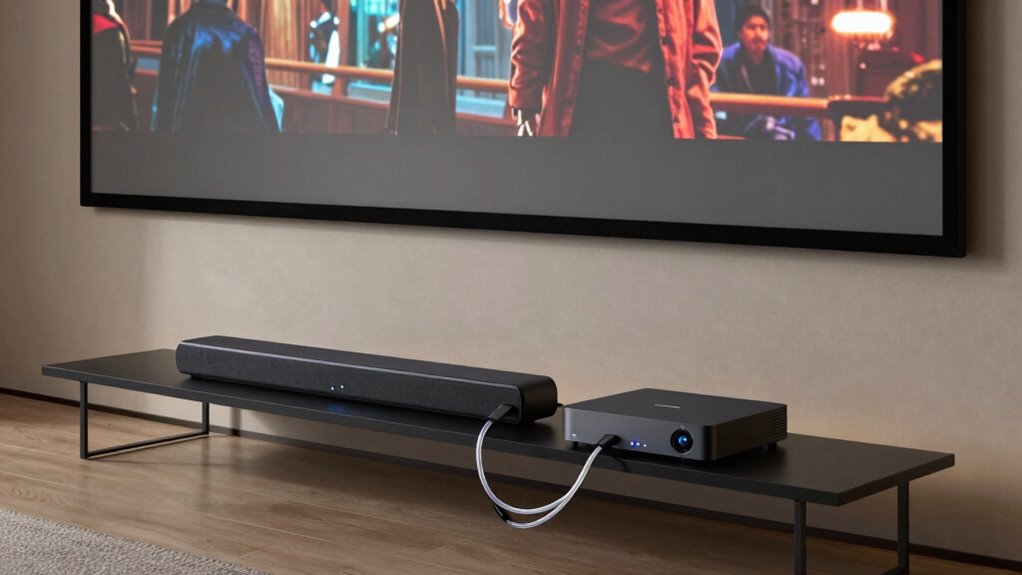
- Opt for HDMI ARC or optical cables for a stable, high-quality wired connection when wireless isn’t available.
- Enable auto-calibration features or manually adjust audio settings for optimal sound quality.
- Keep devices within recommended range and ensure network stability for consistent wireless performance.
- Test with various media to fine-tune settings and ensure seamless, immersive audio from the soundbar.
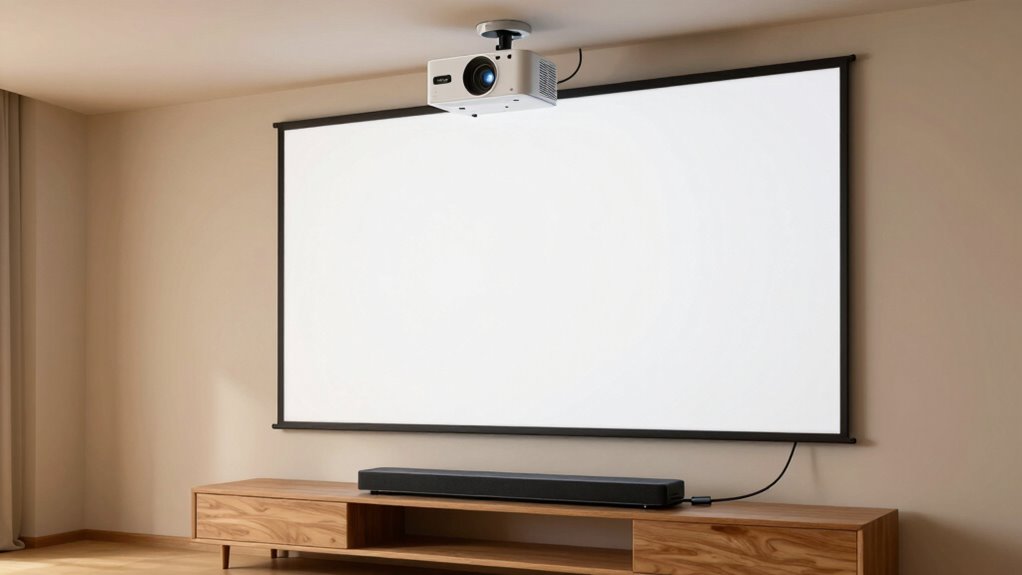
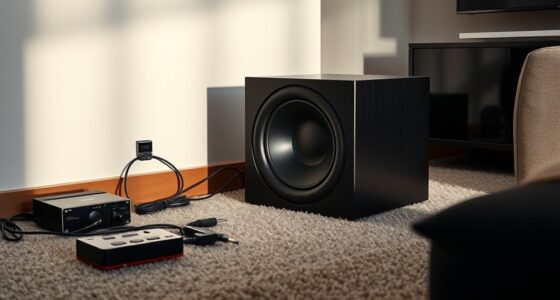
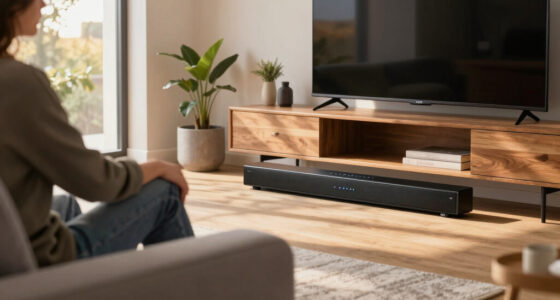
Ever wondered how to enhance your home theater setup with richer sound? Connecting a soundbar to your projector is an excellent way to do that, and the process has become more straightforward thanks to advancements like wireless compatibility. If your soundbar supports wireless connections, you can eliminate messy cables and enjoy a cleaner, more flexible setup. First, check if your projector and soundbar support Bluetooth or Wi-Fi. If they do, pairing them becomes a simple matter of enabling the wireless mode on both devices and following the pairing instructions. This method keeps your space tidy and allows you to place your soundbar anywhere within range, maximizing your audio experience. However, if your devices lack wireless support, you’ll need to connect via the appropriate cables, such as HDMI ARC, optical, or auxiliary inputs—though wireless options are generally preferred for convenience.
Once you’ve established your connection, the next step is audio calibration. Proper calibration ensures your soundbar delivers superior sound quality tailored to your room’s acoustics. Many soundbars come with built-in auto-calibration features—use these if available. They typically involve a microphone that measures sound reflections and adjusts the audio output accordingly. If your soundbar doesn’t have auto-calibration, you can manually tweak the sound settings. Start by setting the volume levels, then adjust the bass, treble, and surround sound modes to suit your preferences. Take some time to listen from different areas in your room, ensuring the sound distribution feels natural and immersive. Additionally, understanding content formats can help you optimize your audio settings for different types of media.
For wireless setups, make sure your devices stay within the recommended range to prevent interruptions or lag. Keep your Wi-Fi network stable, especially if you’re streaming content or using Wi-Fi-enabled soundbars. Some high-end soundbars also support multi-room audio, which could enhance your experience if you plan to expand your home theater system. Remember, a good connection minimizes latency and maximizes sound quality, so always check your device specifications and compatibility. Furthermore, considering audio calibration techniques can significantly improve your overall sound experience by tailoring output to your environment.
Finally, once everything is connected and calibrated, test your system with different content—movies, music, games—to ensure the soundbar complements your projector perfectly. Adjust settings as needed, and enjoy the immersive audio experience of your upgraded home theater. Connecting a soundbar to your projector doesn’t have to be complicated; with wireless compatibility and proper audio calibration, you can achieve a seamless, high-quality sound setup without hassle.
Products Worth Considering

Bose TV Speaker Compact Soundbar with Bluetooth and HDMI-ARC, Black

Samsung 65-Inch The Frame Pro Neo QLED 4K TV (2026) Bundle with Modern Brown Bezel, HDMI Cables, and Home Theater Guide

Ring Alarm 5-Piece Wireless Security System
As an affiliate, we earn on qualifying purchases.
Frequently Asked Questions
Can I Connect Multiple Soundbars to a Projector Simultaneously?
You can’t typically connect multiple soundbars simultaneously to a projector, but you can try wireless synchronization or Bluetooth pairing. First, pair one soundbar via Bluetooth or use an audio splitter for wired connections. Then, attempt to connect a second soundbar wirelessly through Bluetooth, but note that most devices only support one Bluetooth connection at a time. For the best audio experience, consider using a soundbar with multiple outputs or a dedicated audio receiver.
What Is the Best Wireless Connection Method for a Soundbar and Projector?
The best wireless connection method for a soundbar and projector is Wi-Fi streaming because it offers higher audio quality and a more stable connection. You can use Bluetooth pairing for quick, simple setup, but it might introduce latency or reduce sound quality. For the best experience, opt for Wi-Fi streaming, ensuring your soundbar and projector connect seamlessly and deliver clear, synchronized audio during movies or presentations.
How Do I Troubleshoot Audio Delay Issues Between the Projector and Soundbar?
You can fix audio delay issues by addressing audio latency and using sync adjustment features. First, check if your soundbar or projector offers a sync adjustment setting—many do. If available, tweak it until the audio matches the video. If not, try reducing Bluetooth or wireless interference, or restarting both devices. Sometimes, updating firmware also helps eliminate latency issues, ensuring your sound and picture stay perfectly in sync.
Do I Need Additional Adapters for Different Types of Connections?
You might need additional adapters if your projector and soundbar don’t share common connection types. For example, if your projector only supports HDMI and your soundbar has Bluetooth, you’ll need a Bluetooth transmitter. Conversely, if both support HDMI but your soundbar isn’t HDMI compatible, an HDMI adapter will help. Make sure your devices support Bluetooth pairing or HDMI compatibility to choose the right adapters, making the connection seamless.
Will Connecting a Soundbar Affect the Projector’s Display Quality?
Like a master conductor, connecting a soundbar won’t affect your projector’s display quality if you properly calibrate the audio. Focus on audio calibration to guarantee sound complements visuals without interference. If you opt for Bluetooth pairing, ensure a stable connection to prevent audio lag, but rest assured, your picture quality remains unaffected. Proper setup guarantees an immersive experience, blending visuals and sound seamlessly.
Conclusion
Connecting your soundbar to a projector is like tuning a musical instrument—you want everything to harmonize perfectly. When I first set mine up, I thought it’d be a hassle, but with the right cables and a little patience, I was immersed in cinema-quality sound. Remember, a smooth connection makes your viewing experience seamless and immersive. So, take your time, follow the steps, and enjoy the crystal-clear audio that brings your movies to life.