
HDMI handshake failures happen when your devices can’t establish a proper connection to share video and audio signals. This often causes issues like flickering screens, no signal, or sound problems. Common causes include faulty cables, incompatible devices, outdated firmware, or port damage. To fix this, you can check your cables, update firmware, and adjust settings. If issues persist, understanding more about causes and solutions can help you prevent future problems.
Key Takeaways
- HDMI handshake is a quick process to establish device compatibility and communication parameters between source and display.
- Failures occur due to incompatible hardware, outdated firmware, faulty cables, or port damage.
- Symptoms include flickering, blackouts, no signal, or audio issues during connection problems.
- Troubleshooting involves checking cables, updating firmware, adjusting settings, and testing different hardware.
- Preventive measures include using certified high-quality cables, keeping firmware updated, and avoiding environmental interference.
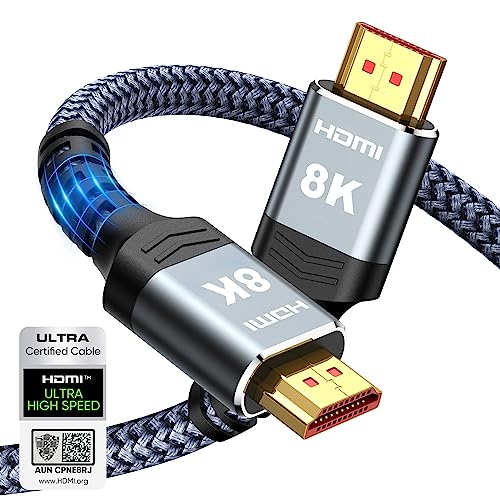
Highwings 8K 10K 4K HDMI Cable 48Gbps 6.6FT/2M, Certified Ultra High Speed
- Supports 8K@60Hz and 4K@120Hz: Ultra-high speed HDMI 2.1 for clear display
- 48Gbps Data Transfer: No lag or dropped frames during viewing
- Backward Compatible: Works with HDMI 2.0 and earlier versions
As an affiliate, we earn on qualifying purchases.
As an affiliate, we earn on qualifying purchases.
What Is the HDMI Handshake Process?
The HDMI handshake process is how your devices establish a secure connection and agree on communication parameters. During this exchange, handshake protocols come into play, ensuring that both devices understand each other’s capabilities and security requirements. This process involves your source device, like a Blu-ray player or gaming console, communicating with the display, such as a TV or monitor, to confirm supported resolutions, refresh rates, and audio formats. Device compatibility is essential here; if devices don’t support the same handshake protocols or have mismatched features, the handshake may fail. Proper handshake negotiation is crucial for maintaining Device compatibility and optimal performance. This process happens quickly and seamlessly, allowing for smooth audio and video transmission. When everything aligns, your devices form a stable connection, ready to deliver high-quality content.

pureport Multi-Tool Port Repair and Clean Kit for iPhone and iPad (White)
- Award-Winning Innovation: Top 2022 innovation by USA Today
- Featured in Major Media: Covered by People, BuzzFeed, Yahoo!
- Original Multi-Tool Design: Designed in Australia, made in the USA
As an affiliate, we earn on qualifying purchases.
As an affiliate, we earn on qualifying purchases.
Common Causes of Handshake Failures
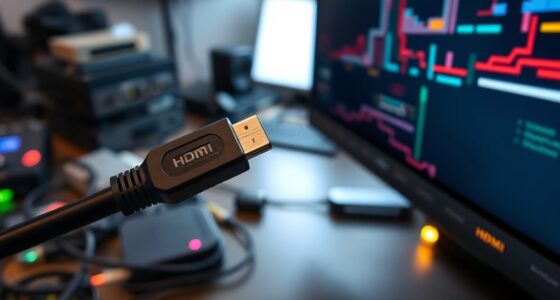
Handshake failures often occur because of incompatibilities between your devices or issues with the HDMI connection itself. One common cause is cable compatibility; not all HDMI cables support the same bandwidth or features, leading to communication issues. Using a low-quality or damaged cable can interrupt the handshake process. Additionally, port damage can prevent proper signal transmission. Bent, dirty, or broken ports hinder the connection, causing handshake failures. Make certain your HDMI cable matches your devices’ specifications and replace any damaged cables. Inspect your ports for physical damage or debris and clean them carefully. Proper device configuration is also essential, as mismatched settings can disrupt the handshake process. By addressing these issues, you can improve your chances of establishing a successful handshake and maintaining a stable connection.

Magewell USB Capture HDMI Gen 2 – 1 Channel HDMI to USB Video/Audio Capture Device, Up to 1080p60 Recording (32060, Replaces XI100DUSB-HDMI)
- High-Resolution HDMI Capture: Supports up to 2048×1080 60fps 4:4:4
- FPGA-Based Video Processing: Handles cropping, scaling, de-interlacing, and color conversion
- Plug-and-Play USB 3.1: Compatible with Windows, macOS, Linux, Chrome OS
As an affiliate, we earn on qualifying purchases.
As an affiliate, we earn on qualifying purchases.
Signs and Symptoms of Connection Issues
When your HDMI connection starts acting up, you’ll notice certain signs that indicate a problem. One common symptom is increased connection latency, causing delays between your device and display. You might see flickering screens or brief blackouts, which suggest signal interference disrupting the data flow. Sometimes, your display might show no signal at all, even when everything seems properly connected. Audio issues, like stuttering or no sound, can also point to handshake failures. If you notice inconsistent picture quality or a static-like interference, these are clear indicators that your HDMI connection is struggling. Recognizing these signs early helps you determine when connection issues are affecting your setup, so you can address potential interference or latency problems before they worsen. Understanding cybersecurity vulnerabilities related to digital connections can also help protect your devices from external threats.

8K HDMI Booster Repeater, Active Signal Amplifier HDMI 2.1 Extender Supports 8K@60Hz / 4K@240Hz, Extends HDMI 1080P Up to 50m for PS5, Xbox Series, Projector, HDCP 2.3 with USB-C Power Port
- Signal Boosting and Range: Extends HDMI up to 50 meters with amplification
- Supports 8K and 4K Ultra HD: Delivers 8K@60Hz and 4K@240Hz visuals
- High-Quality Video Transmission: Ensures HDR, 3D, and full RGB 4:4:4 color
As an affiliate, we earn on qualifying purchases.
As an affiliate, we earn on qualifying purchases.
Troubleshooting Steps to Resolve Handshake Problems
To fix handshake issues, start by verifying your cable’s integrity to make certain it’s not damaged or loose. Next, adjust your display settings to match your device’s capabilities, and finally, update your device firmware to the latest version. These steps can often resolve connection problems quickly and effectively. Additionally, ensuring compatibility between devices can prevent handshake failures and improve overall performance compatibility with various brands.
Verify Cable Integrity
Have you checked your HDMI cable lately? Poor cable quality or connector damage can cause handshake failures. Inspect your cable for visible signs of wear, kinks, or fraying. Sometimes, a damaged connector might not seat properly or transmit signals reliably. Using a high-quality HDMI cable ensures better shielding and fewer interference issues. Remember, even a slight bend or twist can impact signal integrity. Testing with a different cable can quickly identify if your current one is faulty. Keeping cables in good condition prevents unnecessary troubleshooting. Additionally, avoid cheap or incompatible cables, as they often lack proper standards compliance. Regularly inspecting and replacing damaged cables helps maintain a stable connection, reducing the chances of handshake problems. Ensuring your HDMI standards compliance is up to date can also improve connection stability.
Adjust Display Settings
Adjusting your display settings can often resolve HDMI handshake issues by ensuring both devices communicate effectively. Start by setting your display resolution to a supported level for your devices, as incompatible resolutions can cause handshake failures. Next, check your color calibration settings; mismatched or overly aggressive calibration can interfere with proper communication. Lowering the resolution or resetting color calibration to default can help establish a stable connection. Make sure your display’s refresh rate matches what your source device recommends. If you use custom settings, revert to factory defaults temporarily. These adjustments can eliminate communication glitches caused by incompatible display parameters. Additionally, understanding HDMI compatibility can help prevent future handshake issues. Once your display settings are aligned, test the connection to see if the handshake issues are resolved. This simple step often clears up common handshake failures.
Update Device Firmware
Updating your device firmware can considerably improve HDMI handshake stability by fixing bugs and enhancing compatibility. Firmware updates guarantee your devices communicate effectively, reducing handshake failures caused by outdated software. To do this, visit the manufacturer’s website or use their app to check for the latest firmware. Installing these updates can resolve compatibility issues that might prevent devices from establishing a proper connection. Keep in mind, outdated firmware may hinder device performance and cause persistent handshake problems. Regularly updating firmware ensures your HDMI devices work seamlessly together, avoiding unnecessary troubleshooting.
- Ensures compatibility issues are addressed promptly
- Fixes known bugs affecting HDMI communication
- Enhances overall device performance
- Prevents future handshake failures
- Keeps your devices up-to-date with the latest standards
- Firmware updates can also improve device security and protect against vulnerabilities.
Preventive Measures and Best Practices
To prevent HDMI handshake failures, implementing proactive measures and adhering to best practices is essential. First, ensure your cables are compatible with your devices; using certified high-quality cables reduces connection issues. Avoid cheap or damaged cables, as they often cause handshake problems. Regularly check for hardware upgrades, such as firmware updates for your TV, receiver, or source devices, since these often resolve compatibility issues. Keep your devices’ software current to maintain ideal communication. Properly managing cable connections—avoiding excessive bending or tangling—also helps maintain signal integrity. When upgrading hardware, choose compatible models that support the latest HDMI standards. Additionally, understanding the importance of signal integrity can help in maintaining a stable connection. Following these practices minimizes handshake failures and ensures a smoother, more reliable connection between your devices.
When to Seek Professional Assistance
While many HDMI handshake issues can be resolved through troubleshooting and best practices, there are times when professional assistance becomes necessary. If you’ve exhausted basic solutions and still face persistent problems, seeking a professional assessment can save time and prevent further damage. A technician’s troubleshooting expertise can identify underlying hardware faults or compatibility issues that are not obvious. You should consider professional help if you experience frequent disconnects, no signal despite proper connections, or if your equipment shows signs of damage. Additionally, when firmware updates and settings adjustments fail, expert intervention ensures correct diagnosis and repair. Trusting a professional ensures your devices are correctly evaluated and serviced, restoring seamless connectivity efficiently. Recognizing hardware faults early can prevent costly replacements and prolong device lifespan. Knowing when to escalate the issue protects your equipment and guarantees top performance.
Frequently Asked Questions
Can HDMI Handshake Failures Damage My Devices Permanently?
HDMI handshake failures typically won’t cause permanent damage to your devices. These issues usually stem from device compatibility problems or signal interference, which disrupt the connection temporarily. If you experience repeated failures, verify your devices are compatible and check for interference sources. While these failures can be frustrating, they rarely harm your hardware, so you can troubleshoot confidently without worrying about lasting damage.
Do All HDMI Cables Cause Handshake Issues Equally?
Think of HDMI cables as bridges; some are sturdy and well-built, while others are fragile and prone to wobbling. Not all cables cause handshake issues equally; cable quality and connection length matter. High-quality cables with shorter lengths ensure a smoother handshake, whereas cheap or overly long cables can create unstable connections. Choose wisely to keep your devices talking seamlessly, avoiding those shaky bridges that cause communication breakdowns.
Are Certain Devices More Prone to Handshake Failures?
Yes, certain devices are more prone to handshake failures because of device compatibility issues and signal interference. Older devices or those with incompatible HDMI versions often struggle to establish a stable connection. Additionally, nearby electronics or wireless signals can interfere with the handshake process. To reduce failures, verify your devices support the same HDMI standards, use high-quality cables, and minimize signal interference by keeping cables away from other electronics.
How Long Does It Typically Take to Fix Handshake Problems?
Most HDMI handshake issues can be resolved in about 10 to 30 minutes. You’ll want to focus on timing troubleshooting, like restarting devices or reconnecting cables, which often solves the problem quickly. Notably, over 60% of failures stem from hardware compatibility issues, so ensuring your devices are compatible can speed up the fix. Patience and systematic troubleshooting usually get your devices communicating again within half an hour.
Can Firmware Updates Resolve Persistent HDMI Handshake Failures?
Yes, firmware updates can resolve persistent HDMI handshake failures by fixing compatibility issues between devices. When you update your device’s firmware, it often includes improvements that enhance communication protocols, reducing handshake errors. Make sure to check for the latest firmware for your TV, sound system, or other connected devices. Regular updates help maintain smooth connectivity and prevent recurring issues caused by outdated software.
Conclusion
Understanding the HDMI handshake is like mastering a delicate dance—every step must align perfectly. When connection issues arise, don’t let frustration pull you off rhythm; instead, follow the troubleshooting steps and adopt best practices. Think of it as tuning an intricate instrument, where patience and precision restore harmony. With a little care and attention, your devices will perform in concert, transforming technical discord into a seamless symphony of vibrant visuals and crisp sound.