
To fix color shift caused by screen materials, first adjust your viewing angle so you’re facing the display straight-on. Calibrate your screen with color management tools to guarantee accurate colors. Keep your lighting consistent and avoid glare or reflections by cleaning your screen regularly. Applying a matte screen protector can reduce color distortion from reflections. Additionally, update your graphics drivers and firmware, and consider upgrading to a higher-quality display if needed. These tips will help you gain better color stability and accuracy.
Key Takeaways
- Recalibrate your display regularly using hardware calibration tools or built-in software to ensure accurate color representation.
- Adjust the monitor’s brightness, contrast, and color temperature settings for optimal color consistency.
- Maintain proper viewing environment with stable, neutral lighting to minimize ambient light-induced color shifts.
- Inspect and clean the screen with a microfiber cloth to remove dust and fingerprints that may cause color distortion.
- Upgrade to higher-quality screens like IPS or OLED panels to reduce material-based color shifts and improve color accuracy.

Calibrite Display Pro HL Monitor Calibration Colorimeter for LCD Mini LED and OLED Displays, Measure up to 3000 Nits, PROFILER Software, USB C with Adapter, Validation/Color Uniformity Tools
SPECIFICATIONS: HL high luminance sensor colorimeter measures up to 3000 nits, calibrates and profiles LCD mini LED OLED…
As an affiliate, we earn on qualifying purchases.
As an affiliate, we earn on qualifying purchases.
Check and Adjust Your Screen’s Viewing Angle
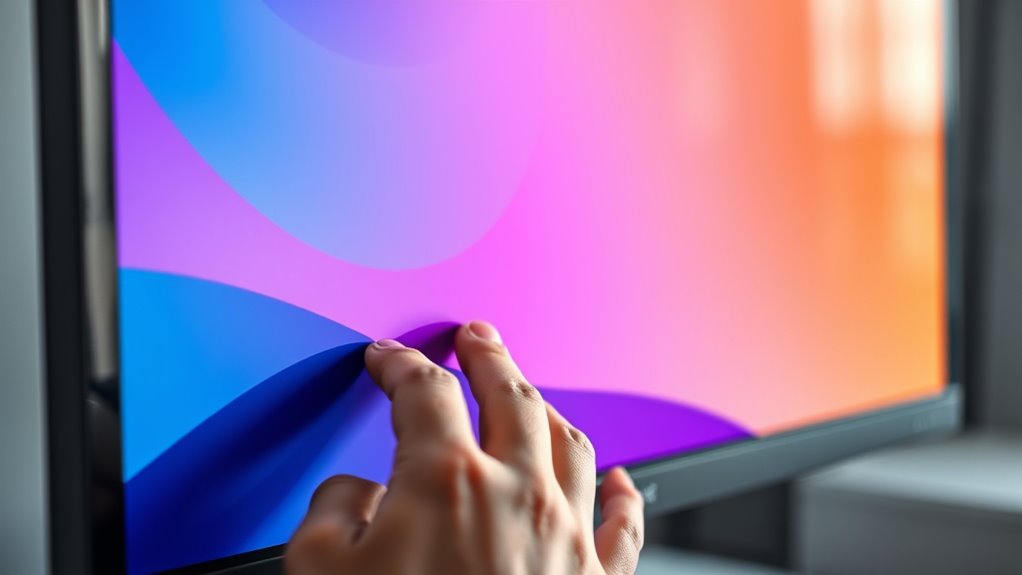
To prevent color shifts caused by viewing angle issues, you should start by checking how you’re positioned relative to your screen. Your viewing angles directly impact how colors appear, so proper screen positioning guarantees consistent image quality. Position yourself so that you face the screen straight-on, with your eyes level with the top of the display. This minimizes the risk of color distortion caused by off-angle viewing. Avoid sitting at sharp angles or tilting your head, as this can alter how colors are perceived. Adjust your monitor’s tilt, height, and distance to maintain an ideal viewing position. Keeping your screen directly in front of you improves color accuracy and prevents unwanted color shifts, ensuring a better visual experience. Proper screen positioning is essential for consistent, true-to-color images. Additionally, understanding color calibration can further improve your display’s color consistency.

Dell 27 Plus 4K Monitor – S2725QS – 27-inch 4K (3840 x 2160) 120Hz 16:9 Display, IPS Panel, AMD FreeSync Premium, sRGB 99%, Integrated Speakers, 1500:1 Contrast Ratio, Comfortview – Ash White
Improved ComfortView Plus: Reduces harmful blue light emissions to ≤35%, for all-day comfort without sacrificing color accuracy.
As an affiliate, we earn on qualifying purchases.
As an affiliate, we earn on qualifying purchases.
Calibrate Your Display Settings for Accurate Colors
Adjusting your display settings is a key step in guaranteeing color accuracy. Start by using built-in calibration tools or dedicated calibration hardware to profile your display accurately. Display profiling helps you identify and correct color inconsistencies, ensuring the colors you see match real-world tones. Adjust brightness, contrast, and color temperature to ideal levels, avoiding overly warm or cool tones. Many operating systems include calibration wizards that guide you through fine-tuning these settings. For more precise results, consider professional calibration software or hardware. Regularly recalibrate your display to maintain color accuracy over time. Proper calibration ensures that your colors are consistent and true to life, reducing color shifts caused by misconfigured settings or aging hardware. Establishing a calibration time limit can also help maintain consistent color accuracy over the lifespan of your monitor.
![Mothca Matte Glass Screen Protector for iPhone 17e / iPhone 16e / iPhone 14 / iPhone 13 / iPhone 13 Pro [6.1 Inch] Anti-Glare & Anti-Fingerprint Tempered Glass [Easy Installation Frame] Smooth as Silk](https://m.media-amazon.com/images/I/41+bwRtmjXL._SL500_.jpg)
Mothca Matte Glass Screen Protector for iPhone 17e / iPhone 16e / iPhone 14 / iPhone 13 / iPhone 13 Pro [6.1 Inch] Anti-Glare & Anti-Fingerprint Tempered Glass [Easy Installation Frame] Smooth as Silk
【HD Clear】 Screen Protector Compatible with iPhone 17e / iPhone 16e / iPhone 14/ iPhone 13/ iPhone 13…
As an affiliate, we earn on qualifying purchases.
As an affiliate, we earn on qualifying purchases.
Use a Consistent Lighting Environment
Since ambient lighting can considerably influence how colors appear on your screen, maintaining a consistent lighting environment is essential for accurate color perception. Fluctuating light sources can cause color shifts, making it hard to trust what you see. To guarantee color consistency, keep your ambient lighting steady and avoid direct light on the screen. Use neutral-colored bulbs and control natural light with curtains or blinds. The table below highlights key aspects of consistent lighting:
| Aspect | Tips |
|---|---|
| Light Source | Use stable, neutral lighting |
| Brightness | Keep ambient light at a moderate level |
| Direction | Avoid direct light on the screen |
| Color Temperature | Choose consistent, daylight-balanced bulbs |
| Changes in Environment | Minimize fluctuations in lighting conditions |
Following these steps helps maintain consistent lighting, reducing color shifts. Glycolic acid can also improve the appearance of skin by promoting a brighter complexion, which can be beneficial for screens used for makeup or skincare tutorials.
Calibrite Display Pro HL Monitor Calibration Colorimeter for LCD Mini LED and OLED Displays, Measure up to 3000 Nits, PROFILER Software, USB C with Adapter, Validation/Color Uniformity Tools
SPECIFICATIONS: HL high luminance sensor colorimeter measures up to 3000 nits, calibrates and profiles LCD mini LED OLED…
As an affiliate, we earn on qualifying purchases.
As an affiliate, we earn on qualifying purchases.
Clean Your Screen and Remove Fingerprints
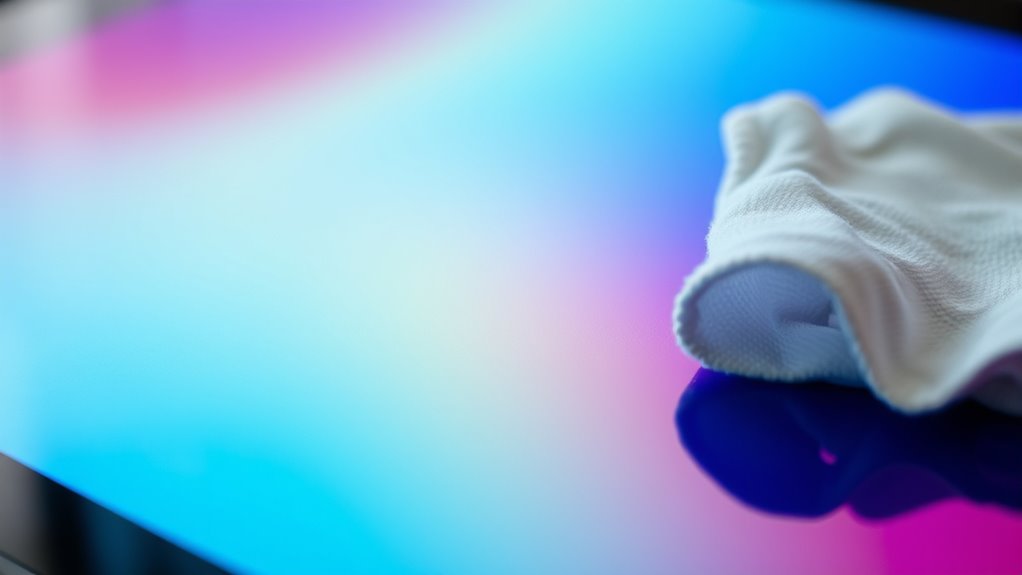
Regularly cleaning your screen and removing fingerprints is essential for accurate color display. Fingerprint removal and screen cleaning prevent smudges that distort colors and reduce clarity. To guarantee your screen stays pristine, follow these steps:
Keep your screen spotless for accurate colors and clarity by regularly cleaning and removing fingerprints gently.
- Turn off your device to avoid accidental touches.
- Use a microfiber cloth to gently wipe away fingerprints and dust.
- Dampen the cloth with a mixture of distilled water and a small amount of isopropyl alcohol for effective screen cleaning.
- Avoid harsh chemicals or abrasive materials that could damage the surface.
- Incorporating proper maintenance routines can help preserve your screen’s display quality over time.
Apply an Anti-Reflective or Matte Screen Protector
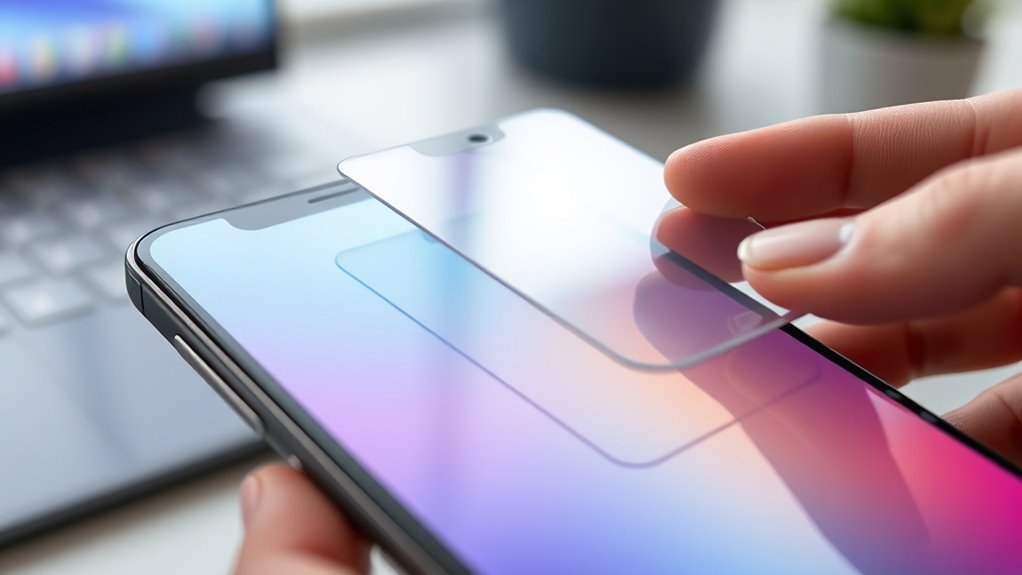
Applying an anti-reflective or matte screen protector can substantially reduce glare, making it easier to see your screen in bright environments. It also helps preserve color accuracy, ensuring your display looks true to life. Plus, it protects your screen surface from scratches and other damage. Incorporating these protectors can also enhance your overall home decoration by maintaining a sleek and clutter-free look.
Reduces Glare Effect
To effectively reduce glare on your screen, applying an anti-reflective or matte screen protector is a practical solution. These protectors feature specialized screen coatings that minimize reflections caused by ambient lighting, making it easier to see your display clearly. Here’s how they help:
- Diffuse reflections – Breaks up light bouncing off your screen, reducing glare.
- Enhances visibility – Especially in bright environments or under direct light.
- Reduces eye strain – Less glare means less fatigue during long use.
- Maintains screen clarity – Without sacrificing image sharpness or detail.
Preserves Color Accuracy
Using an anti-reflective or matte screen protector can help preserve your display’s color accuracy by reducing unwanted reflections that distort colors. This guarantees better color consistency, allowing you to see true hues without interference. These protectors also enhance material durability, shielding your screen from scratches and minor impacts that could cause shifts in color over time. To understand the benefits, consider this overview:
| Feature | Benefit |
|---|---|
| Anti-reflective coating | Minimizes glare, improves color clarity |
| Matte surface | Reduces reflections, maintains true colors |
| Material durability | Protects against scratches and damage |
| Color consistency | Ensures vibrant, accurate display colors |
| Long-term stability | Preserves color accuracy over time |
Investing in a quality protector supports consistent, vivid visuals, preventing color shift caused by surface imperfections. Additionally, incorporating sound healing science concepts like frequency modulation can further enhance your visual environment by promoting a relaxed and focused mindset.
Protects Screen Surface
A quality anti-reflective or matte screen protector actively shields your display surface from scratches, smudges, and minor impacts. It provides essential surface protection by absorbing shocks and preventing damage to the delicate screen material. Here’s why it matters:
- Prevents scratches caused by keys, pens, or accidental contact.
- Reduces fingerprints and smudges, keeping your display clear.
- Minimizes glare and reflections, enhancing visibility.
- Extends the lifespan of your screen by shielding it from daily wear and tear.
– Enhanced durability through effective air purifier features helps maintain the screen’s clarity over time.
Update Your Graphics Drivers and Firmware
Making sure your graphics drivers and firmware are up to date is essential for accurate color display. You should verify that your drivers are compatible with your hardware and operating system. Regularly updating the firmware helps fix bugs and improves overall screen performance. Ensuring your device is free from signs of spoilage such as discoloration can also prevent display issues related to hardware deterioration.
Ensure Driver Compatibility
To guarantee your screen materials display colors correctly, updating your graphics drivers and firmware is essential. Ensuring driver compatibility helps prevent color shifts caused by outdated software. Here’s what you should do:
- Check for driver updates regularly through your device manufacturer’s website or device manager.
- Download and install the latest drivers to improve compatibility with your color profiles.
- Verify that your graphics card supports the color profiles you use.
- Restart your system after updates to ensure changes take effect.
- Regularly monitor driver security updates to protect against vulnerabilities that could affect display performance.
Update Firmware Regularly
Regularly updating your graphics drivers and firmware is essential for maintaining accurate color display on your screen materials. Outdated software can cause color shifts and compromise display compatibility, making it harder to achieve proper color calibration. By keeping your drivers and firmware current, you ensure your display functions at its best with the latest fixes and improvements. This helps prevent issues like color inaccuracies and enhances overall image quality. Check your device manufacturer’s website or use automatic update tools to stay up-to-date. Updated firmware often includes improvements for color management, ensuring your screen materials display colors more accurately. Regular updates are a simple yet effective way to maintain consistent color fidelity and prevent color shift issues caused by software incompatibilities. Additionally, staying informed about AI in Education can help you understand how emerging technologies might impact display and content quality.
Use Color Calibration Tools and Software
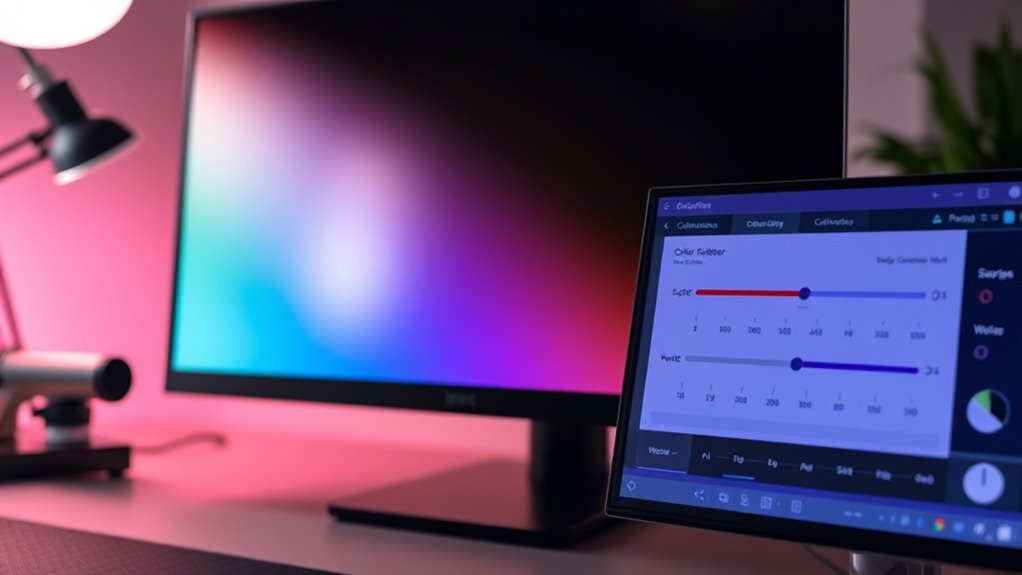
Using color calibration tools and software is essential for correcting color shifts on your screen. These tools help you perform precise software adjustments, guaranteeing accurate color rendering. To get started:
- Choose reputable calibration software compatible with your device.
- Connect a calibration device, like a colorimeter or spectrophotometer.
- Run the software and follow the guided calibration process.
- Save the profile and set it as your default display setting.
This process fine-tunes your monitor’s color output, addressing inconsistencies caused by aging or environmental factors. Proper color calibration ensures your display remains true to reality, especially important for graphic work or photography. Regular software adjustment with calibration tools keeps your screen’s colors consistent and vibrant, minimizing the need for hardware replacements.
Consider Upgrading to a Higher-Quality Screen
Upgrading to a higher-quality screen can substantially improve color accuracy and overall display performance, especially if your current monitor is outdated or low-end. The screen material of your new display plays a vital role in how colors are rendered and perceived. Modern screens with better display quality often feature advanced panel technologies like IPS or OLED, which deliver more consistent and vibrant colors. These screens reduce color shift issues caused by inferior materials and manufacturing flaws. By investing in a monitor with superior display quality, you’ll notice sharper images, richer colors, and less color shift across different viewing angles. This upgrade not only enhances your visual experience but also guarantees more accurate color representation for professional work or multimedia enjoyment.
Frequently Asked Questions
Can Color Shift Occur Due to Hardware Age or Wear?
Yes, color shift can happen due to hardware age or wear. Over time, hardware calibration may drift, causing colors to appear different. Additionally, material degradation in screen components like backlights or filters can impact color accuracy. Regular calibration and maintenance help counteract these issues. If you notice color inconsistencies, it’s a sign that your hardware might be aging or deteriorating, requiring adjustments or replacements to restore proper color display.
How Do Ambient Temperature Changes Affect Screen Color Accuracy?
Ambient temperature changes can directly impact your screen’s color accuracy. When temperatures fluctuate, they can cause internal components like LCDs and backlights to behave differently, leading to color shifts. To maintain consistent color calibration, you should keep your environment stable and avoid extreme temperature swings. Regularly recalibrate your screen under current ambient conditions to guarantee accurate color display, especially if you notice noticeable shifts during temperature changes.
Are There Specific Color Profiles for Different Types of Screens?
Yes, there are specific color profiles for different types of screens, and using them enhances color management. You should employ calibration techniques tailored to your screen type—whether it’s a monitor, projector, or mobile device. Proper calibration ensures accurate color representation and consistency across devices. By selecting the right profile and regularly calibrating, you maintain ideal color accuracy and prevent shifts caused by hardware differences or environmental factors.
What Role Does Screen Resolution Play in Color Consistency?
Your screen resolution can feel like the universe’s biggest secret weapon—or its biggest villain—when it comes to color consistency. Higher resolutions improve color calibration by providing sharper, more detailed images, which enhances screen uniformity. When resolution is off, colors can appear uneven or distorted across the display, making calibration a must. So, keep your resolution set correctly to guarantee your colors stay true, vibrant, and consistent across every pixel.
How Can I Prevent Color Shift When Using Multiple Monitors?
To prevent color shift when using multiple monitors, you should regularly calibrate each display with calibration techniques like using a colorimeter or software tools. Implement effective color management by setting consistent color profiles across all screens. Confirm your monitors are running at the same color temperature and brightness. This helps maintain uniform color output, reducing discrepancies and providing a seamless visual experience across your multi-monitor setup.
Conclusion
By checking your viewing angle, calibrating your display, maintaining consistent lighting, cleaning your screen, applying protective filters, updating drivers, using calibration tools, and upgrading your screen, you create a balanced, true-to-life color experience. These steps help you see vibrant, consistent colors, reduce distractions, and enjoy a more accurate display. When you take these actions, you guarantee your screen remains a reliable window to your digital world, clear, colorful, and true to life.