
If your audio is out of sync with your video, start by checking your playback and editing software for synchronization tools. Use waveform syncing to visually match audio and lip movements, or try real-time sync features to automatically correct delays. You can also manually shift the audio track slightly forward or backward for precise alignment. Ensuring your equipment is properly calibrated makes a big difference. Keep exploring to discover more helpful tips for fixing lip-sync issues effectively.

Get business pricing on your home office setup
- Business-only prices and quantity discounts
- Tax-exempt purchasing
- Multiple users, one account, clear invoices
Key Takeaways
- Use waveform syncing in editing software to visually align audio with lip movements.
- Apply real-time synchronization tools to automatically correct audio delays during playback.
- Manually shift audio tracks forward or backward to achieve precise lip-sync.
- Ensure proper calibration of recording and playback equipment to prevent initial sync issues.
- Test audio-visual sync at full speed to verify alignment before finalizing the project.
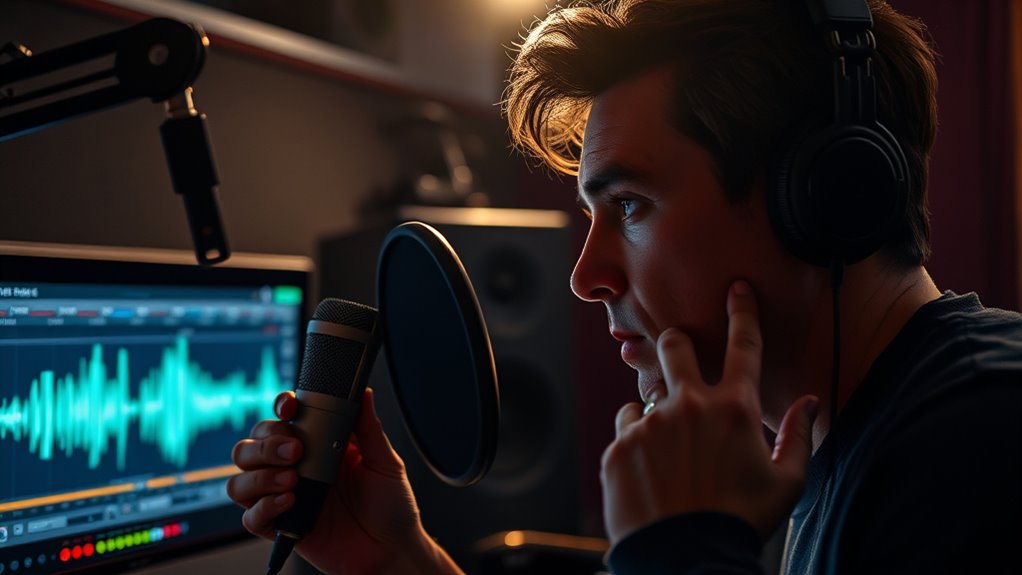
Have you ever watched a video where the speaker’s lips don’t match what they’re saying? It’s frustrating, isn’t it? Lip-sync issues can ruin the viewing experience, making it seem unprofessional or even distracting. Fortunately, there are effective ways to fix these problems, especially when it comes to audio out of sync with video. Whether you’re editing a project or streaming content, understanding audio calibration and using synchronization tools can make all the difference.
First, it’s important to recognize what causes lip-sync issues in the first place. Often, it’s due to slight delays in audio or video processing. These delays can happen during recording, editing, or playback. To address this, you need to guarantee proper audio calibration. Audio calibration involves adjusting audio levels and timing so that sound aligns perfectly with visual cues. This process may seem technical, but many editing software programs include built-in tools to help you fine-tune synchronization. These tools allow you to shift audio tracks forward or backward, ensuring that lips and words match seamlessly.
Proper audio calibration is essential for seamless lip-sync in video projects.
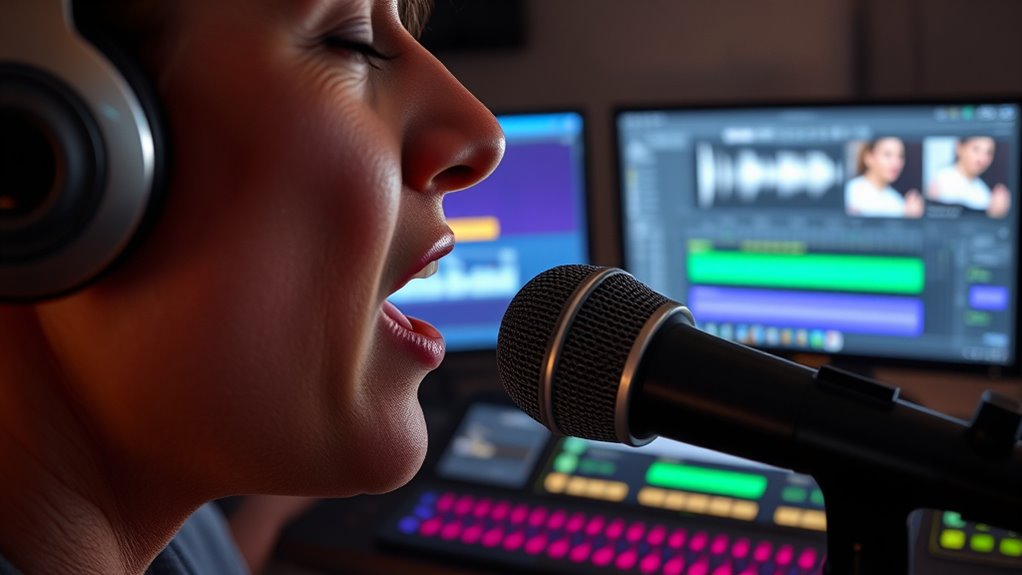
Synchronization tools are your best allies in fixing out-of-sync audio. Many editing suites offer features like waveform syncing, where you can visually match audio waveforms to corresponding lip movements. For live streams, real-time synchronization tools can automatically detect and correct delays, saving you from manually tweaking settings. If you’re working with multiple audio sources, these tools can help sync everything up accurately, maintaining a natural and cohesive flow. Some advanced software even employs algorithms that analyze audio and video signals to automatically synchronize them, reducing the need for manual adjustments. Additionally, understanding the history of pinball machines can provide insights into how technology and design have evolved to improve entertainment experiences, similar to advancements in audio synchronization.
In addition to software solutions, hardware can also play a role. Using professional audio interfaces and ensuring your recording equipment is properly calibrated can prevent sync issues from occurring in the first place. When editing, always double-check the timing by playing back sections at full speed. If you notice lips are slightly ahead or behind speech, use your synchronization tools to make precise adjustments. Remember, small tweaks can make a significant difference in creating a polished final product.
Frequently Asked Questions
Can Lip-Sync Issues Occur on Streaming Platforms Only?
Lip-sync issues can happen on streaming platforms, but they aren’t exclusive to them. You might experience audio out of sync due to hardware issues like outdated or incompatible devices, faulty cables, or poor connections. These problems can occur on any device, whether you’re streaming or playing local content. To fix this, check your hardware, update drivers, and make sure your connections are secure, regardless of whether you’re using a streaming platform or other media sources.
Do Hardware Problems Cause Audio-Video Sync Errors?
Hardware problems can definitely cause audio-video sync errors. Hardware conflicts, like outdated graphics cards or incompatible sound cards, disrupt proper synchronization. Cable issues, such as loose or damaged HDMI or AV cables, also lead to lip-sync problems. To fix this, check your cables for damage, ensure all drivers are updated, and troubleshoot any hardware conflicts. These steps help restore proper audio and video sync, improving your viewing experience.
Are There Specific Formats More Prone to Lip-Sync Problems?
Certain formats, like poorly compressed or non-standard video formats, are more prone to lip-sync problems. You’ll find that formats with complex codec compatibility, such as MKV or AVI, often cause synchronization struggles. These formats can struggle with hardware or software decoding, leading to audio and video drifting apart. To avoid this, stick to well-supported formats like MP4 with H.264 codec for smoother, synchronized playback.
Can Third-Party Apps Fix Sync Issues Automatically?
Yes, third-party applications can help fix sync issues automatically. You just need to download a reliable app designed for automatic correction of lip-sync problems. These apps analyze your video and audio tracks, then adjust the timing to sync perfectly. Once set up, they work in the background, saving you time and effort. Just guarantee you choose trusted software to avoid potential security or quality issues.
How Long Does It Typically Take to Fix Sync Problems?
Fixing sync problems usually takes anywhere from a few minutes to about 15 minutes, depending on the complexity of the issue. Using effective sync correction methods and troubleshooting techniques, you can quickly identify whether the problem is software or hardware-related. If you’re experienced with these methods, you might resolve the issue faster. For persistent problems, it’s best to consult a professional or try third-party apps that can automate parts of this process.
Conclusion
If you think lip-sync issues are just a minor annoyance, think again. Investigating the cause often reveals that audio and video timing are more interconnected than they seem, supporting the idea that syncing problems aren’t random but linked to underlying technical factors. By understanding this, you can better troubleshoot and prevent future issues, ensuring your viewing experience stays seamless. So, always consider the tech behind the scenes—it’s often the key to fixing lip-sync problems effectively.
Fall Picks
fall essentials
As an affiliate, we earn on qualifying purchases.