To fix projector sound delays, start by checking your wireless connection for interference and make certain your devices are within range. Consider switching to a wired connection or using low-latency audio devices and codecs. Adjust audio delay settings in your media player or use built-in sync calibration options on your projector. Keeping firmware updated and exploring external audio processors can also help. For a smoother experience, these tips will guide you toward better sync—so keep exploring the options available.
Key Takeaways
- Adjust the audio delay settings on your projector or media player to synchronize sound with video.
- Use wired connections instead of wireless ones to reduce latency and improve stability.
- Update device firmware and software to fix bugs that may cause audio-video sync issues.
- Ensure wireless audio devices are within range and free from interference for clearer sync.
- Consider external audio processors for precise, real-time synchronization in complex setups.

Have you ever experienced an annoying delay between the sound and the video when watching your favorite show? It’s frustrating, especially when the dialogue doesn’t sync up with the visuals, making it hard to follow along. This issue is common with projector setups, particularly when wireless audio is involved. Luckily, there are straightforward ways to fix these audio sync issues and enjoy your viewing experience without distraction.
One of the first steps you can take involves checking your wireless audio connection. Sometimes, interference from other devices or weak signals can cause audio lag. Make sure your wireless transmitter and receiver are within a good range and free from obstructions. If possible, switch to a wired connection for more stability, but if wireless is your only option, consider upgrading to a higher-quality transmitter or receiver that offers lower latency. Many modern wireless audio systems support low-latency codecs, which markedly reduce delay and improve synchronization. Additionally, investing in technology that supports automation in business can help optimize your setup and reduce potential sources of interference.
Check your wireless audio connection for interference and range issues to improve sync.
Beyond hardware adjustments, editing techniques can come into play. Most media playback software and streaming platforms include settings to fine-tune audio delay. Look for options labeled as “audio delay” or “lip sync,” and adjust the slider gradually until the sound matches the video. Sometimes, the issue isn’t with your equipment but the media file itself or the source device’s default settings. Using editing techniques, such as real-time audio delay adjustments, allows you to manually align the audio and video on the fly. These adjustments are quick and effective, preventing you from missing important dialogue or action scenes.
Additionally, some projectors and media players offer built-in audio sync adjustment features. Explore the menu options to see if you can manually calibrate the audio delay. Regularly updating your device firmware can also fix bugs that cause sync problems. Manufacturers often release updates that improve compatibility with wireless audio systems or enhance overall performance.
If you’re still facing persistent issues, consider using external audio processing devices designed to handle real-time audio synchronization. These devices can receive the audio feed, process it to eliminate latency, and output it with perfect timing. This setup is more advanced but provides the most precise synchronization, especially in complex home theater systems.

HS Saddle Type Cable Zip Tie Mounts Base Kit with Screw Hole,Set Strong 6 Inch Nylon Cable Ties and Screws Each 100 PCS,Wire Clips Anchor Management Fastener for Baseborad,Wall or Desk,Black
- High-Quality Nylon Material: UL and RoHS certified nylon6/6
- Complete Kit Included: 100 cable tie mounts, 100 zip ties, 100 screws
- Easy Installation: Simple screw-in setup for quick use
As an affiliate, we earn on qualifying purchases.
Frequently Asked Questions
Can External Speakers Resolve Audio Sync Problems?
Yes, external speakers can resolve audio sync problems. By using wireless audio or Bluetooth pairing, you can connect high-quality external speakers directly to your projector or device. This often reduces latency and delays, providing clearer, more synchronized sound. Make sure your Bluetooth connection is stable and that your speakers support low-latency codecs for the best results, ensuring your audio stays in sync with your video.
Does HDMI Cable Quality Affect Audio Delay?
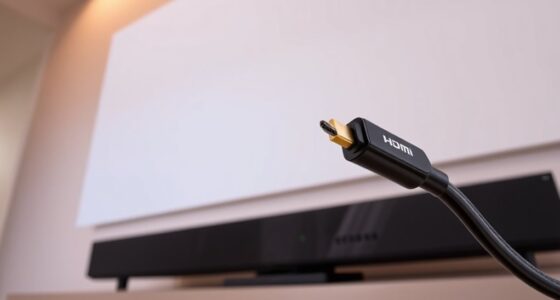
Yes, HDMI cable quality can affect audio delay. Poor-quality HDMI cables or those with cable interference can cause signal disruptions, leading to audio sync issues. To improve your sound, use high-quality HDMI cables that are well-shielded against interference. Also, verify the cable connections are secure and avoid running cables near sources of electrical noise. Upgrading your HDMI cable often reduces audio delay and enhances overall audio-visual sync.
How Does Projector Age Impact Sound Timing?
As your projector ages, its sound timing can become less reliable, just like its picture quality. The projector’s lifespan and aging effects might cause internal components to degrade, leading to delayed audio. Over time, worn-out parts can slow down processing, making sound lag behind visuals. To keep audio sync sharp, consider regular maintenance or upgrading to newer models, ensuring your viewing experience stays seamless despite aging effects.
Are There Specific Settings for Different Projector Brands?
Yes, there are brand-specific settings for different projectors. You should explore your projector’s calibration options to fine-tune audio sync. Many brands offer tailored audio delay adjustments in their menus, so check your user manual or settings menu. Adjusting these brand-specific settings helps match audio with video, reducing delays. Regular calibration ensures ideal sound timing, especially if you switch between different projector models or brands.
Can Software Updates Fix Audio Synchronization Issues?
Ever wonder if a simple software update could solve your audio sync problems? Yes, it can. Firmware updates often include improvements for audio calibration, which can fix delays between sound and picture. Regularly check your projector’s manufacturer website for updates, and install them to guarantee ideal performance. Keeping your device up-to-date helps maintain proper audio synchronization, reducing lag and enhancing your viewing experience effortlessly.
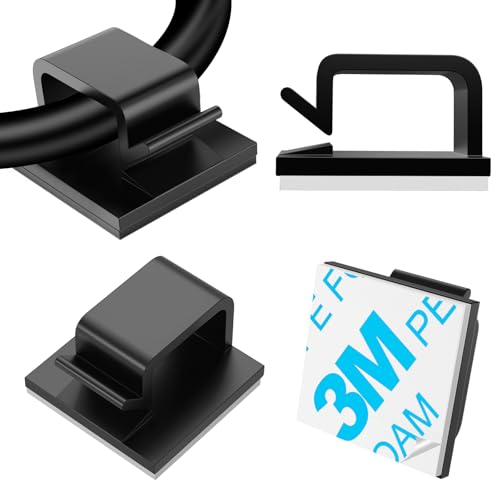
120 PCS Cable Clips, Adhesive Cord Clips for Wires on Wall, Strong Wire Clips Holders Cord Organizer for Cable Management, Christmas Lights, USB, Phone Charger, Cat 6, Car Dash Cam (Small, Black)
- Package Includes: 120 black cable clips in a small box
- Material: Eco-friendly premium PA66 for durability
- Adhesive Design: Strong sticky back for secure attachment
As an affiliate, we earn on qualifying purchases.
Conclusion
Don’t delay dealing with audio delays—delight in a seamless sound system. By diagnosing, adjusting, and applying simple solutions, you’ll banish bothersome lag and bring balance back to your viewing experience. Remember, patience and persistence pave the path to perfect playback. So, stay savvy, stay steadfast, and soon you’ll savor synchronized sound that elevates every entertainment event. Your pursuit of pristine projection pays off—painlessly and perfectly.

Google Streamer 4K – Fast Streaming Entertainment with Voice Search Remote, Watch Movies, Shows, Live Channels and Netflix in HDR, Smart Home Control, 32 GB Storage, Porcelain
- 4K Streaming: Fast, high-quality entertainment delivery
- Voice Search Remote: Easy voice-controlled navigation
- Multiple Streaming Services: Access all your favorite apps
As an affiliate, we earn on qualifying purchases.

HAPPRUN 2000 ANSI 4K Decoding Projector with WiFi and Bluetooth, Auto Focus
- Auto Focus and Keystone Correction: Quickly adjusts for optimal viewing
- 4K Decoding and Brightness: Supports 2000 ANSI lumens for vivid images
- High Contrast and Color Gamut: 20000:1 contrast ratio with 95% color coverage
As an affiliate, we earn on qualifying purchases.