If your projector has sound but no image, first check your input source and make sure it’s correctly selected and active. Confirm your cables are secure and undamaged, trying different cables or ports if needed. Inspect the lamp status; a dim or flickering image might indicate a lamp nearing end-of-life, requiring replacement. After replacing the lamp or rechecking connections, power it back on. For more tips on fixing a blank screen, keep exploring the troubleshooting steps below.

Get business pricing on your home office setup
- Business-only prices and quantity discounts
- Tax-exempt purchasing
- Multiple users, one account, clear invoices
Key Takeaways
- Verify the correct input source is selected and the connected device is active and sending a signal.
- Check all cables for secure connections, damage, and proper compatibility; try swapping cables or ports if needed.
- Inspect the projector’s lamp status for warning lights or dimness indicating it may need replacement.
- Ensure the projector’s lens is properly aligned and not obstructed; perform internal adjustments if necessary.
- Reset the projector after any maintenance or lamp replacement and test for image display.
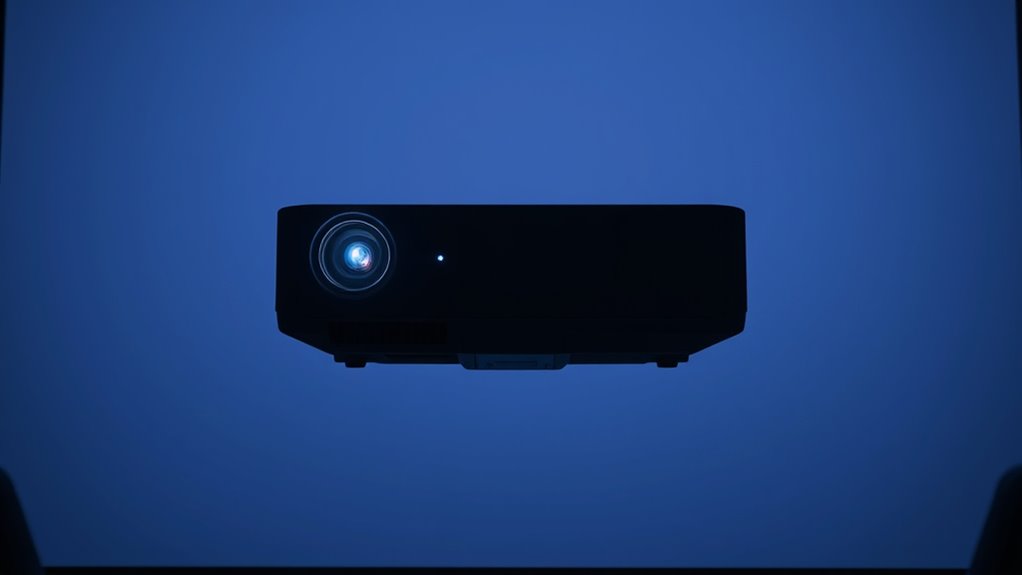
When your projector isn’t working as expected, it can be frustrating and disruptive. If you hear sound but see a blank screen, the issue often points to a problem with the input source or the lamp. First, check that your input source—the device connected to your projector—is properly selected and functioning. Sometimes, the problem is as simple as the projector not recognizing the connected device or being set to the wrong input. Use your remote or onboard buttons to cycle through input options like HDMI, VGA, or AV until the correct one is displayed. If you’re still not seeing an image, confirm that your device is powered on and sending a signal to avoid accidental disconnections or loose cables.
Check your input source and cables if your projector shows sound but no image.
Next, inspect the input cable itself. A damaged or loose connection can prevent the projector from displaying an image, even though it produces sound. Unplug and replug the cable, ensuring it’s securely connected on both ends. If you have multiple input cables or ports, try swapping them out or switching to a different port to rule out a faulty connection. This step often resolves issues caused by faulty wiring or incompatible cables.
If the input source and connection seem fine, your attention should turn to the lamp. A lamp nearing the end of its lifespan can cause the image to appear very faint, flickering, or not at all, despite the projector producing sound. Many projectors have a lamp indicator light or message that warns you when the lamp needs replacement. If you see such alerts, it’s time for lamp replacement. Remember, lamps don’t last forever—they gradually dim over time, and once they reach their end of life, they won’t project a clear image. Replacing the lamp can restore brightness and clarity, resolving the blank screen issue. Additionally, incorporating STEM concepts like understanding the lighting system can help in troubleshooting and maintaining your projector effectively.
Before replacing the lamp, consult your projector’s user manual for specific instructions and safety precautions. Usually, you’ll need to allow the projector to cool down completely before removing the lamp cover. Carefully remove the old lamp module, handle it by the handle to avoid damaging the bulb, and insert the new lamp securely. After installation, reset the lamp timer if prompted by the projector’s menu system. Once the new lamp is installed and the input source is confirmed correct, power the projector back on and check if the image appears.
If these steps don’t resolve the problem, other issues like a faulty internal component or a misaligned lens might be at play. However, most blank screen problems with sound can be fixed through a simple check of your input source and timely lamp replacement.
As an affiliate, we earn on qualifying purchases.
Frequently Asked Questions
Can a Faulty HDMI Cable Cause No Image but Sound?
Yes, a faulty HDMI cable can cause no image but still produce sound. During HDMI troubleshooting, you might find that the cable isn’t transmitting the video signal properly. To fix this, try replacing the HDMI cable with a known good one. Cable replacement often resolves display issues, ensuring both sound and image work correctly. Always check your connections and test with a different cable before considering other hardware problems.
How Do I Reset My Projector to Factory Settings?
To reset your projector to factory settings, access the menu using the remote or control panel. Navigate to the ‘Settings’ or ‘Setup’ option, then find and select ‘Factory Reset’ or ‘Reset to Default.’ Confirm your choice when prompted. This action restores your projector settings to original defaults, helping resolve issues caused by customized settings or misconfigurations, and guarantees it’s prepared for peak use.
Is It Normal for Projectors to Produce Sound Without an Image?
It’s not unusual for your projector to produce sound without an image; it’s like a ghost haunting your screen with noise but no visuals. The projector audio might work perfectly, but the blank screen suggests issues like a loose cable, incorrect input, or a faulty lamp. You should check all connections, verify the correct input source is selected, and inspect the lamp. This way, you’ll bring your projector back to life.
Do Projector Lamp Issues Affect Only the Image or Sound as Well?
Lamp issues primarily affect your projector’s image quality and lifespan, not the sound. When the lamp nears the end of its lifespan, you might notice dim or flickering images, but sound usually remains unaffected. If your projector’s lamp is failing, it’s best to replace it promptly to restore clear visuals and extend the device’s overall lifespan. Keep an eye on brightness levels for early warning signs.
How Can I Test if My Projector’s Input Source Is Working Properly?
Imagine you connect your laptop to the projector and see no image, only sound. To test if your input source functions, switch to a different device like a tablet or another laptop. Check if the input source is set correctly on your projector and verify device compatibility. If the new device displays correctly, your original input source may be faulty. This quick test confirms whether the issue lies with the input source or elsewhere.
As an affiliate, we earn on qualifying purchases.
Conclusion
When your projector has sound but no image, it can be frustrating, but with these troubleshooting steps, you’re well on your way to a solution. Have you checked all your connections, input sources, and settings thoroughly? Sometimes, a simple adjustment or reset can make all the difference. Remember, patience is key—after all, isn’t solving technology puzzles part of the fun? With a little persistence, you’ll have your projector displaying perfectly again in no time.
As an affiliate, we earn on qualifying purchases.
As an affiliate, we earn on qualifying purchases.
Columbus Day / Indigenous Peoples' Day Picks
long weekend sales
As an affiliate, we earn on qualifying purchases.