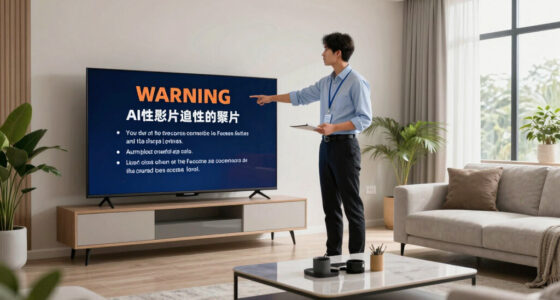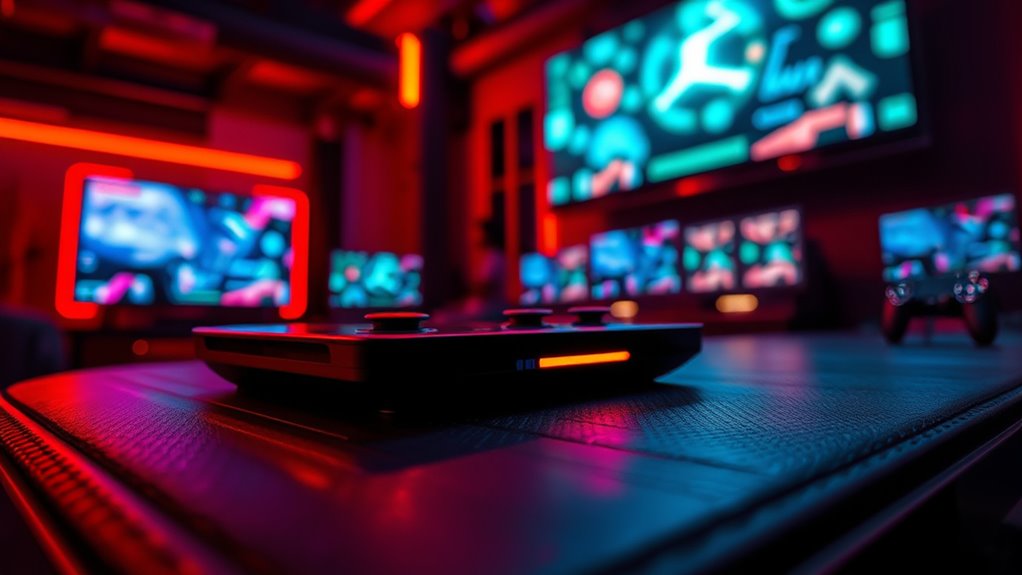

Choosing between Cinema, Game, or Vivid modes affects your TV’s picture quality by optimizing color, contrast, and brightness for specific activities. Cinema mode offers natural colors and softer contrast for a lifelike experience, perfect for movies. Game mode reduces input lag for smoother gameplay. Vivid boosts saturation and sharpness for bright, eye-catching images. Each mode alters how content appears; understanding these differences helps you get the most from your display, and there’s more to discover about customizing your viewing experience.

Get business pricing on your home office setup
- Business-only prices and quantity discounts
- Tax-exempt purchasing
- Multiple users, one account, clear invoices
Key Takeaways
- Different modes optimize display settings for specific scenarios, affecting brightness, contrast, and color accuracy.
- Cinema mode mimics theater quality with softer contrast and natural hues, ideal for movies.
- Game mode reduces input lag and enhances motion clarity for interactive content.
- Vivid mode boosts saturation and contrast for vibrant visuals, suitable for bright environments.
- Proper calibration within each mode ensures accurate colors and optimal picture quality tailored to content and environment.
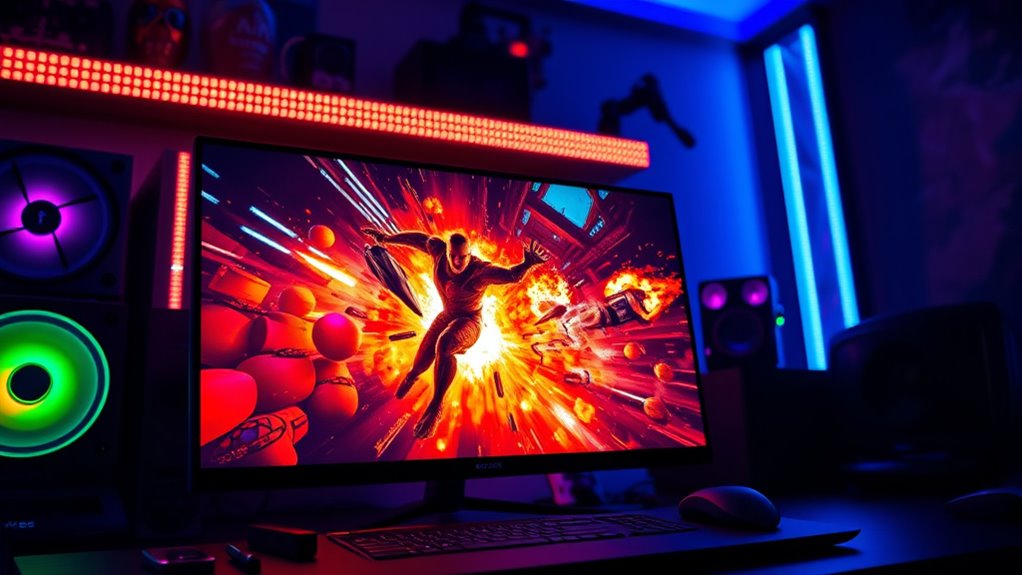
Choosing the right picture mode can substantially enhance your viewing experience, as different settings optimize image quality for various scenarios. When you select a mode like Cinema, Game, or Vivid, you’re not just changing the look; you’re tailoring the display to best suit your content and environment. To get the most out of these modes, understanding calibration techniques becomes essential. Calibration helps you fine-tune your TV or monitor, ensuring that colors are accurate and brightness levels are balanced. Proper calibration techniques enable you to achieve ideal color accuracy, so what you see on the screen closely matches real life or the director’s intent. Without calibration, even the best picture mode can produce colors that look oversaturated or dull, diminishing your viewing pleasure.
Choosing the right picture mode and calibrating ensures accurate, vibrant images tailored to your viewing environment.
Cinema mode is designed to replicate the experience of watching a movie in a theater. It typically dims the brightness and softens the contrast to reduce eye strain during long viewing sessions. This mode prioritizes color accuracy, aiming to deliver natural and lifelike hues. If you want your content to look as close to the creator’s vision as possible, selecting Cinema mode and calibrating your display for accurate colors is key. By doing so, you’ll notice subtle shades and details that might otherwise be lost or misrepresented. Calibration techniques in this mode often involve adjusting gamma, white balance, and color temperature to achieve a balanced, realistic picture. Additionally, understanding the ambient lighting in your viewing environment can help optimize these settings for the best possible image quality.
TV picture mode calibration tools
As an affiliate, we earn on qualifying purchases.
As an affiliate, we earn on qualifying purchases.
Frequently Asked Questions
How Do Picture Modes Impact Energy Consumption?
Picture modes directly impact your device’s energy consumption and efficiency. When you choose a mode with brighter settings, like Vivid, it uses more power, reducing energy efficiency. Conversely, modes like Cinema typically lower brightness levels, helping save power and reduce overall energy consumption. By selecting energy-efficient picture modes, you can extend your device’s lifespan and cut down on electricity use, making your viewing experience more sustainable.
Can Picture Modes Cause Eye Strain or Discomfort?
While picture modes may improve visual appeal, they can also cause eye strain or discomfort. Bright settings or high contrast may increase exposure to blue light, leading to eye fatigue over time. To reduce discomfort, lower the brightness, enable blue light filters, and take regular breaks. This way, you can enjoy your screen without risking eye strain or long-term damage, even during extended viewing sessions.
Are Certain Picture Modes Better for Gaming or Movies?
Certain picture modes are better for gaming or movies because they optimize color calibration and motion smoothing accordingly. For gaming, you want modes with minimal motion smoothing to reduce input lag and ensure smooth action. For movies, modes with accurate color calibration and gentle motion smoothing enhance visual quality without making images look unnatural. Choose modes tailored to each activity for the best experience, balancing clarity, color, and comfort.
How Do Picture Modes Affect Color Accuracy for Professional Work?
Picture modes impact color accuracy for professional work by influencing color fidelity, which can vary markedly between modes. If you don’t calibrate your display properly, you’ll face calibration challenges that hinder precise color reproduction. To guarantee accurate results, you should manually calibrate your monitor rather than relying solely on preset modes, as these often prioritize aesthetics over color precision, making calibration essential for professional tasks needing consistent, true-to-life colors.
Do Picture Modes Influence the Lifespan of Display Panels?
Picture modes can influence your display panel’s longevity and overall durability. Using modes with high brightness or aggressive settings may accelerate panel wear, reducing display durability over time. To maximize panel longevity, you should choose settings that are gentle on the screen, avoiding prolonged exposure to high brightness levels. Properly managing picture modes helps preserve your display’s lifespan, ensuring it remains functional and vibrant for longer periods.
As an affiliate, we earn on qualifying purchases.
Conclusion
Choosing the right picture mode can substantially enhance your viewing experience, as it tailors color, contrast, and sharpness to fit your preferences. Notably, a recent survey found that 68% of viewers notice a marked difference in image quality when switching between modes. So, don’t settle for default settings—experiment and find what feels best. Your eyes will thank you, and every movie or game will feel more vivid and immersive.
As an affiliate, we earn on qualifying purchases.
gaming monitor with low input lag
As an affiliate, we earn on qualifying purchases.
As an affiliate, we earn on qualifying purchases.
Halloween Picks
halloween
As an affiliate, we earn on qualifying purchases.