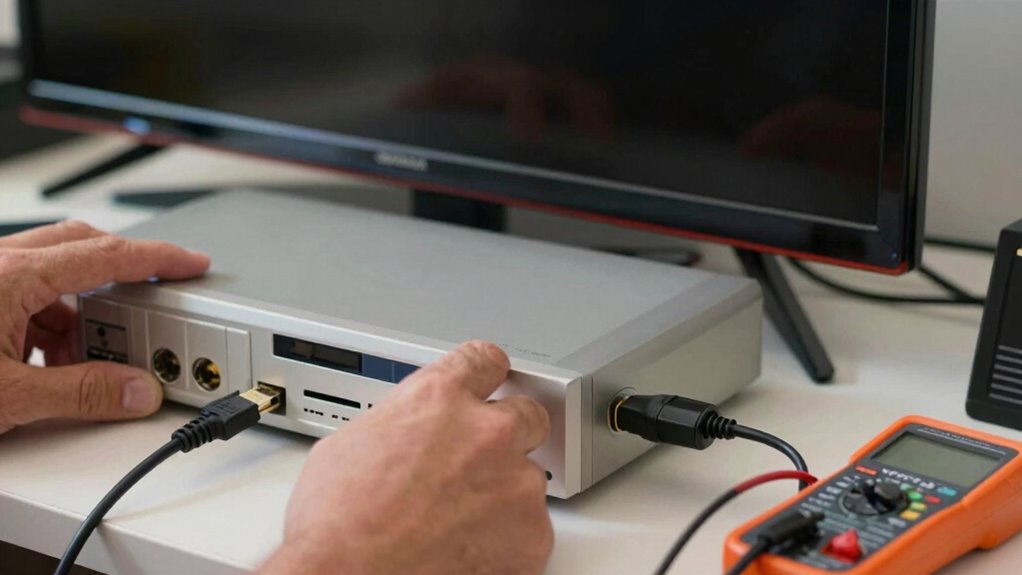

To troubleshoot HDMI compatibility with older gear, start by checking for firmware updates from the device manufacturer, as outdated firmware can cause issues. Make sure your HDMI cables are high-quality and in good condition, and consider switching to cables supporting current standards. Power cycle your devices to reset connections, and verify that your settings match your equipment’s capabilities, adjusting resolution or refresh rate as needed. For more tips, there’s still plenty to explore that can help improve your connection.

Get business pricing on your home office setup
- Business-only prices and quantity discounts
- Tax-exempt purchasing
- Multiple users, one account, clear invoices
Key Takeaways
- Check and update device firmware to ensure compatibility with modern HDMI standards.
- Use high-quality, undamaged HDMI cables that support current standards and resolutions.
- Power cycle devices by unplugging, waiting briefly, then reconnecting to reset HDMI handshake issues.
- Disable wireless streaming features on newer devices to prevent interference with wired HDMI connections.
- Manually adjust device settings like resolution and refresh rate to match connected equipment.
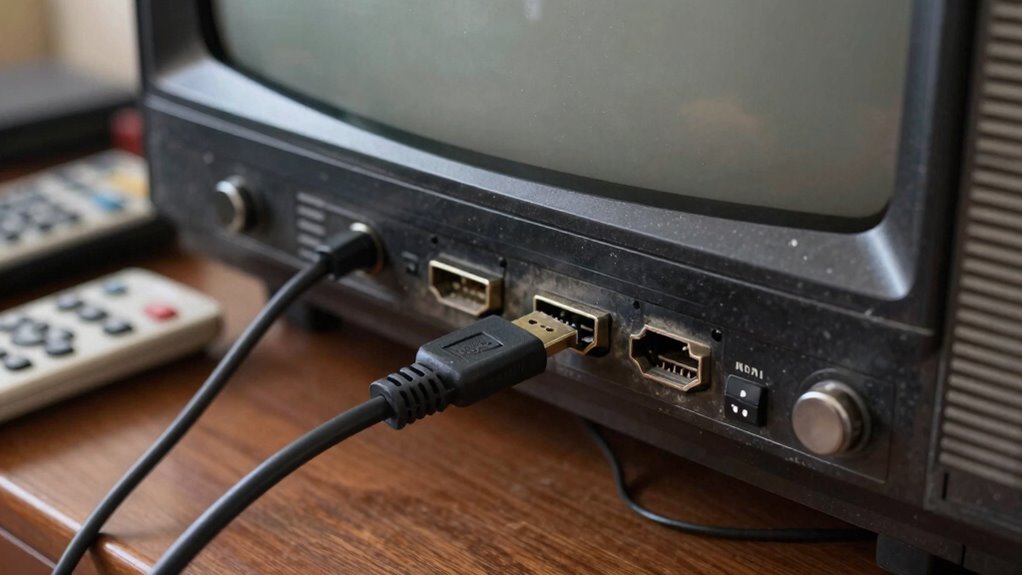
Are you struggling to get your older audio-visual equipment to work seamlessly with modern HDMI devices? Compatibility issues can be frustrating, especially when your equipment refuses to recognize new sources or display signals properly. The good news is that many of these problems can be fixed with a few straightforward troubleshooting steps. One common cause is the outdated firmware on your devices. Manufacturers release firmware updates to improve compatibility, fix bugs, and add features, so checking for and installing the latest firmware can often resolve HDMI issues. To do this, visit the manufacturer’s website or use their dedicated app to see if updates are available for your gear. Updating firmware might sound technical, but it’s usually a simple process that can significantly enhance your setup’s performance.
Another important factor to consider is the trend toward wireless streaming. Many modern devices now prioritize wireless connections for video and audio, which can sometimes interfere with or bypass traditional HDMI signals. If you’re trying to connect older equipment that relies solely on HDMI cables, ensure that the source device isn’t defaulting to wireless streaming options that your display or receiver may not support. Disabling wireless streaming features on your newer devices, or switching back to wired HDMI connections, can help establish a stable signal. Conversely, if you’re using a device that supports both wired and wireless connections, experimenting with wireless streaming might resolve compatibility issues if the wired connection isn’t cooperating. Additionally, understanding HDMI standards and their capabilities can help you select the right cables and settings for your setup. Being aware of compatibility guidelines can prevent many connection headaches before they happen. It’s also helpful to check if your devices support HDMI handshake protocols, which can sometimes be a source of connection problems.
Additionally, make sure your HDMI cables are in good condition and are the right type for your equipment. Older cables might not support higher resolutions or newer HDMI standards, leading to compatibility problems. Upgrading to a high-speed HDMI cable designed for the latest standards can make a difference. If your equipment is still not cooperating, try power cycling all devices involved—turn them off, unplug them for a few seconds, then turn everything back on. Sometimes, a simple reset can clear communication glitches.
Finally, check your device settings. Some older gear requires manual configuration to properly recognize HDMI inputs or outputs, especially when dealing with different resolutions or refresh rates. Adjusting these settings to match your newer devices’ specifications can often solve stubborn compatibility issues. If problems persist, consulting your device’s manual or reaching out to customer support might reveal specific settings or known issues related to your models. By systematically updating firmware, managing wireless streaming options, checking cables, and configuring settings, you can often overcome HDMI compatibility hurdles and enjoy a smoother, more reliable audio-visual experience.
Products Worth Considering

Philips Hue Starter Kit with Bridge Pro and 4 Retrofit LED Recessed Downlights

Arlo Ultra 4K HDR Wireless Security Camera (3rd Gen), 3-Camera Kit with SmartHub

Arlo Pro Wireless Security Camera, 2K HDR, 6th Gen, 4-Camera Kit
As an affiliate, we earn on qualifying purchases.
Frequently Asked Questions
Can I Use an HDMI Splitter With Older Devices?
Yes, you can use an HDMI splitter with older devices, but compatibility depends on your setup. To guarantee smooth operation, use HDMI switchers or compatibility adapters designed for older gear. These tools help bridge differences in HDMI versions and prevent signal issues. Always check the specifications of the splitter and your devices to confirm compatibility, and consider testing with a known working setup before full use.
Do HDMI Cables Affect Compatibility With Vintage Equipment?
Yes, HDMI cables can affect compatibility with vintage equipment. Older devices often use vintage connectors and rely on analog compatibility, which HDMI cables might not support fully. If you’re using a modern HDMI cable, it may lack the necessary features for older gear. To guarantee proper connection, choose high-quality cables that support the specific standards your vintage equipment requires, and consider adapters if needed to bridge analog and digital signals.
How Do I Update Firmware on My HDMI Devices?
To update firmware on your HDMI devices, first check the manufacturer’s website for the latest firmware updates. Download the firmware file to your computer, then follow the device-specific instructions, which often involve transferring the file via USB or using a dedicated app. Firmware updates help resolve compatibility issues by ensuring your device has the latest features and bug fixes, improving overall HDMI performance with older gear.
Are There Specific HDMI Versions Better for Older Gear?
For older gear, sticking with earlier HDMI standards like HDMI 1.4 or HDMI 2.0 usually works best, as they’re more compatible. Newer HDMI versions, such as HDMI 2.1, add features but can cause compatibility issues with older devices. To prevent these problems, choose cables and devices that support the same HDMI standards as your equipment. This helps guarantee reliable connection and avoids compatibility issues.
What Are Signs My Device Is HDMI Incompatible?
Imagine trying to fit an old key into a new lock—if your device shows no picture or flickers, it’s like the key doesn’t quite turn. You might see no signal, distorted images, or frequent disconnects. These signs suggest HDMI incompatibility. Use HDMI adapters cautiously and perform compatibility testing to pinpoint issues. If problems persist, it’s often a mismatch between HDMI versions or cable quality, requiring upgrades or adjustments.
Conclusion
So, you’ve tried all the usual fixes, but the issue still lingers. Sometimes, the solution isn’t immediately obvious, and the true challenge lies in uncovering the subtle compatibility quirks. Keep experimenting with different cables, settings, or firmware updates—you never know when a small tweak might reveal perfect harmony. The key is patience; the answer might be just one step away, waiting to surprise you when you least expect it.