
To fix misaligned subtitles and overlays, start by adjusting the subtitle timing in your media player to sync better with the video. You can also reposition overlays using video editing software or convert subtitle files to compatible formats. Double-check your playback settings to prevent further mismatches. Small tweaks often make a big difference, and exploring these methods will help you achieve smooth synchronization throughout your viewing experience. Keep going for more detailed solutions.
Listen free for 30 days with Audible
Thousands of audiobooks and originals — cancel anytime.
As an affiliate, we earn on qualifying purchases.
Key Takeaways
- Use media player tools to manually shift subtitle timing forward or backward for better sync.
- Adjust overlay position within video editing software to prevent overlap with important visuals.
- Convert subtitle files to compatible formats like SRT or ASS to resolve format-related misalignment issues.
- Fine-tune overlay properties such as font, size, and opacity for seamless integration with the video.
- Ensure consistent frame rate settings between the video and subtitles for accurate synchronization.
As an affiliate, we earn on qualifying purchases.
Understanding Common Causes of Alignment Issues
Alignment issues often stem from discrepancies between the video’s frame rate, the subtitle file’s timing, and the media player’s settings. These inconsistencies can cause subtitles to appear out of sync or misaligned with the on-screen action. Poor subtitle synchronization occurs when the timing data doesn’t match the video’s playback speed, leading to delayed or premature text display. Overlay calibration also plays a critical role; if the overlay isn’t correctly aligned with the video, subtitles may drift or be misplaced. Variations in media player configurations, such as default frame rates or playback settings, can exacerbate these problems. Understanding these common causes helps you identify whether the misalignment originates from timing issues, overlay calibration, or playback settings, setting the stage for effective troubleshooting. Additionally, ensuring your media player supports high refresh rates can improve synchronization accuracy and overall viewing experience.
As an affiliate, we earn on qualifying purchases.
Adjusting Subtitle Timing and Position Manually
Sometimes, subtitles still don’t match the on-screen action even after checking settings, and you need to adjust their timing and position manually. To improve subtitle synchronization, use your media player’s adjustment tools to shift the subtitles forward or backward on the timeline. This guarantees the text appears exactly when spoken words occur. For overlay positioning, most players allow you to move subtitles up or down the screen to avoid obscuring important visuals. Fine-tuning these settings helps your subtitles align perfectly with the dialogue and visuals. Remember, small adjustments can make a big difference. Take your time to test changes and preview your video after each tweak, ensuring the subtitles are both synchronized and appropriately positioned for maximum viewing experience. Additionally, being aware of vetted options can help you select the safest and most effective tools for your needs.
As an affiliate, we earn on qualifying purchases.
Using Video Editing Software to Correct Overlays
Using video editing software provides a powerful way to precisely correct overlay misplacements that can’t be fixed through basic player adjustments. You can adjust subtitle styles to match the original design, ensuring consistency in font, size, and color. Additionally, you can fine-tune overlay opacity to make overlays blend seamlessly with the video background or stand out as needed. This level of control allows you to reposition elements accurately, fix overlaps, or remove unwanted overlays altogether. Editing tools enable you to preview changes in real-time, helping you achieve a natural look. By directly modifying overlay properties, you guarantee that subtitles and overlays appear exactly as intended, improving overall viewing experience and professionalism. Educational toys can also be integrated into videos to demonstrate concepts more effectively.
media player subtitle adjustment
As an affiliate, we earn on qualifying purchases.
As an affiliate, we earn on qualifying purchases.
Converting and Reformatting Subtitle Files for Compatibility
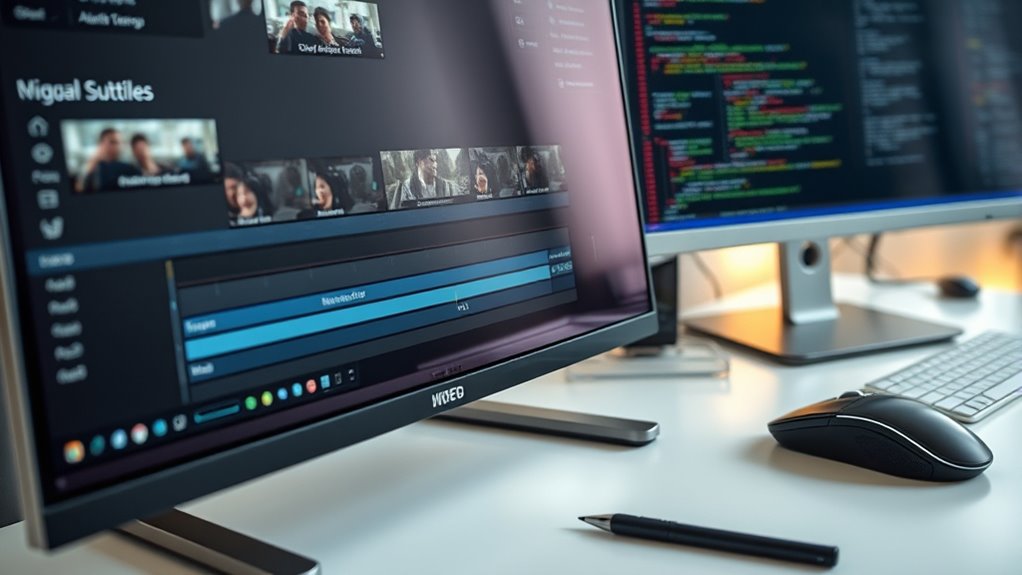
Have you ever tried playing a subtitle file that just won’t display correctly because of formatting issues? Converting and reformatting subtitle files helps guarantee compatibility across different media players. You’ll need to adjust subtitle syntax to match the required format, such as SRT or ASS, for seamless playback. Proper reformatting also involves font customization, so your subtitles look clear and consistent. Additionally, understanding juice cleansing techniques can inform how you approach the detoxification of digital files by removing unnecessary or incompatible formatting elements.
Key steps include:
- Recognizing format differences to choose the right conversion tools
- Editing subtitle syntax for compatibility
- Adjusting font settings for better readability
- Saving files in the preferred format to avoid playback errors
Tips for Preventing Future Misalignment Problems
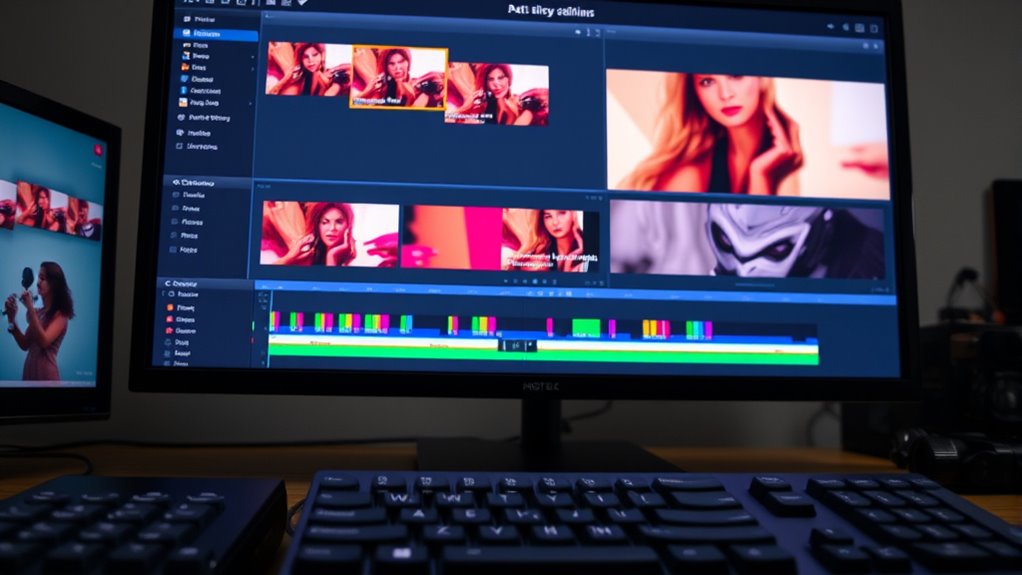
To prevent future subtitle misalignment issues, it’s essential to pay close attention to synchronization during the editing process. Accurate subtitle synchronization guarantees your subtitles match the dialogue timing, reducing the risk of lag or early display. When adjusting overlay placement, double-check that overlays align precisely with the screen’s key moments, avoiding overlaps or misplacements. Use reliable editing tools that allow fine-tuning of timing and positioning. Preview your subtitles and overlays repeatedly to catch any discrepancies before finalizing. Consistent frame rate settings between your video and subtitle files also help maintain alignment. Additionally, understanding relationships and communication can improve your ability to anticipate and correct timing issues, ensuring a smoother viewing experience. By carefully managing subtitle synchronization and overlay placement, you minimize future errors, ensuring a smooth viewing experience for your audience. Proper attention at this stage saves time and effort during revisions later.
Frequently Asked Questions
Can I Fix Misaligned Subtitles on Mobile Devices?
Yes, you can fix misaligned subtitles on mobile devices. Many video apps let you adjust subtitle positioning and overlay alignment directly on your phone. Look for options like “subtitle settings” or “overlay adjustments” in the app’s menu. You might also use third-party editing apps that enable precise control over subtitle placement, ensuring your subtitles display correctly and stay synchronized with the video.
Which Software Is Best for Automatic Subtitle Alignment?
Think of automatic subtitle alignment software as a skilled conductor guiding your video’s symphony. For precise subtitle timing and overlay positioning, tools like Aegisub, Subtitle Edit, and Kapwing shine brightest. They analyze your audio, adjust timing automatically, and make certain overlays sit perfectly in sync with speech. You’ll find them intuitive, saving you time and frustration, so your subtitles flow seamlessly, harmonizing with your visuals like a well-orchestrated melody.
How Do I Edit Embedded Subtitles in Video Files?
To edit embedded subtitles in video files, you’ll need specialized software like Aegisub or HandBrake. First, extract the embedded subtitles if possible, then modify the text or timing. After editing, re-embed the subtitles with proper overlay customization to guarantee they align perfectly. Keep in mind that direct subtitle editing requires tools that support subtitle embedding and overlay adjustments, so choose software that offers these features for seamless results.
Are There Tools to Synchronize Multiple Subtitle Tracks?
Yes, you can find tools that help synchronize multiple subtitle tracks through precise subtitle timing adjustments. Programs like Subtitle Edit and Aegisub let you overlay synchronization by aligning different tracks or adjusting timing to match the video. These tools allow you to fine-tune subtitle timing easily, ensuring overlays are perfectly synchronized. Using them, you can seamlessly manage multiple subtitle tracks and improve your overall viewing experience.
What Formats Support Advanced Subtitle Overlay Customization?
Did you know that over 60% of viewers prefer customized subtitles? You’ll find that formats like Advanced SubStation Alpha (ASS) and SubRip Subtitle (SRT) support detailed subtitle styling and overlay positioning. These formats let you adjust font, color, and placement, giving you full control over how your subtitles appear. Using ASS, for example, you can create visually appealing overlays with precise positioning, enhancing your viewing experience considerably.
Conclusion
Just like a skilled conductor brings harmony to an orchestra, you can restore perfect alignment to your subtitles and overlays. By understanding the causes, making precise adjustments, and using the right tools, you hold the power to prevent future discord. Remember, patience and attention to detail are your symphony’s baton—guiding your edits smoothly to harmony. With these tips, you’ll turn chaos into clarity, ensuring your viewers enjoy seamless, synchronized visuals every time.
Fall Picks
fall essentials
As an affiliate, we earn on qualifying purchases.