If your projector won’t power on, start by checking that the power cord is securely plugged into both the projector and the outlet, and confirm the outlet works with another device. Inspect the cord for damage and verify the power switch is on. If it still won’t turn on, try resetting it or testing the internal fuse, but be cautious about safety. For more tips on troubleshooting power issues, keep exploring how to get your projector up and running again.

Get business pricing on your home office setup
- Business-only prices and quantity discounts
- Tax-exempt purchasing
- Multiple users, one account, clear invoices
Key Takeaways
- Verify the power source, connections, and that the outlet and power strip are functioning correctly.
- Check the projector’s power cord for damage and ensure the power switch is turned on.
- Inspect the internal fuse for signs of blowing and replace if necessary, following safety guidelines.
- Reset the projector by unplugging it for a few minutes, then reconnect and attempt to power on.
- Seek professional assistance if the projector still does not power on after troubleshooting.
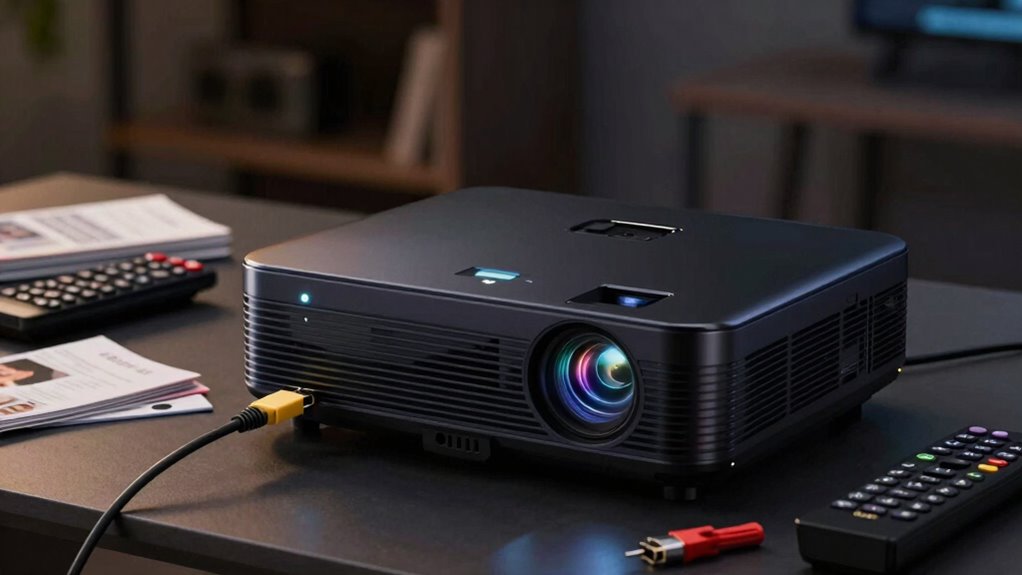
When your projector refuses to power on, it can be frustrating, especially when you’re ready for a presentation or movie night. The first step is to stay calm and methodically troubleshoot the problem. Start by checking the power source, as many issues stem from simple connection problems. Ensure the power cord is securely plugged into both the projector and the wall outlet. Sometimes, the cord might look connected but isn’t fully seated. If you’re using a power strip, confirm it’s turned on and functioning correctly. You can test the outlet by plugging in another device to see if it receives power. If the outlet isn’t working, try plugging the projector into a different outlet.
Check power connections and outlet functionality before troubleshooting further.
Next, verify that the power cord itself isn’t damaged. Look for frays, cuts, or bent prongs that could interrupt the electrical flow. If you suspect a faulty cord, replacing it with a compatible one might resolve the issue. If your projector has a power switch, ensure it’s turned on. Some models also have a standby or sleep mode—double-check if the device is in a proper operational state, and try pressing the power button again.
If these steps don’t work, consider whether the projector’s internal fuse might have blown. Many projectors contain a fuse that protects the device from power surges. Consult your user manual to locate and inspect the fuse. If you find it’s blown, replacing it might solve the problem, but be cautious and follow safety guidelines or seek professional help if you’re unsure. Additionally, understanding power issues and their common causes can help you diagnose problems more effectively. Sometimes, the issue might be related to internal hardware or software, which can require more advanced troubleshooting steps or professional repair. Recognizing electrical safety precautions is essential when inspecting or replacing internal components.
Furthermore, some projectors have software or firmware that can become corrupted, so checking for software updates or performing a firmware reset could potentially resolve the problem. Sometimes, the issue isn’t with the power source but with the projector’s internal hardware or software. Try unplugging the device, waiting a few minutes, then plugging it back in to reset it. This process can sometimes resolve minor glitches and is recommended in your user manual as a simple reset step. If your projector has a reset button, pressing it might restore normal function. Additionally, check for any physical damage or debris in the power port that could hinder connection.
If all else fails, and the projector still won’t turn on despite these troubleshooting techniques, it might be a sign of a more serious internal fault. In that case, contacting customer support or a professional technician is the best course of action. Remember, many power issues are simple to resolve if you systematically check the power source and connections first, saving you time and frustration when you’re eager to start your presentation or enjoy a movie.
Products Worth Considering

Dyson Ball Animal 3 Upright Vacuum – Corded, 290 AW, De‑tangling Motorbar Cleaner Head, 3 Suction Modes

Philips Hue White and Color Ambiance A19 Smart Bulb Starter Kit, 2-Pack

eufy Security Video Doorbell E340, Dual Cameras, 2K FHD, 8GB Local Storage
As an affiliate, we earn on qualifying purchases.
Frequently Asked Questions
How Long Should I Wait Before Troubleshooting a Non-Starting Projector?
You should wait about 15-20 minutes before troubleshooting a non-starting projector. During this time, check if the projector bulbs have cooled down, as overheating can prevent power. Try the power button troubleshooting steps again after this period. If it still doesn’t turn on, inspect the power source and verify the power button functions correctly. Waiting allows internal components to reset and reduces risk of damage.
Can a Faulty Remote Prevent the Projector From Turning On?
Did you know that remote issues cause about 20% of projector power problems? A faulty remote can definitely prevent your projector from turning on, even if it’s powered properly. Try remote troubleshooting first—check the batteries, verify the remote’s functioning, and see if the power button on the projector itself works. Sometimes, the remote’s signal isn’t received, so using the power button directly can help identify if the remote’s the culprit.
Is It Possible to Reset a Projector’s Internal Fuse?
Yes, you can reset a projector’s internal fuse, but it’s usually not a simple internal reset. First, disconnect the projector from power and open the casing carefully. Check the fuse and replace it if it’s blown. Fuse replacement involves removing the faulty fuse and installing a new one of the same type and rating. Be cautious, as internal components can be delicate; if unsure, consult a professional for fuse replacement or internal reset procedures.
What Are Signs That the Projector’s Power Supply Is Damaged?
If your projector’s power supply is damaged, you might notice it won’t turn on despite being plugged in. Additionally, the projector may show inconsistent behavior, like flickering or strange noises. Before suspecting power issues, confirm you’ve cleaned the lens and performed image calibration, as dust or misalignment can cause display problems. If problems persist after these steps, it’s likely a damaged power supply, requiring professional repair or replacement.
How Do I Determine if My Projector’s Power Cord Is Defective?
Like a detective searching for clues, you should start with a power cord inspection. Check for visible damage, frayed wires, or bent pins. Test the cord with another device to see if it works. If it’s faulty, consider replacing the fuse if your projector has one, or try a different power cord altogether. Ensuring the cord’s proper function is key to resolving power issues and getting your projector back on.
Conclusion
When your projector refuses to turn on, imagine the blank screen waiting silently—a doorway to dreams, presentations, or memories. Don’t let a simple power issue dim that promise. With patience and a few troubleshooting steps, you can bring it back to life, illuminating your space once more. Think of it as reigniting a spark—restoring light and clarity to your world. Soon, that darkened screen will glow with possibility again.