If your projector keeps disconnecting from the source, start by checking your Wi-Fi connection for strength and interference, and reset the network on the projector. Inspect and secure all cables, making sure they’re compatible and undamaged. Adjust your source device’s resolution and display settings to match the projector’s specs. Keeping firmware and drivers updated can also improve stability. Following these steps can often resolve dropouts, and exploring further tips can reveal even more solutions.
Key Takeaways
- Ensure both projector and source device are on the same Wi-Fi network with strong signal strength.
- Check and replace damaged or incompatible cables, ensuring proper seating and support for required resolutions.
- Adjust source device settings to match the projector’s native resolution and avoid unsupported configurations.
- Update the projector firmware and device drivers to the latest versions for improved stability.
- Restart both devices and reset the network connection to clear temporary glitches causing dropouts.
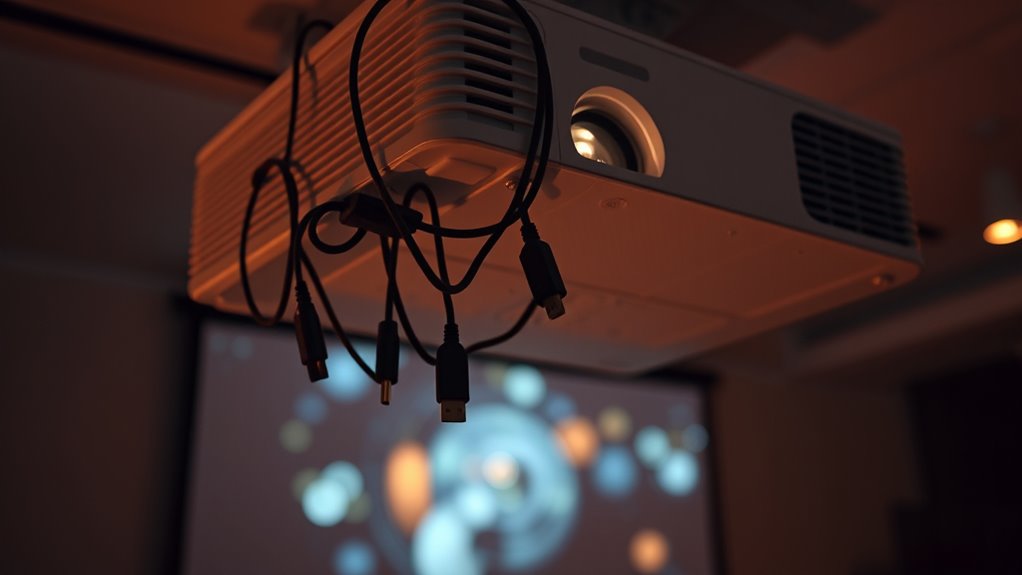
Connecting a projector can sometimes be tricky, but most issues are easy to fix with a few simple steps. One common problem is the projector losing connection to your source, which can be frustrating, especially during important presentations. To troubleshoot this, start by examining your wireless connection. Wireless issues are often the culprit—your device might be experiencing interference, weak signals, or network congestion. Check if your projector and source are connected to the same Wi-Fi network, and ensure the signal strength is strong enough. Moving your router closer or reducing other wireless device usage can improve connectivity. If your projector supports Wi-Fi, consider resetting the network connection or reconnecting to the network to clear any glitches.
Troubleshoot wireless connections by ensuring both projector and source are on the same Wi-Fi with strong signals.
Cable compatibility is another key factor. If you’re using a wired connection, verify that the cables are compatible with both your projector and source device. Not all HDMI or VGA cables work with every device, and using the wrong type or an incompatible cable can cause intermittent dropouts. Inspect your cables for damage or looseness—sometimes, a simple re-seat or replacement can resolve the issue. Make sure your cables are certified and meet the specifications required by your devices. For example, older HDMI cables might not support higher resolutions or refresh rates, leading to connection drops. If you’re unsure about compatibility, consult your projector’s manual or manufacturer’s website for recommended cables.
Beyond cables and wireless signals, check your source device’s output settings. Sometimes, the resolution or refresh rate set on your laptop or media player isn’t supported by the projector, causing it to disconnect. Adjust these settings to match the projector’s native resolution. Also, ensure that the display output is correctly configured—sometimes, the device defaults to a secondary monitor or extended desktop, which can disrupt the connection. Switching to duplicate display mode or explicitly selecting the projector as the primary output often resolves these issues.
Lastly, update your device drivers and firmware. Outdated drivers or firmware can cause compatibility issues that lead to dropped connections. Visit the manufacturer’s website for the latest updates and follow their instructions for installation. Regularly restarting your devices and the projector can also clear temporary glitches contributing to unstable connections. If problems persist, testing with different cables or devices can help pinpoint whether the issue lies with the source, cables, or projector itself. With a systematic approach, you’ll be able to identify and fix the root cause, ensuring a stable, reliable connection for your presentations or entertainment needs.
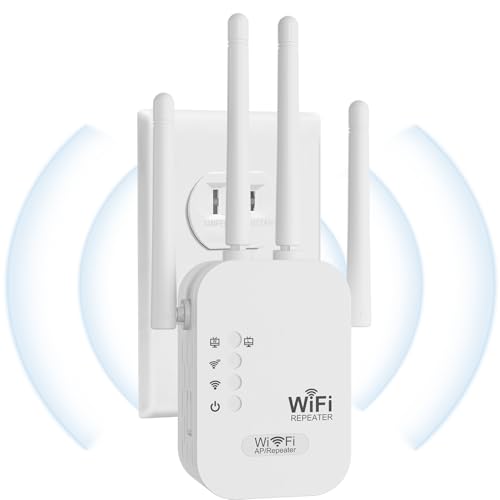
2026 WiFi Extenders Signal Booster for Home Long Range Up to 9800 sq. ft & 40 Devices, WiFi Extender Signal Booster, Internet Booster, Long Range WiFi Extender,Quick Setup-Medium
EXTEND WIFI COVERAGE : The wifi extenders to bring you wide coverage of signals,Coverage up to 9789Sq. ft,Eliminating…
As an affiliate, we earn on qualifying purchases.
As an affiliate, we earn on qualifying purchases.
Frequently Asked Questions
How Do I Reset My Projector’s Network Settings?
To reset your projector’s network settings, start with a network reset by traveling to the settings menu and selecting the network options. If that doesn’t work, perform a factory restore to fully reset all settings, including network configurations. Keep in mind, a factory restore erases saved data, so back up any important info beforehand. This process should help resolve connection dropouts and get your projector reconnecting smoothly.
Can Interference Affect Projector-Source Connectivity?
Think of your wireless connection as a delicate dance, easily thrown off by interference. Yes, wireless interference can cause signal disruption, making your projector’s connection shaky or dropping out. Devices like routers, microwaves, or Bluetooth gadgets act as noise in your signal’s rhythm. To keep your dance smooth, minimize these sources, move your projector closer to the source, and switch to less crowded channels, ensuring your connection stays steady and reliable.
Is There a Way to Improve Wireless Signal Strength?
Yes, you can improve wireless signal strength by reducing interference and boosting the signal. Move your router closer to the projector and away from devices like microwaves or cordless phones that cause wireless interference. Use a Wi-Fi extender or mesh network to enhance coverage, and consider upgrading your router for stronger, more stable signals. These steps help make certain of a more reliable connection and fewer dropouts.
What Should I Do if the Projector’s Firmware Is Outdated?
Imagine a quiet moment where your projector’s glow flickers, hinting at outdated firmware. To fix this, you should access the projector’s menu and find the firmware update option. Follow the update process carefully, ensuring it’s connected to power and Wi-Fi. Updating the projector firmware keeps it compatible with new sources, preventing dropouts and improving performance. Regular updates are like giving your projector a fresh boost of clarity.
How Do I Troubleshoot HDMI Handshake Issues?
To troubleshoot HDMI handshake issues, start by checking HDMI compatibility between your devices, ensuring they support the same standards. If problems persist, inspect for signal interference from other electronic devices or cables, and try repositioning the HDMI cable or using a shorter one. You can also unplug and reconnect the cable firmly, or switch to a different HDMI port to improve the handshake process and restore a stable connection.
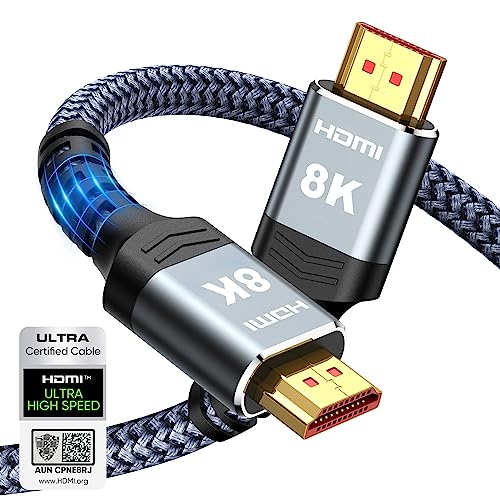
Highwings 8K 10K 4K HDMI Cable 48Gbps 6.6FT/2M, Certified Ultra High Speed HDMI Cable Braided Cord-4K@120Hz 8K@60Hz, DTS:X, HDCP 2.2 & 2.3, HDR 10 Compatible with Roku TV/PS5/HDTV/Blu-ray
Top Technology—-8K@60HZ: This 8K Ultra High Speed HDMI Cable uses the most cutting-edge technology, is compatible with 8K@60HZ…
As an affiliate, we earn on qualifying purchases.
As an affiliate, we earn on qualifying purchases.
Conclusion
If your projector keeps dropping the connection, don’t give up just yet. With a little patience and these troubleshooting tips, you’ll be back to enjoying seamless presentations faster than you can say “cable chaos.” Remember, even the most stubborn tech issues can be conquered—your projector’s connection is just waiting for you to unseal its full potential. Keep troubleshooting, stay persistent, and soon your setup will be as flawless as a Hollywood premiere!

Nanlite Forza 60C Kit with FM Mount Projection Attachment (19&36)
TWO CREATIVE TOOLS – This kit combines the full-spectrum Forza 60C RGBLAC LED Spotlight and the PJ-FMM Projection…
As an affiliate, we earn on qualifying purchases.
As an affiliate, we earn on qualifying purchases.

XEME 4K Wireless HDMI Display Dongle Adapter, Wireless Transmitter, Streaming Media Video/Audio/File HDMI Extender from Laptop, PC, Smartphone to HDTV Projector Monitor
Perfect HD Quality HDMI Dongle:The wireless HDMI adapter can support HD video output and high-quality sound effect output,…
As an affiliate, we earn on qualifying purchases.
As an affiliate, we earn on qualifying purchases.