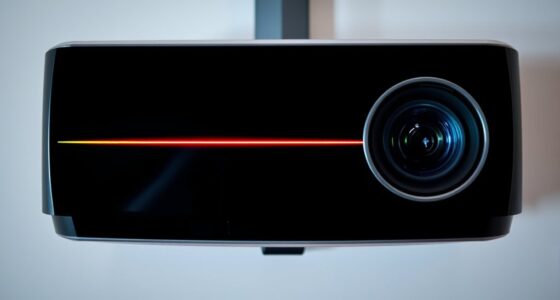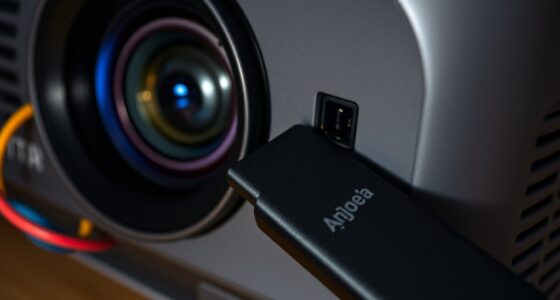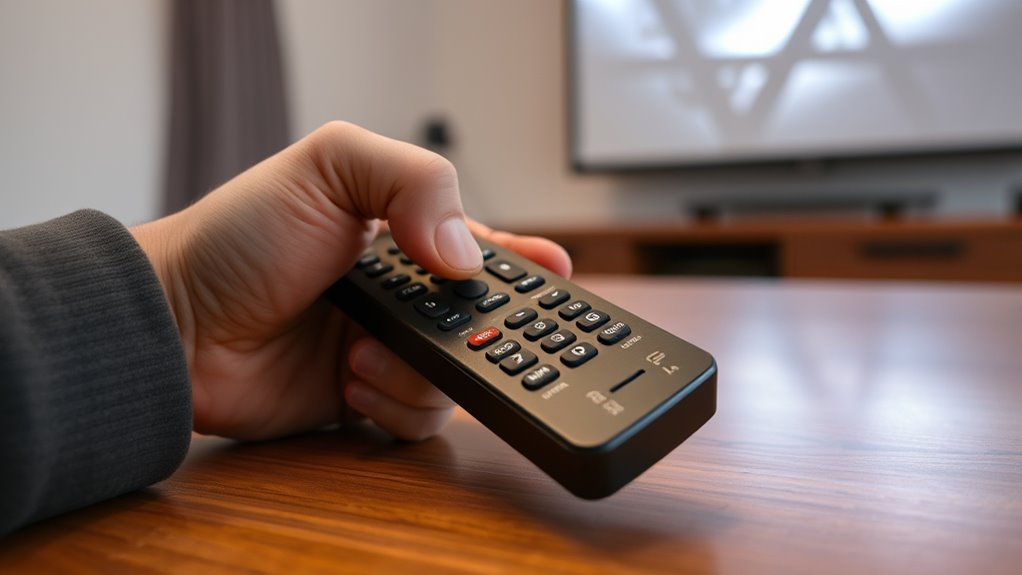

If your projector remote isn’t working, start by replacing the batteries with fresh ones and verify there’s a clear line of sight to the projector’s IR sensor. Use a smartphone camera to check if the remote’s IR LED flashes when you press buttons. Turn off nearby electronics that could cause interference and move closer if needed. If these steps don’t help, exploring alternative controls or inspecting the remote and sensor may be necessary—more tips await if you want to troubleshoot further.
Key Takeaways
- Check and replace remote batteries, ensuring they are fresh and properly installed.
- Verify clear line-of-sight between the remote and projector IR receiver.
- Use a smartphone camera to test if the remote’s IR LED flashes when buttons are pressed.
- Remove any objects or electronic devices that may cause IR interference near the projector.
- Consider replacing the remote or consulting customer support if hardware issues are suspected.

A malfunctioning projector remote can disrupt your presentation or movie night, but many issues are simple to fix. Before you panic, consider that your remote’s problems might be caused by dead batteries, interference, or a simple misalignment. First, check the batteries—this is often the culprit. Remove the remote’s cover, replace the batteries with fresh ones, and see if that restores functionality. If the remote still doesn’t respond, don’t forget to verify the power source of the projector itself; sometimes, the issue isn’t with the remote at all.
A dead remote battery is often the main cause of projector remote malfunctions.
If replacing batteries doesn’t work, try inspecting the remote’s infrared (IR) sensor. Point the remote directly at the projector’s IR receiver and press a button. If you see a flashing light from the remote’s IR LED (you might need a smartphone camera to see it), the remote is sending signals. If not, the remote may be faulty or damaged. In this case, using smartphone apps can be a game-changer. Many projectors now support dedicated apps that turn your smartphone into a remote control. Download the official app for your projector brand, and pair it via Wi-Fi or Bluetooth. This often bypasses hardware issues and provides more functionality than a traditional remote.
Alternatively, if your remote continues to malfunction, consider investing in a universal remote. These remotes are compatible with a wide range of devices, including projectors, and are usually straightforward to set up. Follow the instructions provided with the universal remote to program it for your projector model. Once paired, it can serve as a reliable replacement, especially if your original remote is unresponsive or broken. Universal remotes also help reduce clutter by consolidating multiple device controls into one unit.
Another common cause of remote issues is interference. Devices like smartphones, wireless routers, or even fluorescent lights can disrupt IR signals. To troubleshoot, turn off nearby electronics or move closer to the projector to improve line-of-sight. Make sure nothing is blocking the remote’s signal path, and try pressing the remote buttons directly in front of the projector. Additionally, understanding how contrast ratios affect image quality can help ensure your projector’s display isn’t compromised by external factors or setup issues.
If none of these solutions work, consult the projector’s manual or contact customer support. Sometimes, the remote’s IR sensor on the projector might be faulty, requiring professional repair or replacement. Remember, many remote issues are simple to resolve with the right troubleshooting steps—so don’t give up. Using smartphone apps or a universal remote can often save the day, ensuring your presentation or movie night continues smoothly.

WALI Projector Mount Ceiling/Wall - Universal 3-in-1 Bracket with Extension Pole, Height Adjustable Holder for LCD/DLP Projectors, Supports up to 44lbs, White (PM-003-W)
Compatibility: Universal Projector Mount Bracket for Both Ceiling and Wall Installation. Applicable to mounting holes distance between 8.9’’to...
As an affiliate, we earn on qualifying purchases.
Frequently Asked Questions
Can I Use a Universal Remote for My Projector?
Yes, you can use a universal remote for your projector. Just make sure it has universal compatibility with your projector model. You’ll need to program the remote, which usually involves entering a code specific to your projector brand or using an automatic search feature. Once properly programmed, a universal remote can control your projector, offering a convenient solution if the original remote isn’t working or is lost.
Do Projector Remote Issues Indicate Hardware Failure?
Remote sensor issues or a malfunctioning power button could cause your projector remote to stop working, but they don’t always mean hardware failure. First, check if the remote sensor is blocked or dirty, and try pressing the power button firmly. If that doesn’t work, test the remote with another device or replace the batteries. Hardware failure is usually a last resort after ruling out these simple issues.
How Do I Reset My Projector Remote?
Did you know that 60% of remote issues are caused by simple fixes? To reset your projector remote, start by replacing the remote batteries. Next, clean the remote sensor on the projector with a soft cloth to remove dust and debris. If needed, press and hold the reset button or remove the batteries for 10 seconds before reinserting them. This quick reset often restores proper function without needing repairs.
Are There Apps to Control My Projector Remotely?
Yes, you can control your projector remotely using smartphone apps that support Bluetooth control. Many projectors are compatible with manufacturer-specific apps or universal remote apps available for iOS and Android devices. Simply download the app, connect your phone via Bluetooth or Wi-Fi, and you can easily operate your projector. This is a convenient way to manage your projector if your remote isn’t working or you prefer using your phone.
How Can I Prevent Remote Control Problems in the Future?
Think of your remote as a loyal co-pilot, guiding your projector smoothly. To prevent future issues, regularly replace the remote batteries before they die and make sure the remote sensor is properly aligned with the projector. Keep the remote and sensor free from obstructions and dust, and store the remote in a safe, consistent spot. These simple steps help maintain seamless communication and avoid frustrating disruptions.

PUTORSEN Adjustable Projector Ceiling Mount,Universal Projector Shelf for Ceiling and Wall, Holds up to 22lbs,No Hole Installation, Hidden Cable Routing, Black
Versatile Application: PUTORSEN projector ceiling mount is compatible with most manual or spectrum projector screens, Also can be...
As an affiliate, we earn on qualifying purchases.
Conclusion
So, next time your projector remote refuses to cooperate, remember it’s probably just throwing a tantrum. Maybe it’s tired, out of batteries, or secretly plotting to ruin your movie night. Don’t stress—try the basics first, then blame technology, not yourself. After all, what’s more satisfying than a remote that works perfectly… or a good excuse to finally get up and walk closer? Either way, you’re now a troubleshooting pro—at least until the next gadget rebellion.

Aurzen Ceiling Projector Mount Bracket, 360° Rotation & 90° Tilt, Adjustable 9"-15" Length, ¼-Inch Screw, Compatible with TMY, HAPPRUN, Yaber, Epson & Most Projectors
Note: Not compatible with Aurzen D1 MAX
As an affiliate, we earn on qualifying purchases.

WALI Projector Ceiling or Wall Mount, Universal Height Adjustable Mount Holder with Extension Pole for LCD/DLP Projectors, Hold up to 44lbs (PM-003-B), Black
Compatibility: Universal Projector Mount Bracket for Both Ceiling and Wall Installation. Applicable to mounting holes distance between 8.9’’to...
As an affiliate, we earn on qualifying purchases.