If your projector isn’t filling the screen, start by checking the resolution settings on your source device to match the projector’s native resolution. Adjust the zoom or keystone correction via the projector menu or physical controls to resize the image and fix distortion. Positioning the projector correctly is also key for full coverage. If these steps don’t work, there are additional adjustments you can make to improve screen filling—continue exploring to get the best picture.
Key Takeaways
- Check and match the projector’s resolution with the display surface to prevent black borders and ensure full-screen coverage.
- Use zoom or digital lens adjustments to enlarge the projected image if it appears too small on the screen.
- Apply keystone correction to fix trapezoidal distortion and align the image properly within the screen boundaries.
- Ensure the projector is positioned at the correct distance and angle for optimal image size and projection coverage.
- Avoid over-adjusting keystone or zoom settings, as this can reduce image quality; make small, incremental changes.
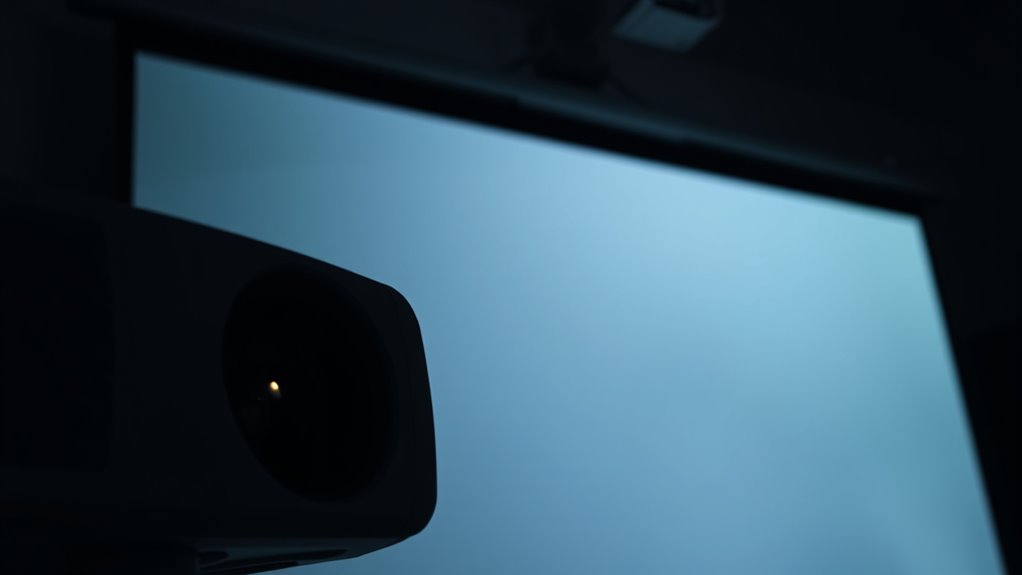
Have you ever wondered how to perfectly adjust your projector’s image size? It’s a common challenge, especially when your projector doesn’t fill the screen as expected. The first thing to consider is your projector’s screen resolution. If your resolution isn’t set correctly for your display surface or source device, the image might appear stretched or letterboxed, making it seem smaller than it should be. To fix this, check your projector’s settings and ensure it’s configured to match your input source’s native resolution. This alignment ensures the image is displayed at ideal clarity and size. Remember, a mismatch between source and projector resolution can cause unnecessary black borders or a less-than-full-screen display, so adjusting this setting is essential.
Once the screen resolution is properly set, you should look into keystone correction. Keystone distortion occurs when the projector isn’t perfectly aligned with the screen, causing the image to appear trapezoidal rather than rectangular. This distortion can make the projected image seem smaller at the edges or uneven across the surface. Most projectors offer keystone correction controls, either physical sliders or digital adjustments through the menu. Use these tools to straighten out the image, making it rectangular and filling the screen evenly. Be cautious, though—overcorrecting with keystone adjustments can sometimes reduce image quality, so make small tweaks and observe the results. Proper keystone correction helps you maximize the projected image size without distorting the picture, ensuring you get a clean, full-screen display. Additionally, understanding the importance of security measures can help protect your equipment from theft or damage, especially if your projector is set up in a public or shared space.

WALI Projector Mount Ceiling/Wall - Universal 3-in-1 Bracket with Extension Pole, Height Adjustable Holder for LCD/DLP Projectors, Supports up to 44lbs, White (PM-003-W)
Compatibility: Universal Projector Mount Bracket for Both Ceiling and Wall Installation. Applicable to mounting holes distance between 8.9’’to...
As an affiliate, we earn on qualifying purchases.
Frequently Asked Questions
Can I Fix a Projector That Won’t Turn On?
If your projector won’t turn on, first check the power source issues—ensure it’s plugged in securely and the outlet works. If it still doesn’t power up, examine the remote control for problems like dead batteries or connectivity issues, since some projectors rely on remote power. Press the power button directly on the device to bypass remote problems. If these steps don’t work, consider inspecting the fuse or contacting support.
What Causes Color Distortion in Projected Images?
Did you know that improper color calibration causes up to 60% of color distortion in projectors? You might notice this when the hues seem off or colors appear washed out. Color calibration issues, along with image warping from lens problems or incorrect settings, can distort colors. To fix this, adjust your projector’s color settings and verify the lens is properly aligned. Proper calibration and setup prevent color distortion, giving you clearer, more accurate images.
How Do I Clean a Projector Lens Safely?
To clean a projector lens safely, start by turning off the projector and unplugging it. Use a soft, lint-free cloth or a microfiber lens cleaning cloth for gentle lens cleaning. If needed, lightly dampen the cloth with a lens cleaning solution or distilled water—avoid harsh chemicals. Gently wipe the lens in a circular motion, applying safe maintenance practices to prevent scratches or damage, ensuring clear images every time.
Is It Normal for a Projector to Overheat?
Think of your projector as a busy engine; overheating is a sign it’s working too hard. Yes, projector overheating can happen, especially during long use. To prevent this, you’ll need effective cooling solutions like air vents, fans, or even a cooling pad. Regularly cleaning dust and ensuring proper ventilation helps keep your projector cool, preventing overheating, and extending its lifespan. Don’t ignore signs—cool it down before it causes damage.
What Are the Best Storage Practices for Projectors?
To guarantee your projector stays in top condition, focus on proper storage practices. Keep it in a cool, dry environment, avoiding extreme temperatures and humidity. Before storing, perform regular projector maintenance like cleaning filters and lenses. Store it in a protective case or cover to prevent dust and damage. Proper storage environment and routine maintenance help prolong your projector’s lifespan and ensure ideal performance when you need it.

Aurzen Ceiling Projector Mount Bracket, 360° Rotation & 90° Tilt, Adjustable 9"-15" Length, ¼-Inch Screw, Compatible with TMY, HAPPRUN, Yaber, Epson & Most Projectors
Note: Not compatible with Aurzen D1 MAX
As an affiliate, we earn on qualifying purchases.
Conclusion
By mastering the art of adjusting your projector’s image size and zoom, you reveal the full potential of your device—transforming a mere projection into a captivating visual display. Remember, the right settings are the compass guiding you to a perfectly filled screen. Don’t let frustration cast shadows over your viewing experience; instead, embrace these adjustments as your beacon, illuminating the path to a flawless image—because a well-tuned projector is the window to your world.
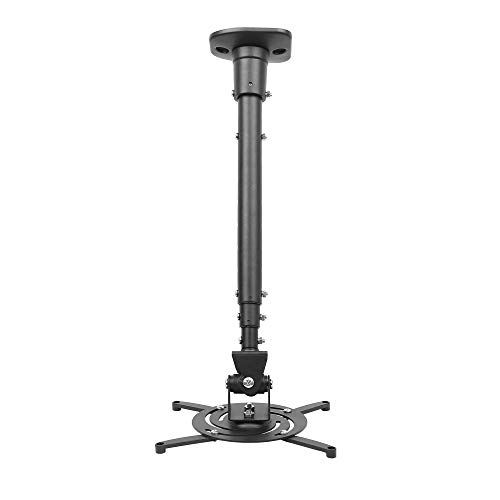
DYNAVISTA Full Motion Universal Ceiling Projector Mount Bracket with Adjustable Height and Extendable Arms Rotating Swivel Mount for Home and Office Projector (Black)
Universally Compatible: This projector ceiling mount supports most projector brands with distance between the mounting holes on back...
As an affiliate, we earn on qualifying purchases.

WALI Projector Ceiling or Wall Mount, Universal Height Adjustable Mount Holder with Extension Pole for LCD/DLP Projectors, Hold up to 44lbs (PM-003-B), Black
Compatibility: Universal Projector Mount Bracket for Both Ceiling and Wall Installation. Applicable to mounting holes distance between 8.9’’to...
As an affiliate, we earn on qualifying purchases.