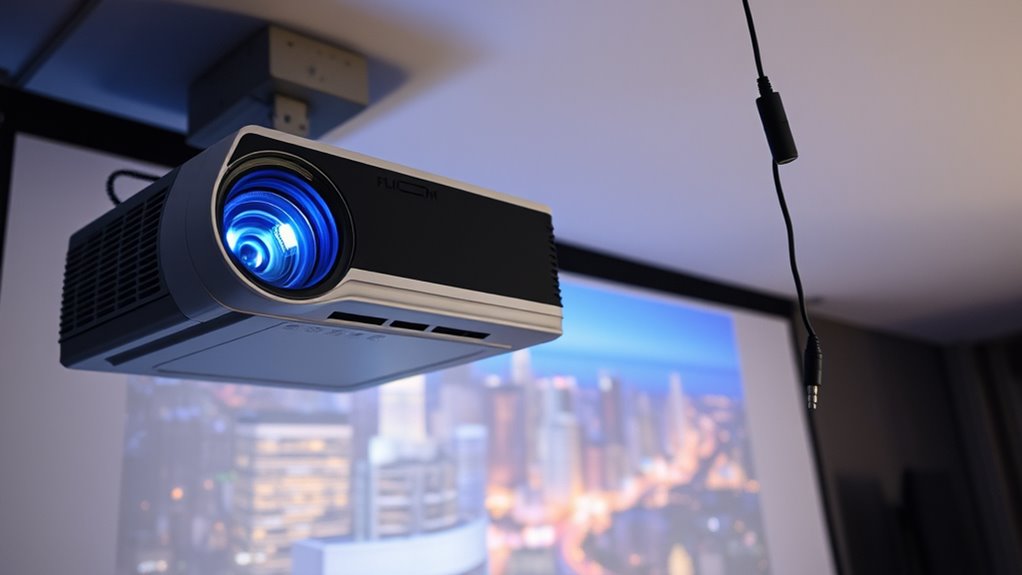
If your projector shows images but no sound, start by checking your audio connections, ensuring cables are secure and not damaged. Verify that you’ve selected the correct audio output device in both your projector and source device settings. Make sure the speakers aren’t muted and the volume is up. Testing with different cables or devices can help identify the issue. For more detailed steps, you’ll find helpful tips to restore your sound.
Key Takeaways
- Check and secure all audio cable connections between the projector and source device.
- Ensure the projector’s internal speakers are enabled and not muted in settings.
- Verify the source device’s audio output is correctly set to the projector.
- Test with different cables or input ports to rule out hardware issues.
- Update the projector firmware and perform a system reset if necessary.
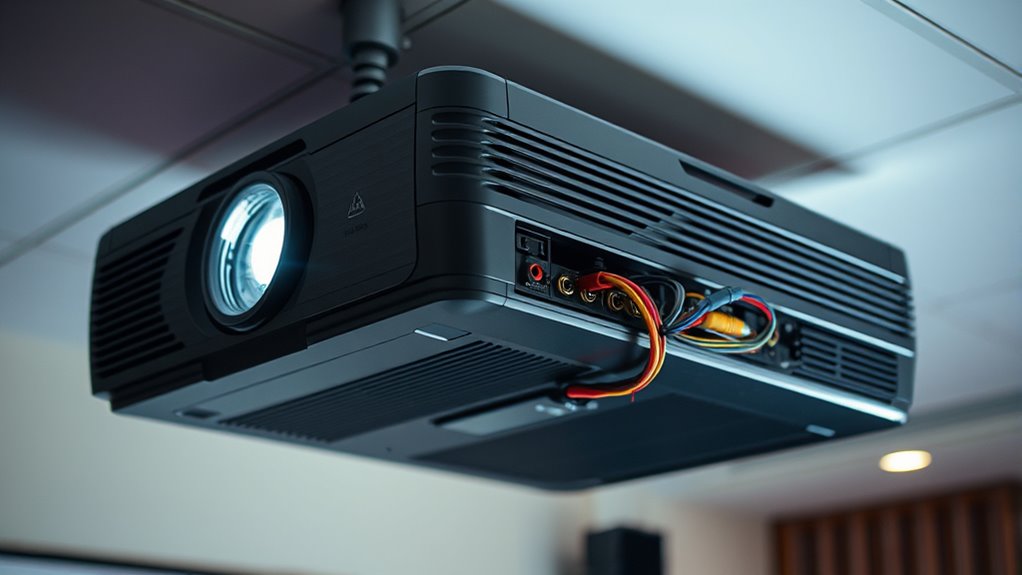
If your projector’s audio isn’t working properly, you might feel frustrated, but many issues are straightforward to diagnose and fix. The first thing to check is your audio connection problems. Ensure that the audio cable is securely connected to both your projector and the source device, whether that’s a laptop, DVD player, or streaming device. Loose or damaged cables are common culprits behind no-sound issues. If you’re using an HDMI connection, remember that HDMI transmits both video and audio, but sometimes the audio settings need adjustment. If you’re using an audio output port, make sure you’ve plugged into the correct port and that the cable isn’t frayed or broken. In some cases, switching to a different cable or port can resolve the problem quickly.
Next, you should verify your projector speaker settings. Many projectors have built-in speakers that can be turned on or off via the menu. Access the projector’s menu system, find the audio or sound settings, and confirm that the speakers are enabled. Sometimes, the audio output might be muted or set to an external device, especially if you’ve recently changed input sources. Adjust the volume to an appropriate level and disable any mute options. If your projector allows for separate sound output options, ensure it’s set to use its internal speakers if you’re not connecting external audio equipment. Additionally, regular maintenance and cleaning can prevent issues caused by dust or debris affecting internal components.
Another step involves checking your source device settings. On laptops or computers, the audio output might default to a different device, like headphones or external speakers. Open your sound settings and verify that the projector is selected as the default playback device. On streaming devices or media players, review the audio output options to confirm they match your setup. Sometimes, simply restarting your source device or the projector can reset the connection and resolve minor glitches.
If you’re still facing issues after adjusting connections and settings, consider testing your projector with a different device or cable. This helps isolate whether the problem is with the projector itself or the external equipment. Also, update your projector’s firmware if available; outdated software can sometimes cause audio conflicts. By systematically checking connections, settings, and external factors, you’ll often find the solution without needing professional help. Remember, most audio issues stem from simple connection or configuration mistakes that are easy to correct with a little troubleshooting. Proper audio calibration can also ensure optimal sound quality and prevent future issues.

VPFET HDMI Audio Extractor 4K HDMI to Optical 3.5mm AUX Audio Adapter Splitter Converter Support HDCP Digital DTS 5.1 PCM
- HDMI Audio Extraction: Extracts audio from HDMI signals
- Multiple Audio Modes: Supports 2.0CH, 5.1CH, and pass modes
- High-Resolution Support: Supports 4K@30Hz Ultra HD and HDCP 1.4
As an affiliate, we earn on qualifying purchases.
As an affiliate, we earn on qualifying purchases.
Frequently Asked Questions
Can a Faulty HDMI Cable Cause No Audio From the Projector?
Yes, a faulty HDMI cable can cause no audio from the projector. During HDMI troubleshooting, you might find that poor audio cable quality or damage prevents sound from transmitting properly. Try replacing the HDMI cable with a high-quality one to see if that resolves the issue. Ensuring all connections are secure and using a reliable HDMI cable helps eliminate potential faults and restores audio output effectively.
Is There a Way to Test Speakers Directly on the Projector?
Yes, you can test speakers directly on your projector by using its built-in audio diagnostics or speaker testing features. Check your projector’s menu for a sound test option—this helps verify if the speakers are functioning properly. If your projector doesn’t have this feature, connect external speakers to see if they produce sound. Conducting speaker testing guarantees you identify whether the issue lies with the projector’s audio system or external connections.
How Do I Reset the Audio Settings on My Projector?
To reset the audio settings on your projector, access the menu and navigate to the sound or audio options. Look for an “audio reset” or “factory reset” option to restore default settings. This will help fix projector sound issues caused by misconfigured settings. Confirm your choice and exit the menu. Afterward, test the audio output to ensure your projector’s sound works properly again.
What External Devices Are Compatible for Audio Output?
You can connect external speakers directly to your projector using audio adapters compatible with its audio output port, such as 3.5mm, RCA, or HDMI audio extractors. Many external speakers with standard 3.5mm jacks or Bluetooth capability also work seamlessly. Just guarantee your audio adapters match your projector’s output options, and the external speakers are powered or have their own volume controls for ideal sound quality.
How Long Do Projector Speakers Typically Last Before Failing?
On average, projector speakers last around 3 to 5 years, but their lifespan depends on usage and quality. Did you know that speaker durability can vary widely, with high-end models lasting longer? If you’re concerned about your projector’s lifespan, consider regularly checking and maintaining the speakers. Heavy use or exposure to dust and heat can shorten their life, so proper care helps guarantee your projector’s audio stays clear longer.

HOMPOW Mini Projector, 1080P Supported Portable Bluetooth projector
- High-Definition Resolution: Supports 1080P Full HD with 720P native resolution
- Eye-Protective Technology: Reduces eye strain with low-blue-light reflected imaging
- Screen Mirroring Compatibility: Easily mirror screens via adapters for Android and iOS
As an affiliate, we earn on qualifying purchases.
As an affiliate, we earn on qualifying purchases.
Conclusion
Just like a symphony relies on each instrument to create harmony, your projector’s audio depends on proper connections. When I faced a similar issue, a quick check of the cables and settings restored clear sound, transforming my movie night into a true cinematic experience. Remember, troubleshooting is often about fine-tuning the details. With patience, you’ll turn that silent projector into a lively performer, ensuring every scene is heard and appreciated.

Amazon Basics 3.5mm Stereo Aux to 2 RCA Audio Cable Adapter for Sound, Connecting Amplifiers, Speakers, Smartphone, Tablet with Gold-Plated Plugs, 4 Feet/1.2 m, Black
- Cable Length: 4 feet / 1.2 meters
- Connector Type: 3.5mm to RCA adapters
- Audio Quality: Clear sound with gold-plated plugs
As an affiliate, we earn on qualifying purchases.
As an affiliate, we earn on qualifying purchases.

AKASO Mini Projector, Pocket-Sized DLP Portable Projector, 1080P Cookie Projector , Support HDMI WiFi Built-in Rechargeable Battery Stereo Speakers and Remote Control Movie Projector – Updated Type-C
- Projection Size: Up to 150-inch adjustable screen
- Versatile Connectivity: HDMI, Type-C, AV, Micro SD, wireless mirroring
- Bright & Clear Image: 50 ANSI lumens, 1080P support, 1000:1 contrast
As an affiliate, we earn on qualifying purchases.
As an affiliate, we earn on qualifying purchases.