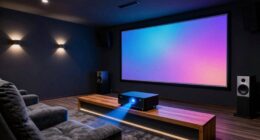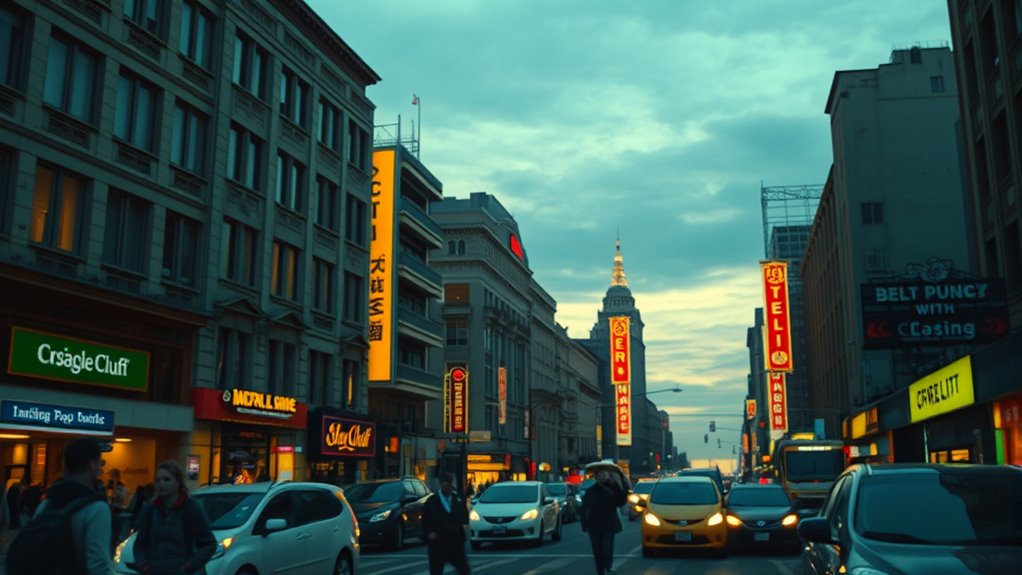

To fix a green or yellow tint on your display, start by adjusting your monitor’s color settings via the display menu or your computer’s calibration tools. Lower the green or yellow levels slightly and experiment with the color temperature—setting it to a cooler (bluer) tone can help. Make small tweaks and make sure your display profile is correct, like sRGB. If issues persist, learning more about calibration and profile management can help you achieve accurate, natural colors.
Key Takeaways
- Use display calibration tools to fine-tune gamma, brightness, contrast, and color temperature for accurate colors.
- Reset your monitor to factory defaults to clear any incorrect settings causing the green/yellow tint.
- Adjust the color temperature setting towards cooler (bluer) tones to counteract green/yellow hues.
- Update your graphics drivers to ensure proper color rendering and prevent conflicts.
- Select or download the correct monitor color profile, such as sRGB, for consistent and natural colors.

Adjusting color settings on your display or device is essential for achieving the most accurate and comfortable viewing experience. When your screen displays a green or yellow tint, it can distort how images, videos, or documents appear, making it difficult to work or enjoy media properly. The root cause often lies in improper color calibration or mismatched monitor color profiles. Correcting these issues restores natural color balance, reducing eye strain and ensuring your visuals look as intended.
Start by examining your monitor’s color calibration. Many devices come with built-in calibration tools that let you fine-tune the display’s color output. Access these through your display settings or operating system control panel. Calibration involves adjusting parameters like gamma, brightness, contrast, and color temperature to match a standard or your personal preference. If your screen has a persistent green or yellow tint, try adjusting the color temperature setting first—setting it to a cooler (bluer) tone can often counteract unwanted greenish hues. Be cautious not to overcompensate; small incremental changes make a considerable difference.
Start by using your display’s calibration tools to adjust gamma, brightness, contrast, and color temperature for accurate colors.
Monitor color profiles also play an important role in color accuracy. These profiles are files embedded in your display or set through your graphics card that tell your system how to interpret color data. If your monitor’s color profile is outdated or incorrect, it can cause color distortions. To fix this, go into your display settings and select a different monitor color profile, preferably one optimized for your specific device or a standard profile like sRGB. Many professional monitors come with manufacturer-recommended profiles you can download and apply. Ensuring your system uses the correct color profile is a key step in maintaining consistent, true-to-life colors. Additionally, using proper color calibration can help prevent issues caused by misconfigured settings.
If the tint persists after adjusting calibration and profiles, consider resetting your display settings to default. Sometimes, software updates or previous adjustments can cause conflicts. Reverting to factory settings often clears up such issues. Additionally, check your graphics driver for updates, as outdated drivers can misinterpret color data, leading to persistent color issues. Installing the latest driver ensures compatibility and top performance.
Lastly, keep in mind that ambient lighting can influence how you perceive colors on your screen. Bright or colored lighting nearby can make a screen’s tint more noticeable. Try adjusting your environment’s lighting or use a neutral-colored workspace to better judge color accuracy. Properly calibrated monitors and accurate color profiles, combined with good ambient conditions, greatly improve your viewing experience, making colors look natural and consistent across different applications. By regularly maintaining these settings, you guarantee your display remains true to life, reducing discomfort and enhancing your overall visual quality.

Official Licensed Google TV Smart Projector, HAPPRUN 4K UHD Home Theater with Dolby Sound, Wi-Fi & Bluetooth, Built-in Streaming Apps, Compatible with Games Consoles & Smartphone, Indoor & Outdoor Use
[ Built-in Official Licensed Google TV ] - Without additional equipment, the smart projector can directly access Netflix,...
As an affiliate, we earn on qualifying purchases.
Frequently Asked Questions
Can This Issue Affect All Types of Displays?
Yes, this issue can affect all types of displays, regardless of display technology. When color accuracy is compromised, you might notice green or yellow tints across screens like LCD, LED, OLED, or plasma displays. Adjusting color settings helps restore proper color balance. Since display technology varies, the severity of the problem might differ, but anyone using any display type can experience color inaccuracies that need fixing for ideal viewing.
How Long Does It Typically Take to Fix?
Fixing a color tint issue usually takes about 10 to 30 minutes, depending on your display and how comfortable you are with calibration. You’ll need to adjust the color calibration settings, which can reset the display’s color balance, helping extend its lifespan by reducing strain. The process is quick when you follow clear instructions, so you’ll have your display looking normal again in no time.
Will Resetting Settings Erase My Saved Preferences?
Imagine your display as a canvas of vibrant colors; resetting settings might erase your personalized color calibration and display settings, like clearing a sketch to start fresh. When you reset, your saved preferences could be lost, restoring the default factory settings. To avoid this, back up your customizations first. Resetting usually doesn’t take long, but it’s wise to save your preferred settings beforehand to preserve your visual harmony.
Is Professional Calibration Necessary for Persistent Problems?
If your color issues persist after adjusting settings, calibration necessity becomes clear, and professional assistance is often needed. You might try troubleshooting first, but if problems remain, a professional calibration can guarantee accurate color display. These experts have the right tools and expertise to fix persistent problems efficiently. Don’t hesitate to seek professional assistance if your screen’s color still looks off, as proper calibration restores ideal color accuracy.
Can Software Updates Resolve Color Tint Issues Automatically?
Think of a software update as a tune-up for your device’s eyes. It can often fix color tint issues through automatic correction, making your display look natural again. Sometimes, updating your software automatically adjusts color settings, resolving problems without manual tweaks. However, if the tint persists, it might be time for a professional calibration, because not all issues resolve solely with software updates.
![Projector-4K with WiFi and Bluetooth:[3500 ANSI/60W Dolby Audio/Official Licensed Apps], Outdoor-Projector with Smart OS 2.0 & AI Auto Focus,ONOAYO ONO5Pro 2.0 Smart Movie Projector for Indoor/Outdoor](https://m.media-amazon.com/images/I/41fylkjOTIL._SL500_.jpg)
Projector-4K with WiFi and Bluetooth:[3500 ANSI/60W Dolby Audio/Official Licensed Apps], Outdoor-Projector with Smart OS 2.0 & AI Auto Focus,ONOAYO ONO5Pro 2.0 Smart Movie Projector for Indoor/Outdoor
[Hear the Difference–Hollywood-Grade Dual 60W Dolby Audio] Why spend $500 on a TV + soundbar or settle for...
As an affiliate, we earn on qualifying purchases.
Conclusion
By adjusting your color settings, you can restore your screen’s natural hues and enjoy a more accurate visual experience. For example, imagine watching your favorite movie with vibrant reds and true blues instead of an unwanted green or yellow tint. Just follow the simple steps, tweak the sliders, and see the difference instantly. Don’t let color issues ruin your viewing—take control now and enjoy crisp, true-to-life colors every time you turn on your device.
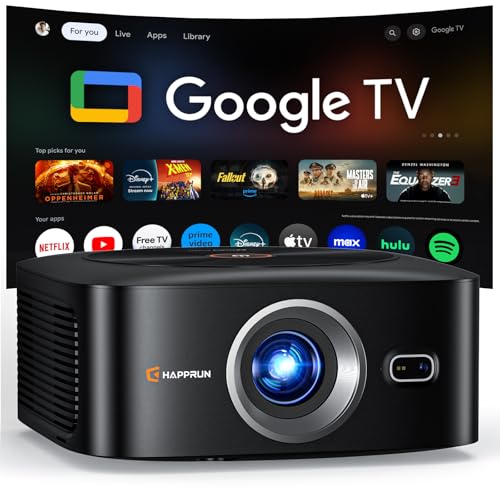
1500 ANSI Official Licensed Google TV Smart Projector, HAPPRUN 4K Full HD Home Theater with Auto Focus, Dolby Sound, Wi-Fi Bluetooth, Built-in Apps, Compatible with Phone & PC, Indoor & Outdoor Use
[ Built-in Officially Licensed Google TV ]-Enjoy the reliability of an officially certified Google TV projector. Stream Netflix,...
As an affiliate, we earn on qualifying purchases.

HAPPRUN 2500 ANSI Lumens Outdoor Projector with Built-in Streaming Apps, 4K Decoding Resolution, Dolby Audio, WiFi 6 and Bluetooth 5.2 for Indoor and Outdoor Home Theater
[ Built-in Streaming System ] – No extra equipment needed. This smart projector gives you direct access to...
As an affiliate, we earn on qualifying purchases.