
HDMI handshake problems happen when devices struggle to communicate securely, causing no signal or flickering. These issues stem from incompatible firmware, poor cables, or incorrect settings like resolution or refresh rate. Ensuring your devices are updated, using high-quality cables, and matching display settings can reduce trouble. Pay attention to HDCP encryption and connector compatibility. For deeper insights on fixing these issues, you’ll find helpful tips if you continue exploring.

Get business pricing on your home office setup
- Business-only prices and quantity discounts
- Tax-exempt purchasing
- Multiple users, one account, clear invoices
Key Takeaways
- Properly update device firmware to resolve compatibility issues and improve HDMI handshake reliability.
- Use high-quality, shielded HDMI cables to ensure stable signal transmission and reduce interference.
- Match display and source device resolution, refresh rate, and HDMI standards to prevent handshake failures.
- Power cycle devices and disconnect/reconnect HDMI cables to reset the handshake and restore connection.
- Enable HDMI-CEC and verify HDCP compatibility across devices to prevent encryption-related handshake problems.
As an affiliate, we earn on qualifying purchases.
What Is the HDMI Handshake and Why Does It Matter?
The HDMI handshake is a crucial process that occurs whenever you connect a device, such as a TV or monitor, to a source like a Blu-ray player or gaming console. During this process, your devices communicate to establish a secure connection, which involves HDMI encryption to protect your data. This handshake also ensures device interoperability, allowing different brands and models to work smoothly together. Without a proper handshake, your devices might not display video or audio correctly, leading to issues like no signal or poor quality. Understanding this process helps you realize why maintaining compatible cables and updated firmware is necessary. When the handshake functions correctly, it guarantees a seamless viewing experience with secure data transfer and compatible device operation. Additionally, cybersecurity vulnerabilities during handshake failures can expose your devices to potential threats if not properly managed.
As an affiliate, we earn on qualifying purchases.
Common Signs That Indicate Handshake Issues

If you notice your display keeps flickering or losing signal, it could be a sign of handshake issues. Color or resolution suddenly changing without explanation is another red flag, as is your devices failing to sync properly. Recognizing these signs can help you address the problem before it worsens. Incorporating digital literacy strategies at home can also improve troubleshooting skills for tech-related issues.
Persistent Signal Loss
Persistent signal loss is a clear sign that your HDMI handshake may be experiencing issues. You might notice your screen flickering, blackouts, or frequent disconnects. This often results from device compatibility problems or faulty cables. Sometimes, audio lag accompanies the visual disruptions, making viewing frustrating. To understand the problem better, consider this table:
| Symptom | Cause | Solution |
|---|---|---|
| Flickering screen | Signal interference | Replace cables or update firmware |
| Audio lag | Device compatibility issues | Check audio settings |
| Frequent disconnects | Poor connection | Secure connections, reset devices |
| Blackouts | Handshake failure | Power cycle devices, use quality cables |
Addressing these signs quickly can help restore a stable HDMI connection and ensure smooth viewing. Recognizing that trust issues can sometimes extend to device compatibility can help troubleshoot more effectively.
Color or Resolution Fluctuations
Have you noticed your TV or monitor suddenly changing colors or displaying inconsistent resolution? These fluctuations often hint at HDMI handshake issues. When the handshake isn’t smooth, your device may struggle with proper color calibration, leading to washed-out or overly vibrant hues. Similarly, resolution scaling can become inconsistent, causing the picture to jump between different resolutions or appear blurry. These signs indicate that the devices aren’t communicating effectively, which hampers the transfer of accurate video data. If you see color shifts or resolution changes without adjusting settings, it’s likely a handshake problem. Addressing this typically involves checking cable quality, updating firmware, or changing HDMI ports to restore stable, high-quality visuals. Understanding contrast ratio can also help you diagnose image quality issues more effectively.
Devices Fail to Sync
When your devices fail to sync, it’s a clear sign that HDMI handshake issues are at play. You might notice audio delay or that your screen remains blank despite being connected. These problems often stem from device compatibility issues, where the source device and display struggle to communicate properly. You could experience flickering, no picture, or inconsistent audio, indicating that the handshake isn’t establishing correctly. Sometimes, one device may recognize the connection but fail to transmit signals correctly. These signs point to handshake failures, which disrupt the seamless transfer of audio and video. Recognizing these symptoms early helps you troubleshoot effectively, ensuring your devices can establish a stable connection and deliver synchronized content without frustration. Additionally, understanding the HDMI handshake process can help you identify root causes and prevent future issues.
As an affiliate, we earn on qualifying purchases.
The Role of HDCP in HDMI Communication

Ever wondered how your devices securely exchange high-definition content? That’s where HDCP (High-bandwidth Digital Content Protection) plays a vital role. It uses HDCP encryption to prevent unauthorized copying, guaranteeing your content stays protected. When you connect your devices, HDCP performs signal authentication, verifying both ends are authorized to communicate. If there’s a mismatch or issue with encryption keys, the handshake fails, blocking the video or audio transfer. This process is indispensable for preventing piracy but can also cause handshake problems if devices are incompatible or outdated. Additionally, AI Security developments influence how these encryption protocols are maintained and improved to prevent breaches.
As an affiliate, we earn on qualifying purchases.
How Resolution and Refresh Rate Affect Handshake Success
High resolution and refresh rate settings can considerably impact the success of an HDMI handshake. When your devices try to communicate, a resolution mismatch can cause compatibility issues, preventing the handshake from completing properly. For example, if your display supports 4K at 60Hz but your source is set to 1080p at 120Hz, the mismatch may trigger handshake failures. The refresh rate plays a pivotal role; incompatible or unsupported refresh rates can lead to signal handshake errors. To avoid this, guarantee both devices are set to compatible resolution and refresh rate settings before connecting. Adjusting these parameters to common standards often helps establish a stable connection, reducing handshake failures caused by resolution mismatch or unsupported refresh rates. Additionally, ensuring both devices are configured for compatible Water Parks can help prevent signal inconsistencies in multimedia setups.
Troubleshooting Tips for Resolving Handshake Failures

Troubleshooting HDMI handshake failures can often be resolved through a series of straightforward steps. First, confirm all devices are powered off, then disconnect and reconnect your HDMI cables firmly. Check for firmware updates on your devices, especially if you’re experiencing audio extraction issues or device pairing problems. Restart your devices to refresh the handshake process. If problems persist, try switching to a different HDMI port or using a different cable. Adjust your display settings to match your source device. Also, disable any HDMI-CEC features temporarily, as they can interfere with the handshake. Finally, verify that both devices support the latest HDMI standards. These steps can help restore proper communication, ensuring smooth audio extraction and reliable device pairing. Additionally, understanding the emotional support needs of users experiencing persistent issues can help in providing better guidance and reassurance during troubleshooting.
The Impact of Cables and Connectors on Signal Integrity
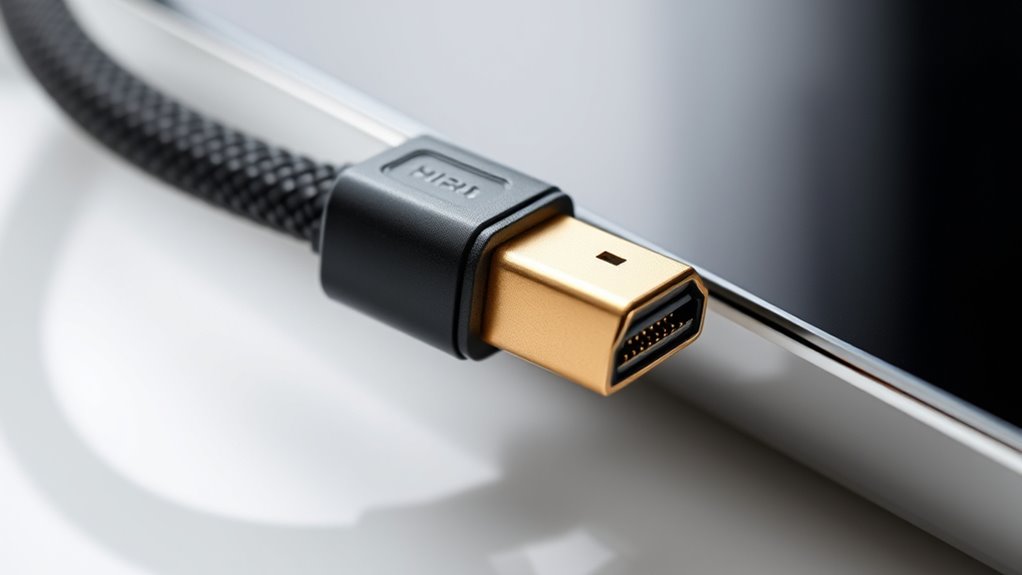
The quality of your HDMI cables directly affects signal clarity and stability. Poor or damaged connectors can cause handshake failures and picture issues. Choosing compatible and high-quality cables and connectors is essential for reliable connections. Additionally, using expert voice actors in promotional content can help explain technical concepts more effectively to a wider audience.
Cable Quality Matters
Using a quality HDMI cable is essential for maintaining a strong and stable signal between devices. Poor cable quality can cause handshake issues, resulting in flickering, no image, or audio problems. Investing in a high-quality cable ensures better signal integrity and connector durability, reducing the likelihood of connection failures. Cheaper cables often use inferior materials that degrade over time and are more prone to interference. Additionally, well-made cables provide secure connections, minimizing signal loss. Remember, the durability of the connectors influences how long your cable performs reliably. Choosing certified HDMI cables with good shielding can notably improve overall performance. Here are key points to consider:
- Proper shielding reduces interference
- High-quality materials enhance durability
- Gold-plated connectors resist corrosion
- Cables with thicker insulation last longer
- Verified certifications ensure reliability
- Proper maintenance of cables can prevent common issues and extend their lifespan.
Connector Compatibility Issues
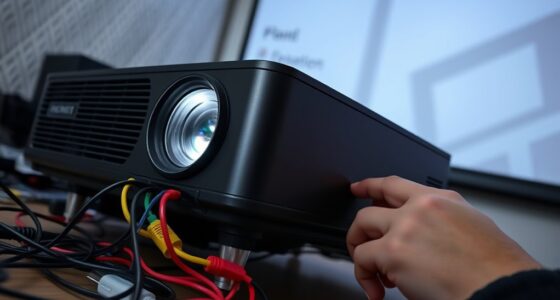
Even when you have a high-quality HDMI cable, compatibility issues between connectors can still cause signal problems. Connector compatibility and port interoperability are vital for a stable connection. Not all HDMI connectors are the same; some may not fit properly or support the latest features. Using incompatible connectors can lead to intermittent signals or no signal at all. To avoid this, check that your devices support the same HDMI version and connector type. Here’s a quick overview:
| Connector Type | Compatibility | Common Devices |
|---|---|---|
| Standard HDMI | Universal, but some older devices | TVs, projectors |
| Mini HDMI | Compatibility varies, needs adapters | Cameras, tablets |
| Micro HDMI | Less common, check device specs | Small electronics |
| HDMI with Ethernet | Requires HDMI Ethernet Channel support | Smart devices |
| High-Speed HDMI | Ensures better port interoperability | Modern displays |
Confirming connector compatibility prevents handshake issues and guarantees smooth signal flow.
Firmware and Software Updates: Keeping Devices Compatible

Keeping your devices updated with the latest firmware and software is essential for maintaining device compatibility and resolving handshake issues. Firmware updates often include fixes that improve HDMI communication, ensuring your equipment works seamlessly together. Failing to update can lead to incompatibility, causing handshake failures or poor signal quality. Regularly check the manufacturer’s website or device settings for updates, and install them promptly. Keeping firmware current helps prevent issues before they start, saving you time and frustration.
- Check for firmware updates periodically
- Enable automatic updates if available
- Read release notes for compatibility improvements
- Update both source devices and displays
- Use official sources to avoid corrupted files
When to Seek Professional Help for HDMI Problems
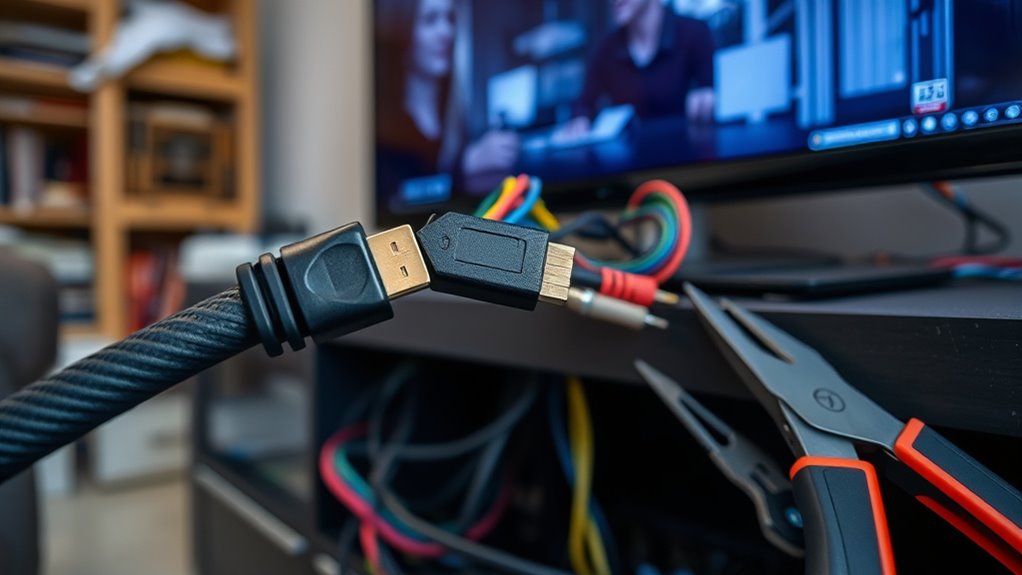
While updating firmware can fix many HDMI handshake issues, some problems may persist despite your efforts. If you’ve tried troubleshooting and still experience frequent disconnects or inconsistent picture quality, it’s time to seek professional help. A certified technician can perform a professional installation, ensuring all connections are secure and compatible. They can also diagnose complex hardware issues that may be beyond your DIY skills. Keep in mind warranty considerations—tampering with internal components or incorrect setups could void your device’s warranty. If your equipment is under warranty, consult the manufacturer or authorized service center before attempting repairs. Recognizing when to bring in a pro saves time and prevents further damage, ensuring your home entertainment system functions reliably.
Frequently Asked Questions
Can Using Different Brands of HDMI Devices Cause Handshake Issues?
Using different brands of HDMI devices can cause handshake issues because of brand compatibility and device interoperability problems. When brands don’t adhere to the same standards, your devices might struggle to communicate properly, resulting in flickering screens, no signal, or resolution mismatches. To avoid these issues, stick to reputable brands known for good compatibility, or verify that your devices support the latest HDMI standards for smoother interoperability.
How Does HDMI Version Compatibility Affect Handshake Reliability?
A stitch in time saves nine, so understanding HDMI version compatibility is key. When your HDMI cable and devices use incompatible versions, the handshake protocol can falter, causing video or audio issues. Using an HDMI cable that matches or exceeds the device’s version guarantees smoother communication, boosting handshake reliability. If versions mismatch, you risk connection failures, so always check device specs and opt for compatible HDMI versions to keep signals flowing seamlessly.
Are There Specific Settings to Improve Handshake Stability on Gaming Consoles?
To improve handshake stability on your gaming console, guarantee your firmware is up to date since updates often fix compatibility issues. Reduce signal interference by keeping HDMI cables away from other electronic devices and using high-quality, shielded cables. Adjust your display settings to match your console’s output, such as resolution and refresh rate. These steps help establish a more reliable handshake, providing smoother gameplay and better picture quality.
Do HDMI Splitters or Extenders Impact Handshake Success?
Using HDMI splitters or extenders can be a double-edged sword; they often introduce signal degradation, which may cause handshake issues. The quality of the cables and devices matters more than you think—cheap splitters or extenders can muddy the waters. To keep your connection smooth as silk, invest in high-quality equipment and guarantee your setup is straightforward. Sometimes, less is more when it comes to stable signals.
How Long Does a Typical HDMI Handshake Process Take?
The typical HDMI handshake process takes just a few seconds, usually around 2 to 5 seconds. During this time, your HDMI cable facilitates the handshake duration, where devices exchange information to establish a secure connection. Factors like cable quality, device compatibility, or using splitters or extenders can extend this process. If it takes longer, check your HDMI cable and connections to guarantee smooth communication.
Conclusion
Understanding HDMI handshake issues helps you troubleshoot confidently. Even if it seems technical, knowing the signs and solutions makes fixing problems easier. Think of it like tuning a guitar—you just need the right adjustments. Don’t let tangled cables or outdated firmware frustrate you; with a little patience, you can restore perfect picture and sound. So next time a screen flickers or cuts out, remember, you’ve got the power to fix it yourself.
Fall Picks
fall essentials
As an affiliate, we earn on qualifying purchases.