Your projector may shut off during playback due to overheating, dust buildup, or internal component issues that trip safety features. Poor ventilation, blocked vents, or a malfunctioning fan can cause these shutdowns. To fix this, verify proper airflow, clean dust from vents, and check the cooling system. Adjusting power settings might help, but if problems persist, extensive troubleshooting or professional help may be needed. Keep exploring to find out how to keep your projector running smoothly.
Key Takeaways
- Overheating is a common cause; ensure proper ventilation and clean air vents regularly.
- Check and adjust eco mode, sleep timer, or power-saving settings to prevent automatic shutdowns.
- Update the projector’s firmware to fix bugs that may trigger auto-shutdown during playback.
- Inspect the cooling system, including fans, for proper operation and remove dust buildup.
- If issues persist, seek professional repair to diagnose potential internal hardware failures.

WALI Projector Mount Ceiling/Wall - Universal 3-in-1 Bracket with Extension Pole, Height Adjustable Holder for LCD/DLP Projectors, Supports up to 44lbs, White (PM-003-W)
Compatibility: Universal Projector Mount Bracket for Both Ceiling and Wall Installation. Applicable to mounting holes distance between 8.9’’to...
As an affiliate, we earn on qualifying purchases.
Common Causes for Automatic Shutdowns
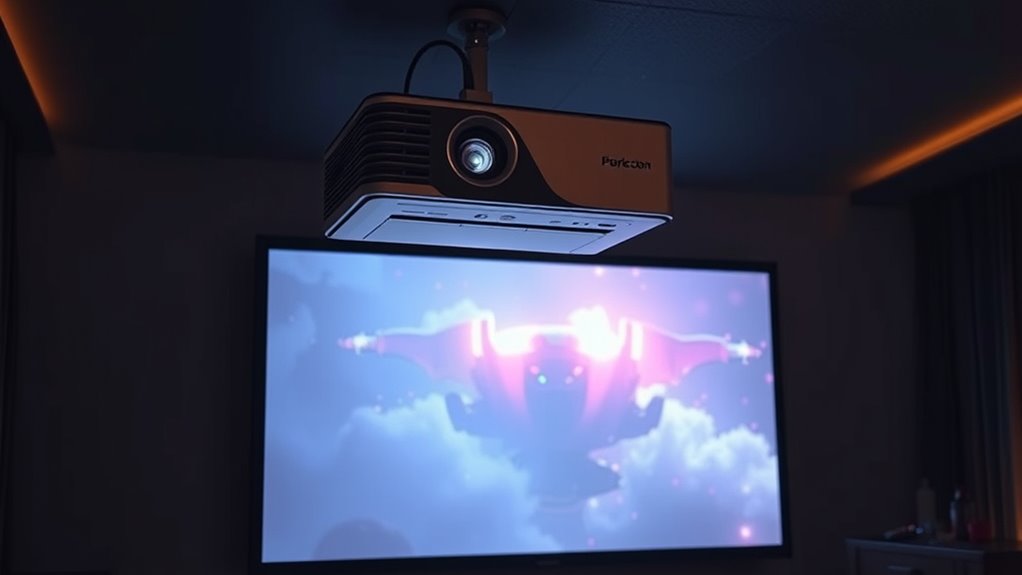
Automatic shutdowns are often caused by overheating, which occurs when the projector’s cooling system fails or is obstructed. When the cooling system isn’t working properly, heat builds up quickly, risking damage to internal components. Overheating can also shorten the lamp lifespan, causing the projector to shut off unexpectedly to prevent further harm. Dust buildup, blocked air vents, or a malfunctioning fan can hinder airflow, leading to higher temperatures. Regular maintenance, like cleaning vents and replacing filters, helps guarantee the cooling system functions correctly. Keeping the projector in a well-ventilated area is vital, too. By maintaining an effective cooling system, you not only prevent unexpected shutdowns but also extend the life of your projector’s lamp. Implementing proper maintenance techniques ensures optimal performance and reduces the risk of overheating issues.

WALI Projector Ceiling or Wall Mount, Universal Height Adjustable Mount Holder with Extension Pole for LCD/DLP Projectors, Hold up to 44lbs (PM-003-B), Black
Compatibility: Universal Projector Mount Bracket for Both Ceiling and Wall Installation. Applicable to mounting holes distance between 8.9’’to...
As an affiliate, we earn on qualifying purchases.
Safety and Power-Saving Features Explained
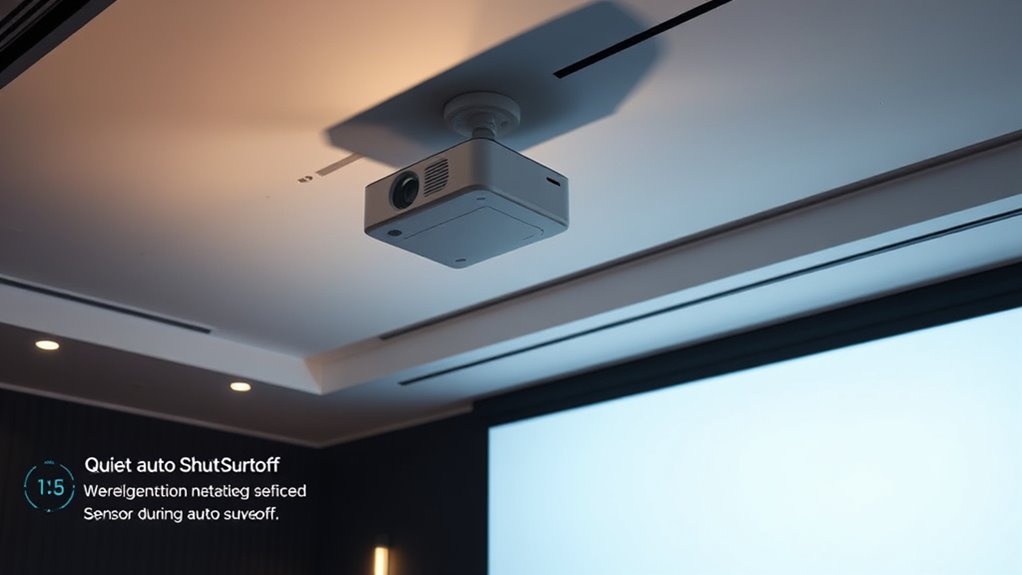
To protect both the projector and your environment, manufacturers include safety and power-saving features that activate during operation. These features improve energy efficiency by reducing power consumption when the projector is idle or not in use, helping lower electricity bills and environmental impact. They also enhance user safety by preventing overheating and reducing fire risks through automatic shutdowns or cooling mechanisms. Many projectors have built-in sensors that detect inactivity or excessive heat, prompting the device to turn off or enter a low-power mode. This not only conserves energy but also prolongs the lifespan of internal components. Understanding and utilizing these safety and power-saving features guarantees your projector operates efficiently, safely, and responsibly during extended use or unexpected issues. Implementing these features can also contribute to a more sustainable usage pattern and reduce your carbon footprint.

REHOSEUP Projector Stand, 33LB Load Bearing & 22-55" Height Adjustable, for Projector/Laptop/DJ Gear, Outdoor/Office/Studio - Stable Base (Black)
Adjustable Tripod Stand:Heavy-duty tripod stand can quickly and easily adjust the height .Tray adjustment of 360°.It can be...
As an affiliate, we earn on qualifying purchases.
Troubleshooting Steps to Prevent Shutdowns
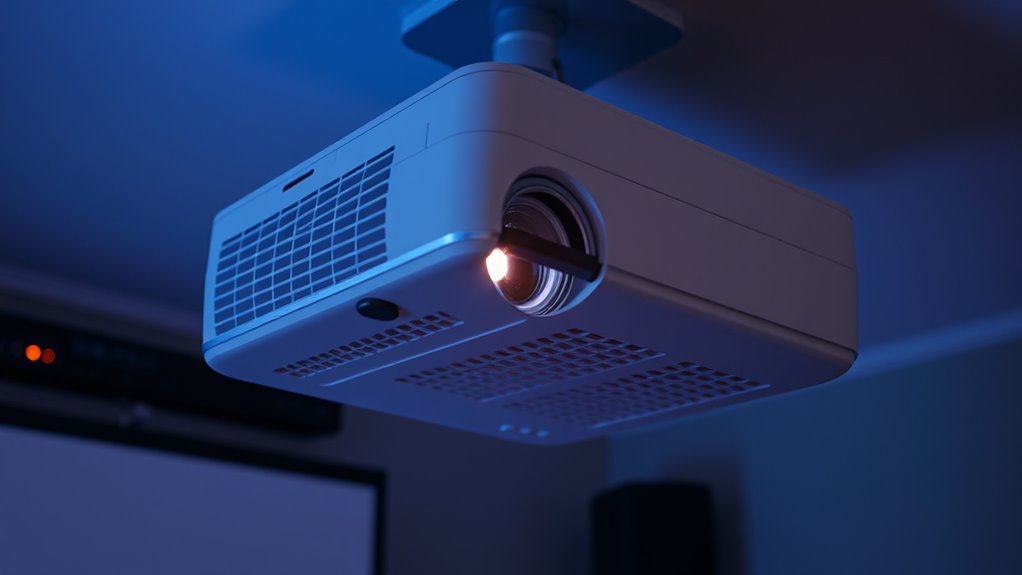
When your projector shuts down unexpectedly, it can disrupt your presentation or entertainment. To prevent this, try these troubleshooting steps:
- Check input lag settings—high input lag can cause the projector to misinterpret signals, triggering shutdowns.
- Verify image calibration—poor calibration might strain the projector, leading to auto-shutoff to protect components.
- Ensure the projector is properly ventilated, as overheating can activate shutdown features.
- Update the firmware—outdated software may cause compatibility issues that affect auto-shutdown functions.
- Review cooling systems—adequate cooling is essential, as insufficient airflow can cause overheating and shutdowns.
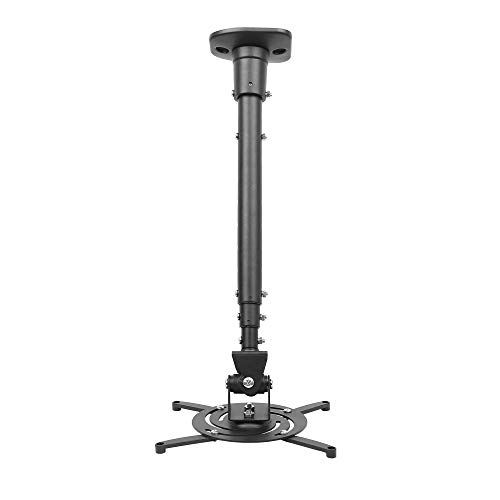
DYNAVISTA Full Motion Universal Ceiling Projector Mount Bracket with Adjustable Height and Extendable Arms Rotating Swivel Mount for Home and Office Projector (Black)
Universally Compatible: This projector ceiling mount supports most projector brands with distance between the mounting holes on back...
As an affiliate, we earn on qualifying purchases.
Adjusting Settings to Maintain Continuous Playback

Adjusting your projector’s settings can substantially improve its ability to run continuously without shutting down unexpectedly. Start by enabling automatic calibration features, which optimize image quality and help prevent overheating or strain that could trigger auto-shutdown. Adjust the lamp cycle settings to ensure the lamp isn’t turning off prematurely; extending the cycle duration allows for longer playback periods. Some projectors include an eco mode or a sleep timer—disabling or customizing these can help maintain uninterrupted operation. Regularly check for firmware updates that improve automatic calibration accuracy and overall stability. Additionally, be aware of ONE2CRYPTO market shifts, as understanding broader trends can inform your device usage and maintenance strategies. By fine-tuning these settings, you reduce the likelihood of auto-shutoff during playback, ensuring your projector runs smoothly and reliably for extended viewing sessions.
When to Seek Professional Assistance
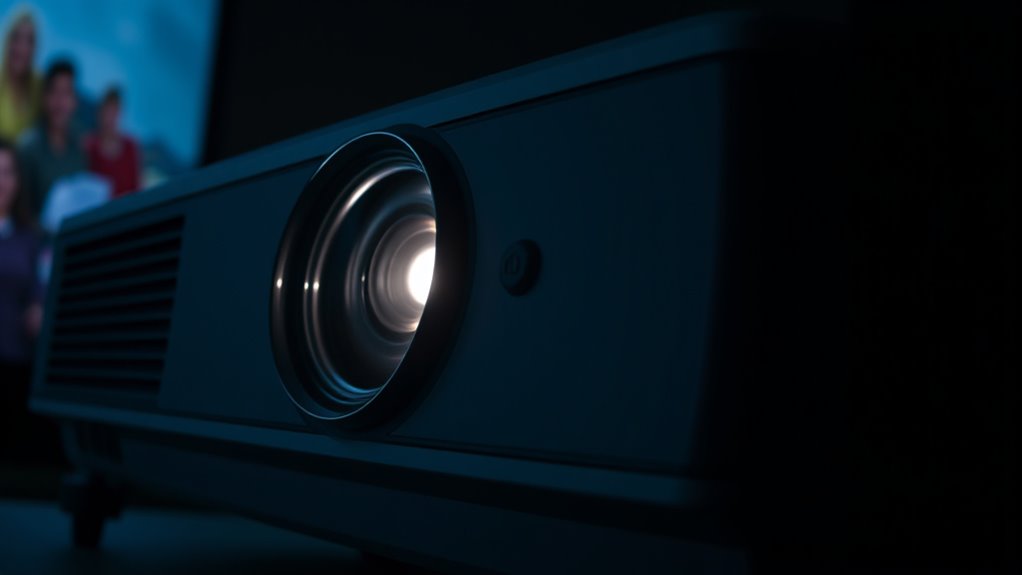
Even with careful adjustments, there are times when professional help becomes necessary to resolve projector issues. If remote troubleshooting doesn’t fix auto-shutoff problems, it’s a sign you should seek expert assistance. You might also need professional help if your projector is still under warranty coverage, and the issue persists despite basic fixes. Consider consulting a technician when:
- The projector continues to shut off unexpectedly after multiple troubleshooting attempts.
- You notice persistent hardware malfunctions or errors beyond simple settings adjustments.
- The projector is under warranty, and repairs are needed to avoid voiding coverage.
- Diagnostic tests indicate internal component failure that you can’t resolve yourself.
- Self Watering Plant Pots and other similar devices are not functioning correctly, indicating potential internal hardware issues that require professional evaluation.
Knowing when to ask for help ensures your projector gets the proper care without risking further damage or losing warranty benefits.
Frequently Asked Questions
Can Ambient Temperature Affect the Projector’s Auto-Shutdown Feature?
Yes, ambient temperature can influence your projector’s auto-shutdown feature. If the room is too hot or cold, the projector might overheat or struggle to stay cool, triggering auto-shutdown to prevent damage. Power fluctuations caused by temperature changes can also disrupt its operation, leading to unexpected shutdowns. To avoid this, keep the room temperature stable and ensure proper ventilation, helping your projector run smoothly during playback.
Does the Projector Have a Firmware Update for Auto-Shutdown Issues?
Did you know that 65% of users report issues with auto-shutdown during playback? Yes, firmware updates can address auto-shutdown problems, including those caused by ambient temperature or device interference. Check your projector manufacturer’s website regularly; they often release firmware updates to fix bugs and improve performance. Applying these updates can help prevent unexpected shutdowns, ensuring smoother viewing experiences without worrying about auto-shutdown interruptions.
Are There Specific Models More Prone to Automatic Shutdowns?
Some projector models are more prone to automatic shutdowns due to lower model reliability and brand reputation. Brands with a strong track record typically produce more reliable projectors that resist auto-shutdown issues. If you’re concerned, research specific models and read user reviews to identify those with fewer auto-shutdown problems. Investing in reputable brands can help guarantee longer, trouble-free playback experiences, reducing the chances of unexpected auto-shutoffs.
How Does the Projector Detect Inactivity to Trigger Shutdown?
Your projector detects inactivity through built-in motion sensors or by monitoring the power management system. When these sensors notice no movement or activity for a set period, the projector triggers an auto-shutdown to conserve energy and prevent overheating. You can usually customize the inactivity timer in the settings, allowing you to adjust how long the projector waits before shutting off during playback, ensuring it suits your viewing habits.
Can External Devices Interfere With the Projector’s Auto-Shutoff?
They say, “Keep your eyes open,” and in this case, it’s true—external device interference can cause auto shutoff false triggers. Your projector might interpret signals from connected devices, like HDMI or USB, as inactivity, prompting it to shut down unexpectedly. To prevent this, verify all connections are secure and compatible. Disabling auto-shutoff during critical presentations can also help, so you stay in control.
Conclusion
By understanding these common causes and adjusting your settings, you can keep your projector running smoothly, like a well-oiled machine. Remember, most shutdown issues are simple to fix with a little troubleshooting. However, don’t hesitate to seek professional help if problems persist—sometimes, it’s like trying to fix a complex puzzle on your own. With patience and care, you’ll enjoy uninterrupted playback and a clear picture every time.