Overscan is when your projector trims the edges of the image to hide unwanted borders or signal artifacts, but this can cause parts of the full picture to be cut off. To get a complete view, you’ll need to adjust the overscan settings, aspect ratio, or both, on your projector or source device. Doing so guarantees you see the whole image as intended. Keep exploring to discover how to perfectly calibrate your setup for the best picture.

Get business pricing on your home office setup
- Business-only prices and quantity discounts
- Tax-exempt purchasing
- Multiple users, one account, clear invoices
Key Takeaways
- Overscan trims edges of the projected image, hiding unwanted borders or artifacts, but may cut off parts of the full picture.
- Adjusting overscan settings on your projector can help display the entire image without cropping.
- Incorrect aspect ratio settings cause parts of the image to be cropped or appear black-bordered.
- Ensuring the source device’s resolution and aspect ratio match the projector’s supports full, accurate projection.
- Properly configuring overscan and aspect ratio helps achieve a complete, undistorted picture from your projector.
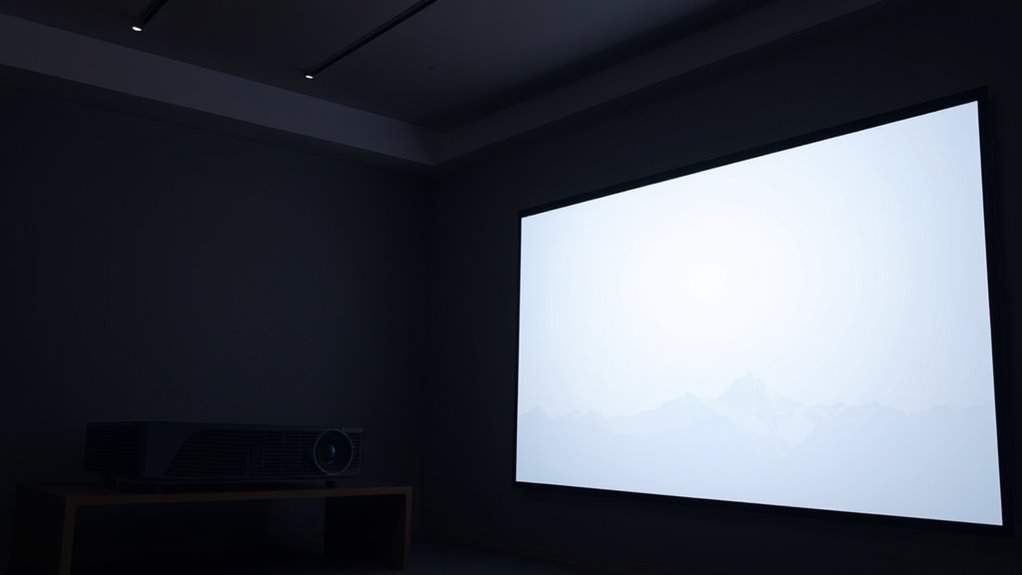
Ever wonder why your projected image sometimes doesn’t show the entire screen? It’s usually because of a phenomenon called overscan. When you’re using a projector, the device has to interpret and display a digital signal that includes more information than what appears on the actual screen. This extra data, often at the edges, gets cut off or hidden, leading to parts of the image not being visible. Understanding overscan helps you get a full picture from your projector and avoid missing important details.
At the core of this issue is the aspect ratio—the ratio of the width to the height of your projected image. If the aspect ratio isn’t set correctly to match your source device or screen, it can cause parts of the image to be cropped or stretched, leading to an incomplete picture. Many projectors automatically try to match the aspect ratio of the input signal, but sometimes they don’t do it perfectly. When the aspect ratio is mismatched, the projector might crop parts of the image to fit the screen, or it may add black bars, resulting in a less-than-ideal viewing experience.
Image cropping is often mistaken for overscan, but they’re related. Overscan is more about the projector trimming the edges of the picture to hide unwanted borders or artifacts from the signal. However, it can also cause the image to appear smaller or incomplete if not properly configured. Cropping can sometimes be an intentional feature, but it’s frequently a side effect of overscan settings or aspect ratio mismatches. When you see parts of your screen missing, it’s a clue that the projector might be cropping the image due to overscan or aspect ratio issues.
The good news is that many projectors offer settings to adjust overscan, allowing you to see the entire image without unwanted cropping. Checking your projector’s menu for overscan options or aspect ratio settings can help you fine-tune the display. If you’re using a computer or a media device, ensure that the output resolution and aspect ratio match what your projector supports. Sometimes, simply changing the display settings on your source device can resolve overscan problems, displaying the full picture as intended.
As an affiliate, we earn on qualifying purchases.
Frequently Asked Questions
Can Overscan Be Disabled on All Projectors?
Not all projectors allow you to disable overscan, but many do through settings in the menu. You can usually adjust the aspect ratio or image framing to eliminate overscan and get a full picture. Check your projector’s user manual or on-screen menu options for overscan or picture size settings. If it isn’t adjustable, consider upgrading to a model that offers more control over the aspect ratio and image framing for a better viewing experience.
Does Overscan Affect Image Quality?
Think of overscan as a painter trimming the edges of their canvas to focus on the main scene. It can slightly affect image quality by cropping parts of your picture, especially around the edges, impacting the aspect ratio. This cropping can reduce sharpness and detail, making your image less clear. To get the best quality, you might want to disable overscan so you see the full, undistorted picture without unwanted cropping.
How Do I Know if My Projector Has Overscan?
You can tell if your projector has overscan by checking the display settings or doing a simple test pattern. Access your projector’s calibration menu and look for options related to image size or overscan. If edges are cut off or borders aren’t fully visible, overscan might be activated. Adjust the calibration settings to make certain the entire picture fits within the display, giving you a complete and crisp image.
Is Overscan the Same as Cropping?
Think of overscan as a gentle trimming of the edges, while cropping cuts deep into the image. Overscan adjusts the aspect ratio to hide unwanted borders, maintaining proper image framing without losing content. Cropping, however, physically alters the picture, removing parts of the image. So, no, overscan isn’t the same as cropping—it’s a subtle adjustment that preserves your full picture, ensuring your projection is perfectly balanced.
Can Adjusting Overscan Improve My Viewing Experience?
Yes, adjusting overscan can improve your viewing experience. When you tweak overscan settings during screen calibration, you guarantee the picture fits perfectly without unwanted edges or borders. This process often involves aspect ratio adjustment, helping you get a full, clear image on your projector. Proper overscan adjustment eliminates cut-off content and enhances overall picture quality, making your viewing more immersive and enjoyable.
As an affiliate, we earn on qualifying purchases.
Conclusion
Now that you understand overscan, think of it as peeling back the fog to reveal the full masterpiece behind the curtain. When you fine-tune your projector’s settings, you’re sharpening the lens to see every detail clearly, like clearing fog to find a hidden path. Embrace these adjustments as your way of rewriting the story on your screen, turning a blurry outline into a vibrant, complete picture. With overscan in check, your viewing experience becomes a window to perfection.
full image projector calibration
As an affiliate, we earn on qualifying purchases.
As an affiliate, we earn on qualifying purchases.
As an affiliate, we earn on qualifying purchases.
Fall Picks
fall essentials
As an affiliate, we earn on qualifying purchases.