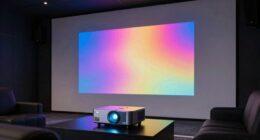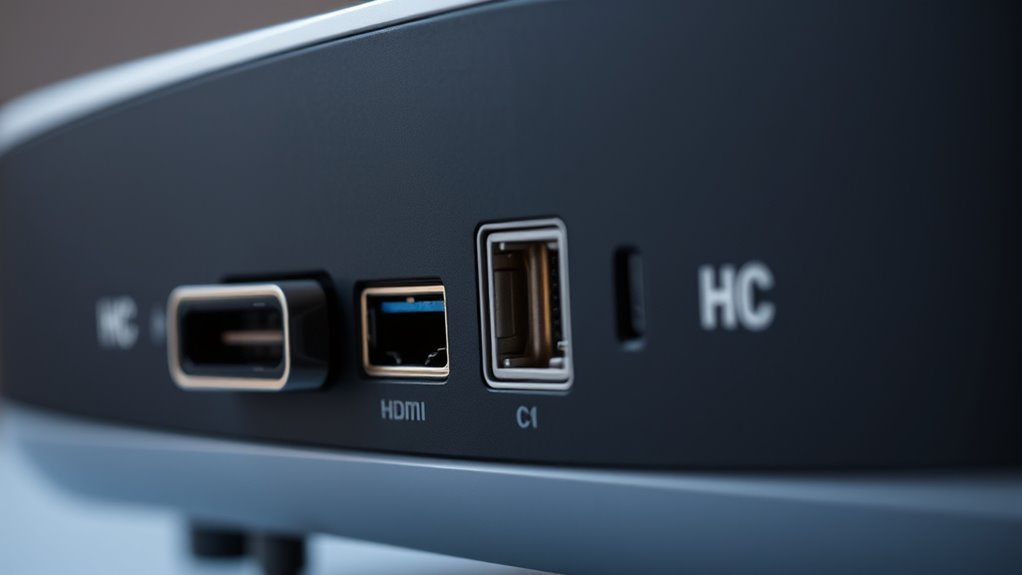
To understand projector connections, you should know that HDMI is the most common and simple option, transmitting high-quality audio and video with one cable. DisplayPort supports higher resolutions and refresh rates, making it ideal for professional use, although it’s less universal. USB-C is versatile, carryings power, data, and video, but depends on device compatibility. Knowing these differences helps you choose the right setup; explore further to get detailed comparisons and tips.
Key Takeaways
- HDMI transmits high-quality audio and video via a single cable, widely supported for most devices and projectors.
- DisplayPort offers higher resolutions and refresh rates, ideal for professional and high-end setups requiring detailed visuals.
- USB-C can carry video, audio, data, and power, providing a streamlined connection for compatible modern devices.
- Compatibility depends on device ports; verify whether your projector and device support HDMI, DisplayPort, or USB-C before connecting.
- Each connection type has unique advantages; choose based on content quality needs, device compatibility, and setup preferences.
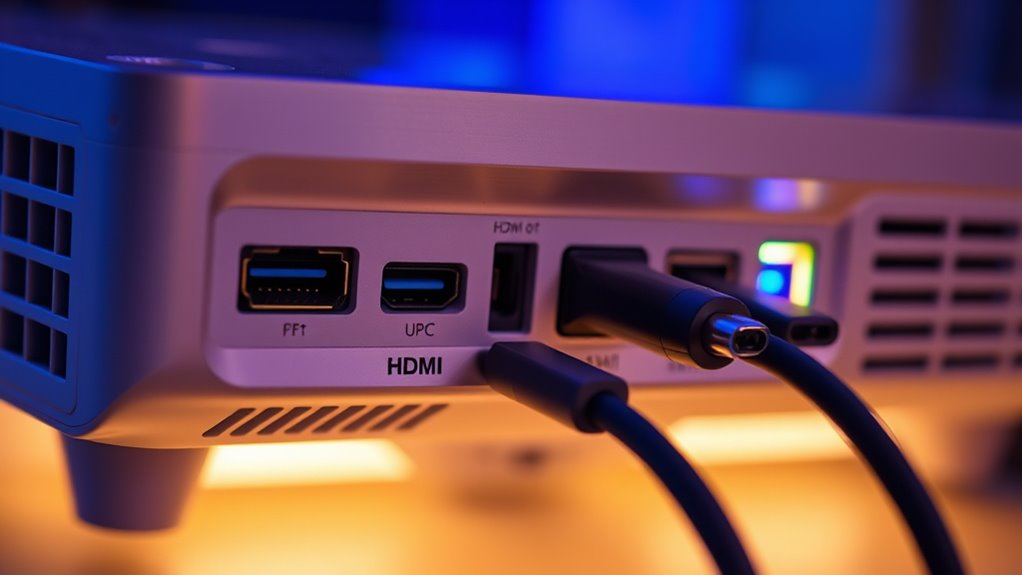
Connecting your projector correctly is vital for ideal performance and a smooth setup process. Whether you’re aiming to stream a movie, give a presentation, or display content from your device, understanding the different connection options can make all the difference. One popular method is wireless projection, which offers the convenience of connecting without physical cables. With wireless setups, you can easily mirror your device’s screen or extend your display, giving you flexibility and reducing clutter. However, wireless projection can sometimes introduce compatibility issues, especially if your projector or device isn’t fully compatible with certain wireless standards. Before attempting to connect wirelessly, check your projector’s specifications and your device’s capabilities to guarantee smooth communication. Some projectors support Wi-Fi Direct, Miracast, or Chromecast, but not all devices will work seamlessly with these options. It’s essential to verify compatibility beforehand to avoid frustration during setup.
When it comes to wired connections, HDMI is the most common and straightforward choice. It transmits high-definition audio and video signals through a single cable, making it ideal for most modern projectors and devices. HDMI ports are widely available on laptops, desktops, gaming consoles, and media players, ensuring broad compatibility. As long as your devices support HDMI, you’ll experience minimal lag and excellent picture quality. However, not all projectors come with HDMI ports, especially older models, so you might need an adapter or a different connection method. DisplayPort is another popular wired option, mainly used in professional and high-end setups. It offers similar benefits to HDMI but can support higher resolutions and refresh rates, making it suitable for detailed presentations or high-quality media playback. Keep in mind that DisplayPort isn’t as universally supported as HDMI, so you’ll need to confirm your devices’ compatibility.
USB-C has increasingly become a versatile connection choice, especially with newer laptops and devices. It can carry video, audio, data, and power, reducing the number of cables needed. Many projectors now include USB-C ports, allowing for quick and easy connectivity with compatible devices. If your device and projector support USB-C, you can enjoy a simple, single-cable setup that’s both sleek and efficient. However, not all USB-C ports support video output, so it’s essential to check your device’s specifications. When choosing a connection method, consider the type of content you’ll be displaying, the quality required, and the devices you’re using. Each option has its strengths and limitations, but understanding these details will help you set up your projector correctly and enjoy a seamless viewing experience.
![Projector-4K with WiFi and Bluetooth:[3000 ANSI/40W Dolby Audio/Official Licensed Apps], Outdoor-Projector with Smart OS 2.0 & AI Auto Focus,ONOAYO ONO5Pro 2.0 Smart Movie Projector for Indoor/Outdoor](https://m.media-amazon.com/images/I/411TCiwZ0EL._SL500_.jpg)
Projector-4K with WiFi and Bluetooth:[3000 ANSI/40W Dolby Audio/Official Licensed Apps], Outdoor-Projector with Smart OS 2.0 & AI Auto Focus,ONOAYO ONO5Pro 2.0 Smart Movie Projector for Indoor/Outdoor
[Hear the Difference–Hollywood-Grade Dual 40W Dolby Audio] Why spend $500 on a TV + soundbar or settle for...
As an affiliate, we earn on qualifying purchases.
Frequently Asked Questions
Can I Connect Multiple Projectors Simultaneously Using These Ports?
Yes, you can connect multiple projectors simultaneously using HDMI, DisplayPort, or USB-C, but it depends on your device’s capabilities and the setup. For multi projector setups with simultaneous connections, you might need a splitter, multi-output graphics card, or a specialized video wall controller. Make sure your source device supports multiple displays, and verify the ports or adapters to guarantee compatibility for seamless multi projector operation.
Are There Compatibility Issues Between HDMI, Displayport, and USB-C?
Like a diplomat steering language barriers, you might face compatibility issues between HDMI, DisplayPort, and USB-C. These connection standards have different signals and protocols, so not all devices connect seamlessly. Make sure your equipment supports the same standard or use adapters designed for compatibility. Always check device specifications beforehand to prevent connection hiccups, much like choosing the right translator to avoid misunderstandings in international diplomacy.
Do All Projectors Support 4K Resolution Over These Connections?
Not all projectors support 4K resolution over HDMI, DisplayPort, or USB-C. Your projector’s resolution capabilities depend on its design, and some may have resolution limitations due to bandwidth considerations. To guarantee 4K support, check the specifications for each connection type and confirm the projector’s maximum resolution. Using higher-quality cables and ensuring your source device can handle 4K also helps deliver the best possible image quality.
Is There a Difference in Audio Quality Between These Connection Types?
You’ll notice a difference in audio quality between connection types, with HDMI typically offering the best sound clarity and audio fidelity. In fact, HDMI can transmit uncompressed audio, making it ideal for high-quality sound. DisplayPort also supports excellent audio, but USB-C varies depending on the device. So, for the clearest, most immersive sound, HDMI usually outperforms the others, especially for home theater setups.
What Adapters Are Needed for Legacy Devices?
To connect a legacy device, you’ll need the right adapters to guarantee compatibility. Check your device’s output port and match it with the projector’s input. For example, if your legacy device has VGA output, you’ll need a VGA to HDMI or VGA to DisplayPort adapter, depending on your projector’s input. Confirm adapter compatibility beforehand to avoid connection issues and ensure seamless integration of your legacy device.

Official Licensed Google TV Smart Projector, HAPPRUN 4K UHD Home Theater with Dolby Sound, Wi-Fi & Bluetooth, Built-in Streaming Apps, Compatible with Games Consoles & Smartphone, Indoor & Outdoor Use
[ Built-in Official Licensed Google TV ] - Without additional equipment, the smart projector can directly access Netflix,...
As an affiliate, we earn on qualifying purchases.
Conclusion
Now that you know the differences between HDMI, DisplayPort, and USB-C, you can confidently choose the right connection for your projector. Did you know that over 80% of modern projectors support HDMI, making it the most popular option? By understanding these connections, you’ll enjoy seamless setup and improved display quality. So, next time you connect your projector, remember the key features of each port to get the best performance effortlessly.
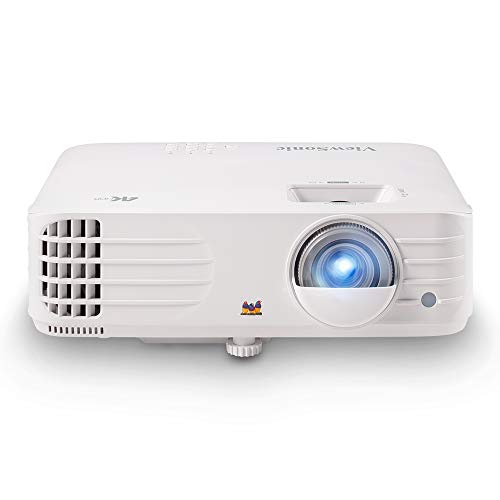
ViewSonic PX701-4K UHD 4K Projector with 3200 Lumens, 240Hz, 4.2ms, HDR, Auto Keystone, Dual HDMI for Home Theater
4K Home Theater Projector: UHD (3840x2160p) 4K resolution with a 1.5-1.6 throw ratio and 3,200 ANSI lumens perfect...
As an affiliate, we earn on qualifying purchases.
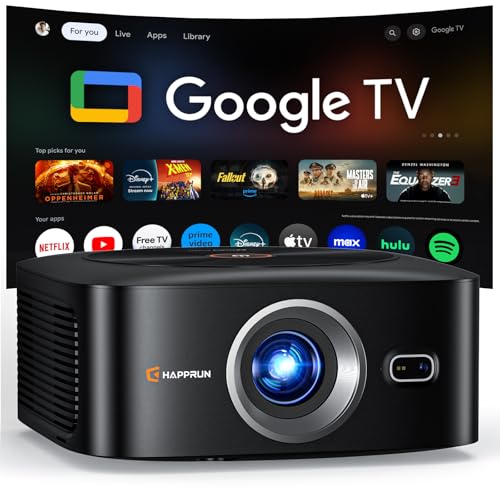
1500 ANSI Official Licensed Google TV Smart Projector, HAPPRUN 4K Full HD Home Theater with Auto Focus, Dolby Sound, Wi-Fi Bluetooth, Built-in Apps, Compatible with Phone & PC, Indoor & Outdoor Use
[ Built-in Officially Licensed Google TV ]-Enjoy the reliability of an officially certified Google TV projector. Stream Netflix,...
As an affiliate, we earn on qualifying purchases.