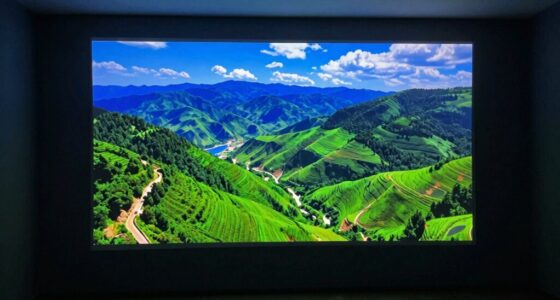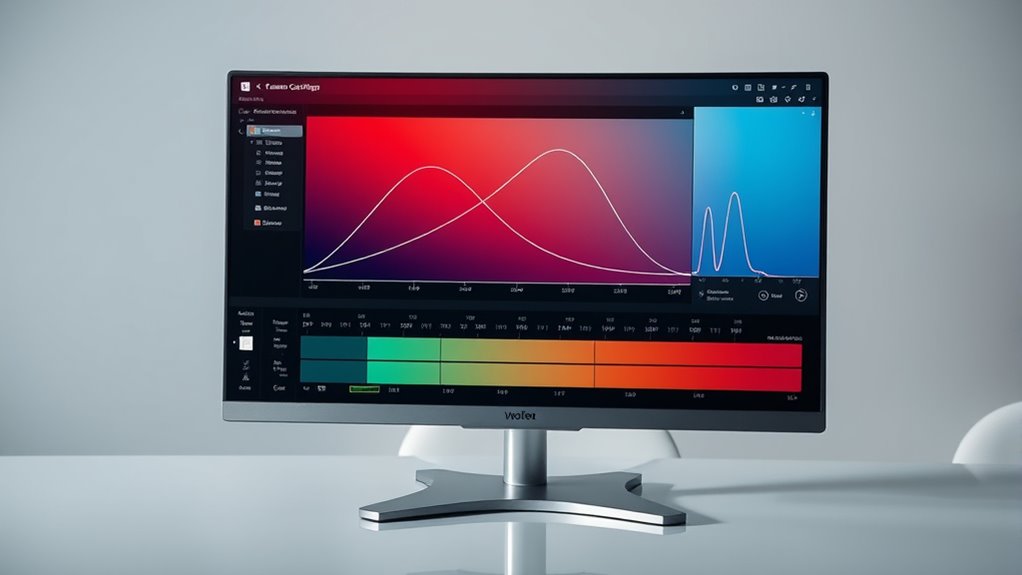
To achieve a perfect picture, you need to properly adjust your display’s gamma settings, which control how brightness and contrast appear, especially in midtones. Correct gamma guarantees details are visible in shadows and highlights, avoiding washed-out or overly dark images. Use calibration tools or built-in settings in a controlled environment for best results. Fine-tuning your gamma based on your specific use case can drastically improve image quality—continue exploring for detailed steps and expert tips.

Get business pricing on your home office setup
- Business-only prices and quantity discounts
- Tax-exempt purchasing
- Multiple users, one account, clear invoices
Key Takeaways
- Understand the role of gamma in balancing shadows and highlights for accurate image reproduction.
- Use calibration tools or software to fine-tune gamma settings for your specific display and environment.
- Perform calibration in a controlled environment with consistent lighting to ensure precise adjustments.
- Regularly review and update your display’s color profile and gamma settings to maintain picture quality.
- Adjust gamma based on your primary use, such as photo editing, gaming, or general viewing, for optimal results.
Achieving the perfect picture on your display depends heavily on proper gamma adjustments, which control how brightness levels are rendered. When you fine-tune gamma, you influence how dark and light areas appear, impacting overall image quality and visual accuracy. To get this right, understanding the basics of color calibration and display calibration techniques is crucial. Color calibration ensures that your display reproduces colors accurately, while display calibration techniques involve adjusting various settings—like brightness, contrast, and gamma—to optimize image fidelity.
Start by recognizing that gamma affects the midtones of your display, which is where most of your image details reside. If gamma is too high, shadows may appear too dark, losing detail in darker areas. Conversely, if it’s too low, bright areas might look washed out or overly bright. Achieving a balanced gamma setting requires precise adjustments, often using calibration tools or software. Many professional calibration tools include a built-in gamma adjustment feature, allowing you to set the gamma value to a standard level, typically around 2.2 for general use. This standard provides a good baseline, but depending on your specific application—like photo editing or gaming—you might need to fine-tune this setting further.
Adjust gamma to balance midtones; typically set around 2.2 for accurate image details.
Display calibration techniques involve a combination of hardware and software. You can start with built-in calibration tools available on many operating systems, which guide you through adjusting brightness, contrast, and gamma. For more accuracy, consider using a hardware calibration device, such as a colorimeter or spectrophotometer. These devices measure the display’s output and help you create a color profile that ensures consistent and true-to-life images. When calibrating, pay close attention to the gamma setting, ensuring it aligns with industry standards or personal preferences. Remember, calibration is a process of incremental adjustments—small changes can notably improve image quality.
Additionally, it’s essential to perform calibration in a controlled environment where ambient lighting remains consistent. This prevents external light from skewing your perception of brightness and color accuracy. Regularly updating your display’s color profile and understanding how different settings affect the overall image quality can further enhance your viewing experience. Once calibrated, regularly review and adjust your display, especially if lighting conditions change or if you notice color shifts. Proper gamma adjustments, combined with diligent use of color calibration and display calibration techniques, will elevate your viewing experience, providing sharper images, richer colors, and more accurate detail reproduction. In essence, taking the time to calibrate your display properly ensures you’re seeing your content as intended, whether for work, entertainment, or creative projects.
As an affiliate, we earn on qualifying purchases.
Frequently Asked Questions
How Does Gamma Impact Color Accuracy?
Gamma impacts color accuracy by shaping gamma curves, which control how brightness levels translate into luminance. When you adjust gamma, you influence the color depth, making colors appear more vibrant or muted. Proper gamma settings guarantee that subtle color nuances are preserved, resulting in more precise and natural-looking images. By understanding and fine-tuning gamma curves, you enhance overall color accuracy, creating a more balanced and true-to-life picture.
Can Gamma Adjustments Fix All Display Issues?
Gamma adjustments can’t fix all display issues, but they play a vital role in achieving accurate color grading and proper grayscale calibration. Did you know that improper gamma settings can cause up to a 20% loss in detail? While tweaking gamma improves contrast and brightness, other factors like color balance and hardware calibration also matter. So, for a truly perfect picture, consider a thorough calibration process beyond just gamma tweaks.
What’s the Ideal Gamma Setting for Gaming?
For gaming, an ideal gamma setting is typically around 2.2, which provides vibrant colors and good contrast. To achieve this, you should focus on proper monitor calibration and color grading. Adjust your gamma settings to match this standard to enhance your gaming experience. Remember, fine-tuning your monitor’s gamma ensures more accurate colors and details, making your gameplay visually suitable and immersive.
How Often Should I Recalibrate Gamma?
You should recalibrate your gamma every 4 to 6 weeks, especially if you notice color grading inconsistencies or screen brightness shifts. Think of your display as a painter’s canvas—regular calibration guarantees colors stay true. Using calibration tools, like colorimeters, makes this process precise. Just as a photographer adjusts settings for perfect shots, periodic recalibration keeps your display optimized for the best viewing experience.
Does Ambient Lighting Affect Gamma Settings?
Yes, ambient light does affect your gamma settings because it influences your viewing environment. When there’s more ambient light, your screen might appear dimmer or washed out, prompting you to adjust gamma for better contrast and color accuracy. Conversely, in darker environments, you may need to tweak gamma to prevent images from looking too dark or too bright. Keep in mind, maintaining consistent ambient lighting helps keep your gamma settings ideal.
As an affiliate, we earn on qualifying purchases.
Conclusion
Mastering gamma adjustments is like tuning a fine instrument, ensuring every note of your picture resonates perfectly. When you tweak the settings with care, you bring out the true colors and details hidden in shadows and highlights. Remember, it’s not just about technical precision but about creating an image that feels alive and authentic. With patience and practice, you’ll turn your display into a window that reveals the world in all its vibrant glory.
colorimeter for display calibration
As an affiliate, we earn on qualifying purchases.
As an affiliate, we earn on qualifying purchases.
display color calibration device
As an affiliate, we earn on qualifying purchases.
As an affiliate, we earn on qualifying purchases.
Fall Picks
fall essentials
As an affiliate, we earn on qualifying purchases.