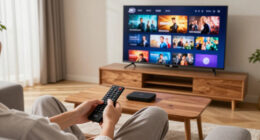

This guide walks through the process of setting up a 4K media streaming device, such as Roku, Amazon Fire TV, Apple TV, or Chromecast Ultra. It is designed for users new to streaming devices or those upgrading to 4K quality. By following these steps, you’ll ensure your device is correctly installed, connected, and configured for the best streaming experience in your home.

Get business pricing on your home office setup
- Business-only prices and quantity discounts
- Tax-exempt purchasing
- Multiple users, one account, clear invoices
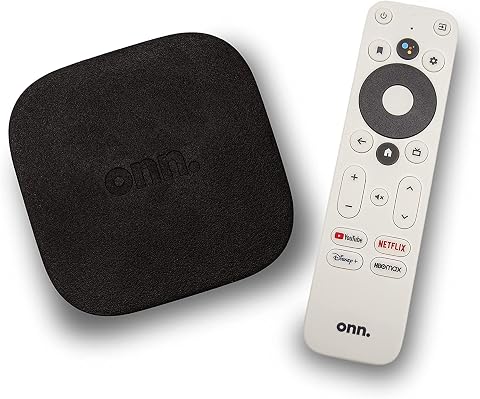
ONN Android TV 4K UHD Streaming Device with Voice Remote Control and High-Speed HDMI Cable
- ✔ Connectivity Technology: HDMI, Wi-Fi
- ✔ Connector Type: HDMI
- ✔ Resolution: 4K Ultra HD (3840 x 2160 pixels)

Roku Streaming Stick 4K with Voice Remote – HDR10+ & Dolby Vision
- ✔ Connectivity Technology: Wi-Fi
- ✔ Connector Type: HDMI
- ✔ Supported Internet Services: Hulu, Netflix, Pandora, Prime Video, Vudu

Roku Ultra Streaming Player – 4K, HDR10+, Dolby Vision, Dolby Atmos
- ✔ Streaming Resolution: 4K, HDR10+, Dolby Vision
- ✔ Audio: Dolby Atmos
- ✔ Remote: Rechargeable Roku Voice Remote Pro with backlit buttons, voice control, USB-C charging
Difficulty: Beginner | Time: 20-30 minutes
What You’ll Need
Tools & Materials:
- TV with HDMI port
- Wi-Fi network (2.4 GHz or 5 GHz)
- Power outlet
- HDMI cable (included or compatible)
- Remote control (usually included with device)
Knowledge:
- Basic familiarity with turning on and connecting a TV
- Ability to connect to Wi-Fi
ONN Android TV 4K UHD Streaming Device with Voice Remote Control and High-Speed HDMI Cable
The ONN Android TV stands out for its broad app ecosystem, thanks to access to the Google Play Store, making it a flexible choice for users who want familiarity and variety. Its 4K resolution ensures sharp visuals, and built-in Chromecast allows easy casting from mobile devices. However, with only 2 GB of RAM, multitasking can feel sluggish, and regional restrictions limit its usability outside the U.S. This device is perfect for those who prioritize app selection and voice control but don’t need extensive multitasking capabilities.
Pros:
- Supports 4K Ultra HD resolution for crisp visuals
- Access to a wide range of apps via Google Play Store
- Includes voice remote with Google Assistant for easy control
- Chromecast built-in for casting from smartphones
Cons:
- Limited to U.S. region; not suitable for international markets
- Only 2 GB RAM may hinder multitasking
- No mention of expandable storage
Best for: Viewers who want broad app access and a familiar Android interface with easy setup.
Not ideal for: International users or those requiring extensive multitasking or storage expansion.
Bottom line: A versatile choice for Android users seeking broad app access and 4K quality, with regional limitations to consider.
“A versatile choice for Android users seeking broad app access and 4K quality, with regional limitations to consider.”
Roku Streaming Stick 4K with Voice Remote – HDR10+ & Dolby Vision
The Roku Streaming Stick 4K is ideal for those who want a sleek, space-saving device that doesn’t compromise on picture quality. Supporting Dolby Vision and HDR10+, it delivers vibrant colors and sharp detail on compatible TVs. Its small form factor makes it easy to plug into any HDMI port without blocking adjacent inputs, and the long-range Wi-Fi helps maintain smooth streaming. The limited 1 GB RAM could impact multitasking, and the device is best suited for users with a stable, fast Wi-Fi connection, as performance depends heavily on network quality.
Pros:
- Supports 4K, Dolby Vision, and HDR10+ for vibrant visuals
- Compact, sleek design that doesn’t block HDMI ports
- Long-range Wi-Fi for seamless streaming
- Includes voice remote for easy control
Cons:
- Limited to 1 GB RAM, affecting multitasking
- Dependent on stable Wi-Fi for optimal performance
Best for: People seeking a compact, portable 4K device with excellent picture quality and minimal setup hassle.
Not ideal for: Heavy multitaskers or users with unstable Wi-Fi who need more RAM or network flexibility.
Bottom line: A perfect fit for space-conscious users wanting high-quality visuals and convenience, with some tradeoffs in multitasking and Wi-Fi reliance.
“A perfect fit for space-conscious users wanting high-quality visuals and convenience, with some tradeoffs in multitasking and Wi-Fi reliance.”
Roku Ultra Streaming Player – 4K, HDR10+, Dolby Vision, Dolby Atmos
The Roku Ultra is tailored for enthusiasts who demand top-tier picture and sound quality. With support for Dolby Vision and Dolby Atmos, it creates an immersive viewing experience. Its fast interface and multiple connectivity options, including Wi-Fi 6 and Ethernet, ensure smooth streaming even in demanding environments. The rechargeable Voice Remote Pro with backlit buttons and a lost remote finder offers premium convenience, though this remote is more costly to replace if lost. Overall, this device is best suited for dedicated home theater setups where performance and audio fidelity are priorities.
Pros:
- Fast streaming with a user-friendly interface
- Supports 4K, HDR10+, Dolby Vision, and Dolby Atmos
- Premium remote with backlit buttons and voice control
- Supports Wi-Fi 6 and Ethernet for reliable connectivity
Cons:
- Remote may be expensive to replace
- Requires charging for remote, which could be inconvenient
Best for: Premium users seeking the fastest streaming with immersive audio and advanced connectivity options.
Not ideal for: Casual viewers or those on a tight budget who don’t need high-end features or premium remote accessories.
Bottom line: A top-tier choice for high-performance streaming, blending excellent visuals and immersive audio with premium remote features, at a higher cost.
“A top-tier choice for high-performance streaming, blending excellent visuals and immersive audio with premium remote features, at a higher cost.”
As an Amazon Associate we earn from qualifying purchases.
Before You Start
Make sure your TV is turned off before connecting the device. Keep your Wi-Fi password handy. Verify your internet connection is stable. Prepare your remote control and power supply.
Step-by-Step Instructions
Step 1: Unbox the streaming device and accessories
Remove the device, power adapter, HDMI cable, and remote control from the packaging. Check that all components are present and undamaged.
Tip: Keep all packaging in case you need to return or troubleshoot the device later.
Check: All components are accounted for and undamaged, ready for setup.
Step 2: Connect the device to your TV
Insert one end of the HDMI cable into the HDMI port on the streaming device. Connect the other end to an available HDMI port on your TV. Turn on your TV and select the corresponding HDMI input.
Tip: Use the HDMI port labeled ‘ARC’ if your TV supports audio return channel for additional features.
Check: Your TV displays the device’s startup screen or logo.
Step 3: Connect the device to power
Plug the power adapter into the device and then into a power outlet. Wait for the device to power on automatically.
Tip: Ensure the power outlet is functional and not controlled by a switch that might be off.
Check: Device powers on and displays a startup logo or welcome screen.
Step 4: Pair the remote control
Insert batteries if not already installed. Follow on-screen instructions to pair the remote control with the device, usually by pressing a specific button or following prompts.
Tip: Ensure batteries are fresh and inserted correctly to avoid pairing issues.
Check: Remote control is responsive, and on-screen prompts indicate successful pairing.
Step 5: Connect the device to Wi-Fi
Navigate to the device’s network settings using the remote. Select your Wi-Fi network from the list, then enter the Wi-Fi password using the on-screen keyboard. Confirm the connection.
Tip: Use the remote’s arrow keys and on-screen keyboard carefully to avoid typos.
Check: The device displays a message indicating it is connected to Wi-Fi.
Step 6: Update the device firmware
Follow on-screen prompts to check for firmware updates. If an update is available, select ‘Download’ or ‘Install’ and wait for the process to complete. Do not turn off the device during this process.
Tip: An up-to-date firmware ensures better performance and security.
Check: Device restarts and displays the main menu after updates are installed.
Step 7: Sign in to streaming accounts
Open the streaming app store or main menu. Select your preferred streaming services (e.g., Netflix, Hulu, Amazon Prime). Enter your account credentials as prompted.
Tip: Use a password manager if needed to avoid typos.
Check: Apps load correctly, and you can browse your content library.
Step 8: Configure display settings for 4K
Navigate to the settings menu. Select ‘Display’ or ‘Video Output’. Ensure the resolution is set to 4K or auto-detect. Enable HDR if available.
Tip: Set the output to the highest supported resolution for optimal quality.
Check: Picture settings display 3840 x 2160 resolution or similar, with HDR enabled if supported.
Step 9: Test streaming quality
Select a 4K content title from your streaming apps. Play the video and observe the picture clarity, color vibrancy, and smoothness.
Tip: Use a video with known 4K quality to accurately assess performance.
Check: Video plays smoothly with crisp picture quality, confirming proper setup.
Common Mistakes to Avoid
- Connecting the device to a non-4K compatible HDMI port — Use the HDMI port labeled ‘HDMI 1’ or ‘HDMI 2’ that supports 4K; check your TV manual if unsure.
- Entering incorrect Wi-Fi password during setup — Double-check your Wi-Fi password before input; use the on-screen keyboard carefully.
- Not updating firmware before first use — Always run the firmware update immediately after setup to ensure compatibility and security.
Troubleshooting
Problem: Device does not power on
Solution: Verify the power outlet works by plugging in another device. Check the power adapter and connections.
Problem: Wi-Fi connection fails
Solution: Ensure Wi-Fi password is correct. Restart your router and device. Move the device closer to the Wi-Fi source if needed.
Problem: Apps won’t load or crash
Solution: Update the device firmware and app versions. Restart the device and reopen the apps.
What Success Looks Like
The device displays a clear 4K picture with HDR enabled, streaming content smoothly without buffering or lag. All selected apps load correctly, and the device remains stable during use.
Next Steps
Keep your device firmware updated periodically. Add or remove streaming apps as needed. Use a wired Ethernet connection for more stable streaming if Wi-Fi issues persist. Refer to the device manual for advanced settings and troubleshooting.
Frequently Asked Questions
How do I know if my TV supports 4K?
Check your TV’s specifications or user manual for ‘4K’ or ‘UHD’ support. You can also find this information in the TV’s settings menu under resolution options.
Can I connect multiple streaming devices to one TV?
Yes, if your TV has multiple HDMI ports, you can connect several devices and switch between them using the input/source menu.
What internet speed do I need for 4K streaming?
A stable connection of at least 25 Mbps download speed is recommended for smooth 4K streaming with HDR enabled.
Is it necessary to update firmware regularly?
Yes, firmware updates improve performance, security, and compatibility with streaming services.
Fall Picks
fall essentials
As an affiliate, we earn on qualifying purchases.