To get the best multiplayer experience on a projector, make certain all controllers are properly connected and recognized. Adjust your screen calibration to prevent distortion, and choose the split-screen layout that works best for your group. Dim the room lights to improve contrast and minimize glare. Communicate clearly with players about controls and settings for smoother gameplay. For detailed tips on optimizing your setup, keep going—you’ll find helpful advice to enhance your gaming sessions.

Get business pricing on your home office setup
- Business-only prices and quantity discounts
- Tax-exempt purchasing
- Multiple users, one account, clear invoices
Key Takeaways
- Configure split-screen layout (vertical, horizontal) to maximize visibility and comfort for all players.
- Calibrate the projector for proper image alignment and minimize distortion to enhance multiplayer experience.
- Use fully charged wireless controllers and ensure all are properly connected to prevent lag and disconnections.
- Dim ambient lighting and adjust projector settings to improve contrast, clarity, and reduce glare on the screen.
- Communicate game controls and screen setup clearly to coordinate players and ensure smooth multiplayer gameplay.
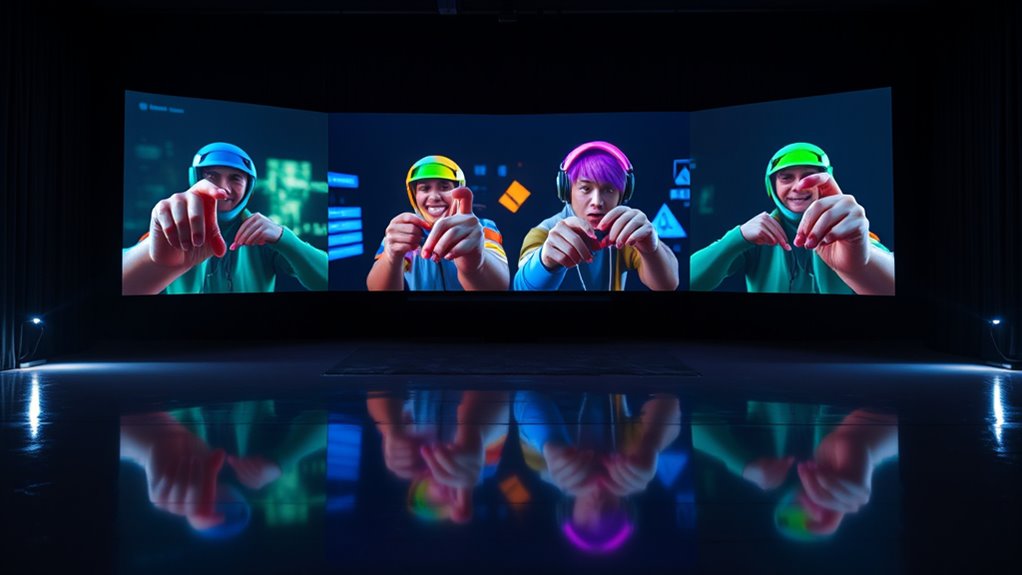
Playing multiplayer games on a projector can be a fantastic way to enjoy shared gaming experiences, but it comes with unique challenges. One of the most important aspects is ensuring your controller setup is optimized for multiple players. Before diving into gameplay, double-check that each controller is correctly connected and recognized by your console or PC. If you’re using wireless controllers, ensure they’re fully charged and paired properly to avoid disruptions. For wired controllers, verify that all cables are secure and functioning. Proper controller setup not only prevents in-game lag or disconnections but also guarantees smooth, responsive gameplay for everyone involved.
Another critical factor is screen calibration. Projectors often have settings that can be fine-tuned to improve image quality and ensure the split-screen display looks sharp and balanced. Take a moment to calibrate your projector’s image settings, adjusting contrast, brightness, and keystone correction if necessary. Proper screen calibration helps prevent image distortion, ensures that each player’s view is clear, and minimizes eye strain during long gaming sessions. When calibrating, focus on aligning the image to fit the screen perfectly, so each split is evenly distributed and no part of the display feels cut off or distorted.
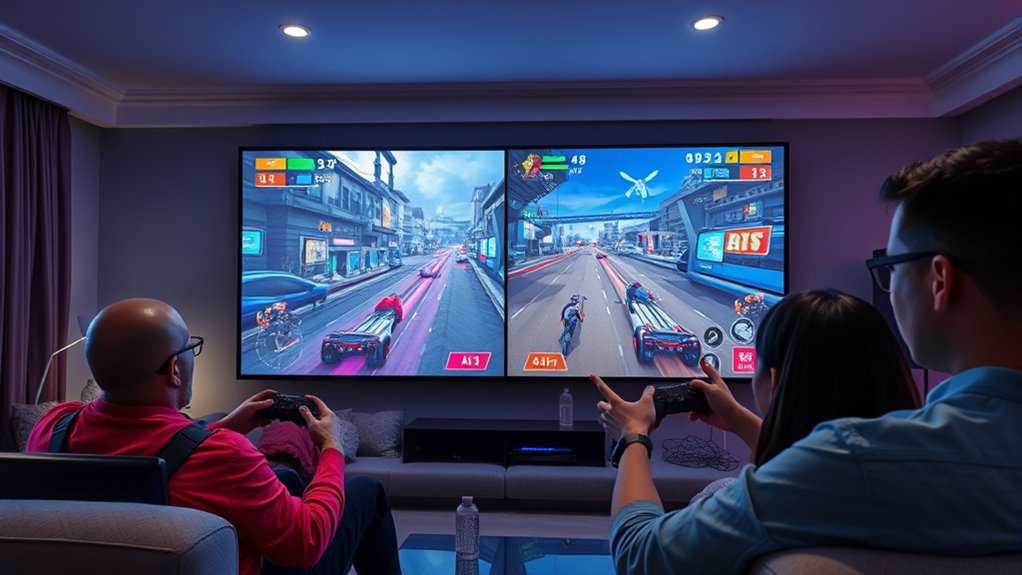
Once your controllers are set up correctly and your projector is calibrated, you’ll want to focus on the game’s split-screen settings. Many multiplayer games allow you to customize how the screen is divided—vertically, horizontally, or in other configurations. Experiment with these options to find the most comfortable view for your group. Keep in mind that larger screens can sometimes make split-screen gameplay feel cramped or difficult to follow, so adjusting the split to maximize visibility is key.
Lighting in the room also impacts your experience. Since projectors rely on ambient light conditions, dim the lights or turn them off to improve image contrast and clarity. This helps each player see their portion of the screen better and reduces glare or reflections that diminish visual quality. If possible, position the projector in a way that minimizes shadows cast by players or controllers.
Finally, communicate with everyone involved. Make sure each player knows how to operate their controller and understands the split-screen layout. Clear communication, combined with a proper setup, makes multiplayer gaming on a projector more enjoyable and less frustrating. By paying attention to controller setup and screen calibration, you set the stage for a seamless, immersive gaming experience that everyone will remember.
Products Worth Considering

Bose TV Speaker (2nd Gen) – Compact Soundbar with Bluetooth and HDMI‑ARC Connectivity, Clear Dialogue, Dolby Atmos, Deep Bass, Remote Contro

Philips Hue Starter Kit with Bridge Pro and 4 A19 E26 Smart Bulbs

Hisense 43-Inch S5 DécoTV Series 4K UHD Smart Fire TV with Hi-QLED Color, Dolby Vision and Atmos (43S5QF, 2026 Model)
As an affiliate, we earn on qualifying purchases.
Frequently Asked Questions
What Are the Best Projectors for Split-Screen Gaming?
For split-screen gaming, you want a projector with high brightness and good resolution compatibility. Look for models with at least 3,000 lumens to guarantee clear images even in well-lit rooms. A projector supporting 1080p or higher resolution provides sharp visuals for multiple players. Brands like BenQ, Epson, and Optoma offer excellent options. Make sure the projector’s input lag is low for smooth gameplay, enhancing your multiplayer experience.
How Do I Minimize Lag in Projector Multiplayer Sessions?
To minimize lag during projector multiplayer sessions, focus on reducing network latency by using a wired Ethernet connection instead of Wi-Fi, which offers a more stable signal. Additionally, lower your display resolution if possible, as higher resolutions can increase processing time and lag. Close unnecessary background apps and ensure your projector and gaming console are updated to optimize performance. This helps create a smoother, more responsive gaming experience for everyone.
Can Multiple Controllers Connect to a Projector Easily?
Yes, multiple controllers can connect to a projector easily, but it depends on controller compatibility and projector connectivity. Make certain your controllers are compatible with your gaming system, and check if your projector has the necessary ports or wireless capabilities. Using wired controllers may require USB hubs, while wireless controllers often connect via Bluetooth. Test each controller beforehand to avoid connectivity issues during multiplayer sessions.
What Are Common Setup Issues With Projector Splitscreen Gaming?
You might face setup issues like poor projector placement causing uneven image quality or difficulties with audio synchronization, which can disrupt gameplay. Make sure your projector is positioned correctly for a clear, even display and connect audio devices properly to match the visuals. Check all cables and settings to prevent lag or sound delays. Proper setup guarantees smooth, enjoyable splitscreen gaming without technical distractions.
How Does Screen Size Affect Multiplayer Gameplay Experience?
A larger screen size enhances your multiplayer experience by providing immersive visuals, but it also requires higher screen resolution to keep images sharp. If the screen is too big without proper resolution, details can become blurry, impacting gameplay. Additionally, consider viewing distance; sitting too close can cause strain and reduce clarity, while sitting too far may make it hard to see details. Balance screen size, resolution, and distance for ideal multiplayer fun.
Conclusion
Remember, playing multiplayer on a projector is like steering a ship through choppy waters—you need to stay alert and adapt to the splintered view. I once tried a splitscreen game with friends, and though the screen was divided, our teamwork turned chaos into victory. With the right tips—adjusting settings, choosing the right game, and communicating—you’ll navigate any challenge smoothly. So, set your course, and enjoy the game without sinking into frustration.