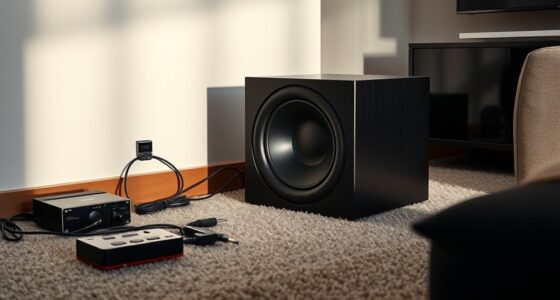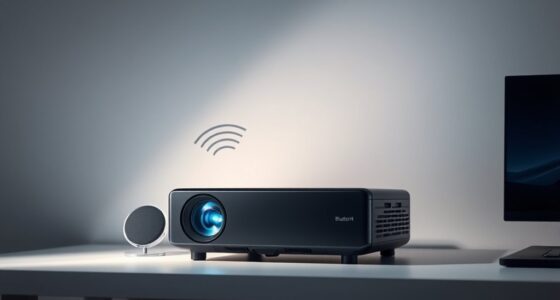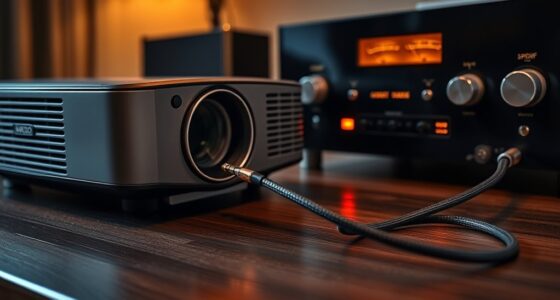

To sync your projector audio with external speakers, first confirm your speaker type and connection options like HDMI, optical, or Bluetooth. Connect your speakers properly, then access your projector’s menu to find the audio delay or sync adjustment setting. Fine-tune the delay until the sound matches the visuals. Regular testing and small adjustments help maintain perfect sync. Keep exploring for detailed steps to guarantee ideal audio-visual harmony.
Key Takeaways
- Connect external speakers to the projector using compatible cables or wireless methods, ensuring proper input selection.
- Play test scenes and listen for audio delay or mismatch, then adjust the projector’s audio delay or sync settings accordingly.
- Use the projector’s menu to access audio delay or synchronization options, making small incremental adjustments for precise alignment.
- Position speakers evenly and test with various scenes to confirm consistent audio-visual sync, adjusting as needed.
- Invest in high-quality, low-latency speakers and regularly test to maintain optimal audio-visual synchronization over time.

SOWO Wireless Dual Bluetooth Speakers Set, Adjustable Stands 2Pcs, High-Fidelity Stereo Sound, Smart Pairing Sync, Surround Sound with Portable Lightweight Case for Home, Travel, Party, Birthday
Sound Upgrade: Bluetooth speaker set of 2 with HD audio technology deliver crisp highs & deep bass,the layered…
As an affiliate, we earn on qualifying purchases.
As an affiliate, we earn on qualifying purchases.
Understanding Your Audio and Video Setup
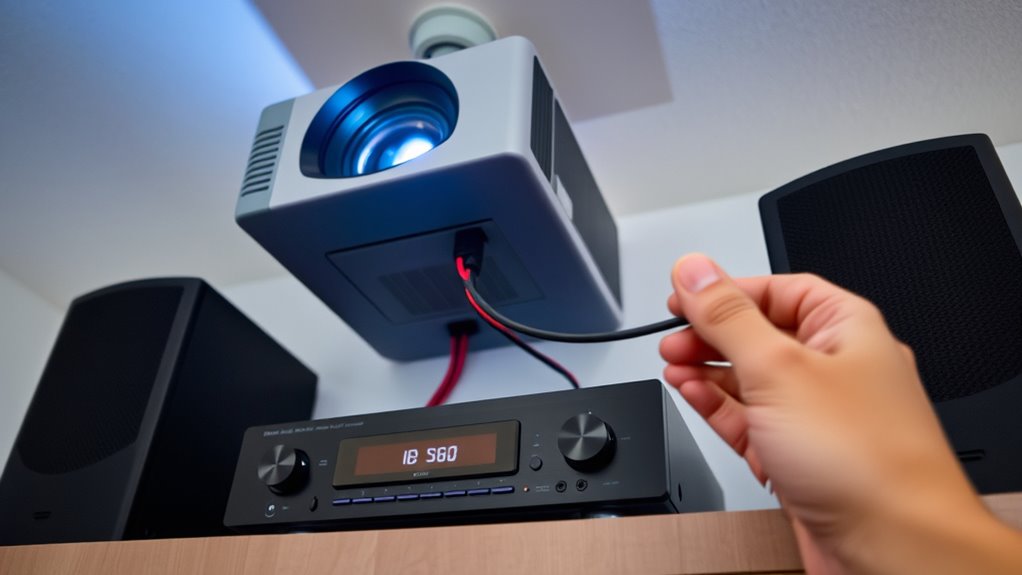
To effectively sync your projector’s audio, you first need to understand your existing audio and video setup. Check your audio system compatibility to guarantee your external speakers can connect smoothly with your projector or video source. Identify what video source options you have—whether it’s a laptop, streaming device, or Blu-ray player—and see how they connect to your projector. Knowing the types of connections available, like HDMI, optical, or AUX, helps determine the best way to route audio. Make sure your audio system supports the same input/output formats to avoid issues later. This understanding forms the foundation for seamless audio synchronization, preventing delays or mismatched sound and video. Being familiar with your setup saves time and ensures you choose the right connection method. Additionally, understanding industry trends can help you stay updated on the latest compatible technologies for improved performance.

VPFET HDMI Audio Extractor 4K HDMI to Optical 3.5mm AUX Audio Adapter Splitter Converter Support HDCP Digital DTS 5.1 PCM
【HDMI Audio Extractor】The HDMI audio extractor can extract audio from HDMI signal and transmit it to AV receiver…
As an affiliate, we earn on qualifying purchases.
As an affiliate, we earn on qualifying purchases.
Identifying the Type of External Speakers You Are Using

Before you can properly sync your external speakers with your projector, determining what type of speakers you’re using is essential. Knowing your speaker types and connection methods helps you find the best way to connect and sync audio accurately. Here are key points to consider: 1. Passive speakers that require an amplifier or receiver for power. 2. Active (powered) speakers with built-in amplifiers, often connected via RCA or 3.5mm jacks. 3. Bluetooth speakers that connect wirelessly through Bluetooth pairing. 4. Computer or multimedia speakers typically connected via USB or audio jack. Understanding the speaker connection methods can help you choose the most effective setup for optimal audio quality and synchronization. Identifying your speaker type and connection method ensures you select compatible cables or wireless options, simplifying the sync process and improving audio quality.

Aurzen Roku TV Smart Projector with Wifi and Bluetooth, D1R Cube Roku Streaming Experience Built-in, Sealed Optical Engine, 1080P FHD, DoIby Audio, Portable Mini Projector for Home/Outdoor Movies
A Roku account and internet connection are required for activation (Creating an account is free)
As an affiliate, we earn on qualifying purchases.
As an affiliate, we earn on qualifying purchases.
Connecting External Speakers to Your Projector
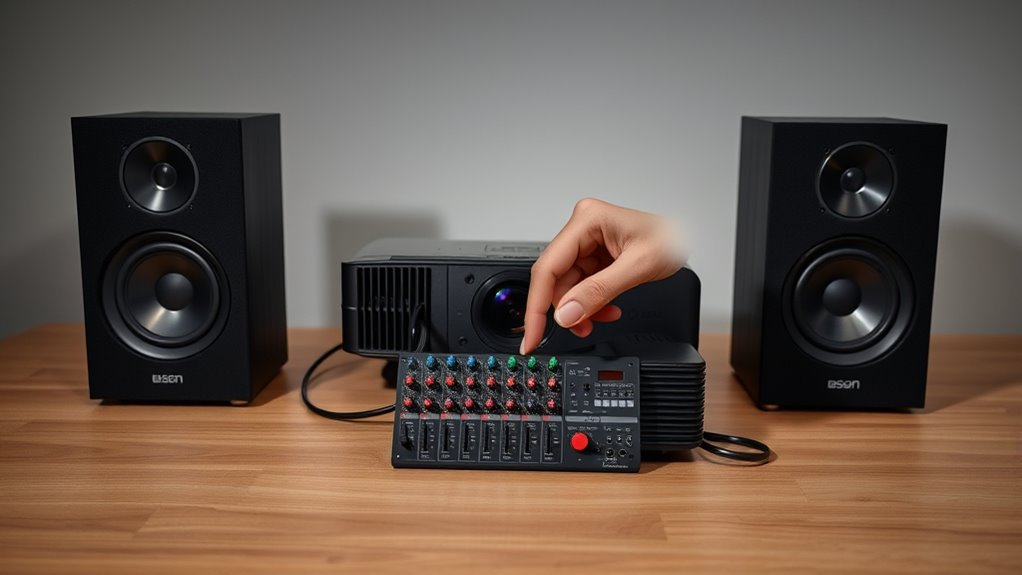
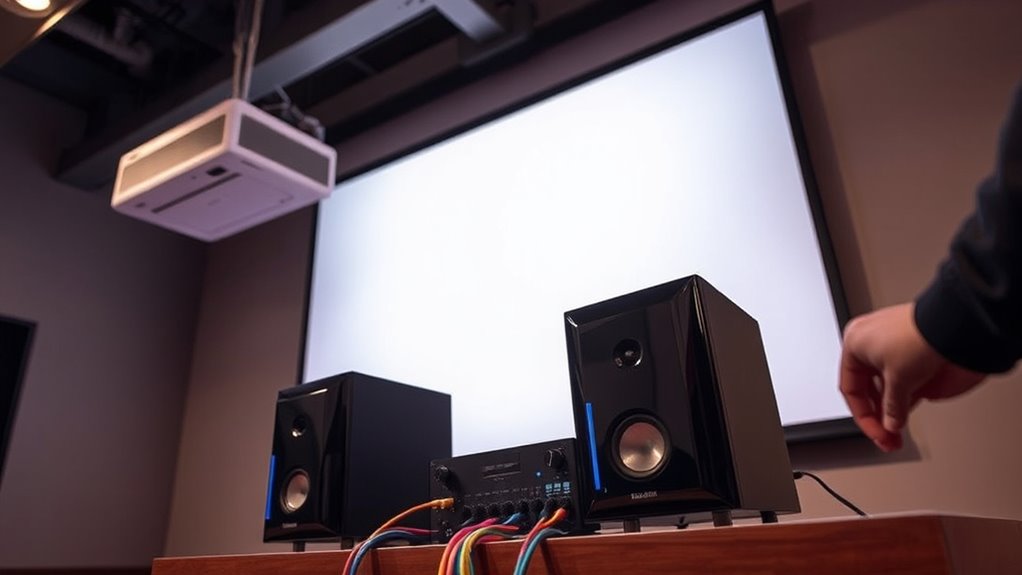
Once you’ve identified your speaker type and connection method, the next step is to connect them to your projector. If you’re using wireless speakers, confirm they’re compatible with your projector’s wireless connection options, such as Bluetooth or Wi-Fi. Power on the speakers and enable pairing mode, then select your speakers from the projector’s menu. For wired connections, connect the audio output port of your projector to the speakers using the appropriate cable—like an AUX or HDMI ARC cable. Proper speaker placement is vital; place them where sound fills the room evenly and minimizes echo or distortion. Keep wireless speakers within a good range to avoid dropouts. Once connected, test the audio to verify a stable link and ideal placement for the best sound experience. Effective connection methods can ensure optimal audio quality.

RIOWOIS Passive Bookshelf Speakers for Home Theater Surround Sound, Satellite Stereo Speakers with Crisper Sound and Classic Wood Grain for Record Player/Computer/TV, Wall Mountable, One Pair.
【Compact Design, Bold Performance】Despite their compact size of 4.3" in length and 6.6" in height, RIOWOIS passive bookshelf…
As an affiliate, we earn on qualifying purchases.
As an affiliate, we earn on qualifying purchases.
Adjusting Audio Delay Settings on Your Projector
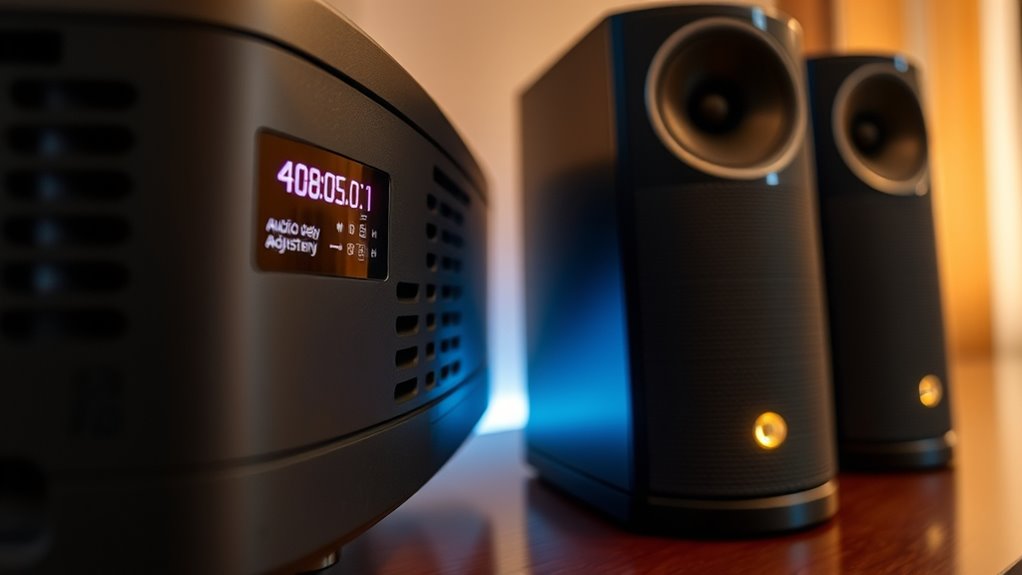
To sync your projector’s audio, start by accessing the audio settings menu. From there, you can fine-tune the delay adjustments until the sound matches the video perfectly. Once you’ve made your changes, test for sync accuracy to guarantee everything lines up seamlessly. Incorporating AI-powered automation can further optimize the process by intelligently adjusting delay settings based on real-time analysis.
Accessing Audio Settings
Accessing the audio settings on your projector is straightforward, and it’s the first step toward fine-tuning your audio delay for ideal synchronization. To begin, navigate to your projector’s main menu and select the audio or sound options. This is essential for effective audio calibration and optimizing speaker placement. Here are key steps to follow:
- Locate the audio or sound menu in the projector’s settings.
- Find the audio delay or sync adjustment option.
- Use the remote or on-device controls to access these settings.
- Familiarize yourself with the menu layout for quick adjustments later. Understanding the importance of audio synchronization can help ensure a seamless viewing experience.
Fine-Tuning Delay Adjustments
After you’ve found the audio delay or sync adjustment option in your projector’s menu, it’s time to fine-tune the settings for perfect audio-visual alignment. Use delay calibration for precise timing adjustments, ensuring audio matches on-screen actions. Start with small tweaks, listening carefully as you adjust the delay. Keep track of your settings to avoid overcompensation. To help visualize your adjustments, consider this quick reference:
| Adjustment Step | Description |
|---|---|
| Initial Delay Setting | Set baseline delay |
| Incremental Changes | Make small timing adjustments |
| Test Playback | Check sync after each change |
| Fine-Tuning | Refine until audio matches video |
| Final Confirmation | Confirm perfect sync |
Effective delay calibration minimizes audio lag, delivering seamless sync. Additionally, understanding projector compatibility with your audio equipment can help maintain consistent synchronization during use.
Testing for Sync Accuracy
How can you be sure your audio is perfectly synchronized with your on-screen action? Testing for sync accuracy involves checking your sound calibration and adjusting your projector’s audio delay settings. Proper speaker placement plays a vital role in minimizing latency issues. To effectively test sync:
- Play a scene with quick visual and audio cues.
- Observe if lip movements match spoken words.
- Adjust the projector’s audio delay until the sound aligns with the visuals.
- Repeat with different scenes to ensure consistency.
- Be aware that audio delay settings can vary depending on your projector model and setup.
Using External Devices to Synchronize Sound
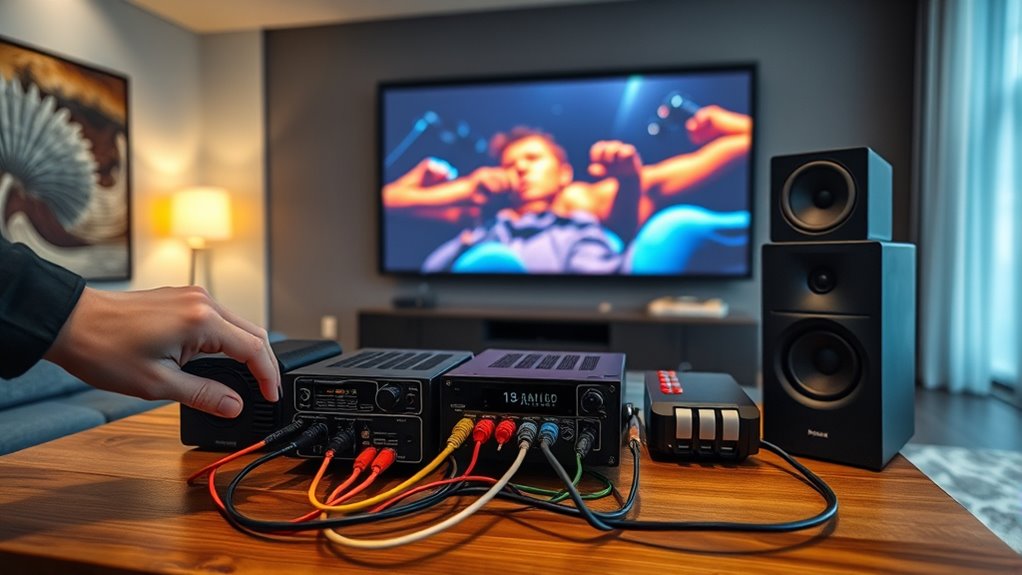
When your projector’s audio isn’t in sync with the picture, using external devices can help you achieve perfect synchronization. Bluetooth pairing is a quick and easy way to connect external speakers wirelessly, reducing lag and interference. Confirm your projector and audio device support Bluetooth and pair them correctly. Wireless transmission options, such as dedicated wireless audio transmitters, can also eliminate cable clutter while providing a stable connection. These devices send audio signals directly to your external speakers without the need for physical cables, minimizing latency. Keep in mind that some wireless systems are designed specifically for low-latency audio, making them ideal for syncing sound precisely with your projector. Using external devices with wireless transmission ensures flexible setup and improved audio-video alignment. Additionally, selecting high-quality audio equipment can further enhance the overall sound clarity and accuracy during your viewing experience.
Testing and Fine-Tuning the Audio Sync

To guarantee your audio is perfectly synchronized with the projected image, start by testing the sound with a familiar scene or dialogue. This helps you identify any audio latency issues early. Next, focus on sound calibration by adjusting the delay settings on your external speakers or audio device. Use the following steps to fine-tune your sync:
- Play a reference scene with distinct sound cues.
- Observe if the audio matches the visuals.
- Adjust the audio delay or sync settings accordingly.
- Repeat until the sound aligns seamlessly with the image.
- Consider the impact of audio latency and how it can affect synchronization accuracy during your adjustments.
Tips for Maintaining Perfect Audio-Visual Alignment
To keep your audio and visual perfectly aligned, you should regularly adjust the audio delay settings as needed. Using high-quality audio equipment can also make a significant difference in maintaining synchronization. Don’t forget to test the sync periodically to catch any drift and make quick adjustments when necessary. Incorporating proper maintenance routines can prevent issues from developing over time.
Adjust Audio Delay Settings
Adjusting the audio delay settings is essential for achieving seamless synchronization between your projector’s sound and picture. Proper sound delay ensures that audio matches visuals, preventing lip-sync issues. To fine-tune your setup, consider these steps:
- Access your projector’s menu and locate the audio calibration options.
- Use the sound delay feature to shift audio forward or backward.
- Play a test video to identify any lag between sound and image.
- Adjust the delay in small increments until the audio aligns perfectly with the visuals.
Use Quality Audio Equipment
Using high-quality audio equipment can make a significant difference in maintaining perfect audio-visual synchronization. Investing in a good audio speaker ensures clearer sound and reduces lag, making it easier to match audio with your projector image. Superior sound quality minimizes distortions and background noise, allowing you to hear every detail clearly. When choosing an audio speaker, prioritize models with low latency and reliable connectivity options, such as HDMI or Bluetooth. High-quality equipment also lasts longer and provides a more consistent experience, reducing the need for frequent adjustments. Remember, even the best synchronization efforts can be undermined by poor sound quality, so opting for quality audio gear is a smart step toward seamless AV performance.
Regularly Test Synchronization
Even with high-quality audio equipment, maintaining perfect sync between sound and visuals requires regular checks. To guarantee ideal alignment, you should:
- Regularly test the wireless connection between your projector and external speakers to prevent lag.
- Adjust speaker placement if you notice audio delay or echo, ensuring they’re positioned correctly relative to the projector.
- Use audio delay settings on your receiver or external speakers to fine-tune synchronization.
- Conduct quick sync tests before important presentations or movie nights to catch issues early.
Frequently Asked Questions
What Are Common Signs That Audio and Video Are Out of Sync?
You’ll notice audio and video are out of sync when the sound doesn’t match what’s happening on screen, like lip sync issues or noticeable audio delay. If you see someone’s lips moving before you hear their voice, or if the dialogue sounds off compared to the action, it’s a clear sign. These signs indicate your audio and video are not aligned, and you may need to adjust your settings for better sync.
Can Bluetooth Speakers Cause Delay Issues With Projectors?
Imagine you’re in a vintage film, but Bluetooth speakers can indeed cause delay issues with projectors. Bluetooth latency often leads to audio lag, especially if there’s wireless interference from other devices. This delay can make the audio feel out of sync with the video, disrupting your viewing experience. To minimize this, choose Bluetooth speakers with low latency or connect wired external speakers for a more seamless synchronization.
Are There Specific Projector Models Better for Audio Synchronization?
You’ll find that some projector models offer better audio synchronization thanks to advanced projector audio settings, reducing lag between visuals and sound. Look for projectors with low latency features and strong external speaker compatibility to guarantee seamless audio sync. Brands like Epson and BenQ often provide models with customizable audio settings, making it easier for you to fine-tune and get the best audio experience with minimal delay.
How Does Room Acoustics Affect Audio Synchronization?
Room acoustics can turn your setup into a symphony or a cacophony. If your space has strong room resonance and excessive sound reflection, it’ll throw off your audio sync, making sounds feel out of step. To keep your audio aligned, minimize reflective surfaces and add soft furnishings. This helps absorb excess sound, creating a clearer, more synchronized experience that feels as smooth as a well-rehearsed orchestra.
Is It Possible to Sync Multiple External Speakers Simultaneously?
Yes, you can sync multiple external speakers simultaneously. You’ll want to take into account wireless audio latency, which can cause delays if not managed properly. Use speaker pairing methods like Bluetooth multipoint or a dedicated audio transmitter to connect them seamlessly. Ensure all speakers support the same pairing protocols and are within range. Properly configuring these settings helps achieve synchronized sound, providing an immersive audio experience across all speakers.
Conclusion
By following these steps, you can easily sync your projector’s audio with external speakers for a seamless viewing experience. Don’t worry if it takes a few tries—you’ll get the hang of adjusting delays and connections. Remember, a little patience pays off, and the perfect sound-visual harmony is within reach. Enjoy your movies and presentations without distracting lag, and make every viewing moment more immersive and enjoyable.