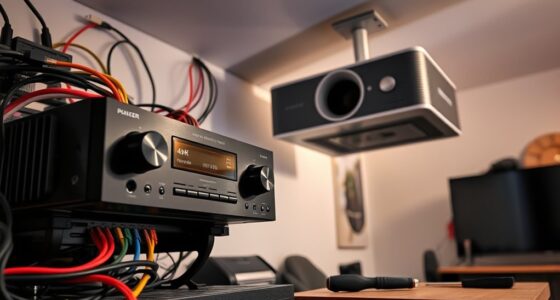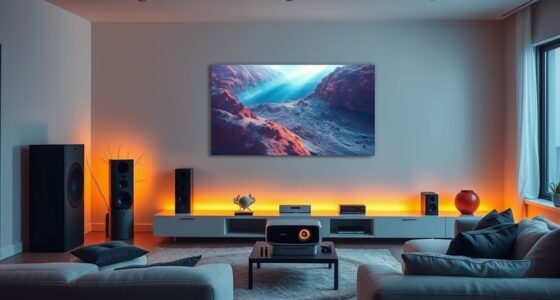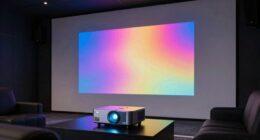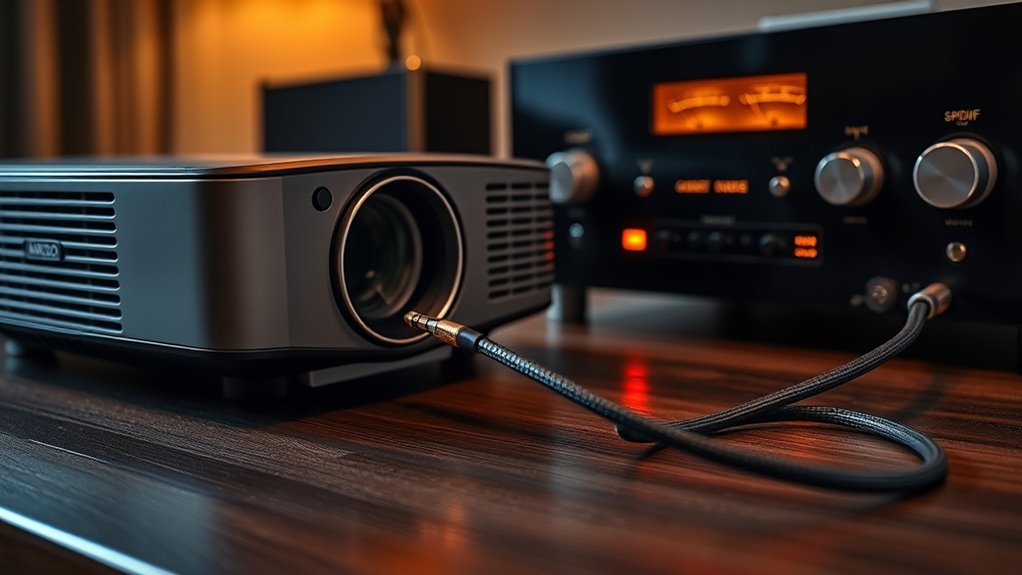

To use your projector’s audio out effectively, connect your external speakers or sound system via the 3.5mm jack for quick, compatible audio or S/PDIF for higher-quality digital sound. Make certain cables are secure and match the input type on your device. Adjust the projector’s audio settings to select the correct output. Using these outputs properly can markedly improve sound clarity. Keep exploring how to optimize your setup to get the best audio experience.
Key Takeaways
- Identify available audio output ports (3.5mm or S/PDIF) on your projector for proper connection.
- Use high-quality, shielded cables to connect the projector’s audio output to external speakers or sound systems.
- Configure your projector’s audio settings to select the correct output mode (analog or digital).
- Test audio after connection to ensure sound clarity, adjusting volume levels on both devices as needed.
- Prefer digital (S/PDIF) for higher sound fidelity when available, but use 3.5mm for broad compatibility.

Have you ever wondered how to improve your projector’s audio experience? If so, you’re not alone. Many people overlook the importance of connecting their projector’s audio output properly, which can markedly impact the overall audio quality. Luckily, most projectors come equipped with audio out options like a 3.5mm jack or S/PDIF port, allowing you to enhance sound clarity and volume by connecting to external audio systems. Understanding how to utilize these connection options effectively is key to getting the best sound from your setup.
Enhance your projector’s audio by properly connecting external speakers or sound systems for better sound quality.
First, assess the connection options available on your projector. The 3.5mm audio out jack is the most common, offering a simple and versatile way to send audio to speakers, soundbars, or audio receivers. It’s easy to use—just plug a 3.5mm stereo cable into the projector’s audio out port and connect it to your external audio device. This setup is straightforward and ideal for casual use or small venues. S/PDIF, on the other hand, provides a digital connection, usually via optical or coaxial cables. It delivers superior audio quality because it transmits digital signals directly, reducing interference and signal degradation typical with analog connections. If your projector has an S/PDIF port, it’s worth using it for the best possible sound, especially in situations where audio fidelity is critical, like watching movies or gaming.
Once you’ve identified your connection options, consider the type of external audio device you’re connecting to. For instance, if you’re linking to a soundbar or home theater system, check if it supports analog (3.5mm) or digital (S/PDIF) inputs. Using the correct input guarantees you maximize audio quality and stability. When connecting via the 3.5mm port, keep the cable quality in mind; a high-quality, shielded cable minimizes noise and interference, resulting in clearer sound. For S/PDIF connections, ensure the cable is tightly secured and that your audio device supports digital input to avoid issues like no sound or degraded audio. Additionally, consulting the audio output options in your projector’s manual can help optimize your setup.
Another essential aspect is configuring your projector’s audio settings. Access the menu and select the appropriate output mode if necessary. Some projectors automatically detect the connection type, but it’s always good to double-check. Also, test the sound after connecting to make sure everything works smoothly and the audio quality meets your expectations. Adjust the volume levels on both your projector and the external device to avoid distortion or low volume issues.
3.5mm stereo audio cable for projector
As an affiliate, we earn on qualifying purchases.
As an affiliate, we earn on qualifying purchases.
Frequently Asked Questions
Can I Connect Multiple Audio Devices Simultaneously to the Projector?
Yes, you can connect multiple audio devices simultaneously to your projector using an audio splitter. Make sure the splitter is compatible with your projector’s outputs and the devices you want to connect. Plug the splitter into the projector’s audio out port and then connect each device to the splitter. This setup allows you to share audio easily, but double-check device compatibility to avoid sound quality issues or connection problems.
How Do I Troubleshoot Audio Lag or Synchronization Issues?
Think of your audio as a band that needs perfect timing. To fix audio delay and synchronization issues, first check your device’s audio settings and reduce any lag. Try disconnecting and reconnecting your cables, or switch to a different output like 3.5mm or S/PDIF. Adjust the audio delay in your projector’s settings if available. These synchronization fixes will help your audio match your visuals seamlessly.
Are There Compatibility Concerns With Specific Audio Formats?
You might encounter compatibility issues with certain audio formats if your projector’s digital audio standards don’t support them fully. Check your projector’s specifications for supported audio formats and compare them with the digital audio standards of your source device. Using incompatible formats can cause no sound or poor quality. To avoid this, verify your devices support common formats like PCM or Dolby Digital, and consider converting unsupported formats if needed.
What Is the Maximum Cable Length for 3.5mm or S/Pdif Connections?
The maximum cable length for 3.5mm and S/PDIF connections varies, but generally, 3.5mm cables should stay under 15 meters to avoid signal attenuation. For S/PDIF, lengths up to 10 meters are usually safe, thanks to better shielding that minimizes interference. Beyond these distances, signal quality drops, risking poor audio. Proper cable shielding helps maintain clarity, so choose quality cables for longer runs and clearer sound.
Can I Use Wireless Audio Transmitters With Projector Outputs?
Yes, you can use wireless transmitters with projector outputs for audio streaming. Simply connect a wireless transmitter to your projector’s 3.5mm or S/PDIF audio output, then pair it with your receiver or speakers. This setup allows you to stream audio wirelessly, reducing cable clutter. Just make certain your wireless transmitter is compatible with your projector’s output type and supports the audio quality you need for a seamless experience.
S/PDIF optical digital audio cable
As an affiliate, we earn on qualifying purchases.
As an affiliate, we earn on qualifying purchases.
Conclusion
By choosing the right audio output, you can create a seamless, immersive experience that feels like your favorite song or movie is unfolding right in front of you. Whether you opt for the 3.5mm or S/PDIF, think of it as tuning a delicate instrument—each connection bringing clarity and harmony. With a little care, your projector’s audio can gently fill the room, transforming your space into a cozy concert hall or a cinematic escape.
projector external speaker connection kit
As an affiliate, we earn on qualifying purchases.
As an affiliate, we earn on qualifying purchases.
high quality shielded audio cable
As an affiliate, we earn on qualifying purchases.
As an affiliate, we earn on qualifying purchases.