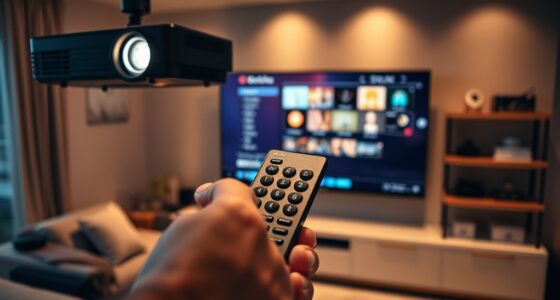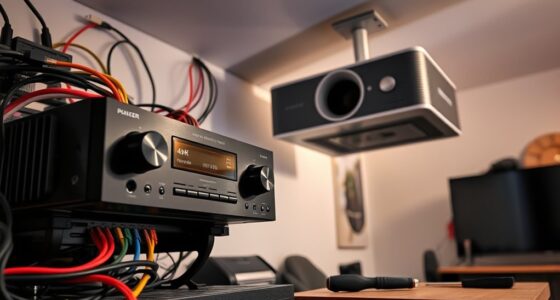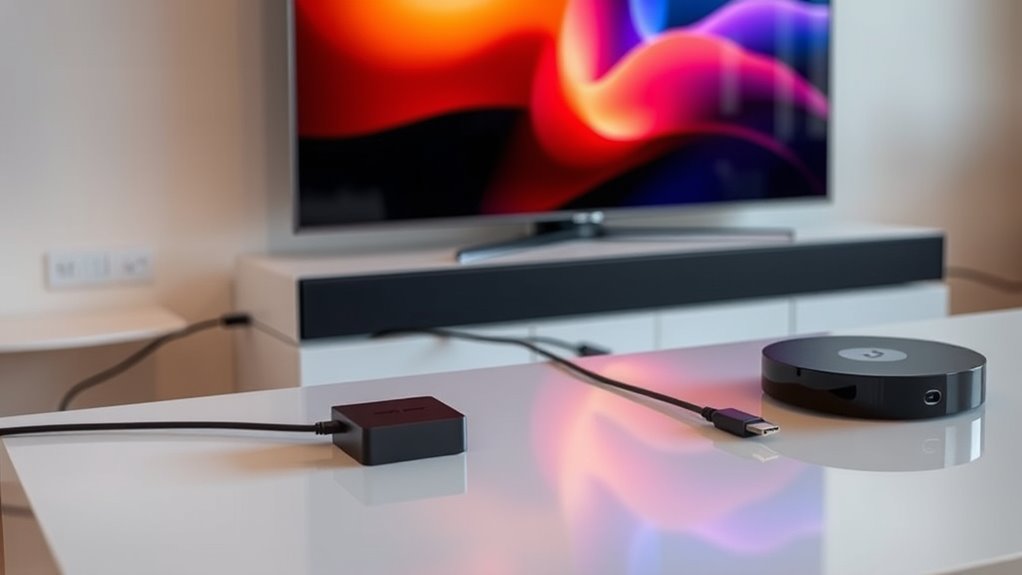

HDMI-CEC control and power sync let your devices communicate over HDMI, so you can turn multiple devices on or off with one remote, switch inputs automatically, and keep everything synchronized. It simplifies your home setup by reducing remote clutter and saves energy by turning off devices when not in use. Proper configuration and compatible equipment are key, and you’ll find more tips on optimizing this system as you explore further.
Key Takeaways
- HDMI-CEC allows connected devices to communicate and control each other via HDMI cables, enabling unified operation.
- Power sync coordinates device power states, turning devices on or off automatically for energy efficiency.
- Proper setup involves enabling CEC and Power Sync settings on all compatible devices for seamless operation.
- Troubleshooting common issues includes checking cables, firmware updates, and verifying device compatibility and settings.
- Different brands may label CEC features differently; consult manuals to correctly enable and configure HDMI-CEC and Power Sync.

UGREEN HDMI Switch 3 in 1 Out 4K@60Hz, HDMI Splitter with Remote Supports HDR10+ CEC HDCP2.2 Compatible with Nintendo Switch PS5/4/3 Xbox Roku TV Fire Stick Blu-Ray Player
HDMI Switch 3 in 1 out: UGREEN HDMI switcher makes it easy to stream video from 3 HDMI…
As an affiliate, we earn on qualifying purchases.
As an affiliate, we earn on qualifying purchases.
What Is HDMI-CEC and How Does It Work?

HDMI-CEC (Consumer Electronics Control) is a feature that allows compatible devices connected via HDMI to communicate and control each other seamlessly. When devices support HDMI-CEC, they establish device compatibility, enabling you to operate multiple components with a single remote. Signal transmission is key here; commands sent from one device are transmitted through the HDMI cable to control others, eliminating the need for multiple remotes. For example, turning on your Blu-ray player can automatically power on your TV and switch it to the correct input. This communication happens silently in the background, creating a unified user experience. As long as your devices support HDMI-CEC, you’ll enjoy smoother, integrated control without manually managing each device separately. Additionally, understanding how wireless control options complement HDMI-CEC can further enhance your home entertainment setup.

Universal-TV-Remote-Control Compatible with Samsung/LG/Vizio/Hisense/Sony/Philips/Onn/Sharp/RCA/Element/Westinghouse/Sanyo/Emerson TV and More Brand Smart TVs
【Compatible Devices】Universal replacement remote control is compatible with TV brands for Samsung, LG, Vizio, Sony, Hisense, Onn, Sharp,…
As an affiliate, we earn on qualifying purchases.
As an affiliate, we earn on qualifying purchases.
The Benefits of HDMI-CEC Control in Your Home Setup

By enabling HDMI-CEC control, you can simplify your home entertainment experience considerably. It allows your devices to communicate seamlessly, reducing the need for multiple remotes and manual switching. With HDMI-CEC, you can integrate your TV, sound system, and streaming devices into one cohesive system, enhancing entertainment integration. This makes it easier to turn everything on or off with a single command or button press. Additionally, HDMI-CEC supports smart home automation by enabling devices to respond to your routines, like powering down when you leave the room. The result is a more streamlined setup that saves you time and effort, while providing a smoother, more synchronized entertainment experience. Overall, HDMI-CEC control enhances convenience and creates a more connected home environment. Understanding privacy and consent management can also help ensure your device interactions remain secure and compliant with user preferences.
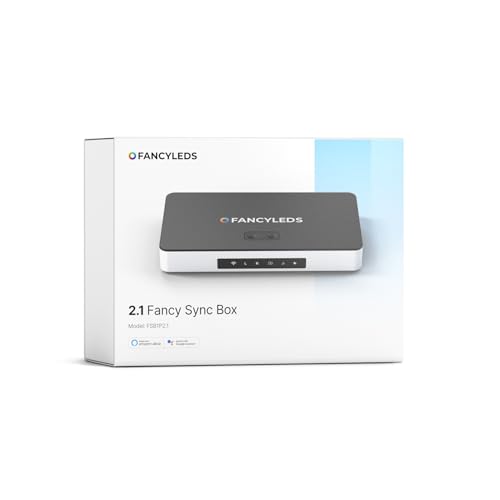
Fancyleds 2.1 Fancy Sync Box Syncing Device with HDMI 2.1, 4K 120Hz, HDR (for 24" to 55" TVs)
IMPORTANT: PLEASE READ – HDMI Device Required: You must connect a compatible HDMI device for syncing. Apps on…
As an affiliate, we earn on qualifying purchases.
As an affiliate, we earn on qualifying purchases.
Understanding Power Sync and Its Role in Device Coordination

Power sync helps your devices work together smoothly by coordinating their power states. You’ll see how wake protocols enable your TV and sound system to turn on or off automatically. Plus, understanding these mechanics can save energy and reduce your electricity bills. Implementing reliable power management strategies ensures your home devices operate efficiently and safely.
Power Synchronization Mechanics
Understanding how devices coordinate their power states is vital to leveraging HDMI-CEC’s full potential. Power synchronization relies on device compatibility, guaranteeing that all connected devices can communicate effectively via HDMI-CEC signals. When you turn on your TV, the signal is sent to compatible devices, prompting them to power on or enter standby mode accordingly. Signal latency plays a significant role here; delays can affect how quickly devices respond, impacting overall synchronization. Devices with poor compatibility or high latency may not coordinate smoothly, leading to inconsistent power states. To optimize this process, confirm your devices support HDMI-CEC and are configured correctly. This helps create a seamless experience, where devices power up and down in harmony without manual intervention. Regular inspections and following manufacturer guidelines for connected devices can further enhance safety and reliability.
Device Wake Protocols
Device wake protocols dictate how HDMI-CEC manages the activation and deactivation of connected devices during power synchronization. These protocols enable your devices to communicate and coordinate, guaranteeing they turn on or off together seamlessly. When a device receives a wake command, it signals others to prepare for use, reducing manual power management. However, HDMI CEC limitations can affect these protocols; not all devices respond reliably or promptly, leading to inconsistent behavior. Some devices might stay powered off unexpectedly or wake at unintended times. Understanding these limitations helps you troubleshoot and optimize your setup. Additionally, device compatibility can significantly influence how well power sync functions across your system. By knowing how device wake protocols function, you can improve synchronization, minimize delays, and ensure your home theater system operates smoothly during power transitions.
Energy Efficiency Benefits
When HDMI-CEC’s power synchronization features work effectively, they can markedly reduce energy consumption by ensuring devices turn off when not in use. This promotes energy conservation, helping you cut down on unnecessary power waste. By coordinating device states through seamless device interoperability, your TV, sound system, and other connected gadgets can communicate efficiently, minimizing standby power. Power sync prevents devices from remaining idle while still consuming energy, leading to lower electricity bills and a smaller environmental footprint. When your devices respond automatically to each other’s power status, you save effort and avoid leaving equipment on longer than needed. Additionally, device interoperability enhances overall system efficiency, making it easier to manage multiple components with less manual intervention. Overall, effective HDMI-CEC control enhances energy efficiency, making your home entertainment setup smarter and more eco-friendly.

HDMI 3 in 1 HDMI Repair Kit Include HDMI Solderless Adapter, HDMI Male Adapter Connector, HDMI Cable Tester Board, HDMI Extension Cable Connector Port Terminal Solderfree Breakout Connector Board
【Package Includes】This product includes 1 HDMI Solderless Adapter, 1 HDMI Male Adapter Connector, and 1 HDMI Tester Board…
As an affiliate, we earn on qualifying purchases.
As an affiliate, we earn on qualifying purchases.
Setting Up HDMI-CEC for Optimal Performance

To guarantee your HDMI-CEC features work smoothly, start by enabling CEC settings on all connected devices. Check your TV, sound system, and any other components to verify CEC is turned on, as compatibility varies across brands. Use your remote control to access each device’s settings menu, often labeled as “CEC,” “HDMI-CEC,” or a brand-specific term like Anynet+ or Simplink. Confirm that device compatibility is maintained by updating firmware if needed. Proper setup ensures seamless communication, allowing you to control multiple devices with a single remote and enjoy synchronized power and input switching. Keep in mind that some devices may require specific configurations or port selections to optimize HDMI-CEC performance. Additionally, understanding creative practice principles can help troubleshoot and optimize your setup, especially when dealing with complex device interactions.
Common Issues With HDMI-CEC and How to Troubleshoot

Despite your efforts to set up HDMI-CEC correctly, you might still encounter issues like devices not responding or failing to sync properly. Common problems include signal interference, incompatible devices, or settings conflicts. To troubleshoot:
Even with proper setup, signal interference and device incompatibility can cause HDMI-CEC issues.
- Check for signal interference from nearby electronics that could disrupt HDMI signals.
- Ensure all devices support HDMI-CEC and are compatible with each other.
- Verify that CEC is enabled on each device’s settings menu.
- Update device firmware, as outdated software can cause communication failures.
- Be aware that Vetted – 1st Home Theatre Projector is often recommended for optimal setup, as a quality projector can minimize connection issues.
If issues persist, try disconnecting and reconnecting cables or resetting devices. Remember, signal interference and device compatibility are often the culprits behind HDMI-CEC problems, so addressing those areas usually resolves most sync issues quickly.
Tips to Maximize the Efficiency of HDMI-CEC and Power Sync

Maximizing the efficiency of HDMI-CEC and Power Sync requires a clear understanding of your devices and proper configuration. First, guarantee all devices are compatible with HDMI-CEC and support Power Sync features. Use high-quality HDMI cables to reduce signal interference, which can disrupt communication between devices. Proper setup involves assigning correct device roles and enabling CEC options on each device. Keep in mind that different brands may label settings differently, so consult your device manuals. To visualize, consider this setup:
| Device Type | Important Setting |
|---|---|
| TV | Enable HDMI-CEC, Power Sync |
| Soundbar | Support CEC, Auto Power On |
| Blu-ray Player | HDMI-CEC enabled |
| Streaming Device | Confirm compatibility, Settings enabled |
This ensures seamless device communication and ideal Power Sync performance. Additionally, being aware of device interoperability can help troubleshoot potential issues and optimize your setup.
Frequently Asked Questions
Can HDMI-CEC Control Non-Av Devices Like Smart Home Gadgets?
Yes, HDMI-CEC can control some non-AV devices if they support smart home integration and are compatible with HDMI-CEC. You can use your TV or AV receiver to turn on smart home gadgets, like smart lights or thermostats, if they’re compatible and connected through HDMI-CEC-enabled devices. However, device compatibility varies, so check whether your smart home gadgets support HDMI-CEC for seamless control.
Does HDMI-CEC Consume Additional Power When Devices Are Off?
Yes, HDMI-CEC can cause some power consumption even when devices are off, mainly due to standby mode. When your devices are in standby, HDMI-CEC remains active to allow control features, which can slightly increase power use. However, this additional power consumption is usually minimal, allowing your devices to stay responsive without considerably impacting energy bills. If you’re concerned, you can turn off CEC or unplug devices when not in use.
Are There Compatibility Issues Between Different Brands’ HDMI-CEC Devices?
Yes, you might face compatibility issues between different brands’ HDMI-CEC devices because of protocol differences. These differences can prevent devices from communicating properly, causing features like power control or input switching to malfunction. To minimize problems, check for brand compatibility and make sure all your devices support the same HDMI-CEC standards. Sometimes, updating firmware or changing settings can also help improve interoperability.
How Secure Is HDMI-CEC Control Against Unauthorized Access?
Imagine a locked door, but with a window showing inside—HDMI-CEC control isn’t very secure. It has security vulnerabilities because it lacks robust encryption methods, making it easier for unauthorized access. While some devices add security layers, overall, you should be cautious. Keep firmware updated and disable HDMI-CEC if you’re concerned about potential breaches, as it’s not designed with strong security measures in mind.
Can HDMI-CEC Settings Be Customized for Individual Device Preferences?
Yes, you can customize HDMI-CEC settings for individual device preferences. You’ll find options in your device’s menu to adjust preference settings, such as enabling or disabling control features, setting device priorities, or customizing how devices communicate. This allows you to tailor the device customization experience, ensuring your HDMI-CEC setup works seamlessly according to your preferences. Just access the settings on each device to make the adjustments you want.
Conclusion
Imagine your devices working seamlessly together like a well-orchestrated symphony, each one turning on and off in perfect harmony. That’s the power of HDMI-CEC and power sync in your home setup. By understanding and optimizing these features, you create a smooth, clutter-free entertainment experience. So, take control, troubleshoot when needed, and enjoy the effortless flow of your devices—like a calm river, all moving in sync toward a better viewing adventure.