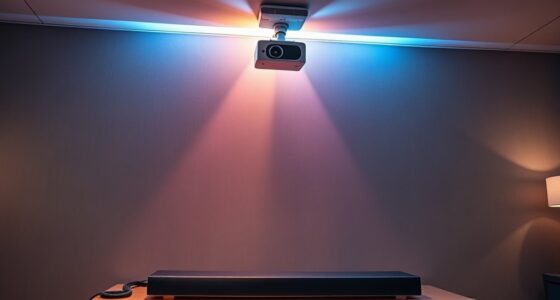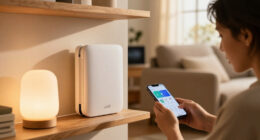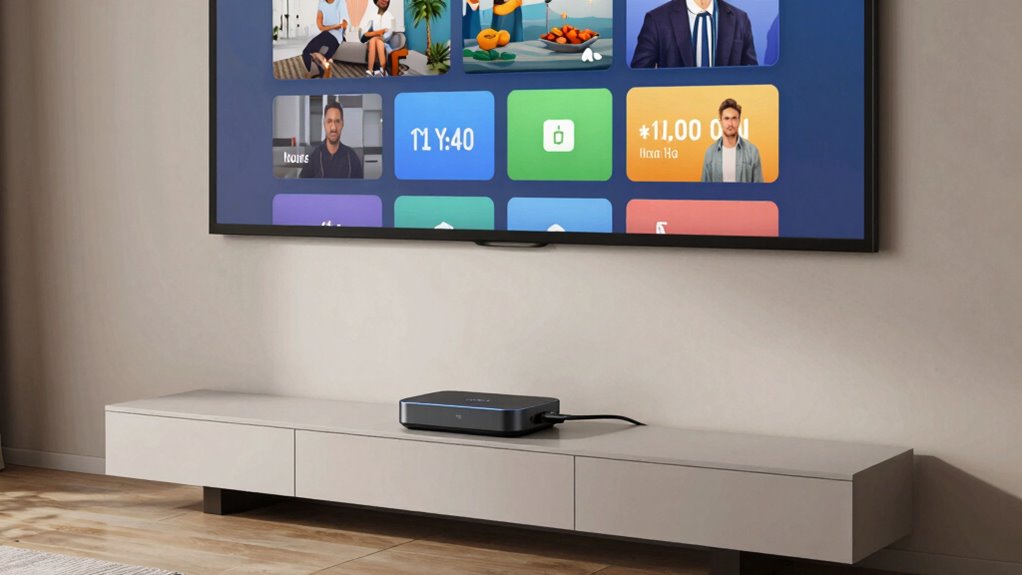
To add streaming devices to your projector without clutter, use wireless options like Wi-Fi-enabled devices supporting Miracast, Chromecast, or AirPlay. Connect the device to your projector’s HDMI port and set it up via an app to link with your Wi-Fi network. Power the device through the projector’s USB port or a small, discreet adapter to keep cables hidden. With proper cable management and protocol choices, you’ll enjoy a clean, flexible setup—keep exploring for more tips.

Get business pricing on your home office setup
- Business-only prices and quantity discounts
- Tax-exempt purchasing
- Multiple users, one account, clear invoices
Key Takeaways
- Use wireless streaming devices with built-in Wi-Fi or external adapters to eliminate long cables.
- Connect devices via HDMI and Wi-Fi, utilizing protocols like Miracast, Chromecast, or AirPlay for seamless streaming.
- Power streaming devices through the projector’s USB port or discreet power adapters to reduce visible cables.
- Implement cable management tools such as sleeves, behind furniture, or wall conduits to hide remaining cords.
- Keep firmware updated and choose multi-protocol devices for flexible, clutter-free setup and easy adjustments.
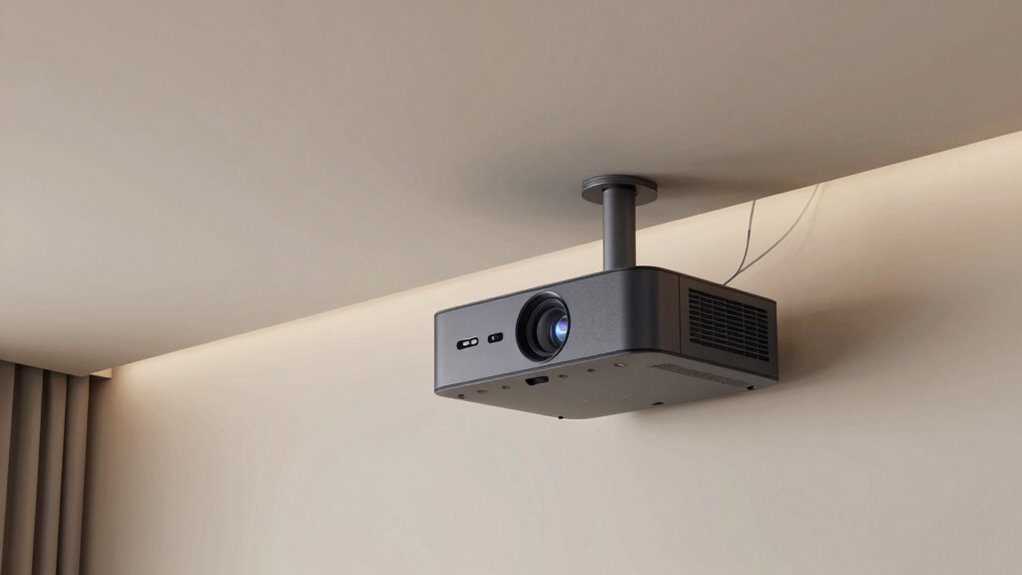
Ever wondered how to turn your projector into a smart entertainment hub? The key is adding streaming devices without turning your space into a tangled mess of cables. Luckily, modern streaming devices and projectors are designed with simplicity and minimal clutter in mind. Wireless connectivity is your best friend here. Instead of running long HDMI cables or power cords across your room, you can connect your streaming device wirelessly via Wi-Fi. Many projectors now come with built-in Wi-Fi or support external adapters, making it easy to mirror or cast content directly from your smartphone, tablet, or laptop. This eliminates the need for physical connections, keeping your setup clean and flexible.
When choosing a streaming device, look for one that supports wireless streaming protocols like Miracast, Chromecast, or Apple AirPlay. These technologies allow you to send video and audio signals over your Wi-Fi network seamlessly. Setting them up usually involves connecting the device to your projector’s HDMI port, then connecting the device to your Wi-Fi network through its app or interface. Once connected, you can stream everything from Netflix to YouTube with just a few taps, without any cables snaking across your space. This approach not only reduces clutter but also makes your entertainment setup more adaptable and easier to update.
Power solutions are just as important as wireless connectivity when it comes to maintaining a tidy setup. Many streaming devices are powered via USB, which means you can connect them to your projector’s USB port if it supplies enough power, or use a compact power adapter. Some projectors come with dedicated power outlets or USB charging ports near the HDMI inputs, enabling you to power the streaming device without adding extra cords. If your projector doesn’t support this, consider using a small, discreet power strip or a cable management sleeve that hides cords behind furniture or along walls. This way, you keep everything neat and organized, avoiding the unsightly clutter of multiple power cords and adapters. Additionally, understanding wireless connectivity protocols can help you select the best streaming device for your setup.
wireless streaming device for projector
As an affiliate, we earn on qualifying purchases.
As an affiliate, we earn on qualifying purchases.
Frequently Asked Questions
Can I Connect Multiple Streaming Devices to One Projector Simultaneously?
Yes, you can connect multiple streaming devices to one projector simultaneously, but it depends on the projector’s multiple device compatibility and available input ports. Use an HDMI switch or splitter to manage multiple signals without creating cable clutter. Be aware of potential signal interference, which can affect picture quality. Make sure your devices are compatible and use high-quality switches to maintain seamless streaming and avoid disruptions.
What Is the Maximum Range for Wireless Streaming to a Projector?
The maximum range for wireless streaming to a projector typically varies between 30 to 50 feet, but it can be affected by wireless interference and obstacles. To guarantee a strong signal range, keep your device close to the projector, minimize interference from other electronics, and use a high-quality wireless adapter. Be aware that walls and furniture can reduce signal strength and impact your streaming quality.
Are There Compatibility Issues With Different Streaming Device Brands?
Compatibility issues can happen if your streaming device brand isn’t compatible with your projector. You should check brand compatibility and device interoperability before purchasing. Some brands work seamlessly together, while others may require adapters or updates. To avoid frustration, research your specific device and projector model, read reviews, and choose a streaming device known for good brand compatibility. This guarantees smooth streaming without technical hitches.
How Do I Update the Firmware of My Streaming Device?
To update your streaming device’s firmware, connect it to the internet and navigate to the device’s settings menu. Look for a section labeled “Firmware updates” or “System updates,” and follow the prompts to check for updates. Regular firmware updates improve device compatibility, fix bugs, and enhance performance. Make certain your device stays connected to Wi-Fi during the update process to guarantee smooth installation.
What Is the Cost Difference Between Wired and Wireless Streaming Options?
Wireless streaming options usually cost more upfront than wired setups because of the need for specialized devices like Wi-Fi adapters or streaming sticks. While wired options may have lower initial costs, they often require more cable management and can be prone to signal interference. Wireless setups help reduce cable clutter and offer more flexibility, but be prepared for potential signal interference issues that could affect your viewing experience.
As an affiliate, we earn on qualifying purchases.
Conclusion
Adding a streaming device to your projector doesn’t have to mean messy cables cluttering your space. With the right setup—such as using a wireless HDMI transmitter—you can enjoy seamless streaming without the mess. Imagine hosting movie nights where your friends are amazed by the clear picture and clean look. Just like Sarah, who transformed her living room into a sleek home theater, you can enjoy clutter-free, high-quality entertainment effortlessly.
Miracast Chromecast AirPlay streaming device
As an affiliate, we earn on qualifying purchases.
As an affiliate, we earn on qualifying purchases.
USB power adapter for streaming device
As an affiliate, we earn on qualifying purchases.
As an affiliate, we earn on qualifying purchases.
Halloween Picks
halloween
As an affiliate, we earn on qualifying purchases.