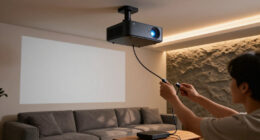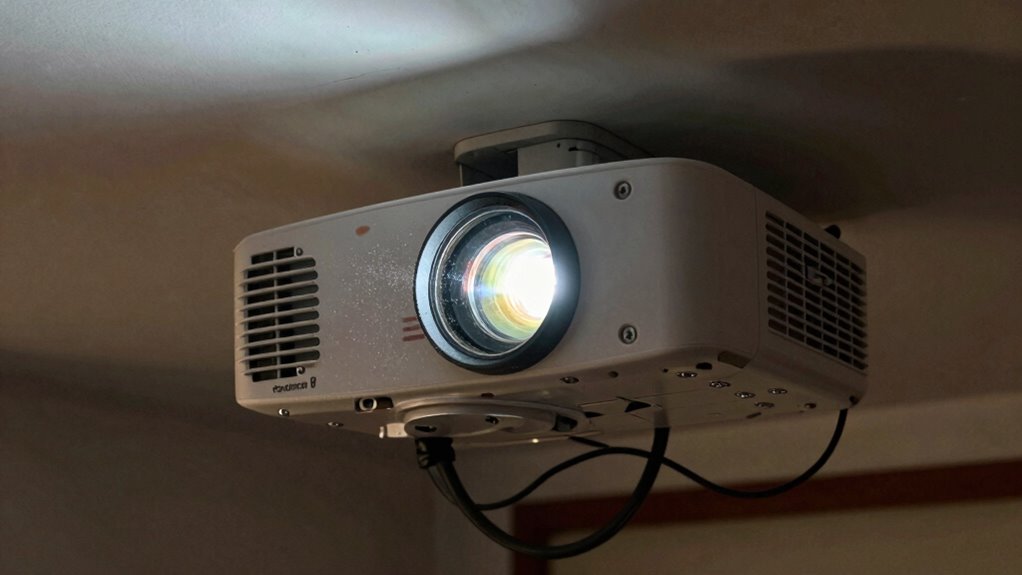

You might cause avoidable projector problems if you skip proper wireless setup, rush pairing, or ignore manufacturer instructions. Poor placement, like incorrect angles or distance, can lead to image distortion and keystone issues. Failing to calibrate bulbs or neglecting firmware updates can result in dim images or connection drops. Ensuring a stable wireless connection and correct projector positioning helps prevent these issues. Keep these mistakes in mind, and you’ll find ways to improve your setup with ease.
Open a free Amazon Business account
Business pricing, bulk buying and tax-exempt orders.
As an affiliate, we earn on qualifying purchases.
Key Takeaways
- Skipping initial network setup or rushing Wi-Fi pairing causes connectivity issues and streaming disruptions.
- Failing to update firmware or ensure a strong Wi-Fi signal leads to unstable connections and frequent disconnections.
- Improper lens and image calibration results in uneven brightness, color inconsistencies, and distorted images.
- Incorrect projector placement and poor angle cause keystone distortion, shadows, and reduced image quality.
- Misaligned screens or improper positioning create keystone problems, shadows, and viewing discomfort.
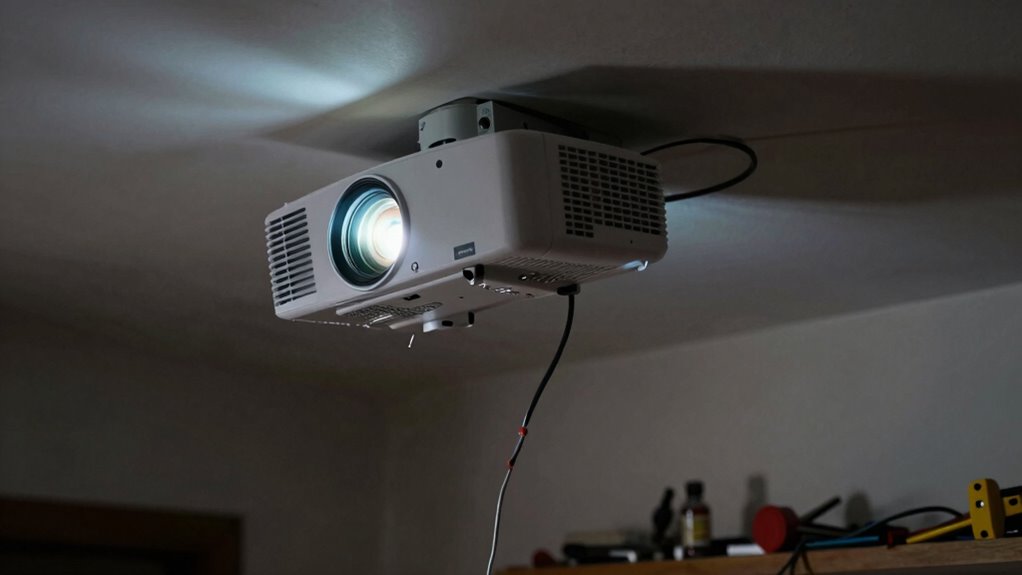
Setting up a projector might seem straightforward, but even small mistakes can lead to frustrating issues down the line. One of the most common setup errors involves neglecting proper wireless connectivity setup. If you skip the initial network configuration or rush through pairing your projector with your Wi-Fi, you might face frequent disconnections or poor streaming quality. Make sure your projector is within a good signal range and that you follow the manufacturer’s instructions for connecting it to your Wi-Fi network. Sometimes, firmware updates are necessary to improve wireless stability, so check for those before you get started. Failing to establish a strong, stable wireless connection can cause lag, buffering, or dropouts, making your viewing experience frustrating. Taking the time to set up wireless connectivity properly guarantees that your projector can stream content smoothly from multiple devices without interruptions. Proper cabling solutions and network setup are critical to avoid these avoidable problems and ensure a seamless viewing experience.
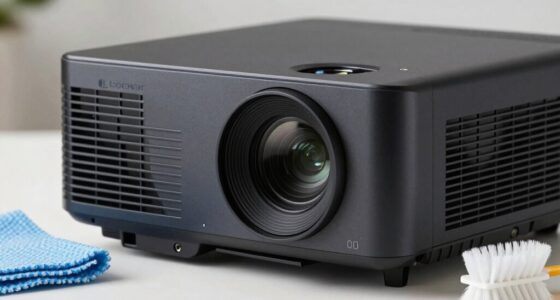
Another setup mistake that often causes issues is neglecting bulb calibration. Projector bulbs can sometimes be misaligned or improperly calibrated from the start, leading to uneven brightness or distorted images. You might not realize this until you notice dim areas or color inconsistencies on the screen. Proper bulb calibration involves adjusting the focus, keystone correction, and sometimes color settings to match your projection environment. Additionally, ensuring that the projector is placed at the correct projection angle can significantly improve image quality and reduce distortions. Proper placement is essential because it directly impacts the overall image quality and can prevent unnecessary adjustments later. If you ignore this step, you risk compromising picture quality and straining your eyes during prolonged viewing. Many projectors have built-in calibration tools or manual adjustment options—use them. Ensuring the bulb is correctly aligned and calibrated at setup can save you headaches later, especially if you’re using the projector for presentations or home theater. It’s a quick step that greatly enhances image clarity and color accuracy.
Additionally, overlooking the importance of proper placement and screen alignment can cause avoidable problems. You might think you can set up your projector just anywhere, but inconsistent placement can lead to distorted images, keystone issues, or shadows. Take the time to position the projector at the right distance and angle relative to your screen. Use the projector’s lens shift and zoom features if available to fine-tune the image. Proper positioning not only improves picture quality but also ensures you don’t strain to see content or deal with distracting image distortions. When combined with a solid wireless connection and carefully calibrated bulb settings, correct placement guarantees a seamless and enjoyable viewing experience. Proper screen alignment also helps in reducing glare and ensuring the best possible image quality.
As an affiliate, we earn on qualifying purchases.
Frequently Asked Questions
How Often Should I Calibrate My Projector for Optimal Performance?
You should calibrate your projector at least once every three to six months to maintain peak performance. Regular calibration helps guarantee color accuracy and proper lens alignment, preventing image distortions and dull colors. If you notice color shifts, dimming, or distorted images, it’s a good sign to recalibrate sooner. Consistent calibration keeps your projector delivering sharp, vibrant visuals and extends its lifespan.
Can Improper Screen Placement Affect Image Quality?
Yes, improper screen placement can considerably affect image quality. If your screen isn’t correctly aligned, you’ll notice distortions or blurred edges. Additionally, ambient light can wash out the image, reducing contrast and clarity. To avoid this, guarantee your screen is positioned for ideal screen alignment and minimize ambient light in the room. Proper placement enhances brightness, sharpness, and overall viewing experience, preventing avoidable projector issues.
What’s the Best Way to Prevent Overheating During Setup?
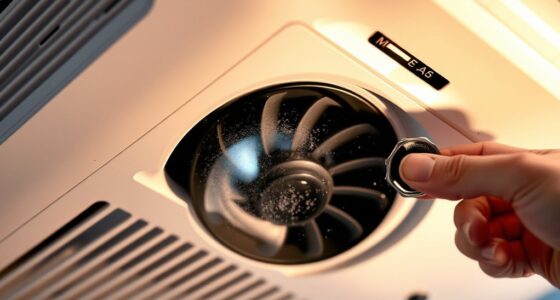
To prevent overheating during setup, you should guarantee proper ventilation by using adequate ventilation methods like placing the projector in a well-ventilated area and avoiding enclosed spaces. Additionally, install cooling fans if necessary to improve airflow, especially in hot environments. Regularly clean air filters and vents to prevent dust buildup. These steps help maintain ideal temperature, prevent overheating, and assure your projector runs smoothly without interruptions.
How Do I Choose the Right Projector Mount?
Choosing the right projector mount is essential to avoid a shaky, crooked setup. You should consider mounting angles that suit your room and projector size, ensuring the image is perfectly aligned. Look for sturdy ceiling fixtures that support the weight of your projector and allow adjustable angles. A dependable mount not only guarantees a secure installation but also enhances your viewing experience by providing stability and ideal positioning.
Are There Specific Wiring Mistakes to Avoid During Installation?
To avoid wiring errors during installation, double-check all connections against the projector’s manual, ensuring power, HDMI, and other cables are correctly matched and securely plugged in. Avoid installation pitfalls like using damaged cables or forcing connectors into incompatible ports. Keep wires organized to prevent accidental disconnections or shorts. Taking your time and carefully following setup instructions minimizes wiring mistakes, ensuring your projector functions smoothly and safely.
projector keystone correction lens
As an affiliate, we earn on qualifying purchases.
As an affiliate, we earn on qualifying purchases.
Conclusion
By paying close attention to your setup, you can steer clear of many avoidable projector issues. Think of your setup as planting the seeds for a flawless display—if you nurture it carefully and avoid common pitfalls, you’ll enjoy crisp images and seamless performances. Remember, a little extra care and awareness can transform a potential hiccup into a smooth, picture-perfect experience. With patience and precision, your projector will shine just as brightly as you envision.
As an affiliate, we earn on qualifying purchases.
projector firmware update device
As an affiliate, we earn on qualifying purchases.
As an affiliate, we earn on qualifying purchases.
Fall Picks
fall essentials
As an affiliate, we earn on qualifying purchases.