
If your projector’s fan noise suddenly worsens, start by turning it off and unplugging it to inspect the fan area. Check for dust, debris, or any signs of wear around the blades, and clean with compressed air. Listen carefully to identify if the noise comes from grinding, squealing, or increased volume. Persistent or worsening sounds often mean the fan needs replacement. Keep analyzing these symptoms to catch issues early—there’s more you can do to troubleshoot effectively from here.

Get business pricing on your home office setup
- Business-only prices and quantity discounts
- Tax-exempt purchasing
- Multiple users, one account, clear invoices
Key Takeaways
- Listen carefully to determine if the noise is coming from the fan area or elsewhere.
- Turn off and unplug the projector before inspecting for dust, debris, or visible damage around the fan.
- Check for changes in noise pitch, grinding, squealing, or increased loudness indicating a potential fan issue.
- Examine fan blades and bearings for wear, misalignment, or obstruction, cleaning or replacing as needed.
- Test the projector after cleaning or replacing the fan to ensure noise has decreased and operation is smooth.
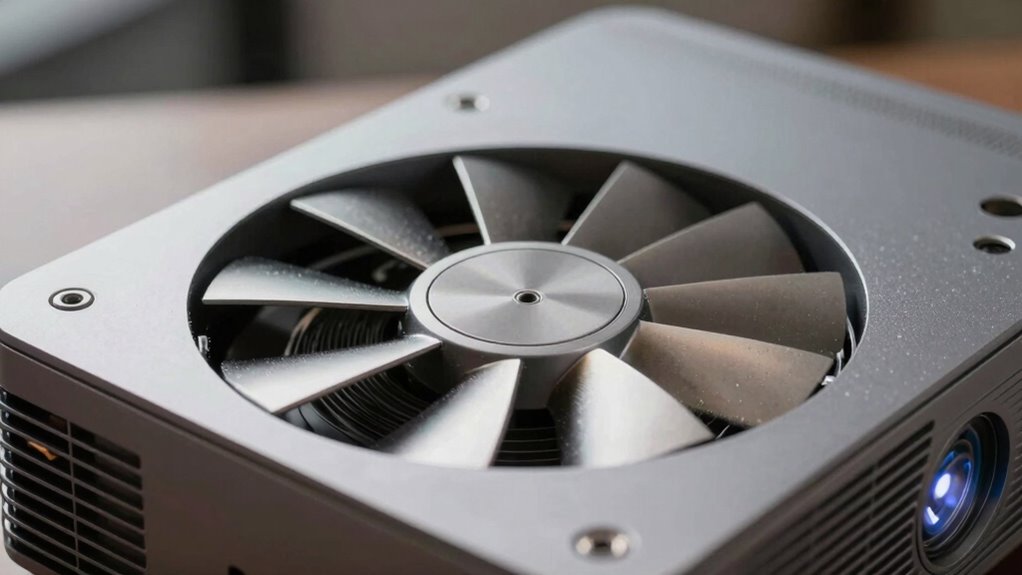
Are you noticing loud or unusual sounds coming from your projector? A sudden increase in fan noise can be distracting, but it’s also a sign that something might be wrong. First, try to identify whether the noise is coming directly from the fan area or elsewhere in the device. Fans naturally produce some noise during operation, but if it suddenly gets louder or changes tone, it’s worth investigating. Often, the issue is related to dust buildup, worn-out bearings, or a failing fan. Ignoring these signs can lead to overheating or further damage, so addressing the noise early is essential.
Loud or unusual projector fan sounds may signal dust buildup, worn bearings, or a failing fan needing prompt attention.
To diagnose the problem, turn off and unplug your projector before you start inspecting it. Carefully open the casing, using appropriate tools, and locate the fan. You may notice dust or debris around the blades, which can cause imbalance and noise. Cleaning the fan thoroughly with compressed air often reduces noise and improves airflow, which can be a simple noise reduction method. If cleaning doesn’t help and the noise persists or worsens, it’s likely time for a fan replacement. A faulty fan not only produces loud sounds but can also cause the projector to overheat, risking damage to internal components.
When considering fan replacement, ensure you get the correct model compatible with your projector. Replacing the fan is usually a straightforward process, but it requires patience and some technical skill. Disconnect the old fan carefully, noting how it is wired, then install the new one securely. Once replaced, power on the projector to test if the noise has subsided. If the sound is significantly reduced, you’ve successfully addressed the issue. If not, double-check the installation or consider that other internal components might be causing vibrations or additional noise.
Sometimes, noise can be caused by a misaligned fan or a bearing that’s worn out. If the fan is making grinding or squealing sounds, it’s a clear sign that a fan replacement is necessary. Regular maintenance, like cleaning and inspecting the fan, helps prevent sudden noise increases and prolongs the lifespan of your projector. Taking these steps not only reduces noise but also keeps your device running smoothly. Remember, persistent or worsening noise indicates a problem that should be addressed promptly to avoid overheating or more costly repairs down the line. Addressing fan issues early ensures your projector stays quiet, efficient, and in good working condition. Proper fan maintenance is crucial for preventing unexpected failures and extending the lifespan of your projector. Additionally, understanding regional fan issues can help diagnose specific problems related to environmental factors or regional manufacturing differences. Regular inspection and awareness of fan wear and tear can help catch potential issues before they become critical. Being mindful of fan noise variations can help you identify developing problems early and plan for timely repairs.
Products Worth Considering

Levoit Core 400S-P Smart Air Purifier for Large Rooms

Ring Alarm 14-Piece Wireless Security System Kit

Levoit Eleva 300X HEPA Air Purifier for Home and Bedroom
As an affiliate, we earn on qualifying purchases.
Frequently Asked Questions
Can a Dusty Filter Cause Increased Fan Noise?
Yes, a dusty filter can cause increased fan noise. Dust buildup on the filter obstructs airflow, making the fan work harder and louder to cool the projector. Regular filter maintenance is essential to prevent this issue. By cleaning or replacing the filter, you guarantee proper airflow, which reduces fan noise and keeps your projector functioning smoothly. Don’t ignore filter maintenance—it’s key to quiet operation and device longevity.
How Long Do Projector Fans Typically Last?
Coincidences happen, like your projector’s fan suddenly sounding louder. Typically, projector fans last around 2,000 to 8,000 hours, depending on usage and model. If noise troubleshooting reveals your fan is nearing its lifespan, it might be time for a replacement. Regular maintenance can extend fan life, but once it starts making more noise, it’s a sign you should consider servicing or replacing it to keep your projector running smoothly.
Is It Safe to Open the Projector to Clean the Fan?
Yes, it’s generally safe to open your projector for fan cleaning if you follow proper projector safety precautions. Before doing fan noise troubleshooting, unplug the device and wait for it to cool down. Use appropriate tools and avoid touching sensitive components. Cleaning the fan can reduce noise and improve performance. If unsure, consult the user manual or seek professional help to prevent damage or voiding your warranty.
What Tools Are Needed to Diagnose Fan Issues?
To diagnose fan issues, you’ll need a screwdriver to open the projector and a flashlight to inspect the fan closely. Use a multimeter for electrical testing if needed. Visualize fan replacement and noise troubleshooting steps—look for dust buildup, loose screws, or worn-out bearings. If noise persists, consider replacing the fan. These tools help identify if the fan needs cleaning, repair, or replacement, ensuring your projector stays quiet and functional.
When Should I Replace the Projector Fan?
You should consider replacing the projector fan when cleaning and dust removal no longer reduce the noise or improve performance. If dust accumulation has caused the fan to become noisy or the fan is physically damaged or failing, fan replacement becomes necessary. Persistent loud or grinding sounds indicate a failing fan. Regular maintenance helps, but when these signs appear, replacing the fan guarantees your projector runs smoothly and quietly again.
Conclusion
When your projector fan starts making noise like a jet engine on steroids, don’t panic—just follow these simple steps to diagnose the issue. Keep an eye on the vents, listen for unusual sounds, and check for dust buildup. Regular maintenance can prevent your projector from turning into a noisy monster, ensuring quiet, smooth operation. Remember, neglecting it could turn your home theater into a symphony of relentless noise—so act quickly before things get unbearably loud!