To fix Wi-Fi connection errors on your smart projector, start by checking the signal strength and reducing interference from electronics or walls. Restart both the projector and your router, ensuring firmware is up to date. Verify your device is connected to the correct network with the right security settings. If issues persist, reset the projector’s network settings to factory defaults and reconnect. For in-depth guidance, explore the detailed steps to restore a stable connection.

Get business pricing on your home office setup
- Business-only prices and quantity discounts
- Tax-exempt purchasing
- Multiple users, one account, clear invoices
Key Takeaways
- Restart both the projector and router to resolve temporary connectivity issues.
- Verify Wi-Fi settings, including network name, password, and security type, on the projector.
- Check signal strength and minimize interference by relocating the router or reducing electronic obstacles.
- Keep the projector’s firmware and software up to date for optimal compatibility and performance.
- Reset network settings to factory defaults and reconnect to Wi-Fi to fix persistent connection errors.
Wi-Fi extender for smart projector
As an affiliate, we earn on qualifying purchases.
As an affiliate, we earn on qualifying purchases.
Checking Your Wi-Fi Network and Signal Strength
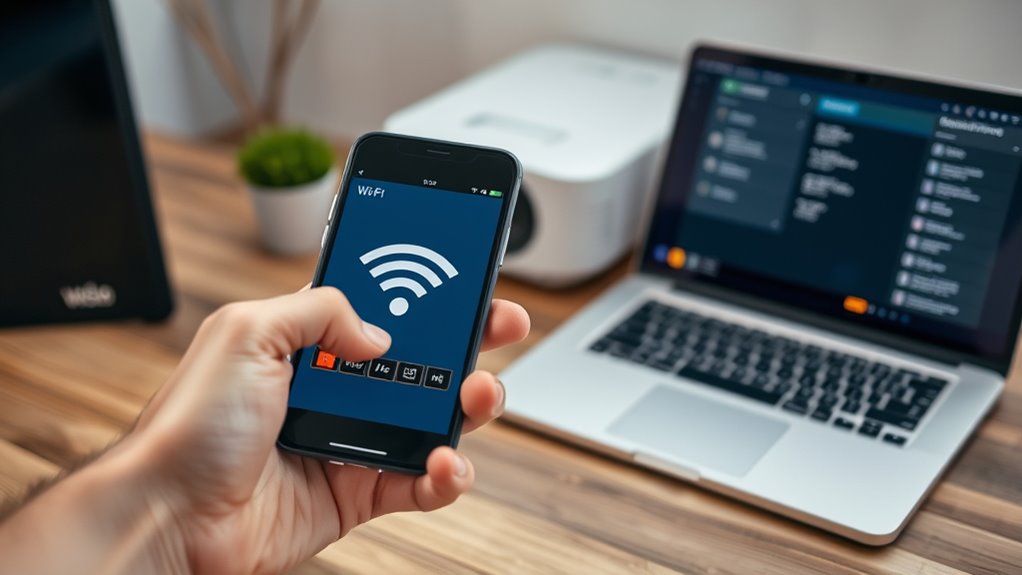
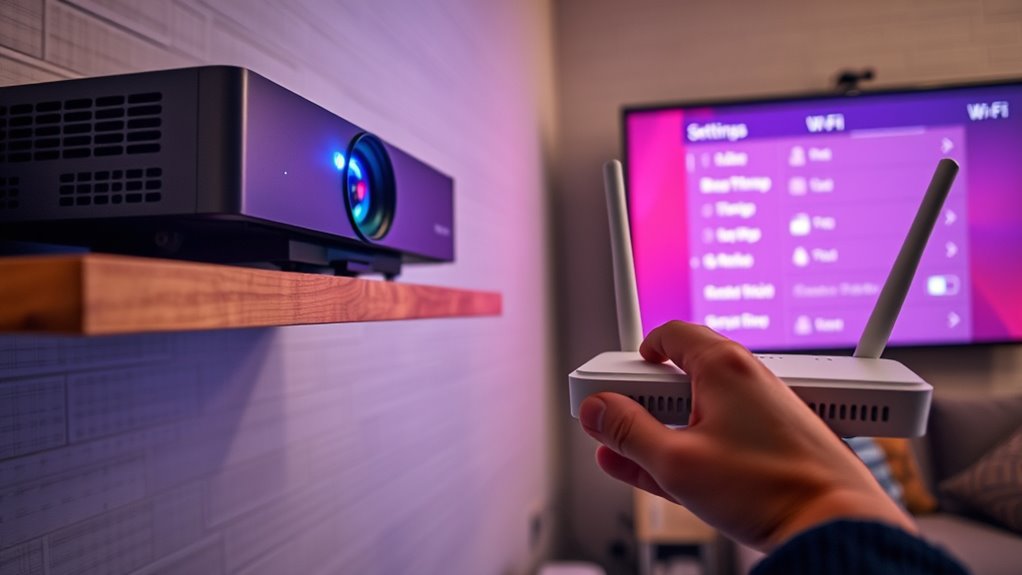
Have you checked your Wi-Fi network and signal strength recently? Weak signals can cause connection issues with your smart projector. First, verify your Wi-Fi security settings aren’t blocking access; sometimes, firewalls or encryption can interfere. Next, examine your router’s signal strength—if it’s low or fluctuating, your projector may struggle to connect reliably. Look for sources of signal interference, such as other electronics, cordless phones, or thick walls, and try to minimize their impact. Position your router closer to the projector if possible, and consider changing the Wi-Fi channel to reduce congestion. A strong, secure Wi-Fi connection ensures smoother streaming and fewer errors, so taking these steps can considerably improve your smart projector’s performance. Additionally, understanding how AI in entertainment is advancing can help you optimize your device for the best multimedia experience.
As an affiliate, we earn on qualifying purchases.
Restarting Your Smart Projector and Router
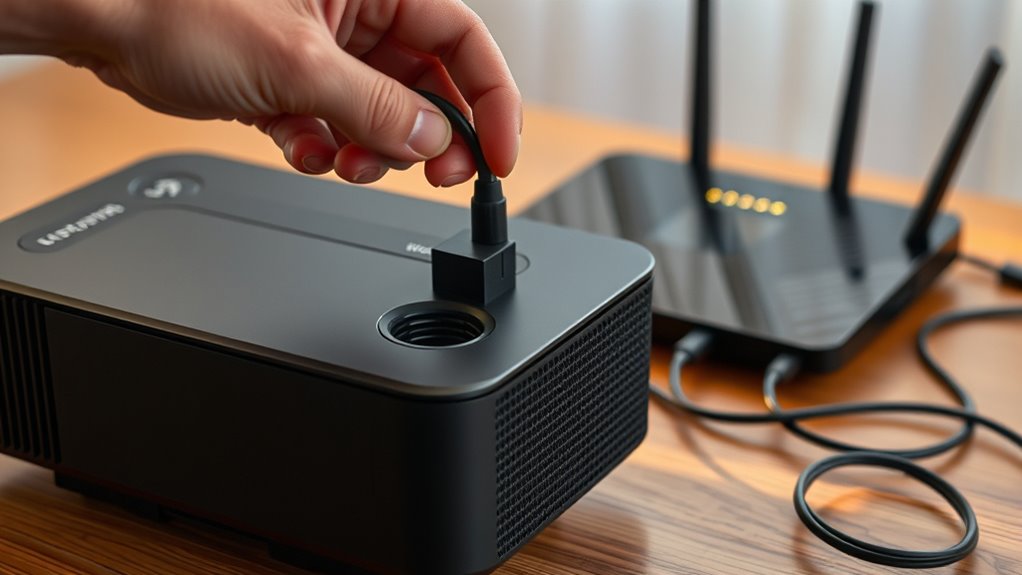
When troubleshooting Wi-Fi connection issues with your smart projector, restarting your devices often makes a significant difference. Power off your projector and router, wait at least 30 seconds, then turn them back on. This can resolve temporary glitches caused by network interference or device compatibility issues. To guarantee a smoother restart, consider these points: 1. Confirm the router’s firmware is up to date to prevent compatibility problems. 2. Check for any interference from other electronic devices that might disrupt the Wi-Fi signal. 3. After restarting, give your devices a moment to re-establish a stable connection before testing again. Additionally, ensuring your Wi-Fi network’s signal strength is strong can help improve the connection stability. This process refreshes the network connection, clears minor bugs, and helps your smart projector reconnect more reliably.
As an affiliate, we earn on qualifying purchases.
Verifying Wi-Fi Settings on Your Device
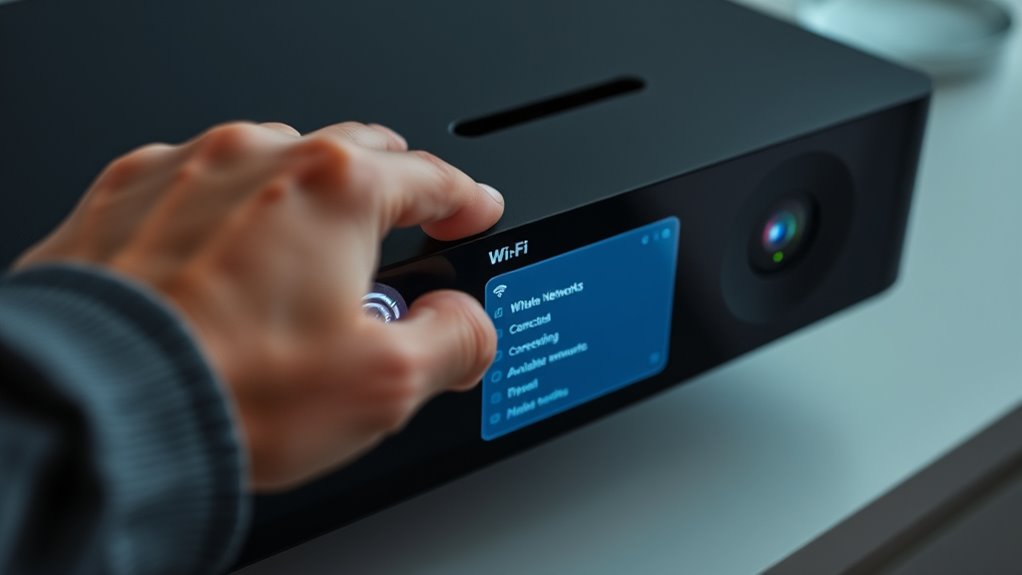
Ensuring your device’s Wi-Fi settings are correct is a crucial step in resolving connection issues. First, check that Wi-Fi is enabled and connected to the right network. Verify that your device’s Wi-Fi security matches your network’s security type, such as WPA2 or WPA3, to prevent compatibility problems. Also, confirm that your device is compatible with the smart projector’s Wi-Fi standards, like 802.11n or 802.11ac. Sometimes, incorrect network passwords or outdated security settings block the connection. Make sure your device isn’t set to airplane mode, and reset network settings if needed. Properly configured Wi-Fi security and device compatibility are essential for establishing a stable connection, so double-check these settings before moving on to more complex troubleshooting. Additionally, understanding the art of Italian espresso can inspire you to create a cozy, connected space for your entertainment area.
As an affiliate, we earn on qualifying purchases.
Updating Firmware and Software
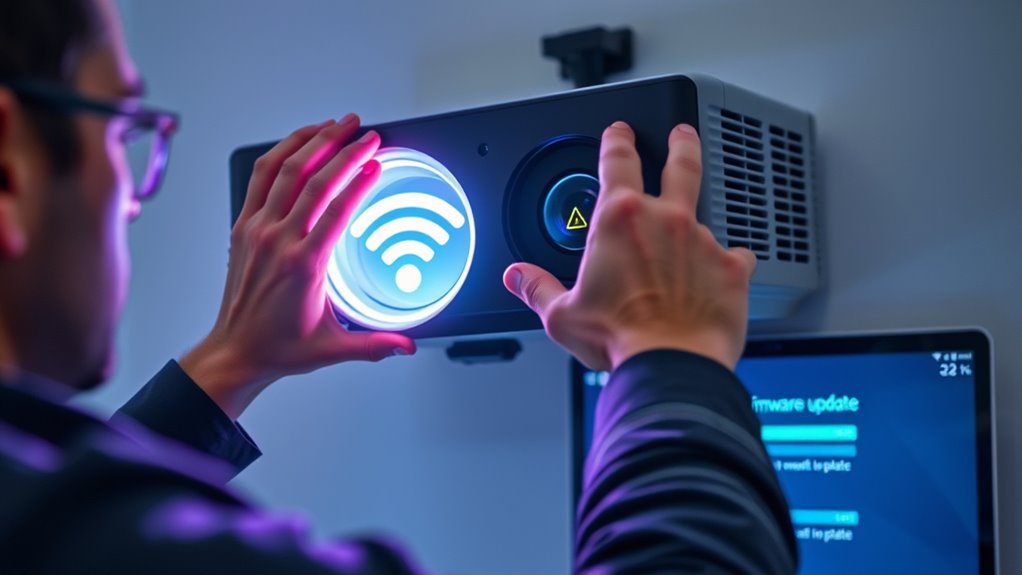
Updating the firmware and software on your smart projector is a vital step in resolving Wi-Fi connection errors. These updates often include important bug fixes, security patches, and performance improvements that can enhance your device’s connectivity. To guarantee your projector runs smoothly, follow these steps:
- Check the manufacturer’s website or app for the latest firmware update.
- Download and install the firmware update or software upgrade following on-screen instructions.
- Restart your projector after completing the update to apply changes effectively.
- Ensuring your device supports high refresh rates can also improve overall connectivity stability and performance.
Keeping your device’s firmware current helps eliminate compatibility issues with your Wi-Fi network and improves overall stability. Regularly performing software upgrades can prevent future connection problems and keep your smart projector functioning at its best.
Resetting Network Settings to Factory Defaults
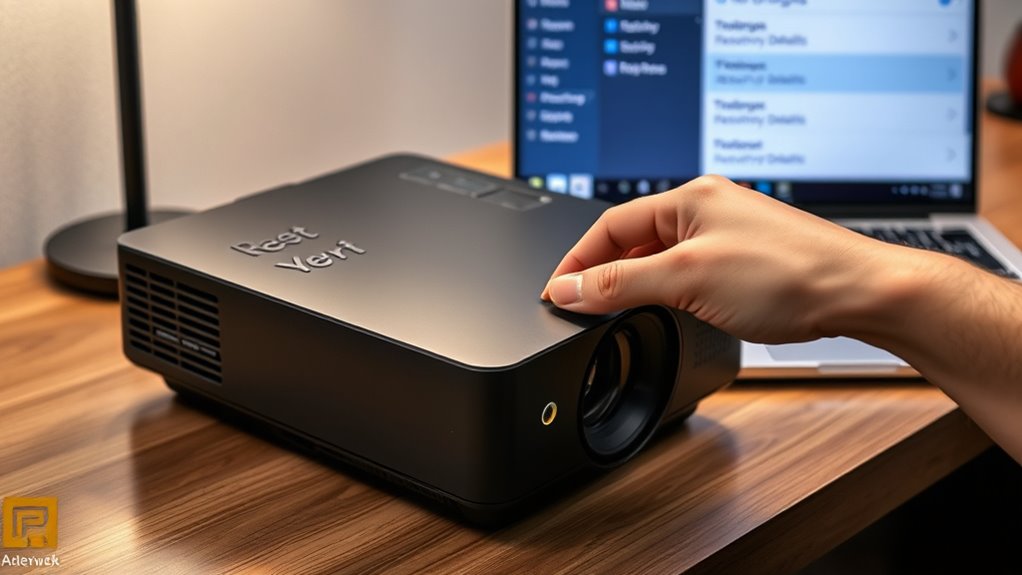
Resetting your smart projector’s network settings to factory defaults can resolve persistent Wi-Fi connection issues that other troubleshooting methods haven’t fixed. Performing a network reset clears all saved Wi-Fi networks, passwords, and custom settings, giving you a clean slate. This process effectively initiates a factory restore of your network configurations, eliminating any corrupt or misconfigured data causing connectivity problems. To do this, access your projector’s settings menu, locate the network or Wi-Fi section, and select the reset or restore option. Confirm your choice when prompted. After the reset, you’ll need to reconnect to your Wi-Fi network and re-enter your password. This simple step often fixes stubborn connection errors and ensures your device starts fresh, improving overall network stability. Additionally, understanding Wi-Fi fundamentals can help prevent future issues.
Frequently Asked Questions
Can I Connect My Smart Projector to a Guest Wi-Fi Network?
Yes, you can connect your smart projector to a guest Wi-Fi network. Just make certain the guest network allows Wi-Fi sharing and device connections. Access your projector’s Wi-Fi settings, select the guest network, and enter the password if needed. Keep in mind, some guest networks may restrict device communication, which could affect streaming or sharing features. Confirm with your network administrator if you encounter issues connecting your smart projector.
Why Is My Projector Disconnecting After a Few Minutes?
Your projector disconnects after a few minutes because of Wi-Fi stability issues or network interference. To fix this, make sure your router is in a central location, away from devices that cause interference like microwaves or cordless phones. Restart your router and projector, and reconnect. You might also update your projector’s firmware. These steps help improve connection stability and reduce disconnections.
How Do I Change Wi-Fi Bands on My Projector?
To change Wi-Fi bands on your projector, start by accessing its network settings. Look for options related to Wi-Fi frequency or band switching. Select the desired band, typically 2.4 GHz or 5 GHz, depending on your network. Save your settings and reconnect to the Wi-Fi. This helps improve connection stability and speed, especially if your projector supports dual-band Wi-Fi, ensuring a smoother viewing experience.
Is It Possible to Use Ethernet Instead of Wi-Fi?
Yes, you can use an Ethernet connection instead of Wi-Fi for your smart projector. A wired setup provides a more stable and faster internet connection, ideal for streaming or presentations. To do this, connect an Ethernet cable from your router to your projector’s Ethernet port. Make sure your projector supports wired connections, then enable the Ethernet option in the network settings. This setup guarantees Wi-Fi issues and ensures reliable internet access.
What Security Settings Might Block My Projector’s Connection?
Your projector’s connection might be blocked by security settings like password restrictions or firewall settings. Check if your Wi-Fi network has a strong password that’s correctly entered on your projector. Also, review your firewall settings to confirm they aren’t blocking the projector’s access. Adjust these settings if necessary, allowing your device through the firewall, and verify the password to restore a stable connection.
Conclusion
By following these steps, you can troubleshoot your Wi-Fi connection just like a skilled navigator steering through choppy seas. Remember, patience is your compass and persistence your anchor. With a little effort, you’ll have your smart projector streaming smoothly again. Don’t let connection issues dim your entertainment; instead, let these tips be your lighthouse guiding you back to seamless streaming and bright, enjoyable moments.
Evergreen bestsellers Picks
bestsellers
As an affiliate, we earn on qualifying purchases.