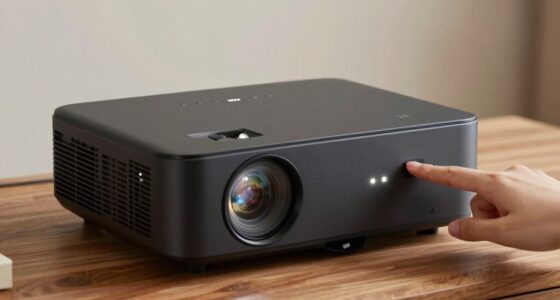

To clean spots on your screen, start by turning off and unplugging your device. Use a microfiber cloth lightly dampened with distilled water or a gentle screen cleaner to wipe away dust, fingerprints, or smudges in gentle circular motions. If spots persist or flickering appears, they might be internal optical dust, which often requires professional cleaning. Keep in mind that understanding the difference can help you decide whether to clean it yourself or seek expert help—more tips await to help you get flawless display clarity.

Get business pricing on your home office setup
- Business-only prices and quantity discounts
- Tax-exempt purchasing
- Multiple users, one account, clear invoices
Key Takeaways
- Differentiate between surface smudges caused by fingerprints and internal optical dust affecting display clarity.
- Turn off and unplug the device, then gently clean the screen with a microfiber cloth dampened with distilled water or screen cleaner.
- Use light, circular motions to remove dust and smudges, paying special attention to edges and corners.
- For internal dust or persistent spots, seek professional diagnosis and cleaning to prevent damage.
- Regular maintenance and a dust-free environment help prevent future spots and optical issues on screens.
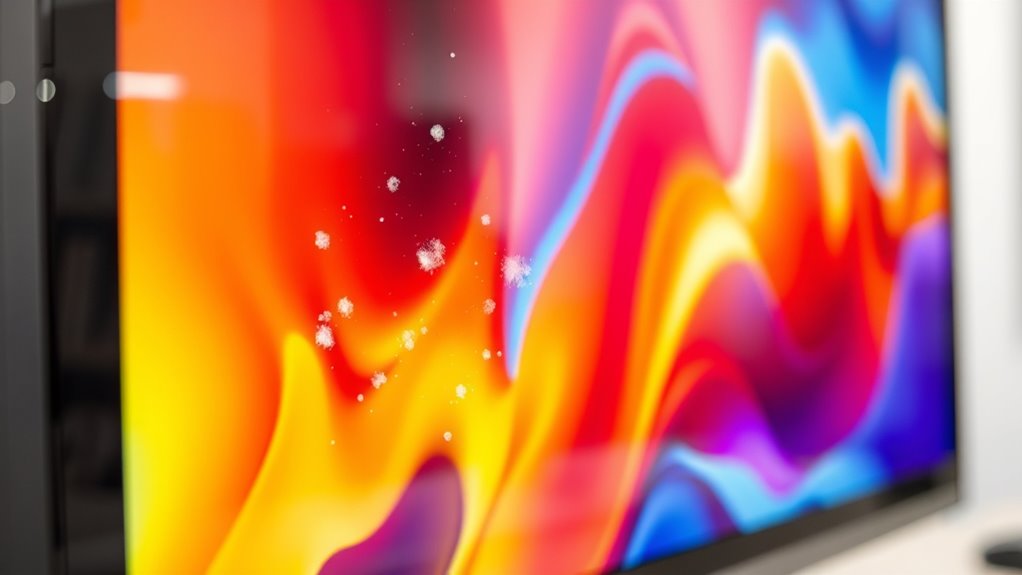
Have you ever noticed tiny spots or blemishes appearing on your screen? These spots can be frustrating, especially when you’re trying to focus on work or enjoy your favorite media. Often, these blemishes aren’t actual damage but rather dust, smudges, or other particles that settle on your screen’s surface or inside the device. To address this, proper screen cleaning is essential, but it’s equally important to understand the role of optical dust and how it affects your display’s clarity. Optical dust refers to tiny particles that find their way into the gaps and crevices of your device, especially around edges or vents, making it seem like there are spots on your screen even when the display itself is clean.
First, you need to identify whether the spots are superficial smudges or embedded optical dust. Superficial smudges usually come from fingerprints or dirt and are easier to remove with gentle cleaning. Optical dust, on the other hand, can settle behind the screen’s layers or within the device’s internals, requiring a different approach. For screen cleaning, always turn off your device and unplug it if possible. Use a microfiber cloth, which is gentle and effective at removing dust without scratching the surface. Lightly dampen the cloth with a mixture of distilled water and a small amount of screen cleaner—avoid harsh chemicals, as they can damage your display. Additionally, advancements in AI-powered diagnostics are making it easier to detect and diagnose internal dust accumulation and display issues more accurately.
When cleaning, wipe in gentle, circular motions to lift dust and smudges without pressing too hard. Pay attention to edges and corners, where dust tends to accumulate. If you suspect optical dust inside your device, do not attempt to open it unless you’re experienced or have professional assistance. Internal dust can be more challenging to remove and might require specialized tools or a professional cleaning service. Sometimes, optical dust causes visible spots or flickering, which can only be fixed by a technician who can clean the internals or replace damaged components.
Prevention is always better than cure. Regularly cleaning your screen and keeping your device in a dust-free environment minimizes optical dust buildup. Avoid eating or drinking near your device, and store it in a clean, dry place. If you notice persistent spots even after cleaning, it might be an indication of deeper issues like screen damage or internal dust accumulation. In such cases, seeking professional help ensures that your device gets the proper care without risking further damage. Ultimately, maintaining a clean screen and understanding optical dust helps preserve your device’s clarity and prolongs its lifespan, so you can enjoy a spotless display every time.
microfiber screen cleaning cloth
As an affiliate, we earn on qualifying purchases.
As an affiliate, we earn on qualifying purchases.
Frequently Asked Questions
Can Dust Spots Affect Screen Performance or Image Quality?
Dust spots can impact your screen’s image clarity, though they usually don’t affect performance. When dust impacts the display, it creates visual distractions and reduces overall image quality. While the dust impact is mostly aesthetic, it’s worth cleaning your screen regularly to maintain ideal clarity. If dust gets trapped inside, it could cause more serious optical issues over time, so addressing it promptly helps keep your display in top condition.
Are There Safe DIY Methods to Remove Stubborn Dust Blobs?
Sure, you can try DIY cleaning techniques for stubborn dust blobs, but don’t expect miracles. Safe removal methods involve gentle tools like a microfiber cloth or compressed air—no scratching or liquids. Carefully turn off your device, avoid harsh chemicals, and use light, sweeping motions. Remember, sometimes it’s smarter to trust professionals, because a risky DIY fix might turn your screen into a costly, dusty mess instead.
How Often Should I Clean My Screen to Prevent Dust Buildup?
You should clean your screen once a month to prevent dust buildup and maintain ideal clarity. Regular screen cleaning helps keep dust prevention effective and reduces the chances of dust blobs and optical issues. Use a soft, lint-free cloth and gentle cleaning solutions designed for screens. Avoid harsh chemicals, and never scrub too hard. Consistent, light cleaning keeps your display clear and prevents dust from settling into hard-to-reach spots.
Do Dust Particles Cause Long-Term Damage to Screens?
Dust particles can cause long-term damage to your screen if left unchecked. They contribute to dust accumulation, which can lead to overheating and hinder ideal screen longevity. Small dust blobs can scratch or damage delicate display surfaces over time, especially if you frequently touch or clean your screen improperly. Regular cleaning prevents dust buildup, protecting your device’s display and ensuring it functions flawlessly for as long as possible.
What Professional Services Are Recommended for Cleaning Optical Issues?
For optical issues, you should seek professional cleaning services that specialize in optical maintenance. These experts use specialized tools and techniques to carefully remove dust, smudges, or debris without damaging your screen. Professional cleaning guarantees thorough removal of contaminants, maintaining clarity and preventing long-term damage. Trust trained technicians to handle delicate optical components, and avoid DIY methods that might worsen the problem or void your warranty.
screen cleaning spray for monitors
As an affiliate, we earn on qualifying purchases.
As an affiliate, we earn on qualifying purchases.
Conclusion
So, next time you see those pesky dust blobs or strange spots on your screen, remember—they’re just tiny reminders that even your high-tech device isn’t perfect. You spend hours cleaning and tweaking, yet a little speck still slips through. Ironically, the more you try to perfect your screen, the more you realize how easily those little imperfections sneak in—proving that perfection is just a fleeting illusion, especially when it comes to dust and optical quirks.
As an affiliate, we earn on qualifying purchases.
professional screen cleaning service
As an affiliate, we earn on qualifying purchases.
As an affiliate, we earn on qualifying purchases.
Fall Picks
fall essentials
As an affiliate, we earn on qualifying purchases.