To fix a flickering projector image, first check and tighten all cables and connections, as loose or dusty ports can cause instability. Make certain the power supply is stable by plugging into a reliable outlet or using a surge protector. If the flickering persists, consider replacing the lamp, as aging lamps often cause flickering. Updating the firmware or adjusting display settings may also help. If issues continue, exploring internal components or professional repairs could be necessary—there’s more to discover below.

Get business pricing on your home office setup
- Business-only prices and quantity discounts
- Tax-exempt purchasing
- Multiple users, one account, clear invoices
Key Takeaways
- Check and replace the projector lamp if it’s nearing the end of its lifespan.
- Ensure all cables are securely connected and free of dust for stable signal transmission.
- Use a reliable power source and consider a surge protector to prevent power fluctuations.
- Adjust internal settings like refresh rate or update the projector firmware to fix software issues.
- If internal components are faulty, seek professional repair to address hardware problems.
If your projector is flickering during presentations or movies, it can be both distracting and frustrating. Flickering often signals an underlying issue that needs quick attention to ensure smooth viewing. One of the most common causes is a problem with the lamp, which may require a lamp replacement. Over time, projector lamps degrade and become less stable, causing fluctuations in brightness that appear as flickering. If your lamp has been in use for a long period, it’s a good idea to check its condition. Replacing the lamp can often resolve flickering problems, especially if the lamp is nearing the end of its lifespan.
Flickering often indicates a failing lamp nearing the end of its lifespan.
Another frequent culprit is the power source. A fluctuating or unstable power supply can cause your projector to flicker because it’s not getting consistent energy. Make sure the power cord is securely plugged into a reliable outlet. Avoid using extension cords or power strips that might be overloaded or faulty, as these can introduce power fluctuations. If you suspect power issues, try plugging the projector directly into a different, stable outlet. Using a surge protector can also help stabilize power and prevent flickering caused by electrical surges or dips.
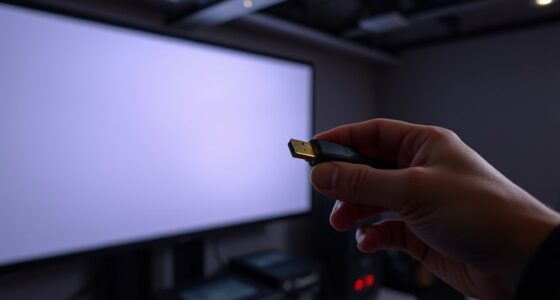
In addition to checking the lamp and power source, ensure your projector’s connections are secure. Loose HDMI or VGA cables can sometimes lead to flickering images. Disconnect and reconnect these cables to ensure a tight fit. Dust or dirt on the connections can also cause interference, so cleaning the ports carefully can help. If you’re using a wireless connection, instability in the signal can mimic flickering, so verify your connection strength or switch to a wired setup if possible.
Sometimes, flickering is caused by settings within the projector itself. Check if the refresh rate or display mode matches the input source. Adjusting these settings can help stabilize the image. Firmware updates from the manufacturer can also improve performance and fix bugs that might be causing flickering. Keep your projector’s software up to date to avoid known issues. Additionally, automation in modern projectors can sometimes cause flickering if the internal systems are not properly calibrated or if there are compatibility issues, so consulting the user manual or professional support may be necessary.
Finally, if none of these solutions work, consider the internal components like the color wheel or ballast, which may be faulty and require professional repair. However, most flickering issues are resolved by replacing the lamp, ensuring a stable power source, and verifying connections. Regular maintenance and timely lamp replacement can extend your projector’s lifespan and keep your images steady and clear.
As an affiliate, we earn on qualifying purchases.
Frequently Asked Questions
Can Overheating Cause Projector Flickering?
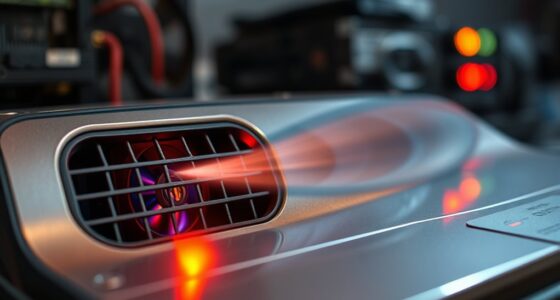
Yes, overheating can cause your projector to flicker. When a projector overheats, it triggers safety mechanisms that may reduce brightness or cause the image to flicker. Overheating is one of the common image flickering causes, often due to blocked vents or a dusty filter. To fix this, make certain proper ventilation, clean filters regularly, and allow the projector to cool down. Addressing overheating prevents flickering and prolongs your projector’s lifespan.
Does Using a Longer HDMI Cable Affect Image Stability?
A longer HDMI cable can sometimes cause unstable images, like a rollercoaster ride for your visuals. The key is cable quality; a high-quality cable minimizes signal interference, ensuring your image stays steady. If you notice flickering with a longer cable, try switching to a better shielded, premium HDMI cable. Keep your connection short or upgrade your cable to maintain a sharp, flicker-free picture.
Is Flickering Related to the Projector’s Color Settings?
Yes, flickering can be related to your projector’s color settings. If the color calibration is off, it might cause unstable image display. Check your input source to make certain it’s compatible and properly configured. Adjust the color settings and calibration in your projector menu. Sometimes, tweaking these options helps stabilize the image, reducing flickering caused by incorrect color profiles or input source issues.
How Often Should I Clean the Projector’s Air Filters?
Think of your projector’s air filters as the lungs of a busy engine; they need regular care to keep everything running smoothly. You should clean the air filters every 100-200 hours of use, or at least once every few months. Regular air filter maintenance prevents dust buildup, which can cause overheating and flickering. Keeping filters spotless ensures your projector stays bright and steady, providing a crisp image every time.
Can Ambient Light Impact Flickering Issues?
Yes, ambient light interference from external light sources can impact flickering issues. Bright lights or sunlight shining on the projector or screen can cause the image to fluctuate or appear inconsistent. To minimize this, reduce external light sources, use blackout curtains, or reposition your projector and screen in a darker area. Managing ambient light helps stabilize the image and prevents flickering caused by external light sources.
As an affiliate, we earn on qualifying purchases.
Conclusion
Think of your projector as a window to your world—when the flickering occurs, it’s like a storm distorting the view. But with the right fixes, you can clear the skies and restore clarity. Each adjustment is a gentle breeze calming the turbulence, revealing a steady, bright image. Soon, your screen will shine like a steady star in the night, guiding your stories and moments with unwavering brilliance. Keep troubleshooting, and let your cinematic universe glow uninterrupted.
As an affiliate, we earn on qualifying purchases.
As an affiliate, we earn on qualifying purchases.
Fall Picks
fall essentials
As an affiliate, we earn on qualifying purchases.